
Order through CollisionLink
Nexsyis doesn’t connect directly to OEConnect. Instead, you send orders through the CollisionLink uploader, which picks up your estimate files.
Set up the CollisionLink uploader
Section titled “Set up the CollisionLink uploader”The uploader may run on your location’s server or on individual computers. It needs to know the folder your estimating system exports EMS files to. If you don’t know that folder, ask your IT team.
- Download the uploader from CollisionLink if it isn’t installed.
- Right-click the uploader icon in the taskbar’s notification area and select Add CollisionLink Import Folder….
- Enter the EMS export folder.
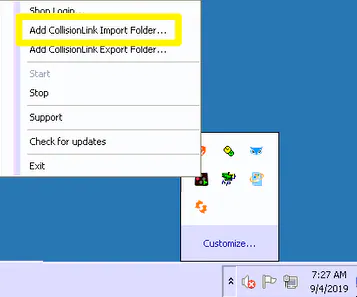
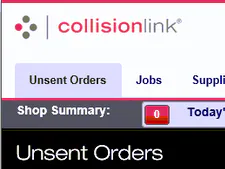
A message at the bottom corner of the screen confirms the folder is being watched. Files exported to it then appear in the Unsent Orders list on CollisionLink.
Set up Nexsyis
Section titled “Set up Nexsyis”For each location, email Nexsyis Support at nexsupport@nexsyis.com with your OEC company ID and the CollisionLink import folder you set up.
Send an order through CollisionLink
Section titled “Send an order through CollisionLink”- On the order screen, select XML.
- Select the green check mark at the bottom. The order uploads through the CollisionLink uploader.
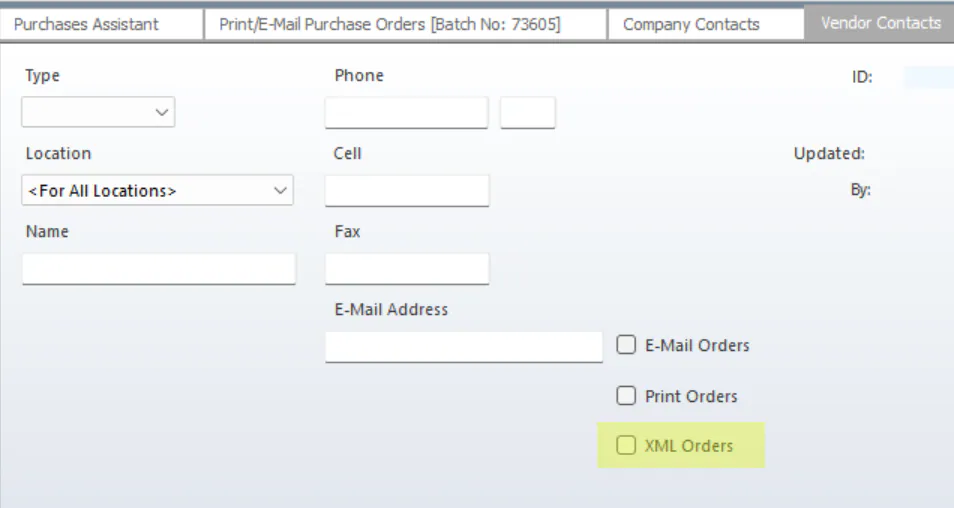
To make XML the default for a vendor, select XML Orders on the vendor’s contact. See Manage vendor contacts.
Troubleshooting
Section titled “Troubleshooting”-
Check the uploader is running. When it’s running, its icon shows a green play button.

-
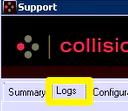
Check the file was uploaded. Right-click the uploader icon and select Support to open the log.
If the upload isn’t in the log, or you see errors, contact CollisionLink support at 888-776-5792.