
Transfer a folder to another location
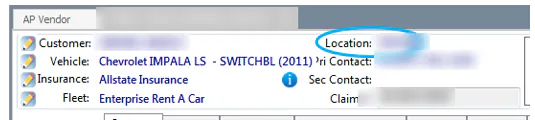
Transfer a folder when the vehicle moves to another of your locations. The folder’s current location shows in the folder header.
Before you begin
Section titled “Before you begin”- You can’t transfer a folder that has been delivered and invoiced. This is true even if you reverse the invoice. If the Transfer Location button isn’t available, this is usually why.
- If the folder has a work order, you need the Transfer folder to another location transaction permission.
Transfer the folder
Section titled “Transfer the folder”-
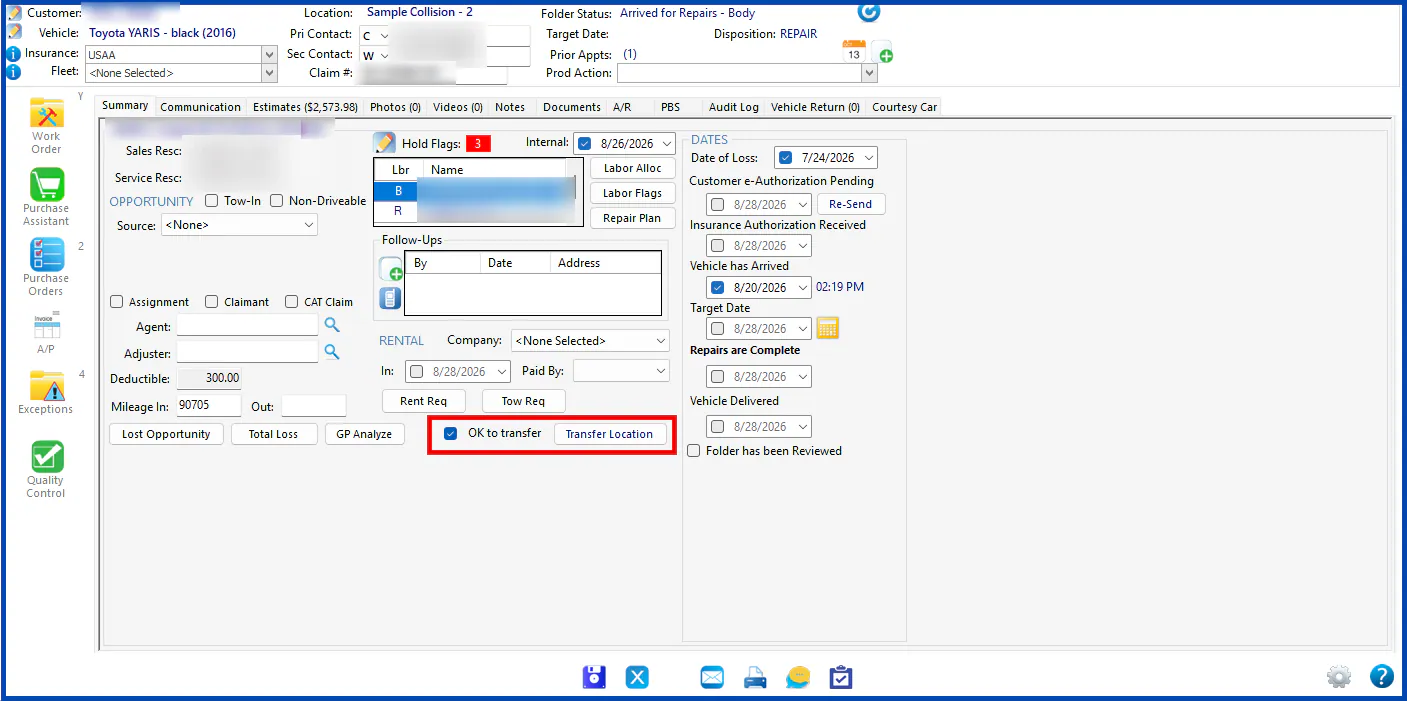
On the folder’s Summary tab, select OK to transfer.
-
Select Transfer Location.
-
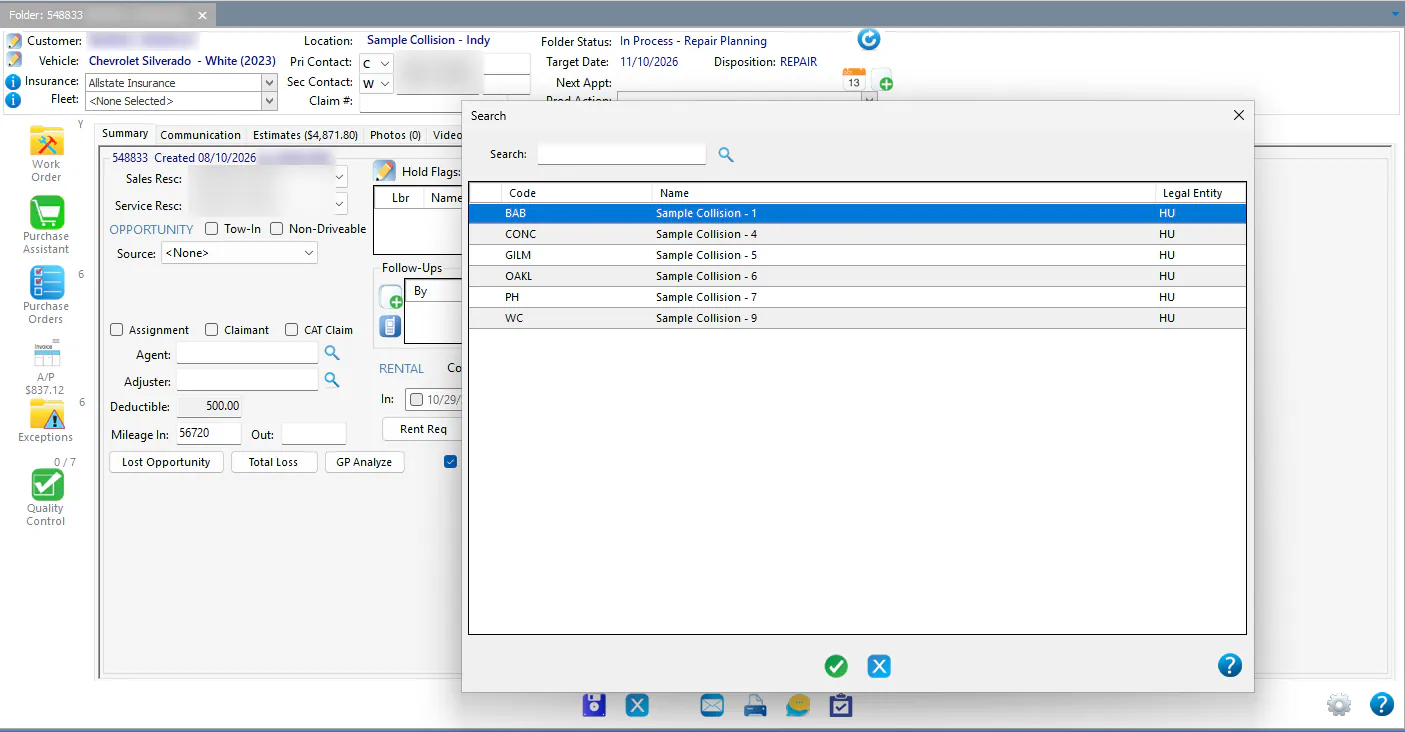
Select the new location from the list. The list shows only locations in the same market as the current location.
-
If the folder has an estimate, you’re asked whether to delete the estimate from the folder. Select Yes to remove it, or No to keep it and remove it later.
The folder header now shows the new location.
See transferred vehicles in the In Process list
Section titled “See transferred vehicles in the In Process list”If the vehicle had a drop appointment at one location and was transferred to another, the Drop column on the Vehicle Center In Process tab shows the location of the drop appointment in black.
If the Drop column isn’t showing, add it with the column chooser. See Customize In Process columns and views.