
Manage courtesy cars
Courtesy cars are your shop’s own loaner vehicles. Nexsyis tracks which cars are available, which are out, and each car’s condition, mileage and fuel. You check a car out to a customer from their folder and check it back in from the same place, so every loaner is tied to the repair it supports.
Before you begin
Section titled “Before you begin”- Your courtesy cars need to be set up. See Set up courtesy cars.
- To add, change or delete courtesy cars on a folder, you need the Courtesy Cars screen permission. To update courtesy car activity, you need the Courtesy Cars Activity transaction permission.
View your courtesy cars
Section titled “View your courtesy cars”Select Operations › Courtesy Cars on the ribbon. The Courtesy Cars screen lists every loaner at the selected location. A car with folder 0 is available. A car with a folder number is checked out to that repair.
- Choose the Market and Location under Filters.
- Select Refresh to load the latest list.
- To sort, select a column header. To group, drag a column header into the bar above the grid. To search, use the magnifying glass.

| Column | What it shows |
|---|---|
| Folder / Customer / Date Out | The repair the car is assigned to, the customer and the date it went out. Folder 0 means the car is available. |
| Name / VIN / License | The courtesy car itself. |
| Mileage / Fuel | The current odometer reading and fuel level. |
| Has Snow Tires | Whether snow tires are on the car. |
| Condition | Notes on existing damage. |
| Windshield Chipped / Windshield Cracked | The windshield’s condition. |
| Prod Action / Internal Date | The production status and internal date from the assigned folder. |
| Unavailable | Marks a car that can’t be loaned right now. |
Update a courtesy car’s condition
Section titled “Update a courtesy car’s condition”Keep each car’s condition up to date in the grid, so the details carry over the next time the car is checked out.
- On the Courtesy Cars screen, select the car’s row.
- Select the Condition cell and type a note about any existing damage, for example “ding in the driver’s side door.” The field has room for a detailed description.
- Select Windshield Chipped or Windshield Cracked if they apply.
- Update Mileage, choose the Fuel level, and select Has Snow Tires if needed.
- Select Save at the bottom of the screen.
Record activity for a courtesy car
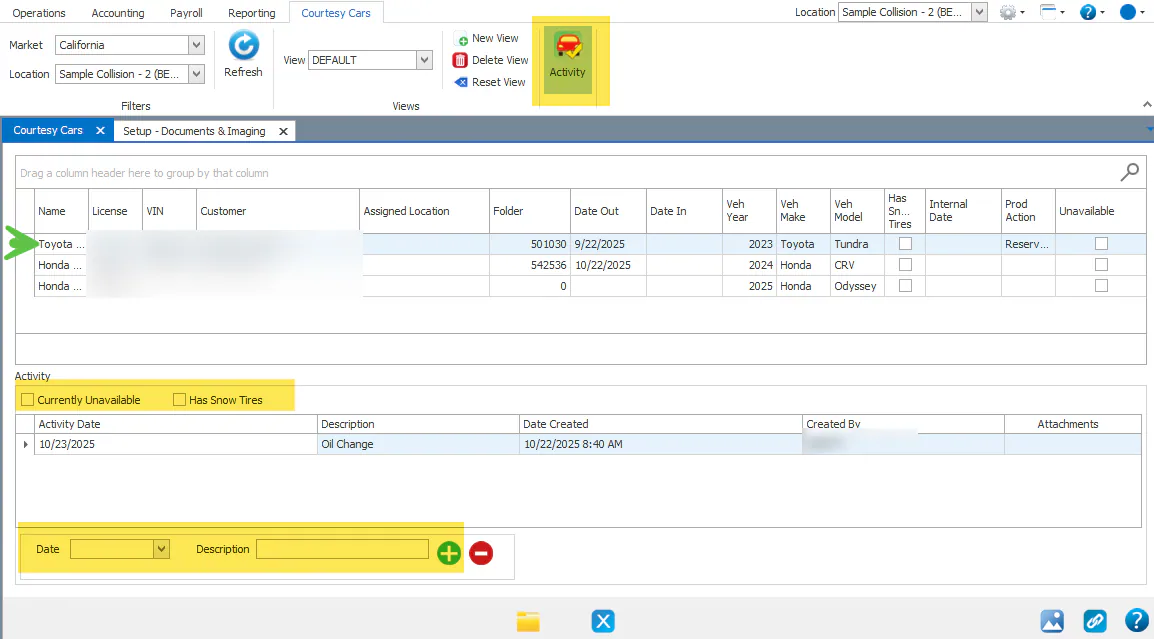
Section titled “Record activity for a courtesy car”- On the Courtesy Cars screen, select the car, then select Activity.
- Select Currently Unavailable to remove the car from selection, or Has Snow Tires.
- To record activity such as maintenance, enter the Date and Description, then select the green plus button.
Check out a courtesy car to a folder
Section titled “Check out a courtesy car to a folder”When you choose a car, Nexsyis fills in its current mileage, fuel, windshield and condition for you.
-
Open the customer’s folder.
-
Select the Courtesy Car tab.
-
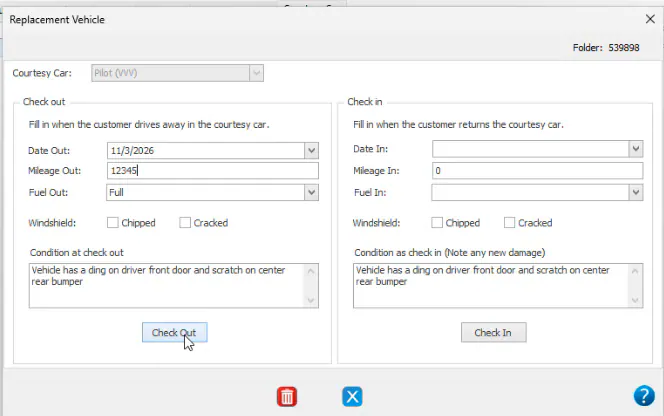
Select the green + at the bottom of the screen. The Replacement Vehicle window opens.
-
Choose the car from the Courtesy Car drop-down. Only courtesy cars that aren’t assigned to a folder are listed. Fill in the Date Out, Mileage Out, Fuel Out and Condition at check out boxes. Select Chipped or Cracked if the windshield has chips or cracks.
-
Confirm the details with the customer and correct anything that has changed.
-
Select Check Out.
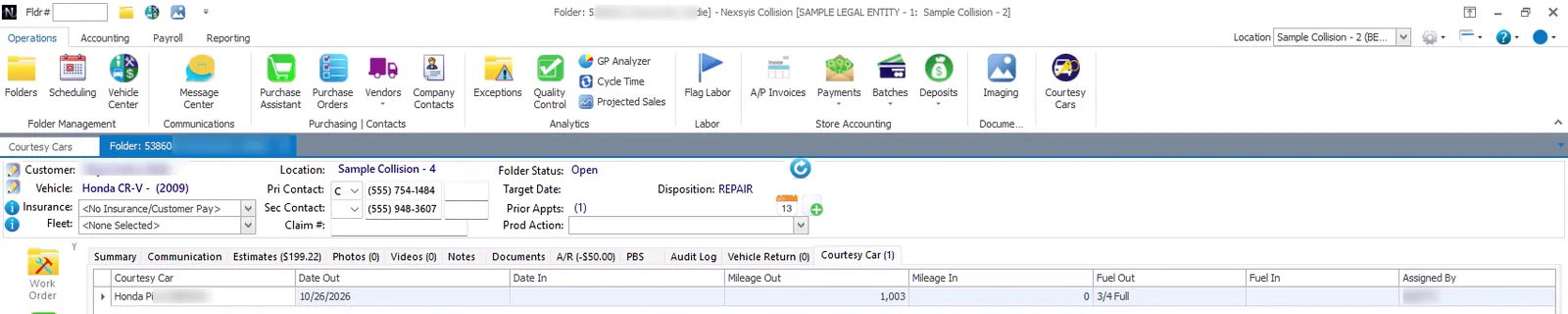
The car shows on the folder’s Courtesy Car tab with Date Out, Mileage Out, Fuel Out, and Assigned By set to you. The green + is unavailable while a car is assigned to the folder. On the Courtesy Cars screen, the car shows the folder number and customer after you select Refresh.
Reserve a courtesy car for a folder
Section titled “Reserve a courtesy car for a folder”To hold a car for a customer before they pick it up, assign it to the folder without a Date Out.
-
Follow steps 1–4 in Check out a courtesy car to a folder.
-
Leave Date Out empty.
-
Select Check Out.
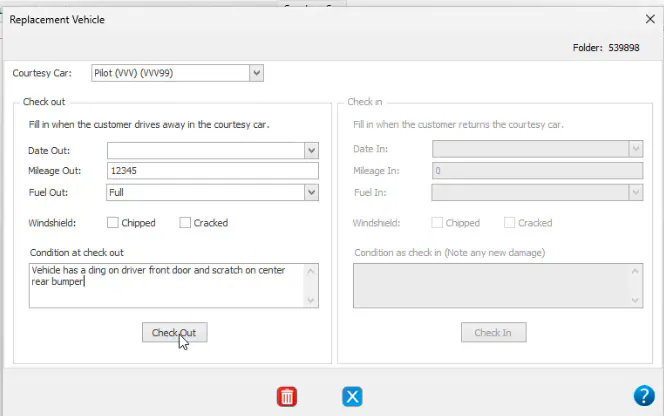
The car is assigned to the folder and no longer offered to other folders. When the customer picks it up, double-click the car’s row on the folder’s Courtesy Car tab, enter the Date Out, and select Check Out.
Change the check-out details
Section titled “Change the check-out details”You can change the fuel, mileage and condition any time before the car is checked in.
- Open the customer’s folder and select the Courtesy Car tab.
- Double-click the car’s row. The Replacement Vehicle window opens.
- Under Check out, change Mileage Out, Fuel Out or Condition at check out.
- Select Check Out.
Check a courtesy car back in
Section titled “Check a courtesy car back in”When the customer returns the car, check it in from the same folder. This frees the car for the next customer.
-
Open the customer’s folder and select the Courtesy Car tab. Or, on the Courtesy Cars screen, select the car’s row and select Open Folder.
-
Double-click the car’s row. The Replacement Vehicle window opens.
-
Under Check in, enter Date In, Mileage In and Fuel In. All three are required to check the car in.
-
Update the Chipped and Cracked windshield boxes, and add any new damage under Condition as check in.
-
Select Check In.
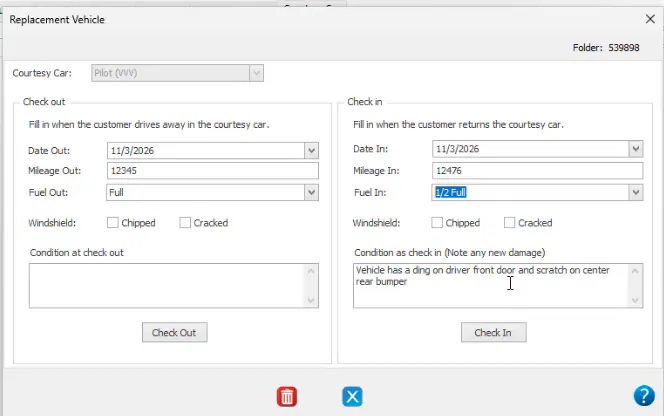
After check-in, the details in the Replacement Vehicle window can no longer be changed. The folder’s Courtesy Car tab shows the Date In, Mileage In and Fuel In. On the Courtesy Cars screen, select Refresh. The car is back on folder 0 with its updated mileage, fuel and condition, ready to loan again.
Add courtesy car details to customer paperwork
Section titled “Add courtesy car details to customer paperwork”You can add the courtesy car fields to your folder print paperwork for customer authorization, for example the license plate, fuel level, condition and windshield.
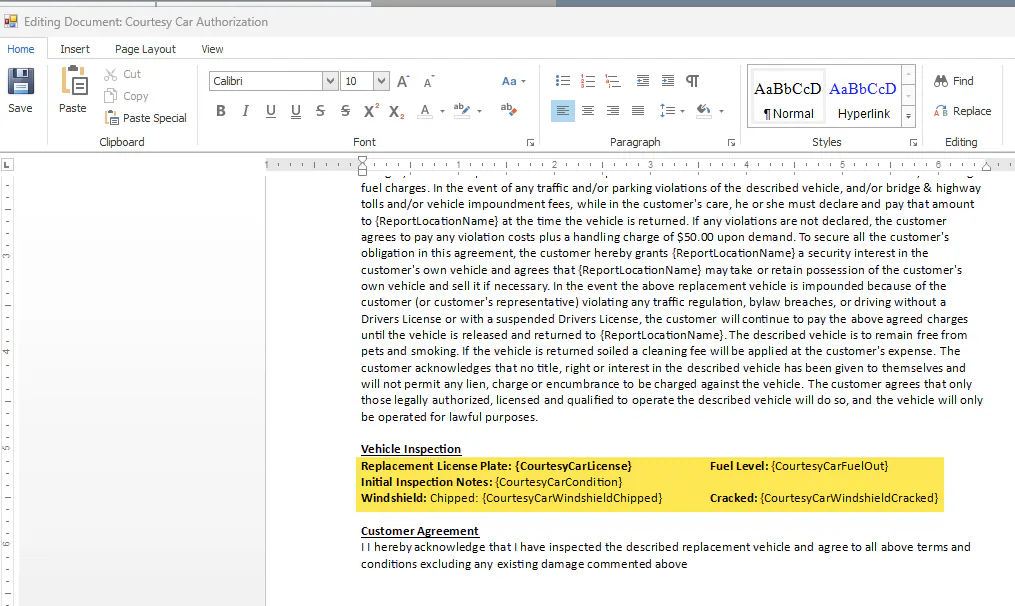
See Set up customer paperwork.
View courtesy car history
Section titled “View courtesy car history”To review courtesy car use and activity, run the Courtesy Cars report under Reporting › Reports › Operations.