
Split a payment between AR and non-AR
A payment doesn’t have to go entirely to a folder. On each distribution line you can choose whether that part is AR, non-AR or unapplied.
If the whole payment is non-AR, enter it on the non-AR payment screen instead. See Record a non-AR payment.
Choose how each line is applied
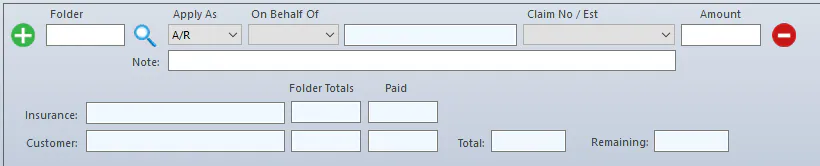
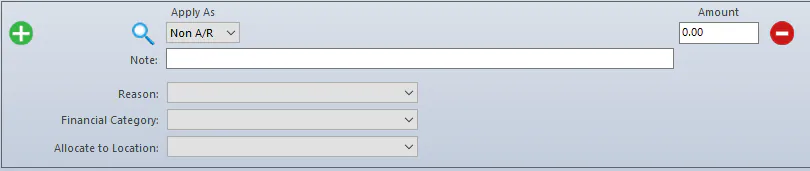
Section titled “Choose how each line is applied”On the payment’s distribution lines, choose the type in Apply As. The fields change to match:
-
A/R: applies the amount to a folder. Enter Folder, On Behalf Of, Claim No / Est and Amount, as in Enter an AR payment.
-
Non A/R: applies the amount to a financial account. Enter the Reason, Financial Category and Allocate to Location.
-
UnAppld: holds the amount as unapplied, with a Note.

If the first line isn’t A/R, you may need to select the new distribution button to add the line to the list.
One check for an AR balance and a non-AR amount
Section titled “One check for an AR balance and a non-AR amount”Sometimes one check pays a folder balance and something else, for example part of the check is an AR payment and the rest is a labor credit. Use either option.
Option 1: one payment, then a non-AR payment for the credit
Section titled “Option 1: one payment, then a non-AR payment for the credit”- Enter the payment to the folder, and enter the remaining amount as non-AR to the same financial category as the credit memo.
- Create a non-AR payment for the labor credit using the vendor refund option, with a second, negative line for the same financial category you used in the first payment.
This creates a $0 check, applies the amount to the open credit memo, and lets you deposit the non-AR payment and the full payment together.
Option 2: two payments
Section titled “Option 2: two payments”Split the check into two payments: enter one on the AR payment screen and the other on the non-AR payment screen. Deposit the two payments together.