Set technician priorities and print production lists
Use the Techs and Pri columns on the In Process list to see each technician’s work, print it, and set the order vehicles should be worked on.
Before you begin
Section titled “Before you begin”Show the Techs column on the In Process list. It lists every technician allocated to the job. It’s different from the Tech column, which shows only the body technician. To add a column, see Customize In Process columns and views.
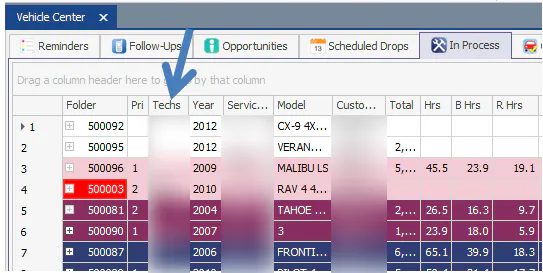
Filter by technician
Section titled “Filter by technician”-
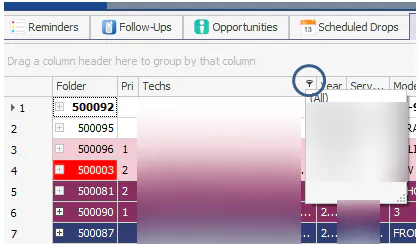
Point to the Techs column header and select the filter (funnel) icon. A list of the technicians in the grid opens.
-
Select a technician.
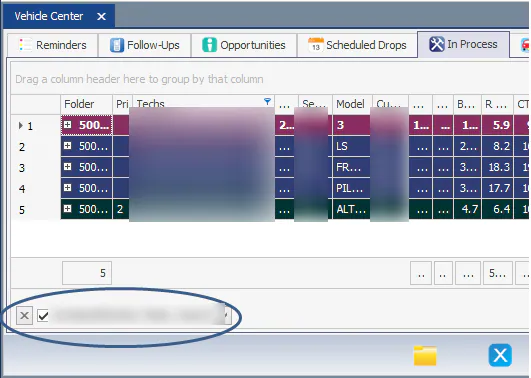
The grid shows only the folders that technician is assigned to. The filter shows at the bottom left of the grid. To clear it, select the X in front of the filter.
Print a technician’s list
Section titled “Print a technician’s list”- Filter the grid by the technician.
- Select the print button (printer icon) at the bottom of the screen.
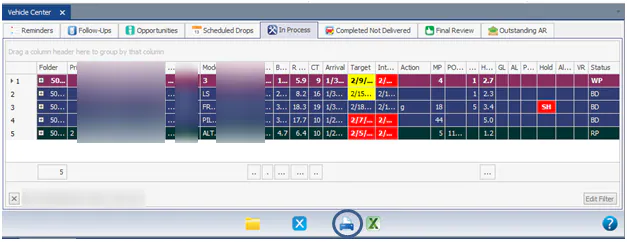
The printout shows the grid as it is on screen. Nexsyis sizes the columns to fit as much as possible; if something is cut off, widen the column in the grid and print again.
Set priorities
Section titled “Set priorities”The Pri column holds a priority number. Priorities are kept separately for the whole location and for each technician:
- Priorities you set with no technician filter (the location view) don’t show when you filter by a technician.
- Priorities you set while filtered by a technician don’t show when you remove the filter.
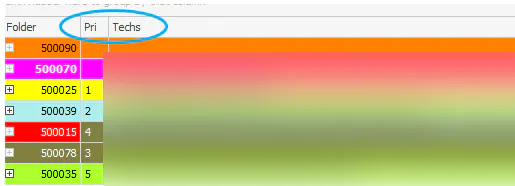
To see every technician allocated to a job, select the + at the start of the row.
Set priorities for the location
Section titled “Set priorities for the location”With no technician filter, type the priority number in the vehicle’s Pri cell.
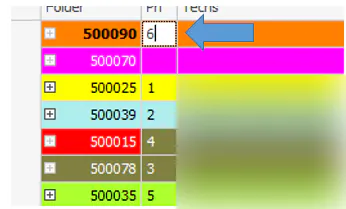
Set priorities for one technician
Section titled “Set priorities for one technician”-
Filter the grid by the technician.
-
Type the priority number in the vehicle’s Pri cell.
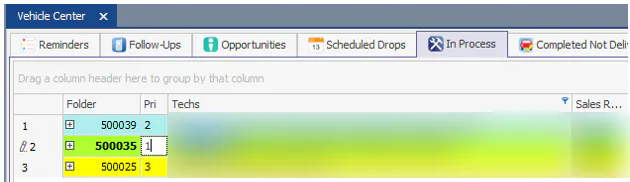
-
To go back to the location view, select the small X at the bottom left of the grid.