
Refund a card payment
Refund a card payment after its batch has been finalized. How you refund depends on the original card, the card type and your country.
All refunds start on the Refunds screen.
Refund to the original card
Section titled “Refund to the original card”Nexsyis uses the original payment’s CC Order ID to link the refund to it. You can make several refunds against one payment, but the total refunded can’t be more than the original payment. The card doesn’t need to be present.
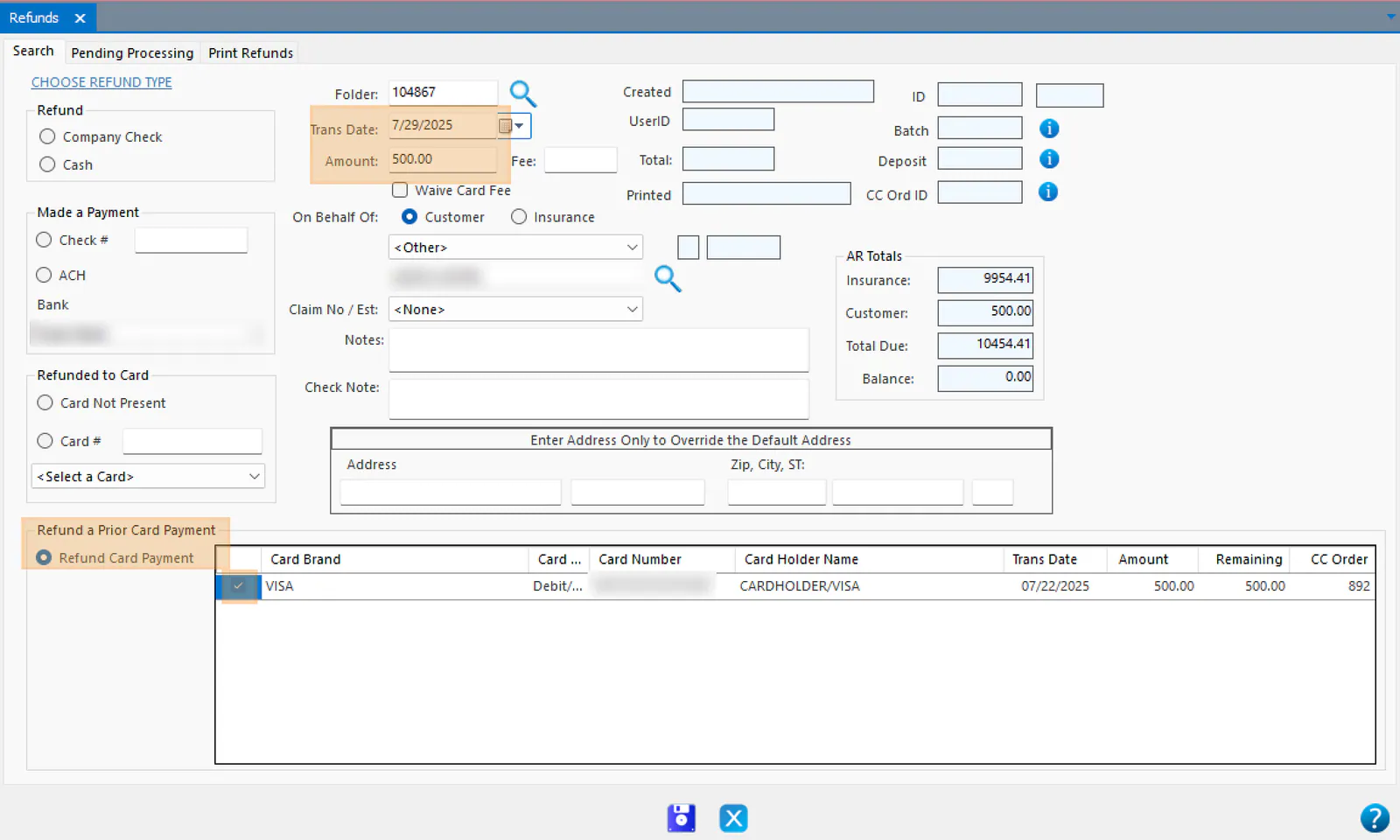
- Enter the Trans Date.
- If the refund is for a different amount than the original, enter the Amount.
- Under Refund a Prior Card Payment, select Refund Card Payment.
- Select the original payment you’re refunding.
- Select Save to process the refund.
Refund to a different card
Section titled “Refund to a different card”Use this when the original card is no longer active. The refund is a card-not-present transaction.
You need the Create Card Not Present Refunds transaction permission.
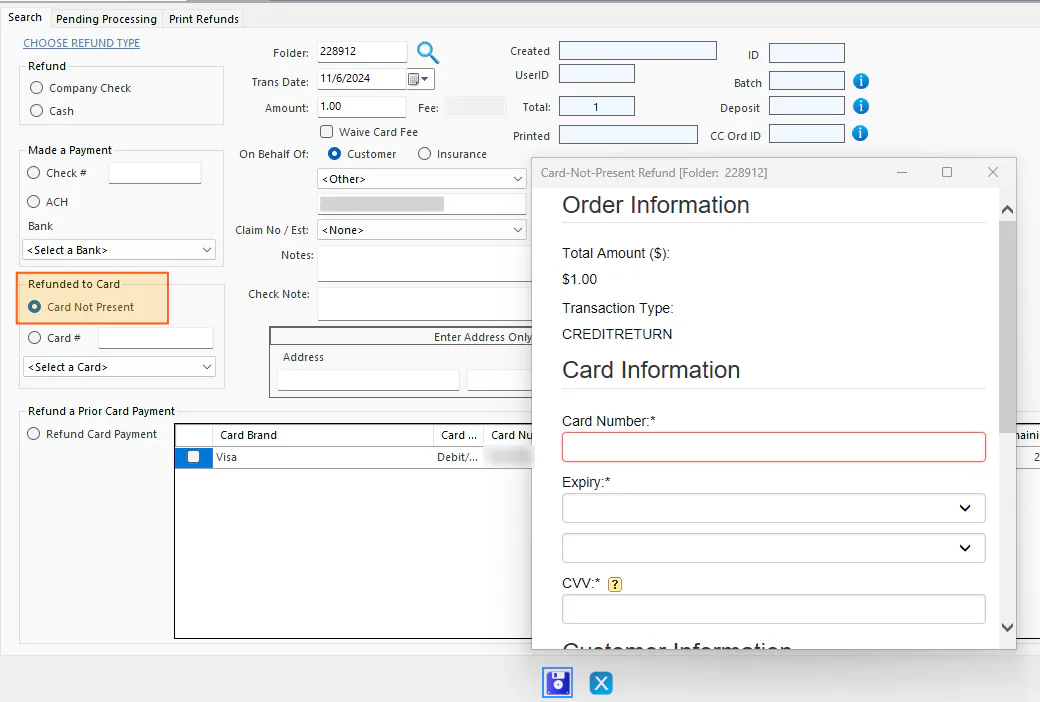
- Enter the Trans Date.
- If the refund is for a different amount than the original, enter the Amount.
- Under Refunded to Card, select Card Not Present.
- Select Save.
- In the card entry window, enter the card number, expiration date, CVV and billing ZIP code. You may need to scroll to see the whole form.
- Select Make Payment.
Refund to a debit card
Section titled “Refund to a debit card”United States
Section titled “United States”In the US, a debit card refund can’t be processed as a true debit transaction. Process it as a credit card refund instead, using the same steps as Refund to a different card.
Canada
Section titled “Canada”In Canada, a true debit refund must be a full refund and must be done on the terminal. Partial debit refunds aren’t supported: the refund amount must equal the original debit payment.
- Double-click the original payment to open it.
- Select the Reverse icon at the bottom of the screen.
- Select Yes to confirm.
- Select Yes again to continue.
- Insert or swipe the card on the terminal.