Reset a user's password
When a user forgets their password, set a temporary one for them. They then change it to a password of their choice the next time they sign in.
Reset the password
Section titled “Reset the password”-
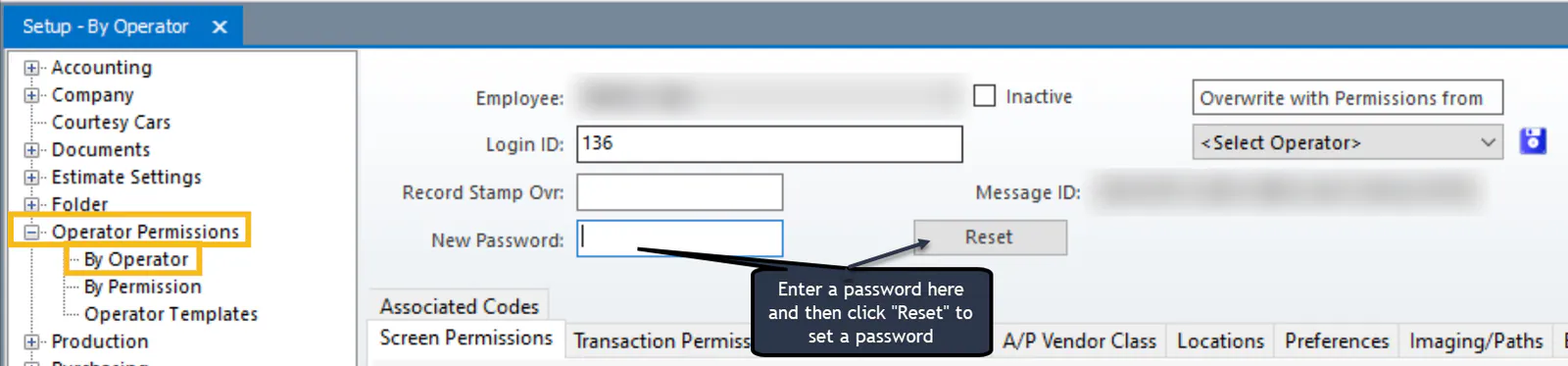
Open Setup › Operator Permissions › By Operator.
-
Search for the employee’s name and open their record.
-
Enter a password in the New Password field.
-
Select Reset.
-
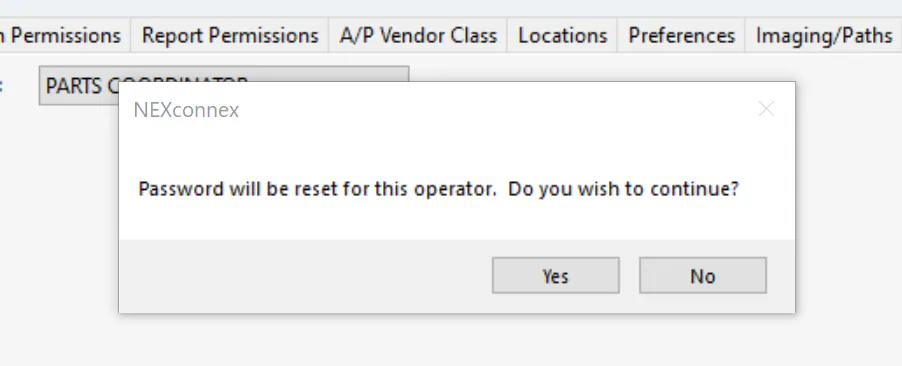
Select Yes to confirm.
Give the user the temporary password.
Change the password at sign-in
Section titled “Change the password at sign-in”The user changes the temporary password to their own:
-
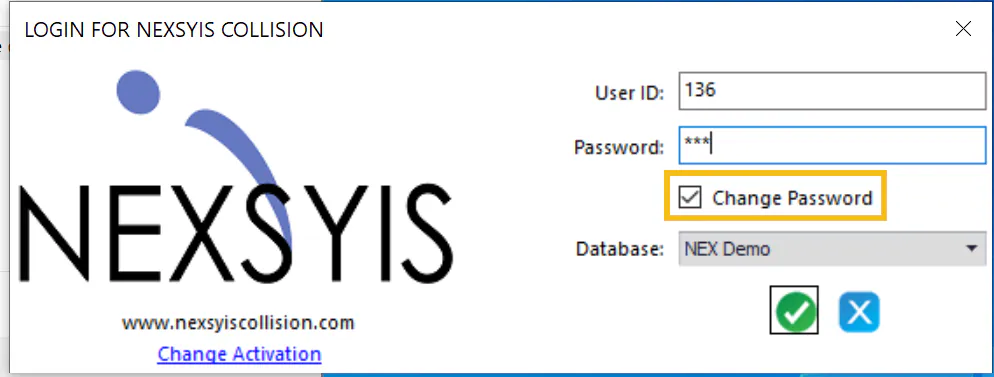
On the Nexsyis login window, enter the User ID and the temporary Password.
-
Check Change Password.
-
Select the green check button.
-
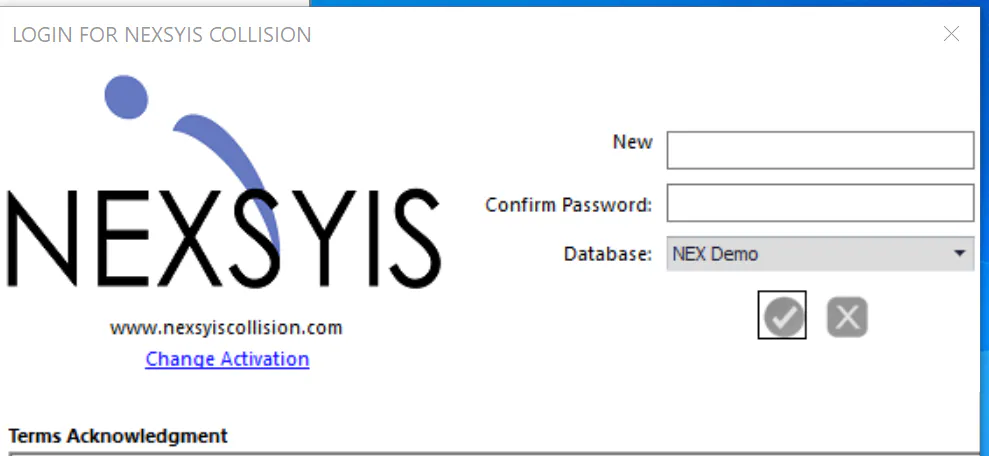
Enter the new password in New and Confirm Password, then select the green check button.