
Filter and sort the In Process list
Filter the In Process list to see only the vehicles you need, for example vehicles due this week. These steps work in any Vehicle Center date column. For searching, sorting and grouping any grid, see Search, filter and save grid views.
Filter a date column quickly
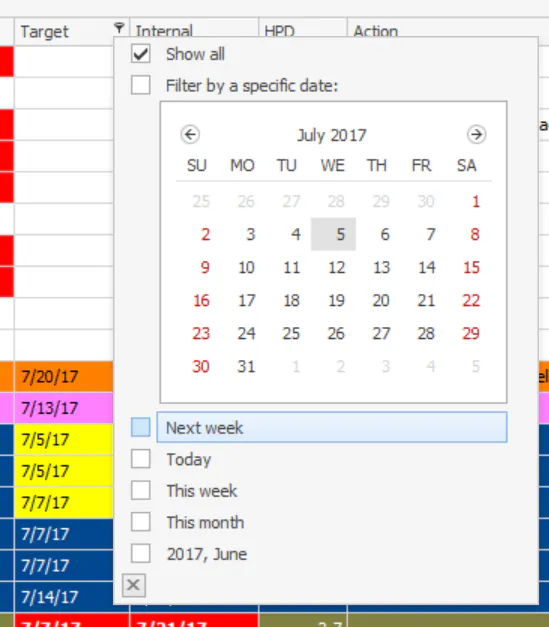
Section titled “Filter a date column quickly”Select the filter icon at the top right of the date column header, then choose a specific date or a preset such as Today, Next week, This week or This month.
The presets match the dates in the grid. For example, if no dates in the grid fall last week, you won’t see a last-week option.
Filter by a custom date range
Section titled “Filter by a custom date range”-
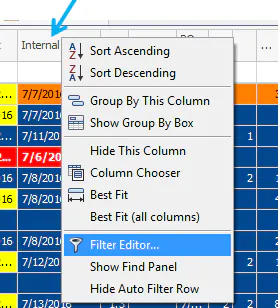
Right-click the date column header and select Filter Editor….
-
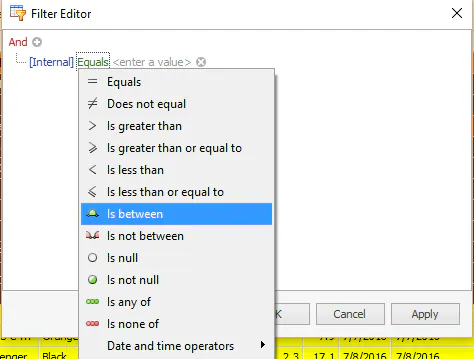
The Filter Editor opens with the column name in blue. You can select any of the colored text to change it.
-
Select the green Equals, then select Is between.
-
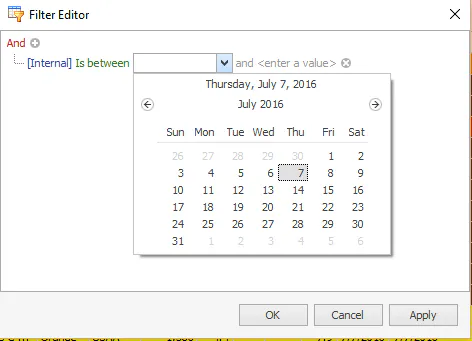
Select the first <enter a value> and choose the start date. Select the second <enter a value> and choose the end date.
-
Select OK.
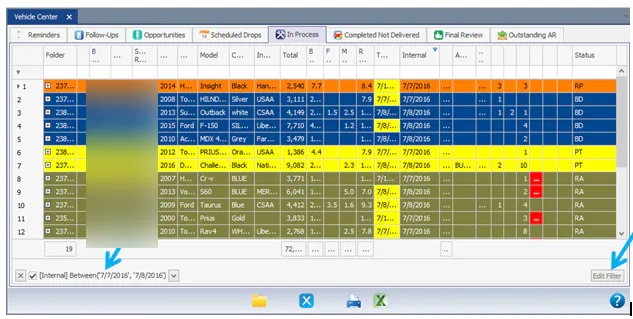
The grid shows only the vehicles in that date range, and the filter shows at the bottom left. To change it, select Edit Filter at the bottom right.
Show all technicians again
Section titled “Show all technicians again”If folders you expect aren’t showing in the Vehicle Center, the view may have been saved with only some technicians selected in the Technician(s) filter.
-
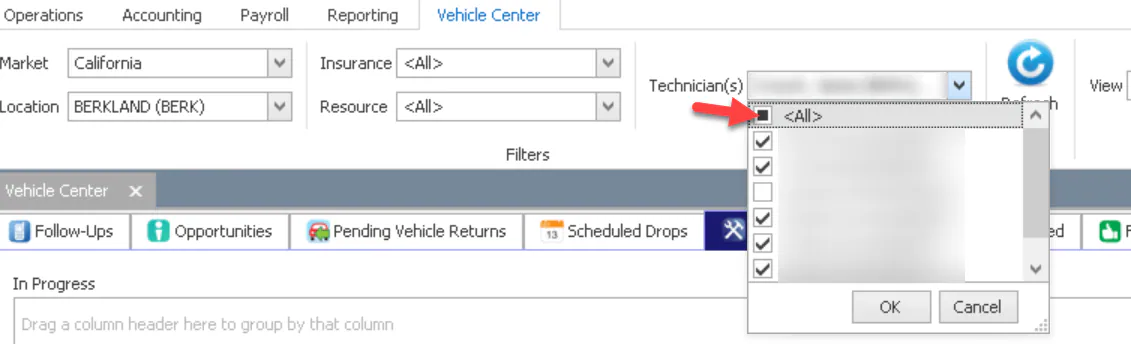
Open the Technician(s) drop-down. Uncheck and then check <All> so every technician is selected, then select OK.
-
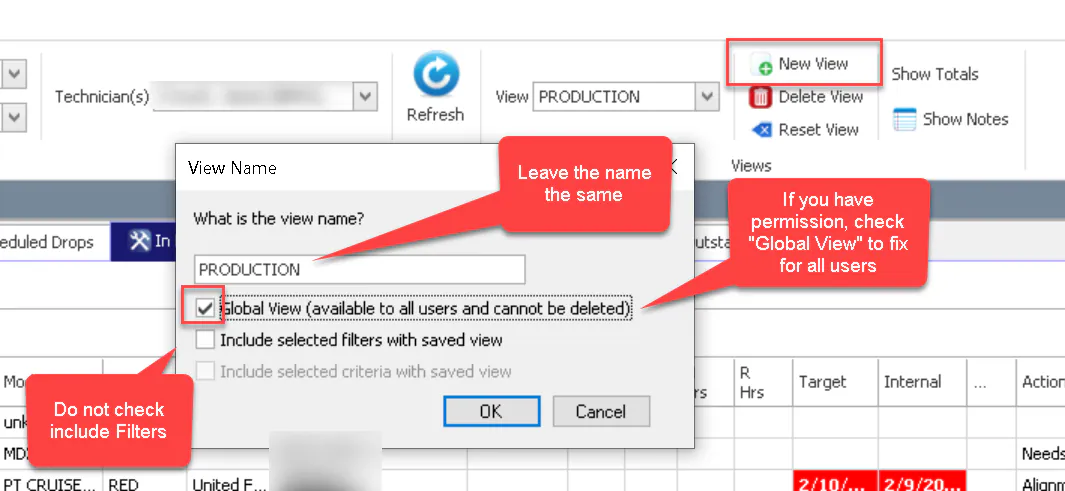
Select New View to save the view again:
- Leave the view name the same, so it saves over the existing view.
- If you have permission, check Global View to fix the view for all users.
- Don’t check Include selected filters with saved view.
-
Select OK.