
Folder overview
A folder is the record for one repair. It holds the customer, vehicle, estimates, work order, parts, notes, documents and payments for that repair, so everything you need is in one place.
The Summary tab
Section titled “The Summary tab”The Summary tab is the first tab of the folder. When you check in a customer, you record most of the folder’s information here.
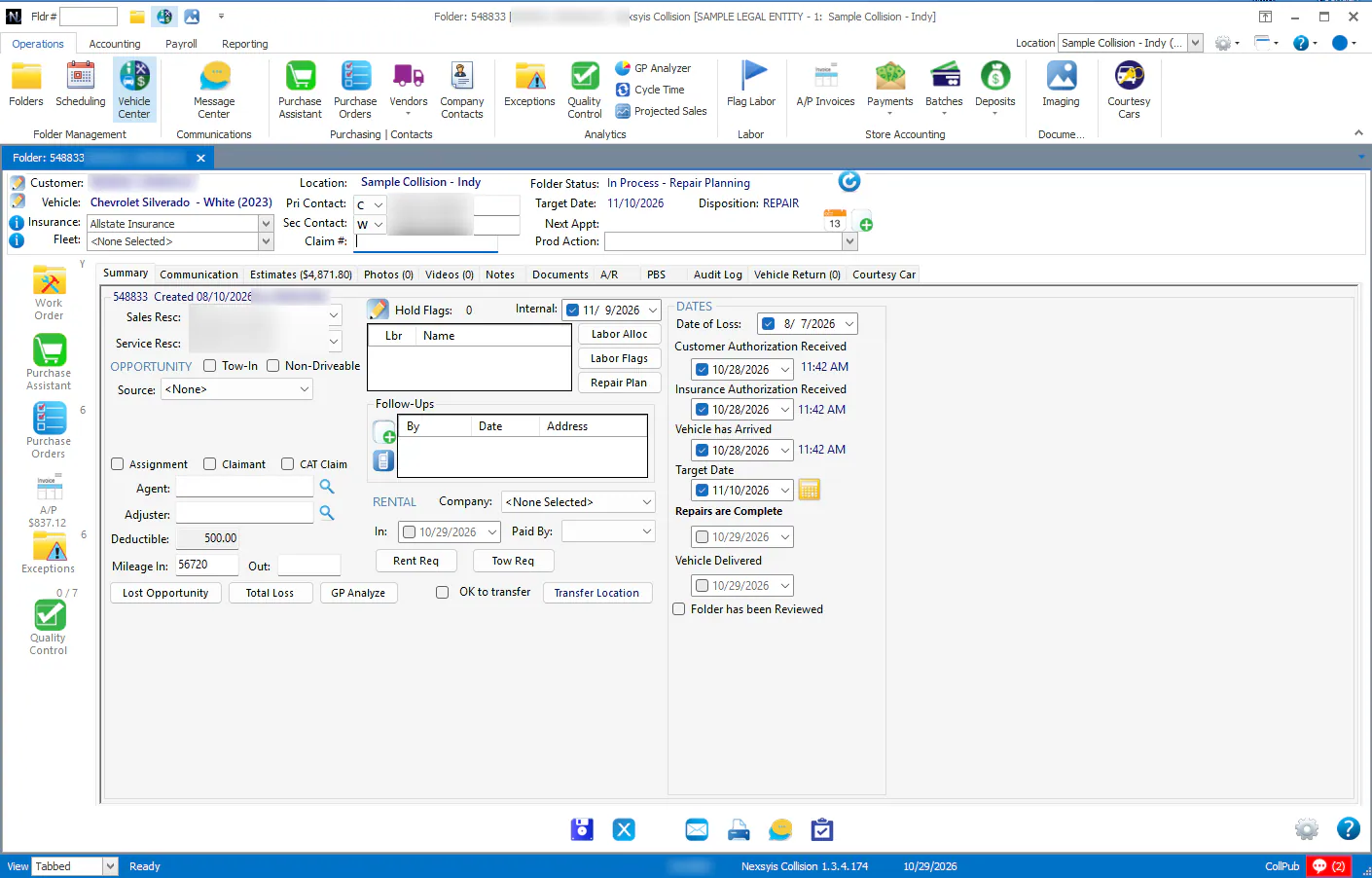
The Summary tab has these areas:
- Resources: Sales is the resource who captured the job. Service is the estimator handling the job.
- Opportunity:
- Tow-In: if this isn’t selected, the vehicle is assumed to be a drive-in.
- Non-Driveable: select this if the vehicle can’t be driven.
- OK to transfer: select this if the customer gives permission to transfer the vehicle.
- Source: how the customer heard about you.
- Referral: who referred the customer.
- Related: anyone else involved, for example the insurance agent.
- Insurance:
- Assignment: select this if the repair is an assignment from the insurance company. See Insurance assignments overview.
- Claimant: select this if the customer is claiming on another person’s insurance (a third-party claim), not their own policy.
- CAT Claim: select this for a catastrophe claim, such as hail damage.
- Agent and Adjuster: select the insurance agent and the adjuster for the claim. Use the search button to find them.
- Deductible: fills in from the primary estimate. If no estimate is uploaded, you can enter it yourself. It shows on customer paperwork.
- The technician list, under Hold Flags: shows the technicians allocated to the job.
- Internal, next to Hold Flags: the date technicians believe they’ll be done with repairs. Don’t share it with the customer.
- Labor Alloc: opens the Labor Allocation screen, where you allocate work to technicians.
- Labor Flags: shows flag details after flag labor has been processed.
- Repair Plan: opens the Repair Plan window, where you view and change the vehicle’s repair stage. See Repair plan overview.
- Follow-Ups: shows the next scheduled customer follow-up. Use the add button to create or edit a follow-up.
- Rent Req: creates a rental request report to print or email. It can be different from the information in the Rental fields.
- Dates:
- Date of Loss: the date the vehicle was damaged.
- Customer Authorization Received: the date and time the customer authorized the repair.
- Insurance Authorization Received: the date and time the insurance company authorized the repair.
- Vehicle has Arrived: marking this date moves the vehicle onto the In Process tab.
- Target Date: the date you promise the customer the vehicle will be ready. Use the calculator to set it. See Set the target date.
- Repairs are Complete: the date repairs were finished. See Mark a vehicle as complete.
- Vehicle Delivered: the date the vehicle was returned to the customer. See Mark a vehicle as delivered.
- Folder has been Reviewed: used by a manager to mark the folder reviewed after completion or delivery.
The buttons at the bottom of the tab:
- Lost Opportunity: you won’t be repairing the vehicle. See Mark a folder as a lost opportunity.
- Total Loss: mark the vehicle as a total loss. See Handle a total loss.
- GP Analyze: the gross profit report for this folder.
- Tow Req: create a tow request for this vehicle.
- Transfer Location: transfer the vehicle to a different location. It isn’t available after the folder has been delivered and invoiced. See Transfer a folder to another location.
The NexsyisNow folder
Section titled “The NexsyisNow folder”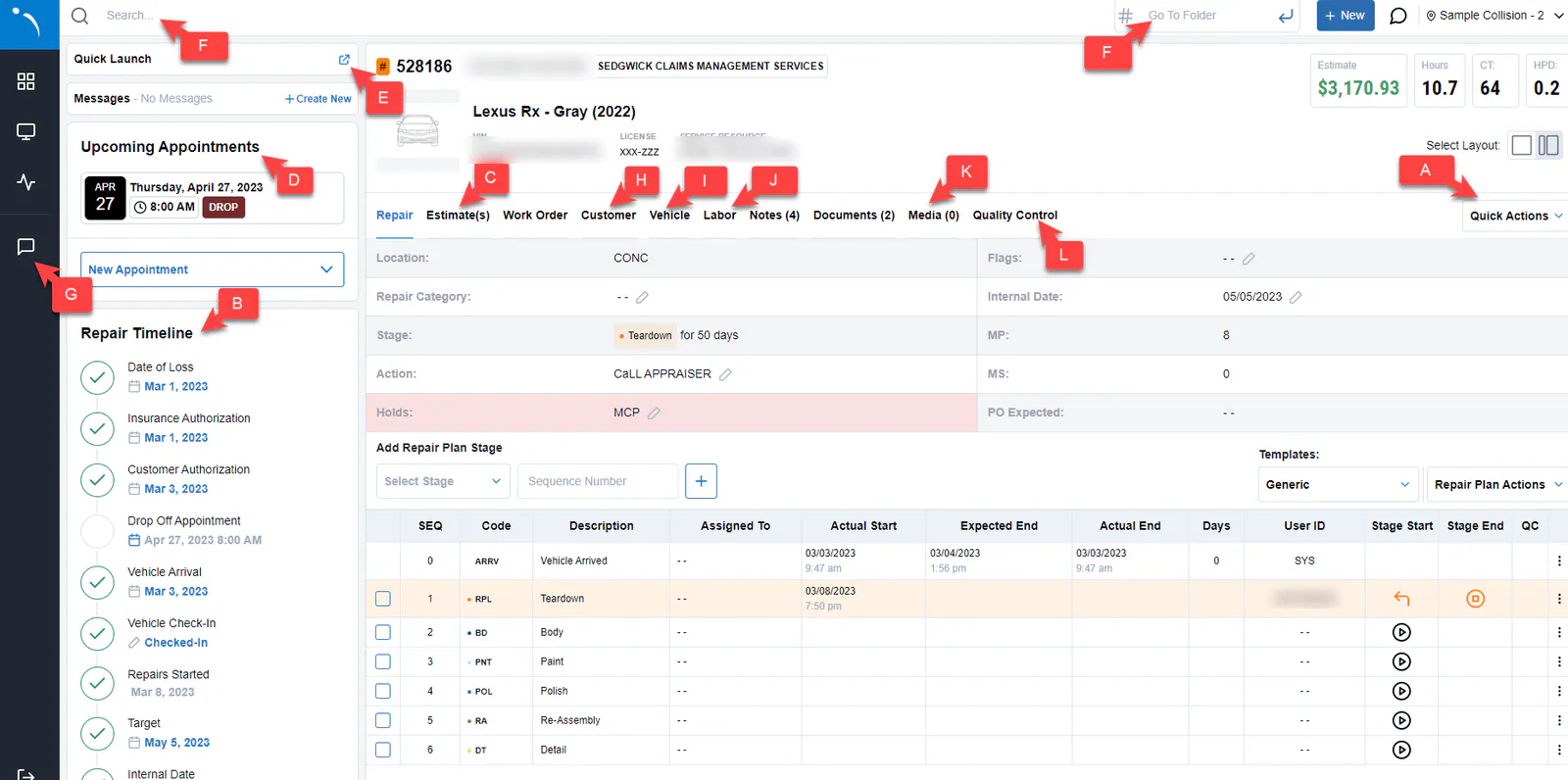
- A. Quick Actions: mark the folder as a lost opportunity or a total loss, upload and capture photos and videos, and create a vehicle return.
- B. Repair Timeline: set the date of loss, view appointments, see the date repairs started (the date the first stage was started), launch Vehicle Check-In, and see the date the folder was reviewed.
- C. Estimate(s) tab: mark an estimate inactive or remove it.
- D. Upcoming Appointments: shows upcoming appointments for the folder.
- E. Quick Launch: send a payment link, or open any e-document set in a new tab for the customer to sign.
- F. Search: browse recent folders and create a new folder. You can search by VIN, name, claim number or phone number. To search by folder number, use the Go To Folder box. See Find a folder.
- G. Customer messaging: available to users with the View Customer Messages transaction permission.
- H. Customer tab: the customer’s address, contact, referral and rental information. Customer personal information can be restricted with the View customer PII transaction permission.
- I. Vehicle tab: includes the vehicle’s drive status (drivable or non-drivable).
- J. Labor tab: view and allocate labor.
- K. Media tab: photos and videos. You can also download photos here.
- L. Quality Control tab: you can add more than one QC photo to a QC step.
Mobile portrait view
Section titled “Mobile portrait view”On a phone held upright, the folder fits a narrower layout.
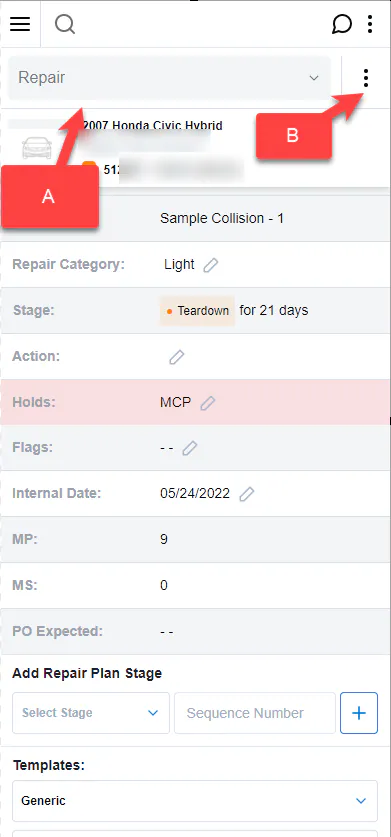
- A. Drop-down menu: select it to move between areas of the folder, such as the repair timeline, estimate, work order, and customer and vehicle information.
- B. Quick action menu: mark the folder as a lost opportunity or a total loss, upload and capture photos and videos, and create a vehicle return.
Open a folder in the mobile app
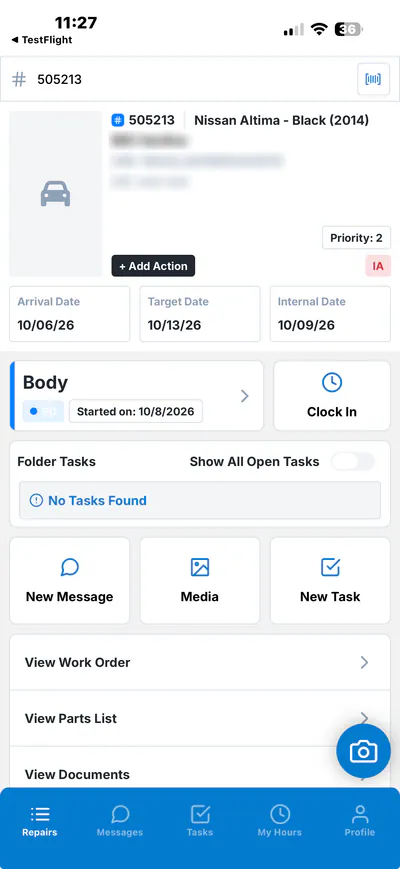
Section titled “Open a folder in the mobile app”Opening a folder in the Nexsyis mobile app shows everything you need for that repair in one place. To find a folder, see Find a folder.
Repair details
Section titled “Repair details”The top of the folder shows:
- Arrival date
- Target date
- Internal date
- Hold flags, for example IA for insurance authorization
- Priority
Use Add Action to take actions on the folder.
What you can do from the folder
Section titled “What you can do from the folder”- Clock in or out of the repair. See Clock in and out of repairs.
- Add photos and videos. See Add photos to a folder.
- Complete repair stages.
- View the work order. See View a work order.
- Create a task or message linked to the folder. Turn on Show All Open Tasks to see every open task on the folder, not just yours. See Assign and complete tasks and Message your team.
Folder Hours
Section titled “Folder Hours”Shows the clocked and flagged hours for the folder.
View Documents
Section titled “View Documents”Lists the documents and files uploaded to the folder.
View Parts List
Section titled “View Parts List”The parts list is the same one you see in NexsyisNow. It updates as parts are received.