
Customer communication overview
Nexsyis keeps customers up to date by text and email, and records every message on the folder’s Communication tab. Messages can include a link to the Customer Portal, where customers check on their repair.
The Communication tab
Section titled “The Communication tab”- Automatic messages. Your company can set up messages that send automatically, such as appointment reminders, document signature requests and repair status updates. See Set up customer messaging templates.
- Text or email. When you create a folder, Nexsyis looks for a valid cell phone number and selects Communicate by text. If it can’t find one, it looks for an email address and selects Communicate by e-mail.
- A record of every message. Each message sent to the customer, and each reply, is recorded on the Communication tab.
- Opting out. Customers can opt out directly from a text or email. See Handle customer opt-outs.
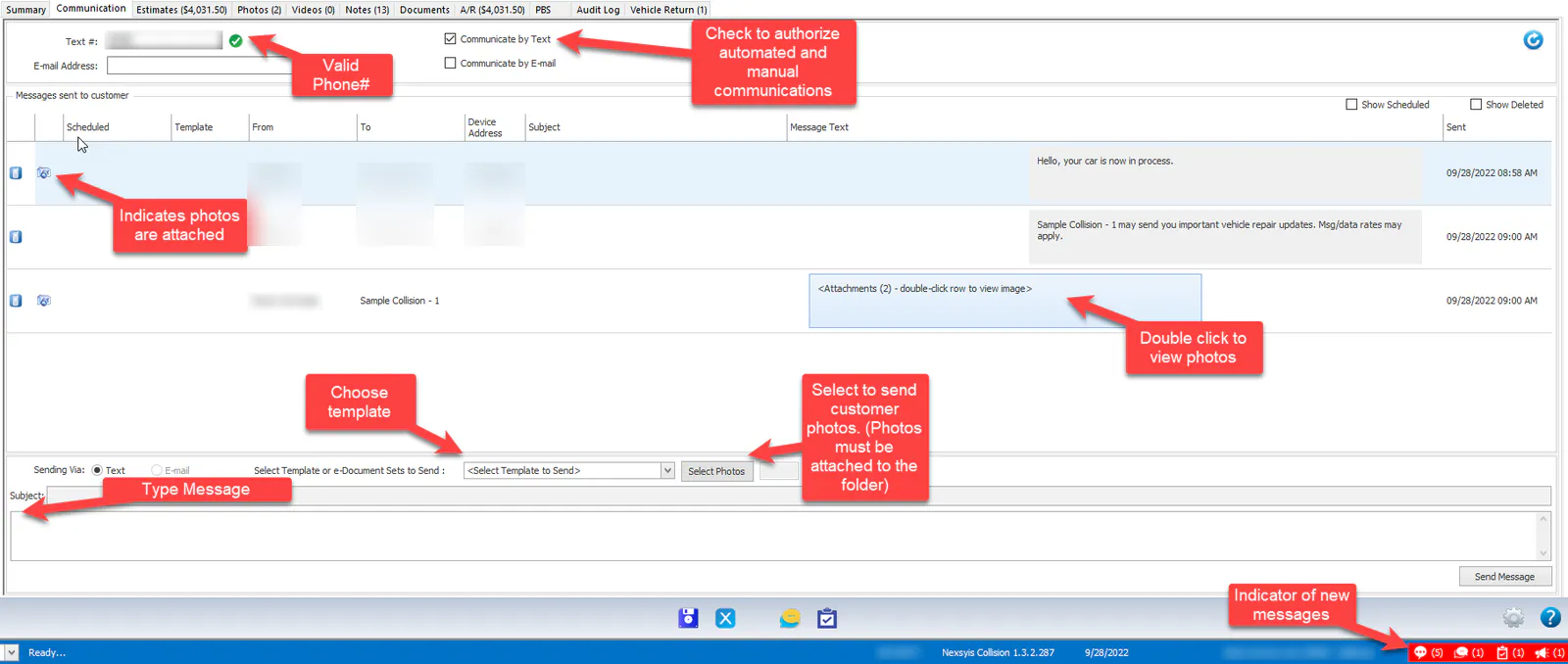
Edit a template before you send it
Section titled “Edit a template before you send it”After you choose a template, you can change its text to add more information before you send it.
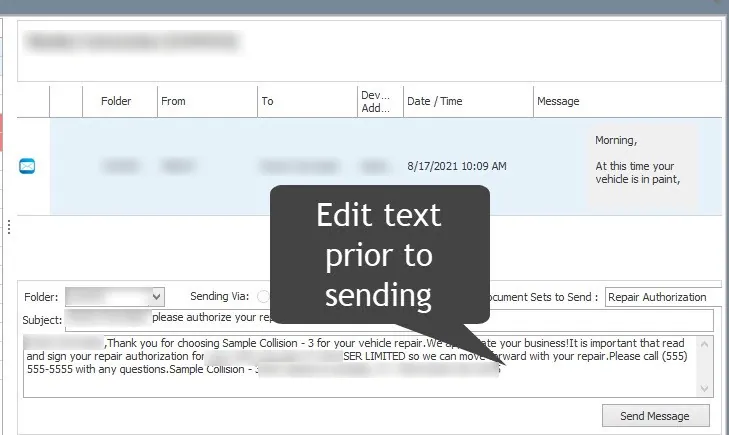
View or delete scheduled messages
Section titled “View or delete scheduled messages”-
On the Communication tab, select Show Scheduled. Messages scheduled for later show with the date and time they’ll send.
-
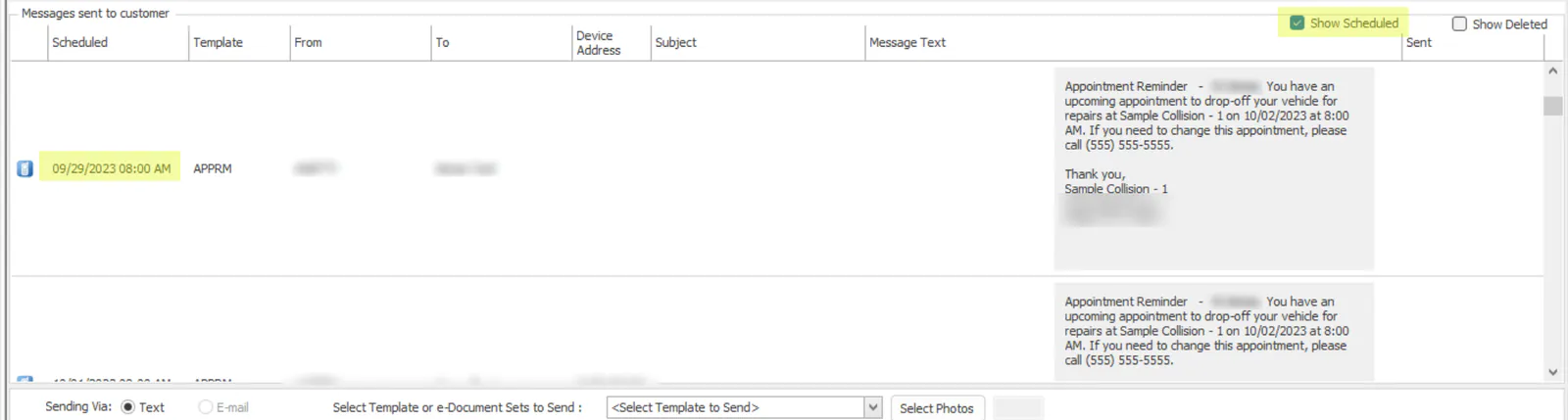
To stop a scheduled message from sending, right-click it and select Delete.
To see deleted messages, select Show Deleted.
The Customer Portal
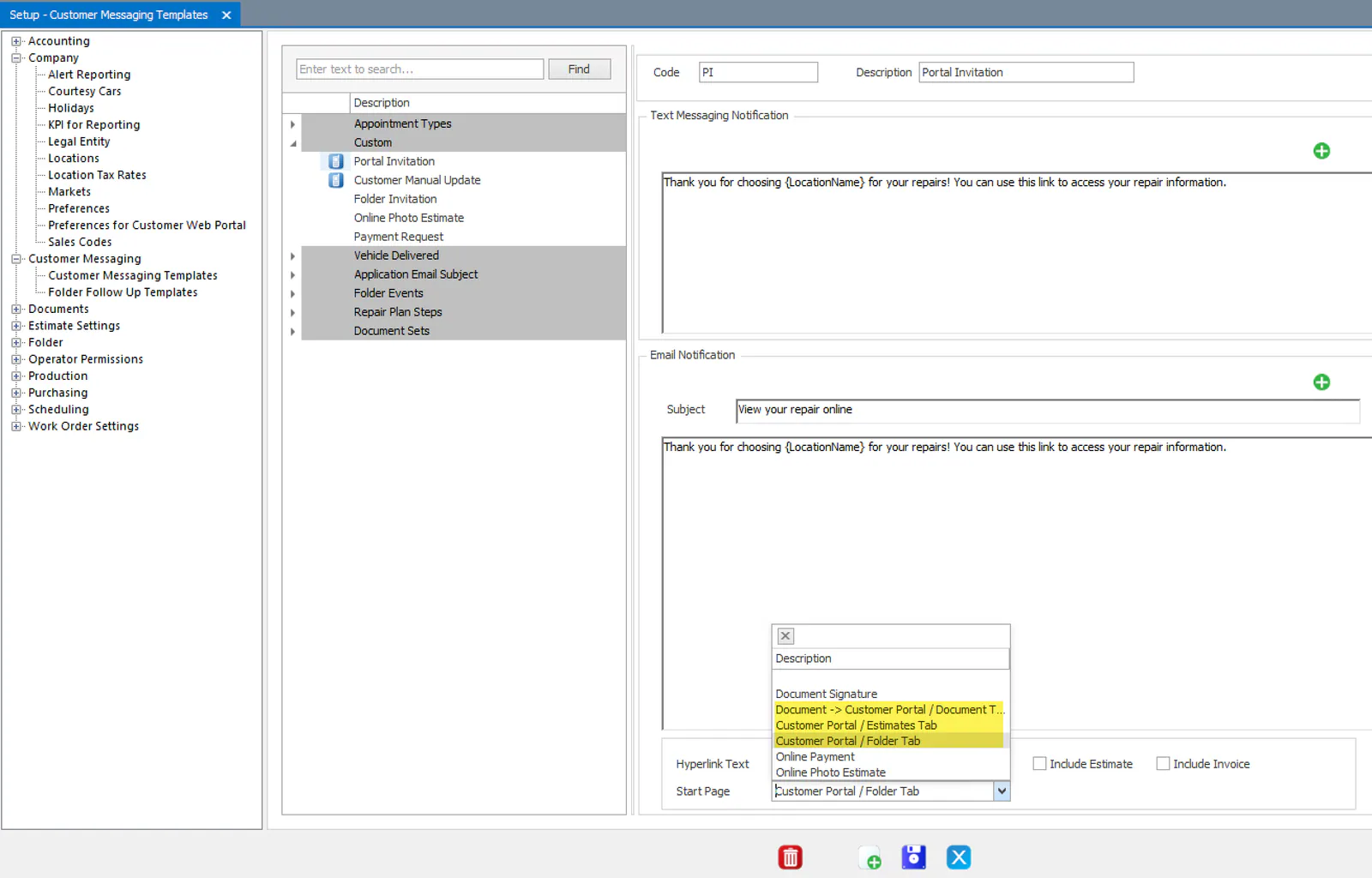
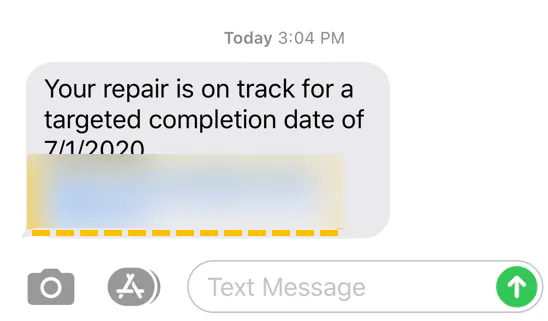
Section titled “The Customer Portal”Appointment reminders and status updates can include a link to the Customer Portal. When you add the portal link to a template, you enter the Hyperlink Text and choose the Start Page: the folder’s repair status page, Estimates or Documents.
To control which tabs customers see, see Set customer web preferences.
What customers see
Section titled “What customers see”-
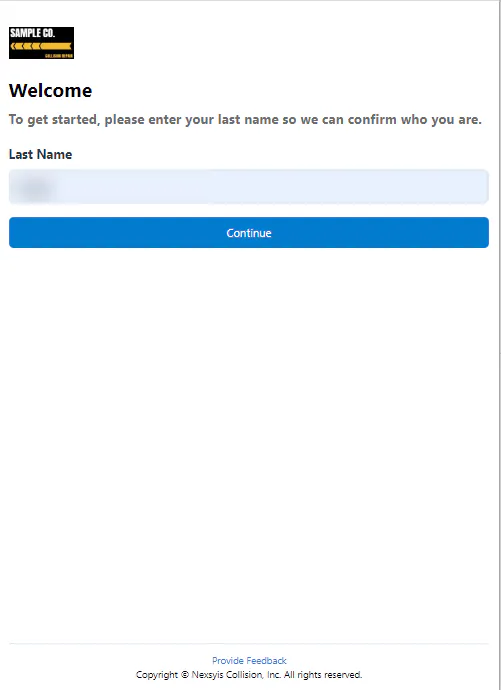
Last name check. The customer enters their last name to see their repair. The spelling must match the folder, but capitalization doesn’t matter.
-
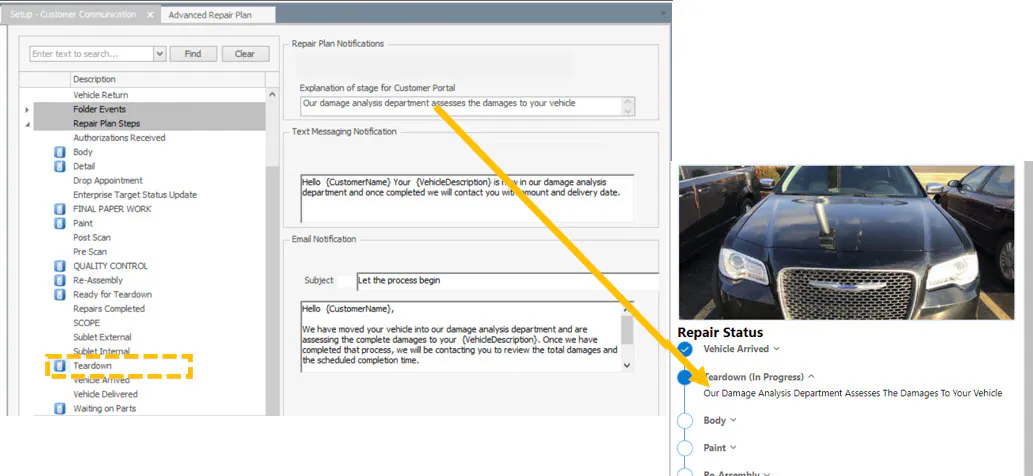
Repair status. The portal shows each completed repair stage and the stage in progress. The customer selects the arrow next to a stage to read an explanation.
-
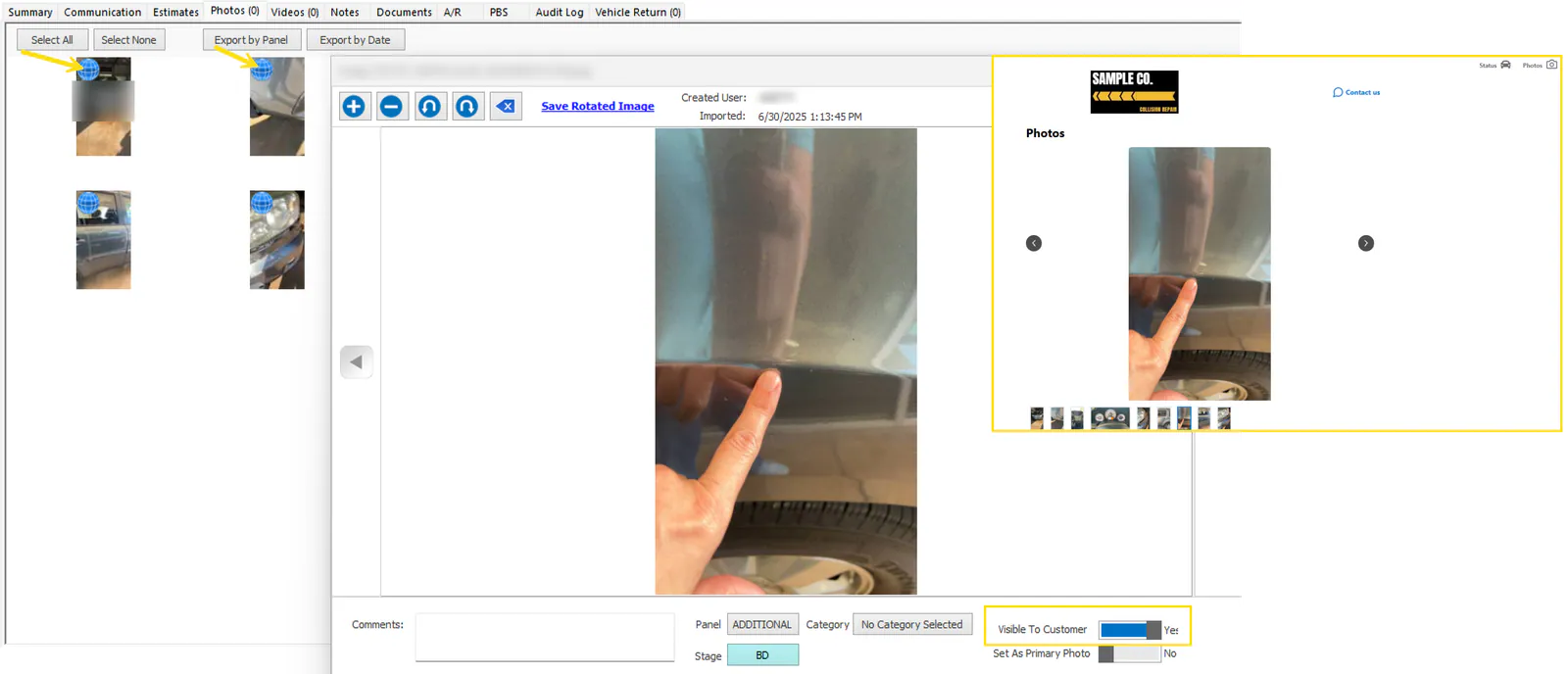
Photos. Photos marked Visible to Customer.
-
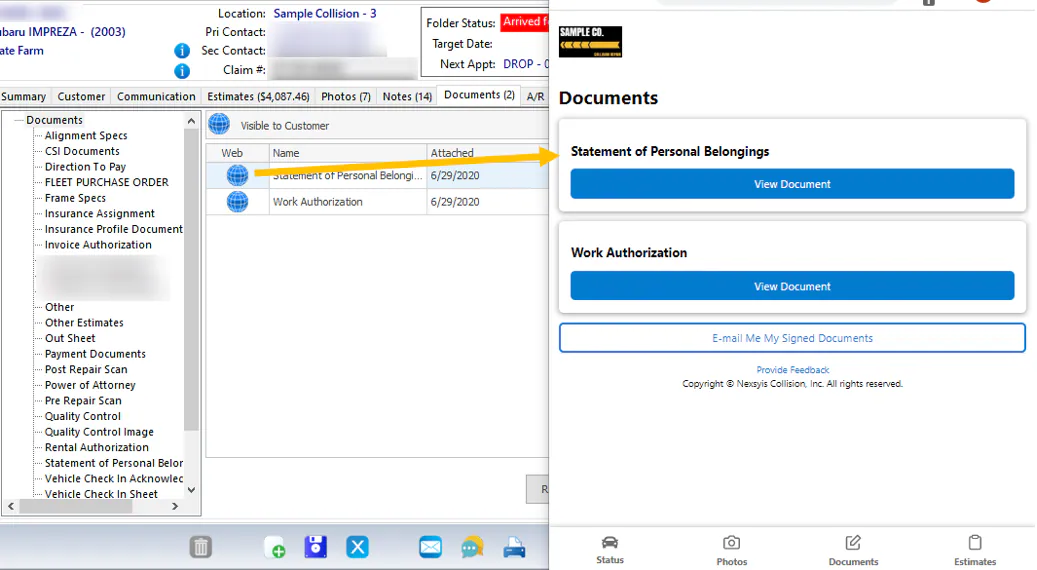
Documents. Documents marked Visible to Customer, including documents the customer signed electronically.
-
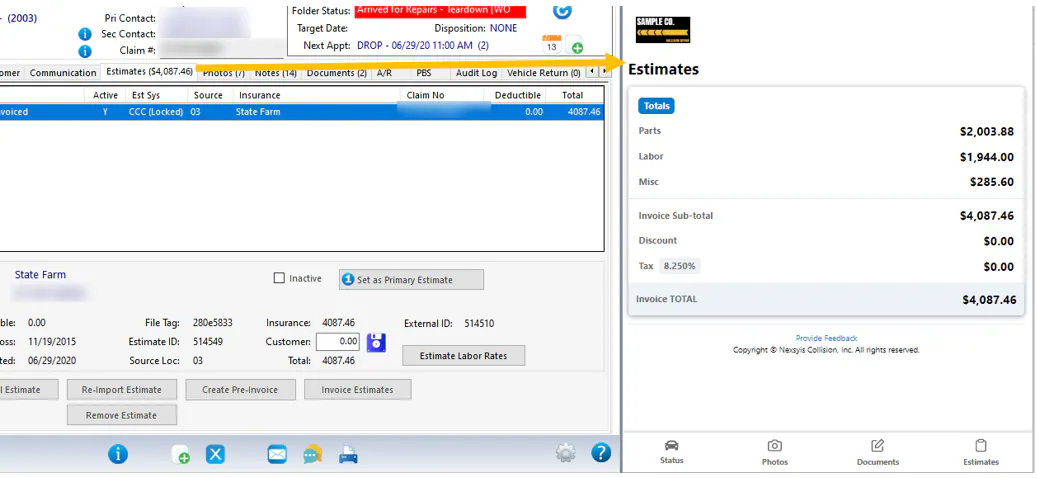
Estimates. The estimates on the folder.
Contact and feedback
Section titled “Contact and feedback”Every page of the portal has Contact Us options:
- Call opens the phone dialer on a mobile device, with the location or call center number.
- Message sends a customer message to the folder’s sales or service resource, and to the location and call center email addresses if they’re set up.
Customers can also send feedback from the bottom of any page. Feedback is emailed to the location and call center email addresses, and to the folder’s service resource if one is set up.