
Analyze gross profit for a folder
Use the GP Analyzer on a single folder to check that you received the right discount from the vendor, review flagged labor, and see the labor cost.
Open the GP Analyzer for a folder
Section titled “Open the GP Analyzer for a folder”-
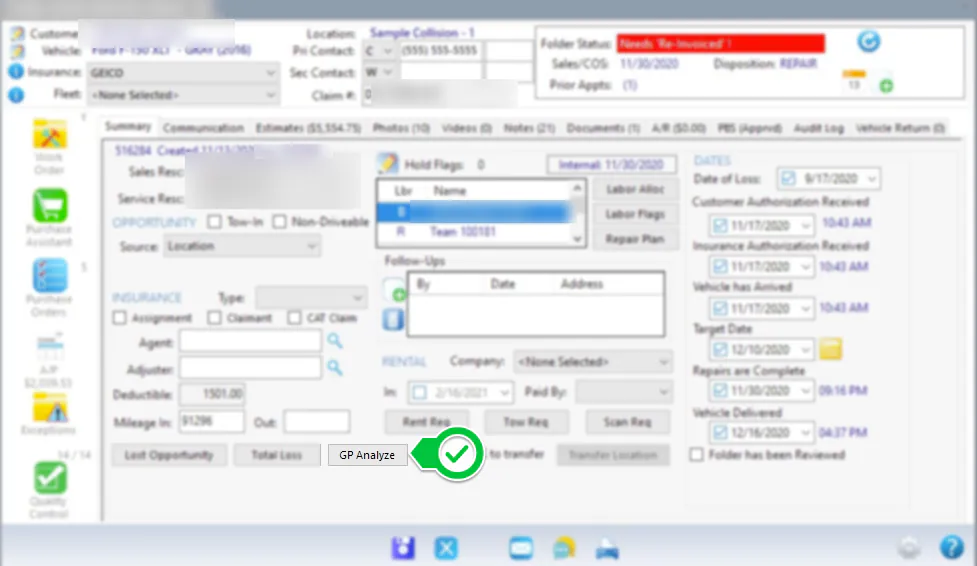
On the folder’s Summary tab, select GP Analyze.
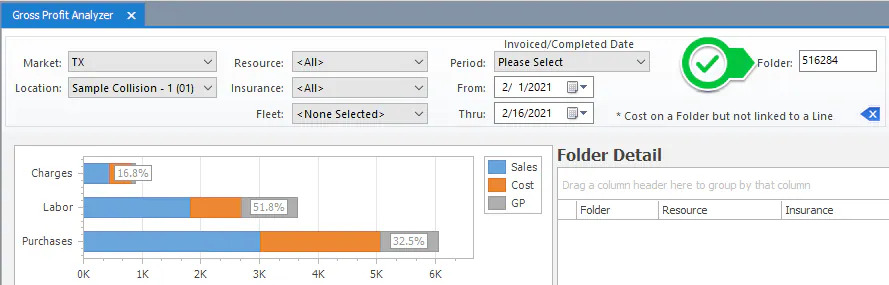
The GP Analyzer opens with that folder in the Folder box.
-
Double-click a sales code on the left. The folder’s totals for that sales code load on the right, and the estimate lines for that sales code show below them.
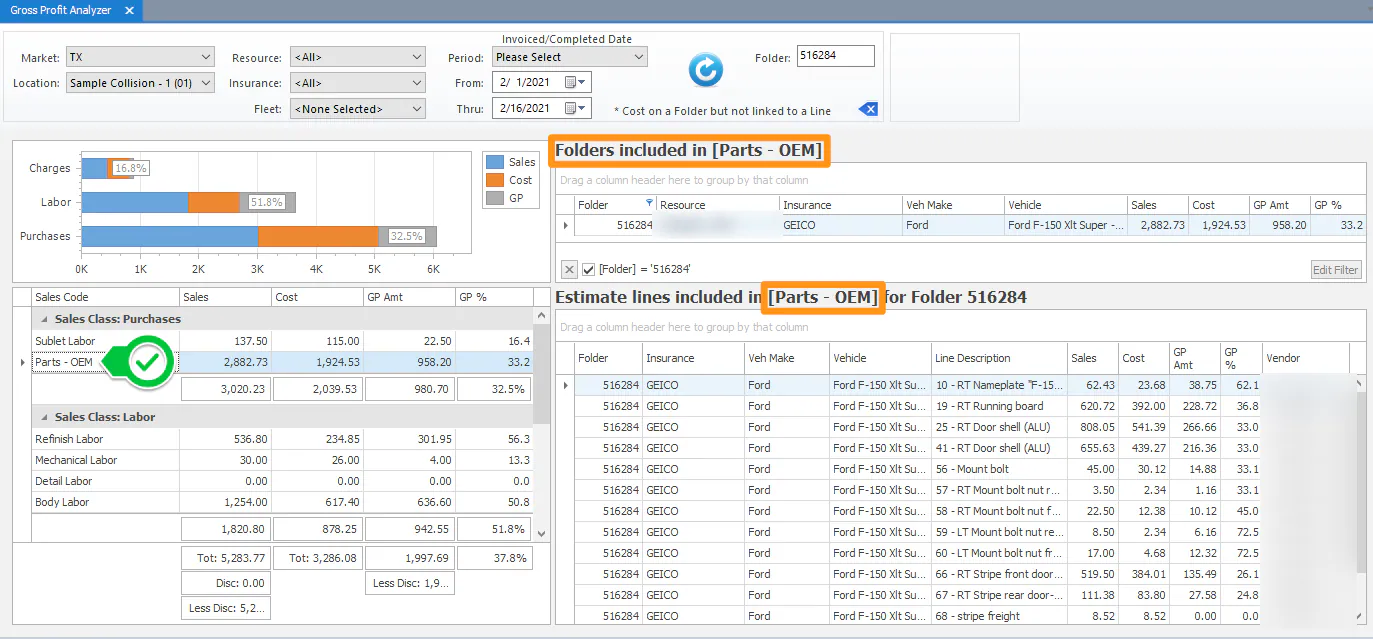
The estimate lines show the sales, cost, GP amount, GP % and vendor for each line.
Labor cost on a single folder
Section titled “Labor cost on a single folder”Labor cost normally comes from approved flag batches: the hours flagged times the pay rate in effect for the person or team. On a single folder, the GP Analyzer also shows what the remaining labor should cost. For hours not yet flagged, it uses the current pay rate.