Create a manual purchase order
Create a purchase order for items that aren’t on an estimate, then send, receive and invoice it like any other PO.
Before you begin
Section titled “Before you begin”You need the transaction permission Manual Purchase Order.
Create the purchase order
Section titled “Create the purchase order”-
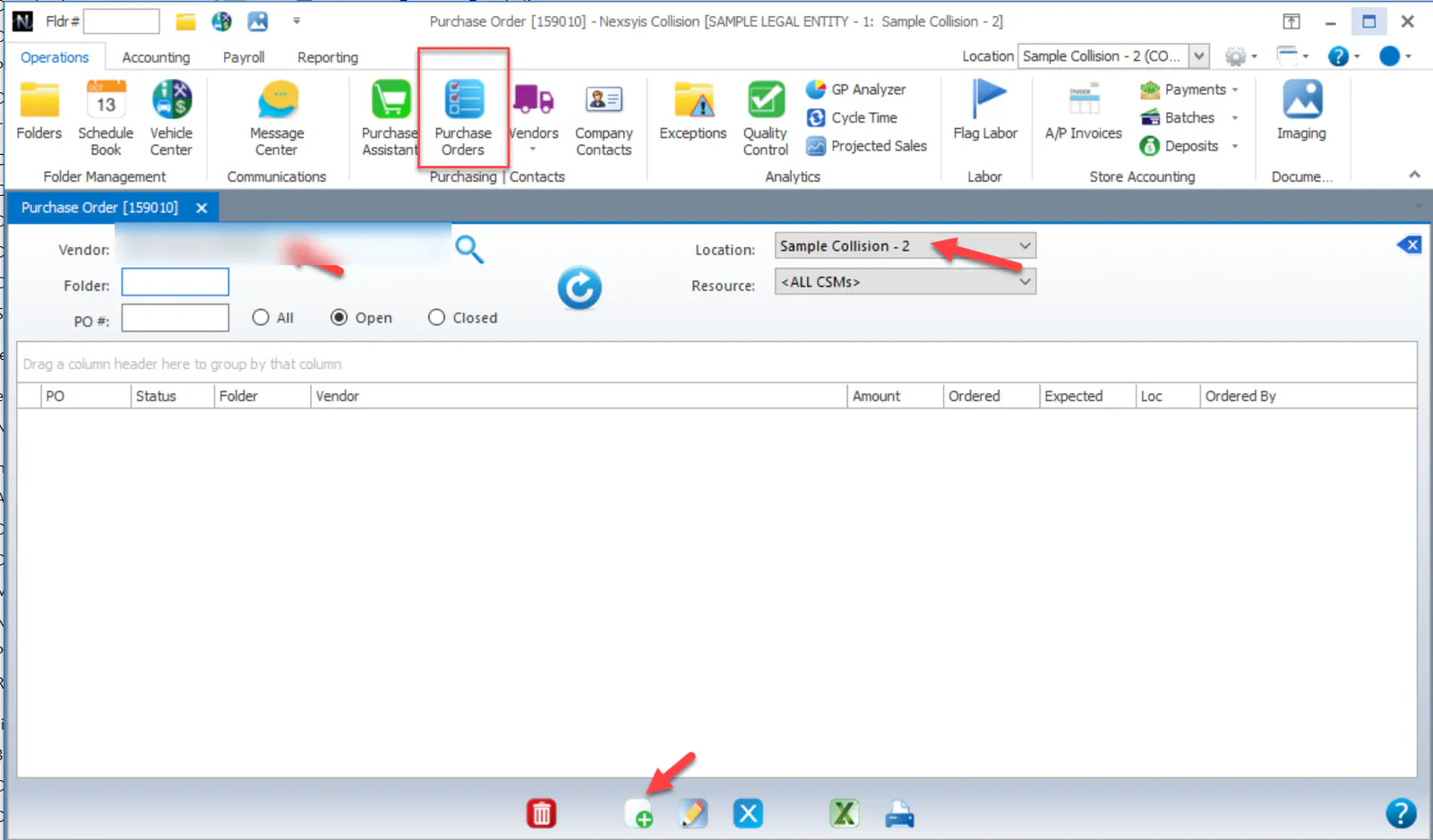
Open the Purchase Orders screen.
-
Search for the vendor.
-
Choose the location.
-
Select the new-record button at the bottom of the screen.
-
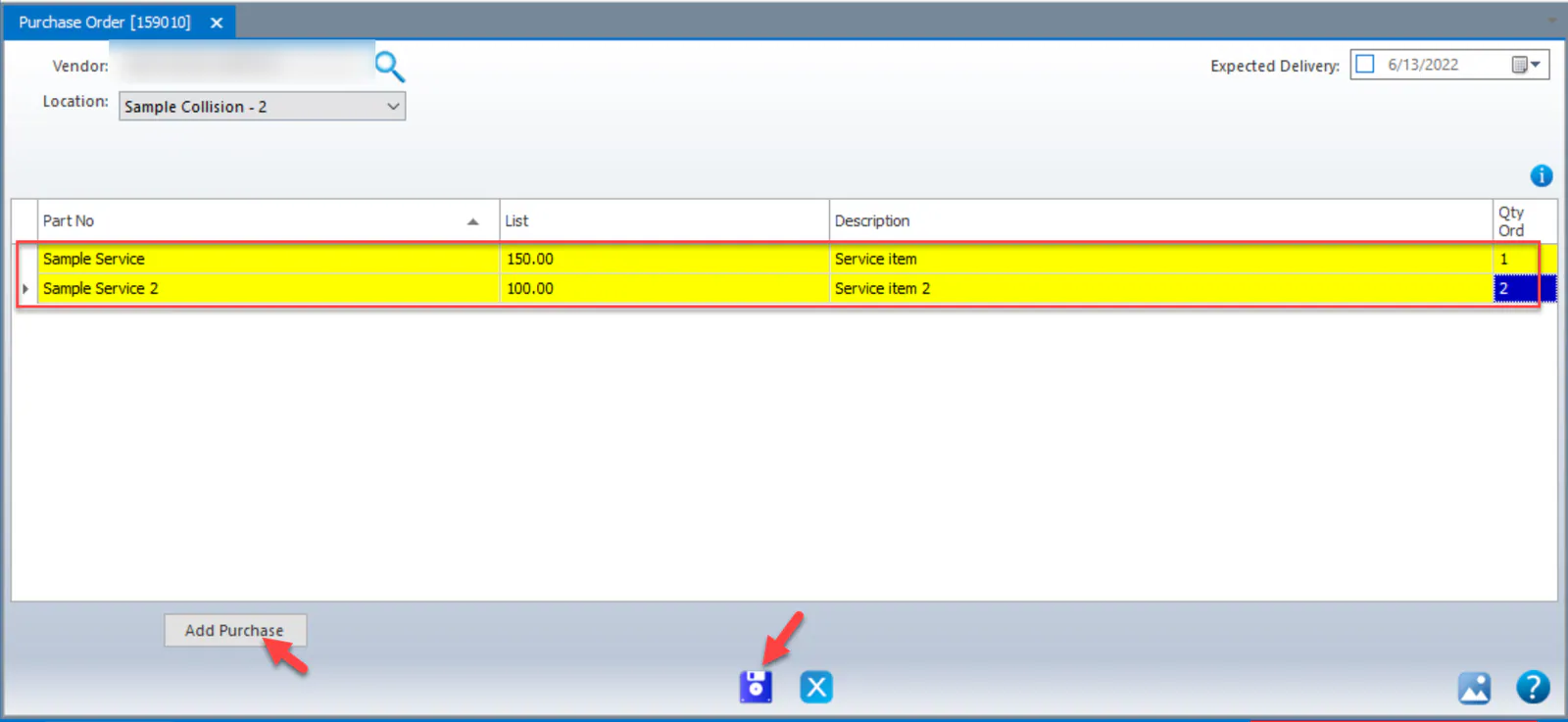
Enter the Part No, List price, Description and Qty. If you leave Qty blank, it’s set to 1.
-
To add more lines, select Add Purchase.
-
Select Save.
Print or email the purchase order
Section titled “Print or email the purchase order”-
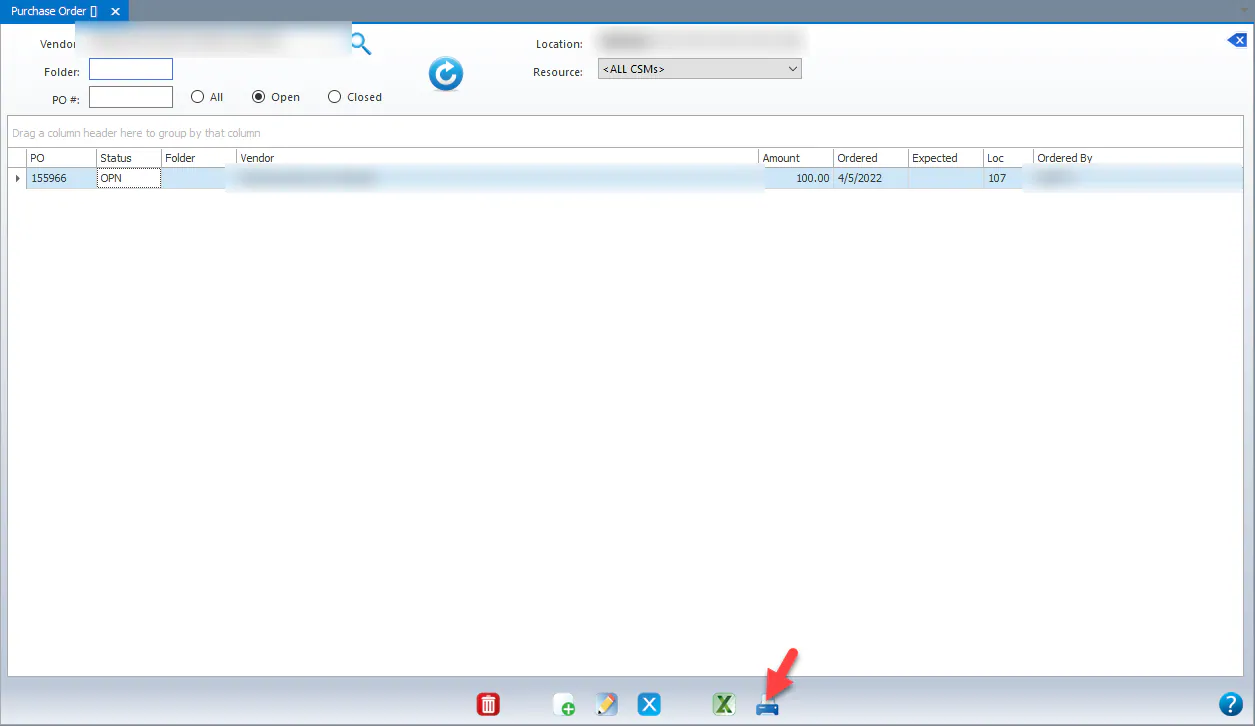
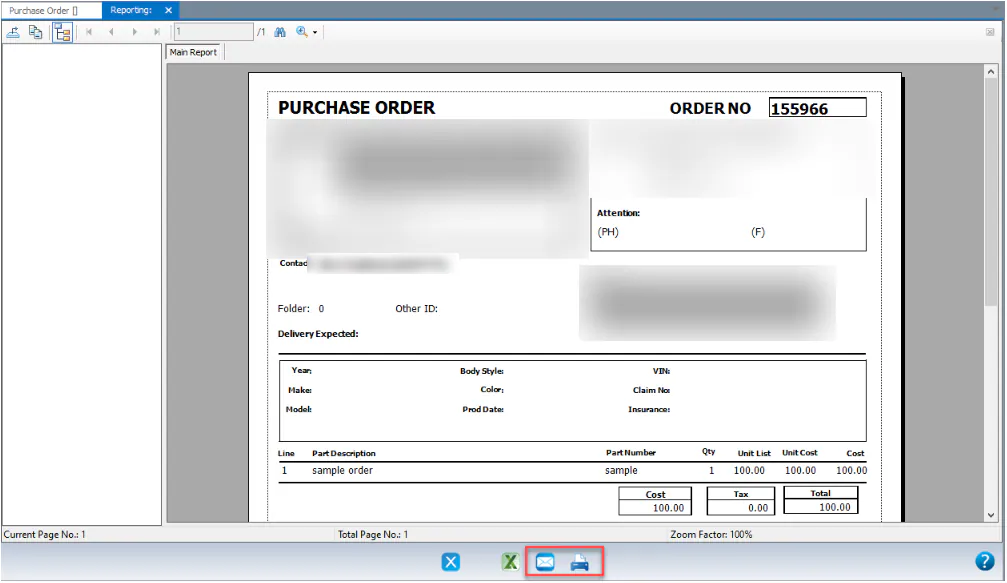
Select the purchase order, then select Print.
-
In the purchase order that opens, select the email or print button.
Receive the purchase order
Section titled “Receive the purchase order”-
Open the Purchase Orders screen.
-
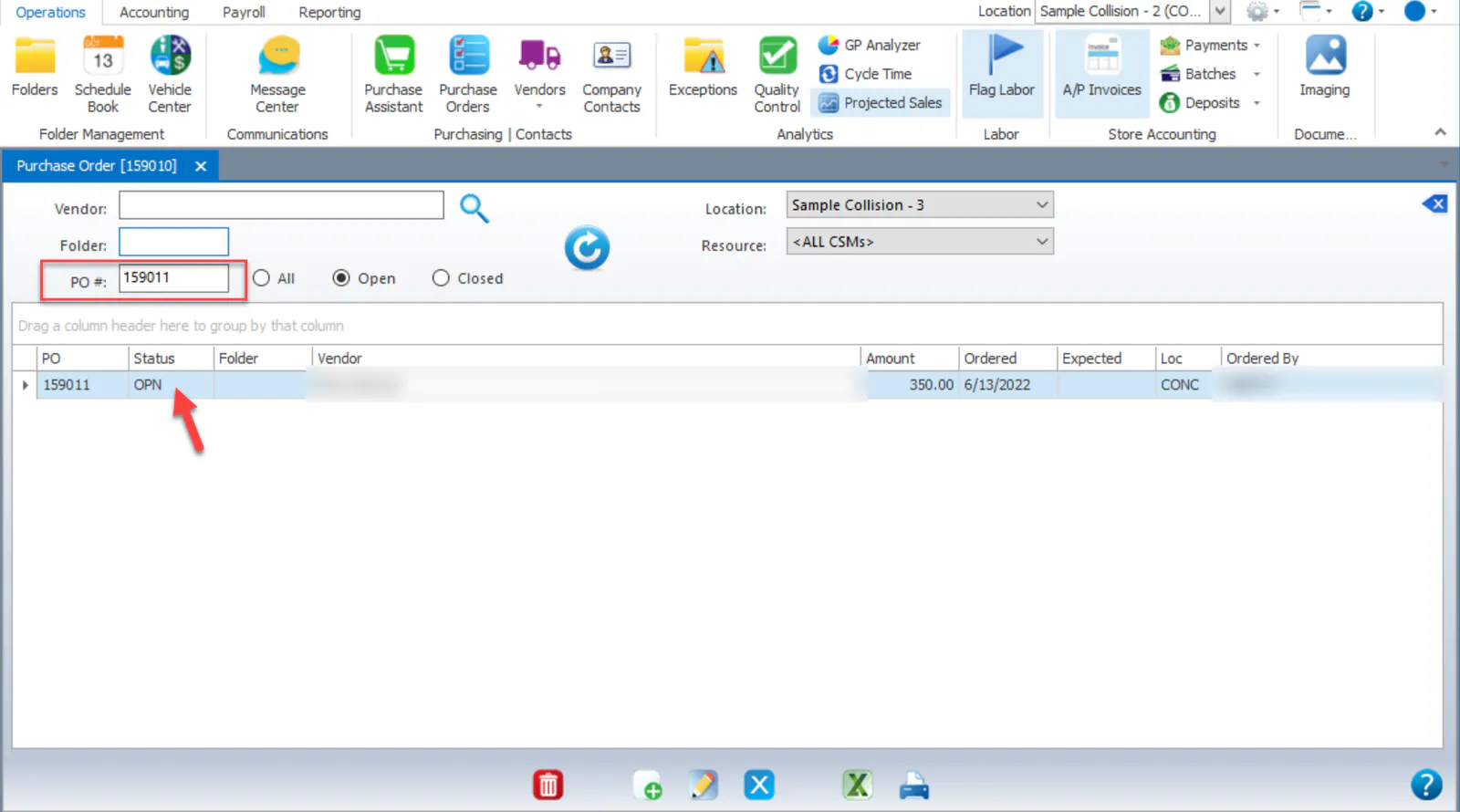
Search by vendor or PO #. The status shows OPN (open).
-
Double-click the purchase order.
-
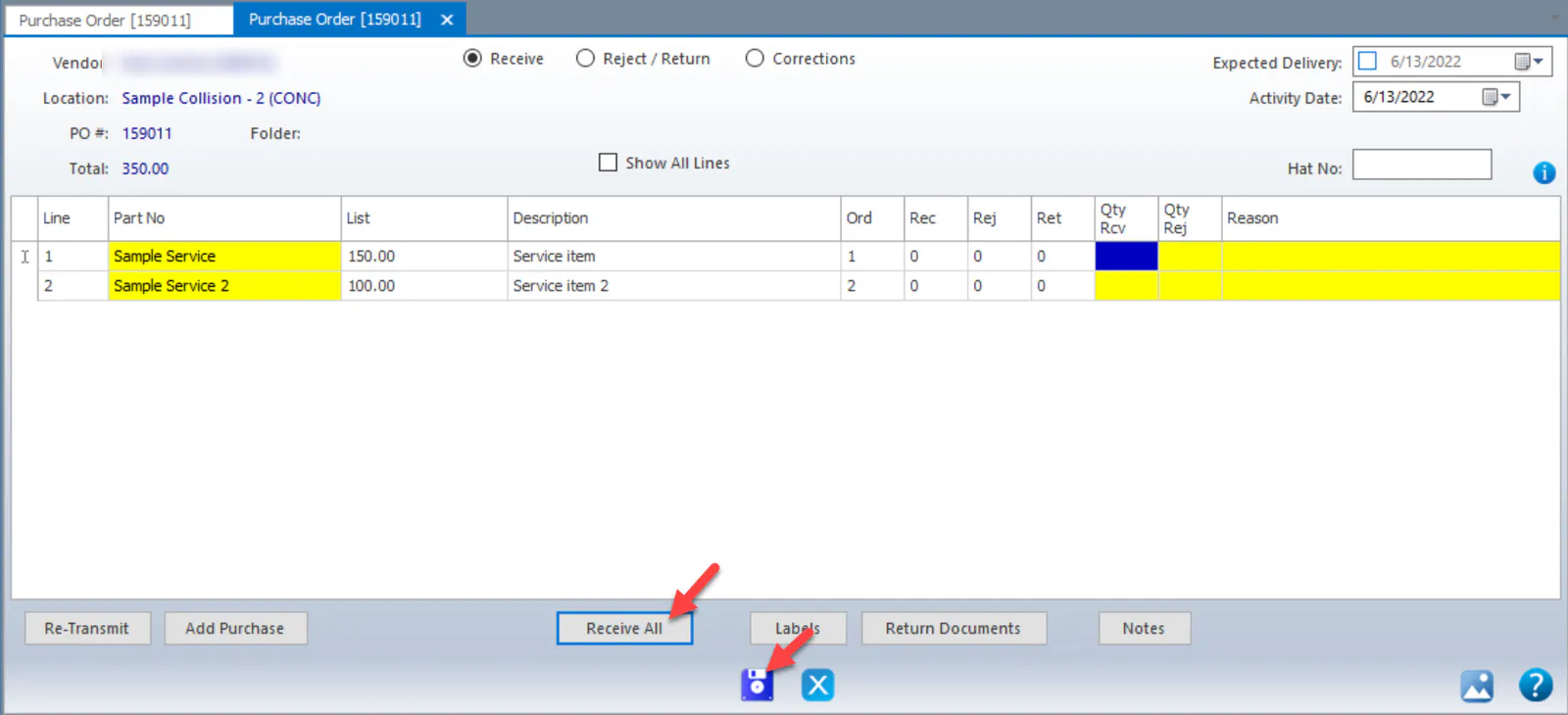
Select Receive All, then select Save.
Invoice the purchase order
Section titled “Invoice the purchase order”Manual PO lines are invoiced like any other PO lines.
-
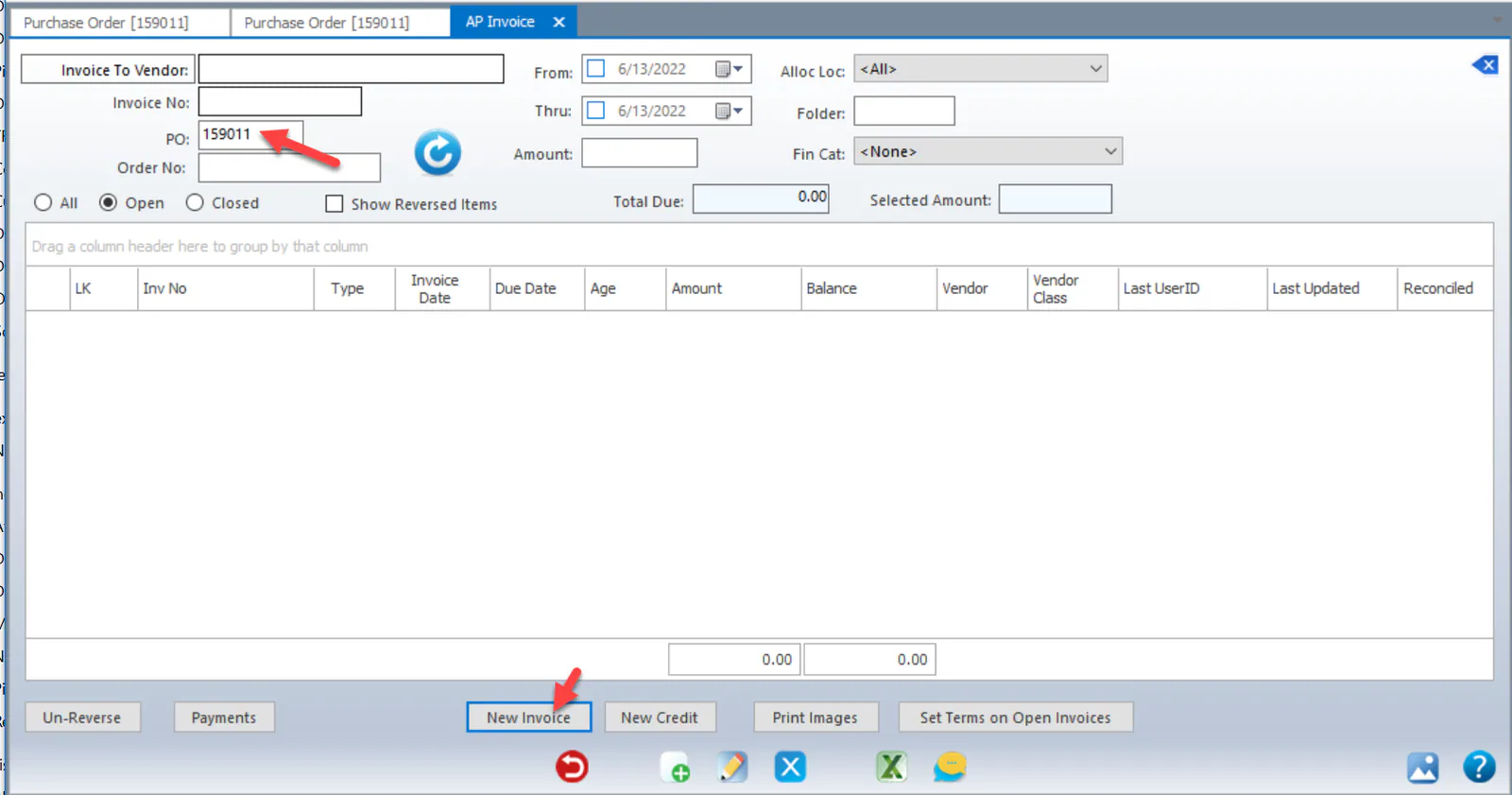
Open the AP Invoices screen.
-
Enter the PO # and refresh.
-
Select New Invoice.
-
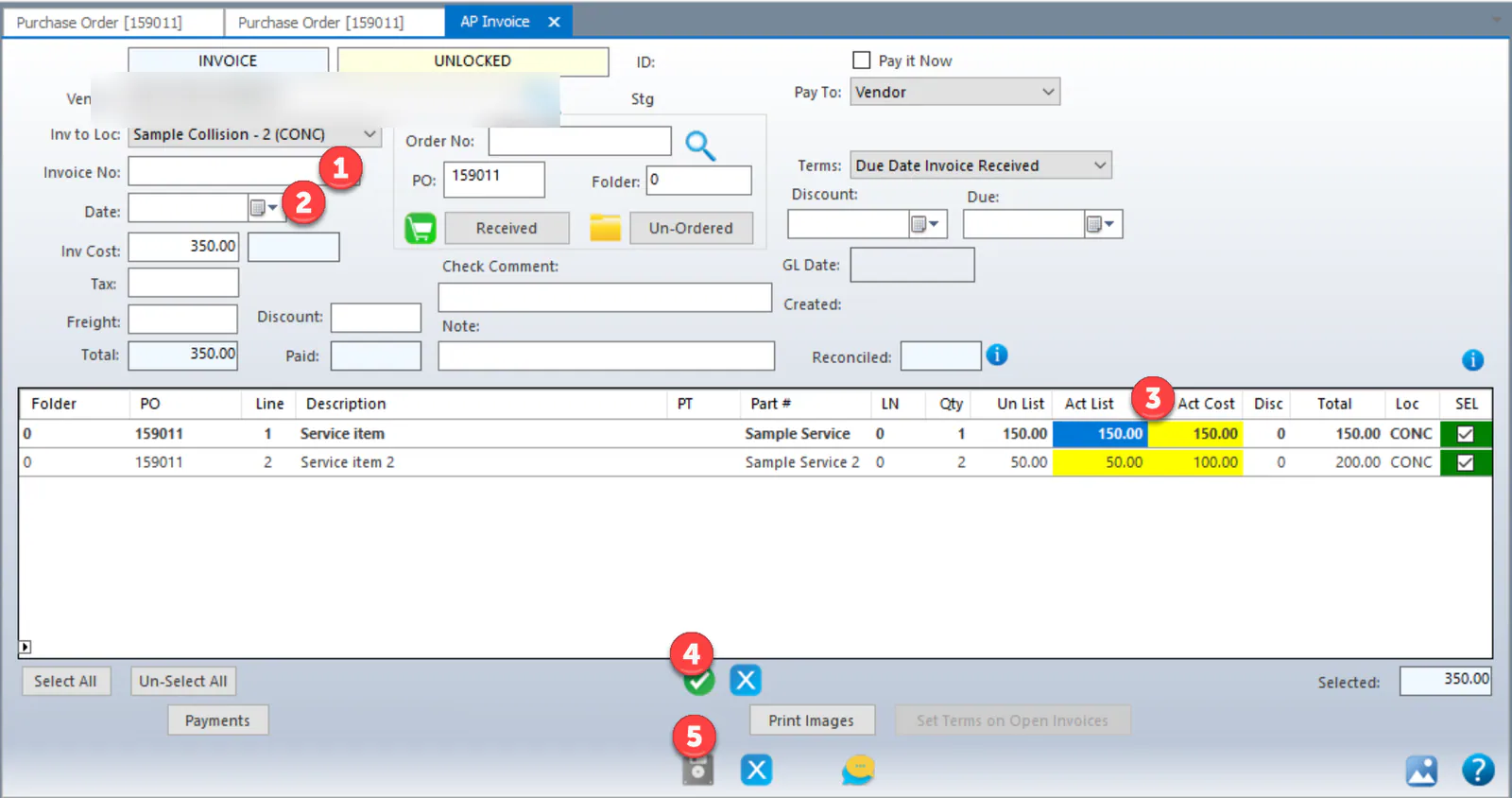
Enter the invoice number, the date, and the list price and cost of each line.
-
Select the check mark to set the lines.
-
Select Save.