
Track outstanding AR
The Outstanding AR tab of the Vehicle Center lists every delivered vehicle that still has an AR balance. Use it to see what’s owed, how old it is, and to follow up.
Open the Outstanding AR tab
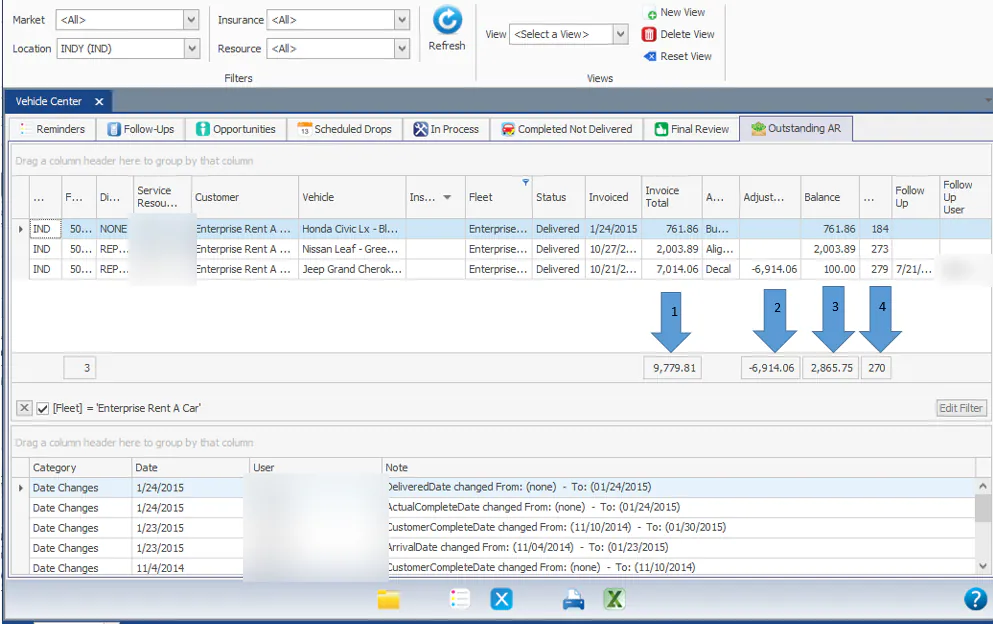
Section titled “Open the Outstanding AR tab”Open the Vehicle Center and select the Outstanding AR tab.
The boxes at the bottom of the grid show four totals:
- Invoice Total: the original outstanding AR.
- The total payments and adjustments made on the AR.
- Balance: the AR still to be paid.
- The average age of the AR.
Filter by age
Section titled “Filter by age”Use either method:
-
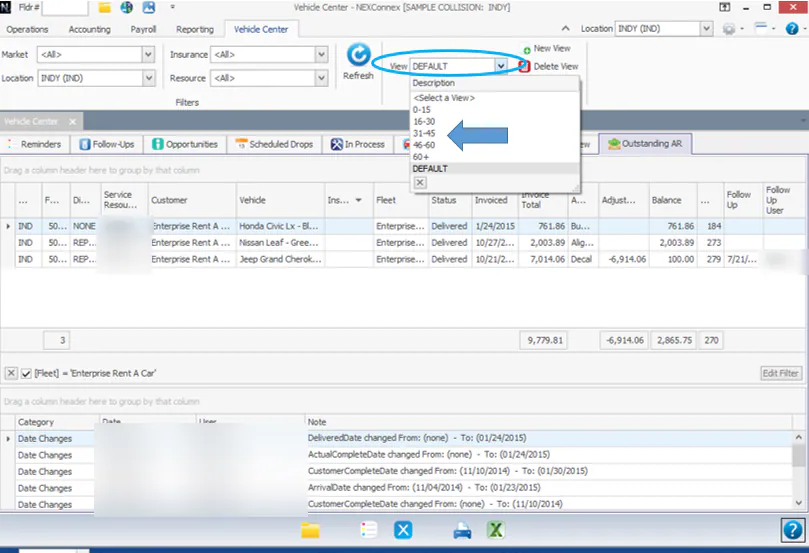
Preset ranges: select a range from the View drop-down, for example 31-45 or 60+.
-
Your own range:
-
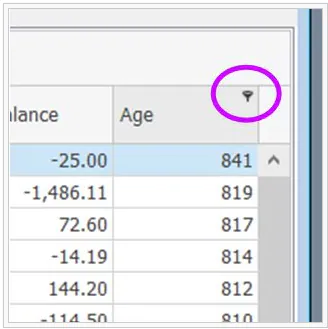
Select the filter icon in the Age column header.
-
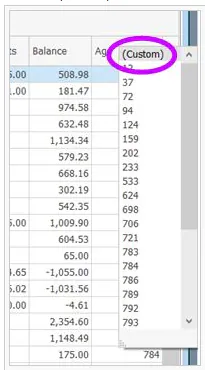
Select (Custom).
-
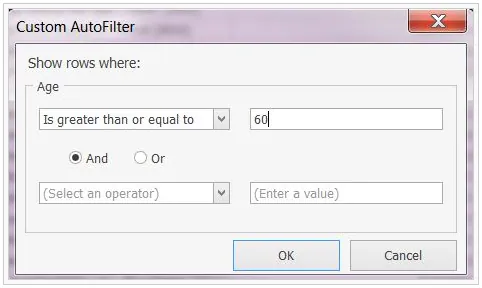
Set the range, for example Is greater than or equal to 60, or greater than or equal to 0 And less than or equal to 30. Select OK.
-
Review payment notes
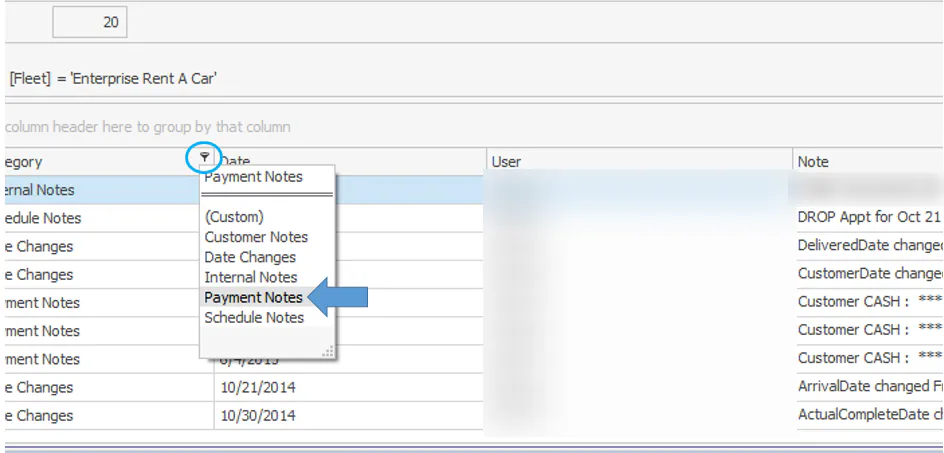
Section titled “Review payment notes”When you select a folder, the bottom half of the screen shows all the notes for that folder. To see only payment notes, select the filter icon in the Category column header and select Payment Notes.
Print a fleet statement
Section titled “Print a fleet statement”-
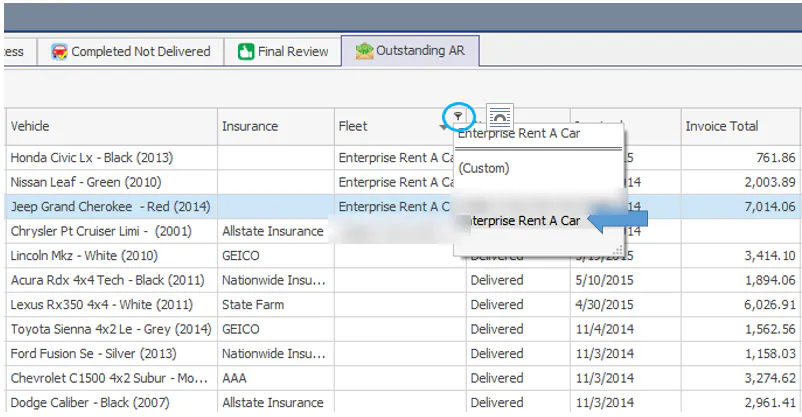
Select the filter icon in the Fleet column and select the fleet.
-
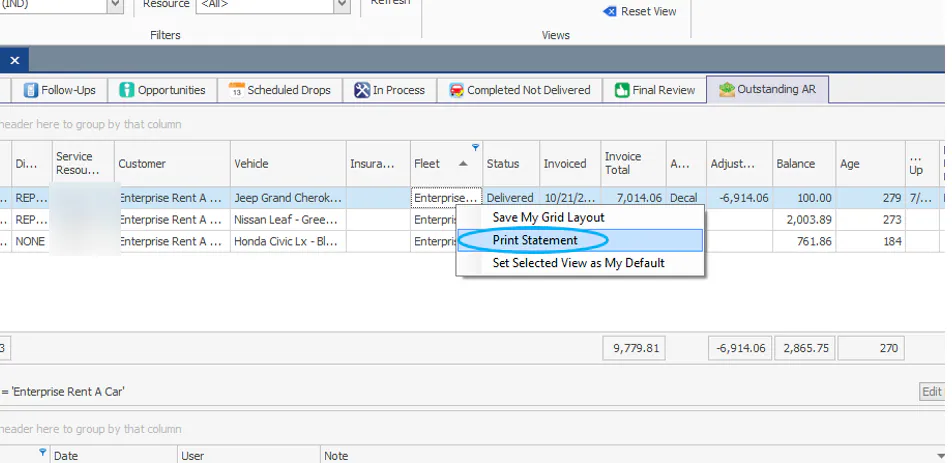
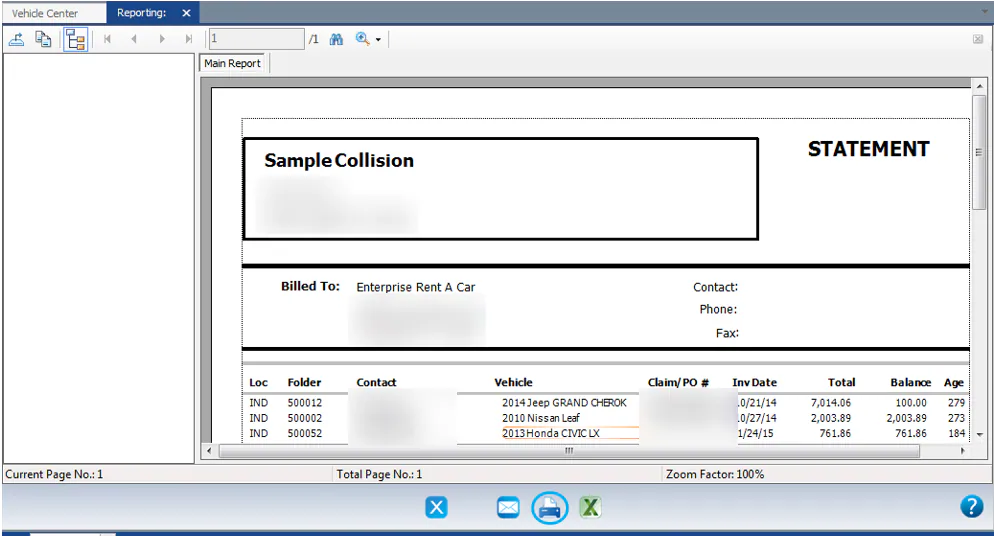
Right-click the grid and select Print Statement.
-
Preview the statement, then select the print button.
For the other statement options, see Print AR statements.