Send photos and videos to customers
Send a customer photos or videos of their repair from the folder’s Communication tab.
Before you begin: the photos or videos must already be on the folder.
Send photos
Section titled “Send photos”-
Open the folder and go to the Communication tab.
-
Check that the customer has a valid cell phone number or email address, and that Communicate by text or Communicate by e-mail is selected.

-
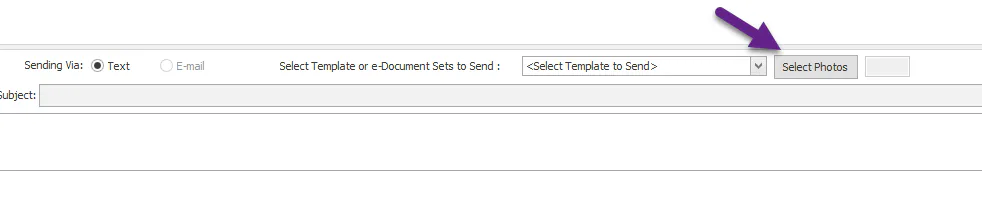
Select Select Photos.
-
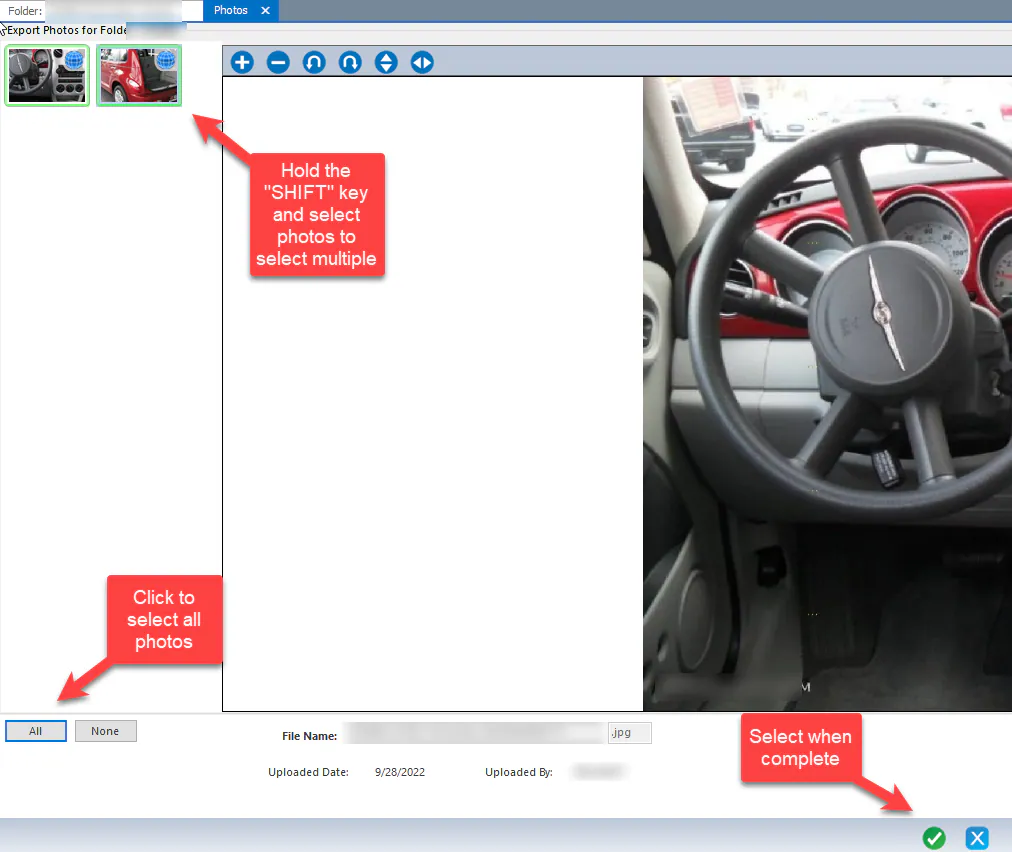
Select the photos to send, then confirm.
-
Type a message, or choose a template, then select Send Message.
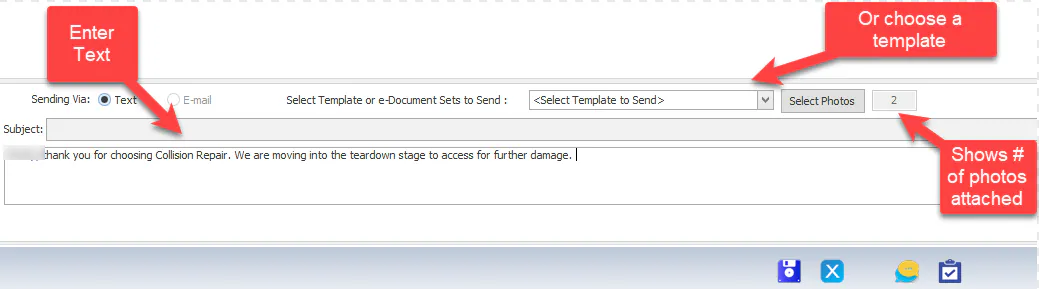
The message shows a camera icon to show it has photos. Double-click it to see the photos.

Send videos
Section titled “Send videos”-
Open the folder and go to the Communication tab.
-
Check that Communicate by text or Communicate by e-mail is selected, with a valid phone number or email address.
-
Choose the video from the Select Video list.

-
Type a message, or choose a template, then select Send Message.

The customer gets a link to the video, where they can view or download it.