Use the absence calendar
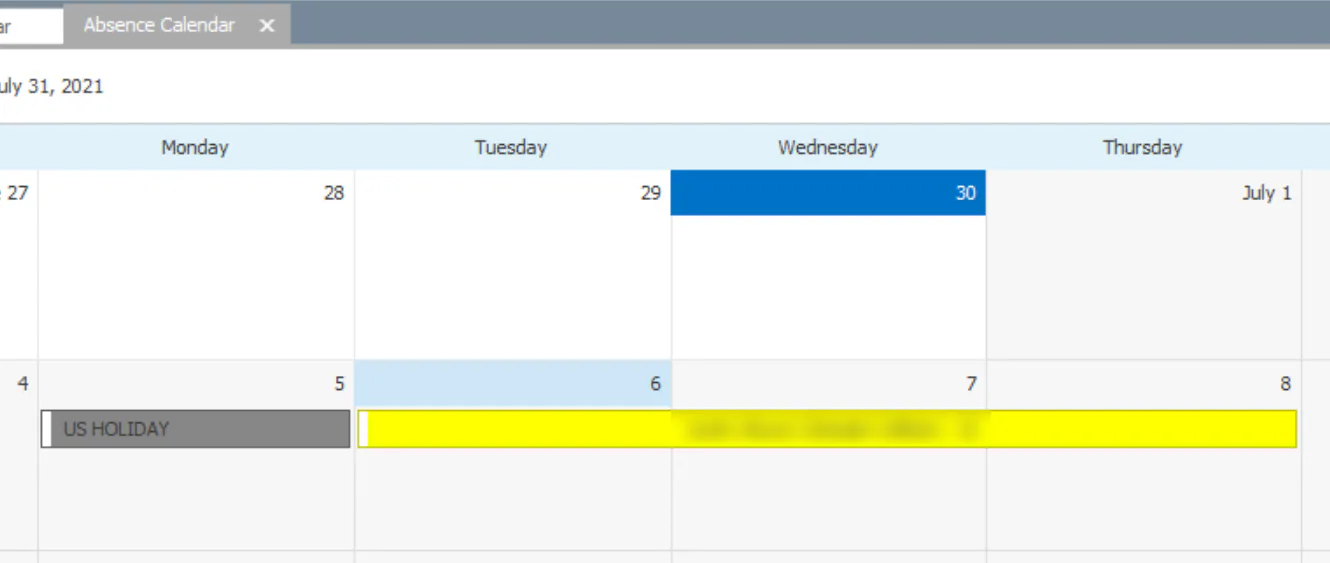
The absence calendar shows absence requests, holidays and blockout dates, so you can check before requesting time off.
Before you begin
Section titled “Before you begin”Anyone can open the absence calendar. To open another employee’s absence request or set a blockout date, you need supervisor, payroll clerk or absence permission. See Set time and absence approval permissions.
Open the absence calendar
Section titled “Open the absence calendar”On the Payroll tab, select Absence Calendar.

Read the calendar
Section titled “Read the calendar”| Color | Meaning |
|---|---|
| Yellow | An absence request that isn’t approved yet. |
| White | An approved absence. |
| Purple | A holiday. |
| Black | A blockout date, when a resource or location can’t take an absence. |
Use Market and Location to filter the calendar, and Day View, Full Week View, Month View or Timeline View to change the view.
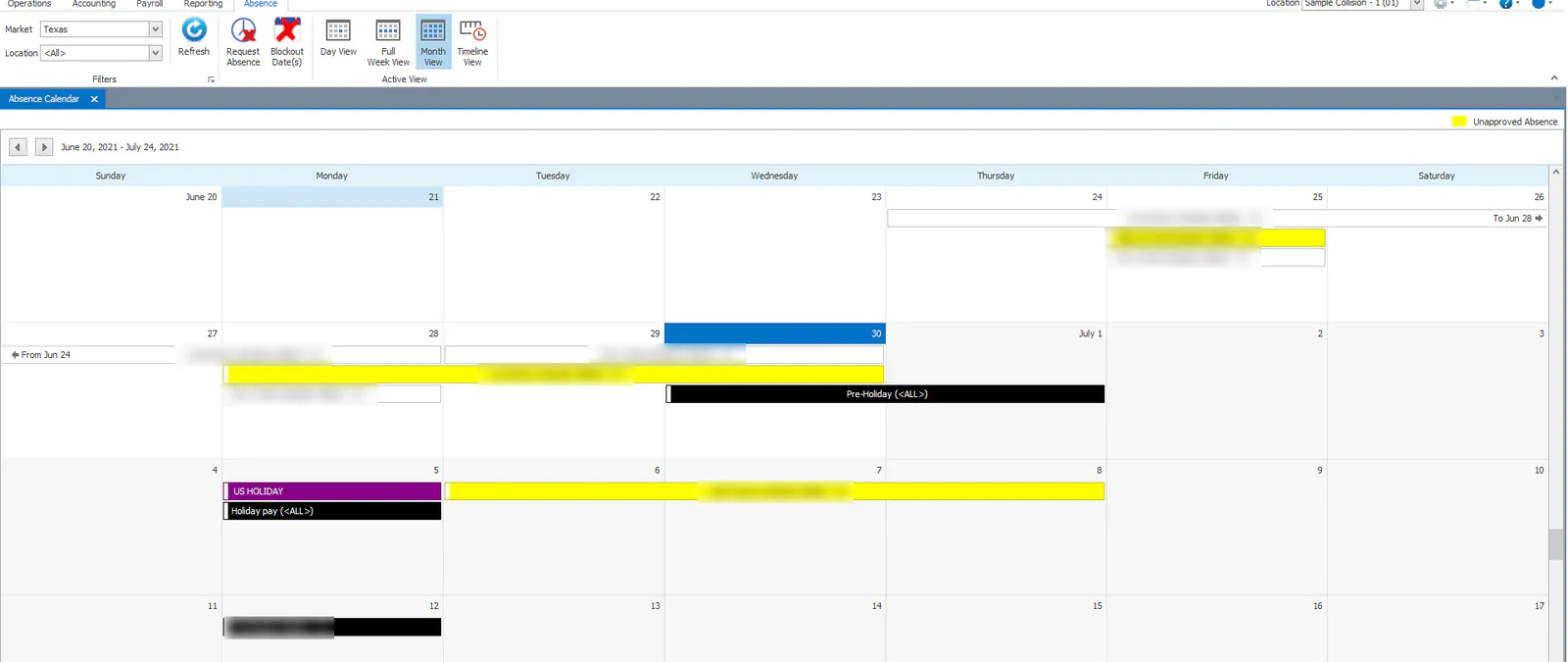
To open a request, double-click it on the calendar.
Request an absence from the calendar
Section titled “Request an absence from the calendar”You must be logged in with an operator record tied to your employee ID.
-
Go to the day or days you want off.
-
Check that there are no holidays or blockout dates for your location or resource team during that time.
-
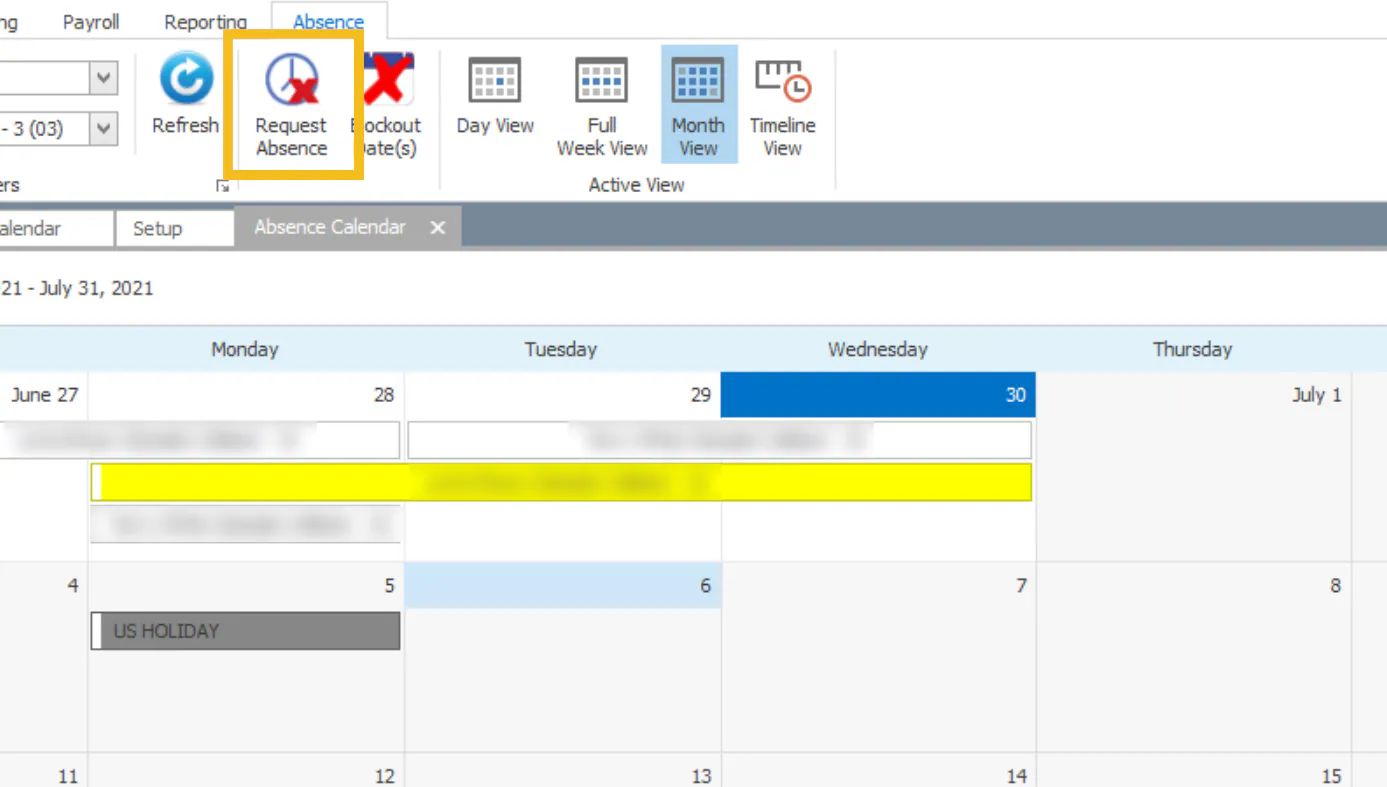
Select Request Absence.
-
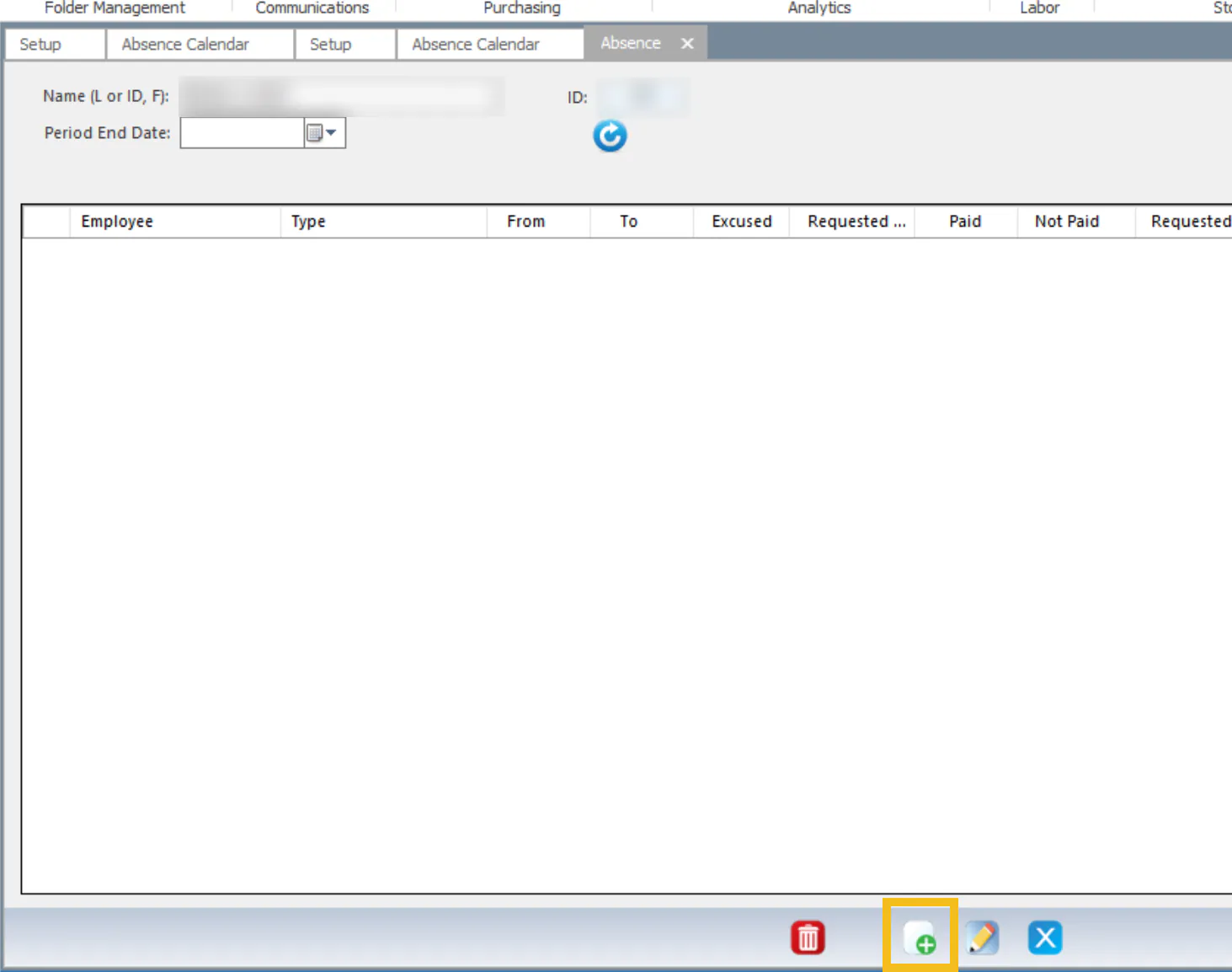
On the Absence screen, select New.
-
Select the Reason, enter the From and To dates, and enter the total hours in Time Off(Hours).
-
Select Save.
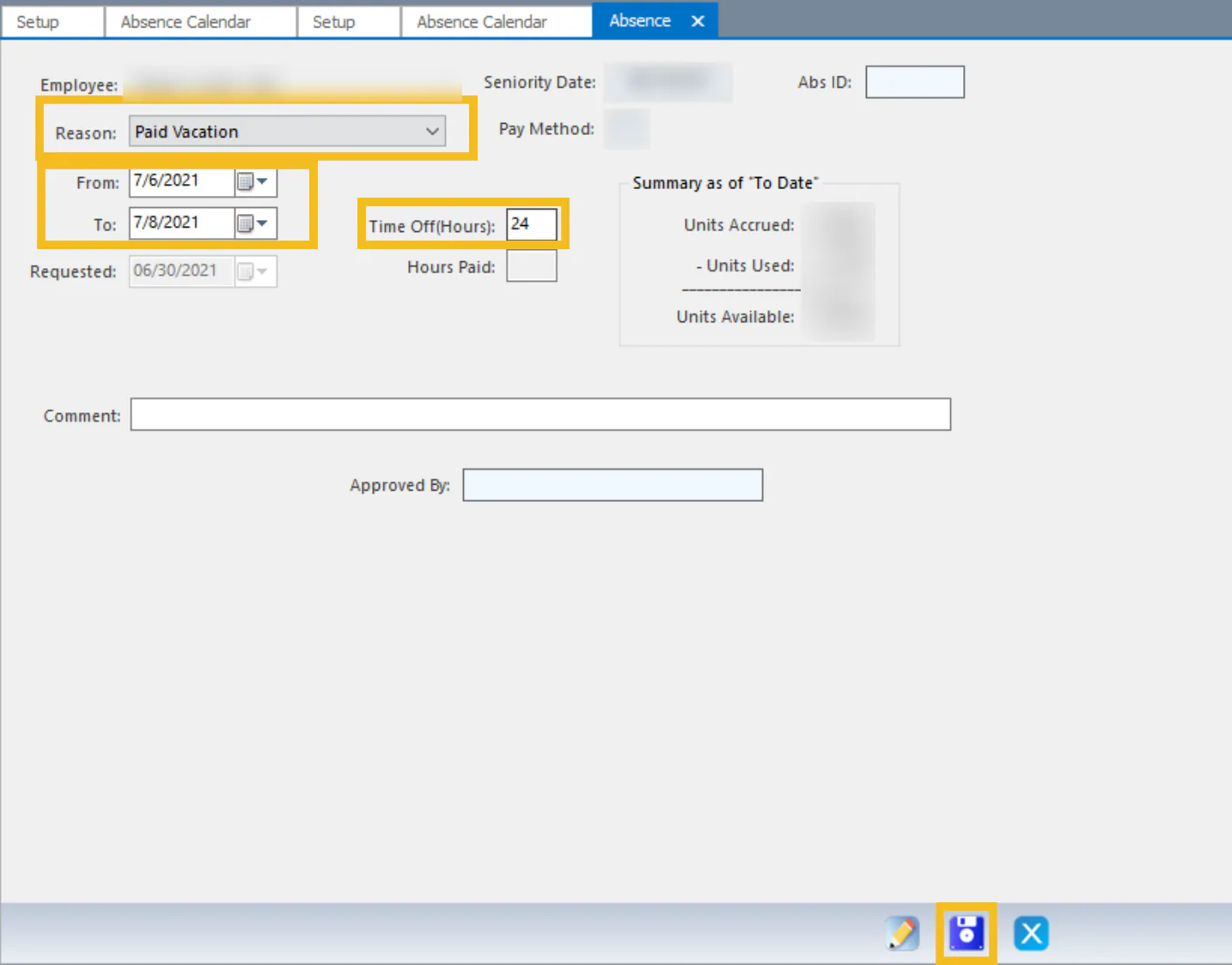
Your request shows on the calendar in yellow, and a task is created for your supervisor to approve it. Once it’s approved, it shows in white.