Vehicle Center overview
The Vehicle Center lists your folders by where they are in the repair, one tab for each step. Use it to see what needs doing next, from follow-ups and estimates through production, delivery and payment.
Every tab is a grid, so you can search, filter, group and choose columns. See Search, filter and save grid views.
The Vehicle Center tabs
Section titled “The Vehicle Center tabs”| Tab | What it lists |
|---|---|
| Follow-Ups | Customer contact requests that are due. See Create and complete follow-ups. |
| Opportunities | Folders that haven’t been captured (marked with an arrival date or scheduled for a drop appointment), or marked as a lost opportunity or total loss. See Work the Opportunities tab. |
| Pending Vehicle Returns | Folders with a vehicle return that isn’t marked as arrived yet. See Record a vehicle return. |
| Scheduled Drops | Folders with drop appointments. See Work the Scheduled Drops tab. |
| In Process | Folders that have been marked arrived and are being repaired. See Use the In Process list. |
| Completed Not Delivered | Folders that have a completed date but not a delivered date. |
| Final Review | Folders that haven’t been marked as reviewed, or that have changed since they were marked as reviewed. See Mark a folder as final reviewed. |
| Outstanding AR | Folders that have been delivered and still have an AR balance. See Track outstanding AR. |
The tabs you see can depend on your version and setup.
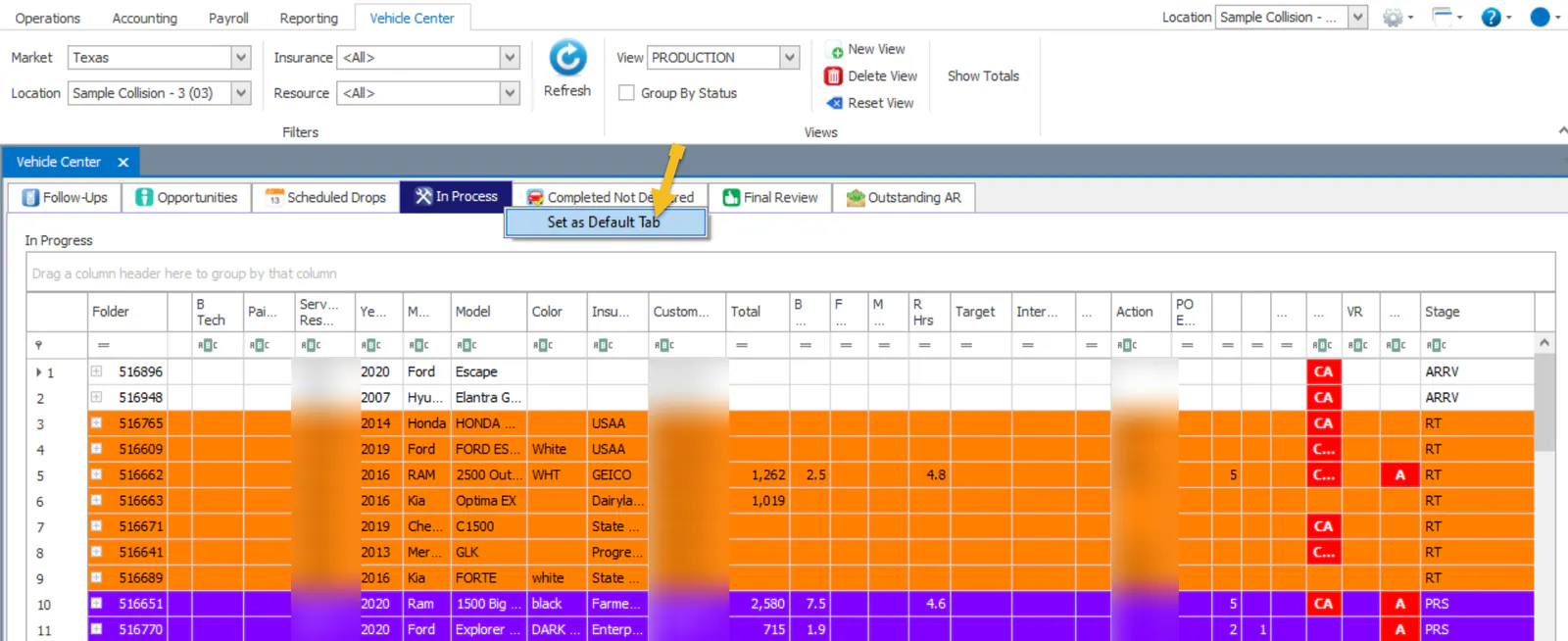
Choose the tab that opens first
Section titled “Choose the tab that opens first”Right-click the tab you want, then select Set as Default Tab. The Vehicle Center opens to that tab from now on.