
View and edit employee time
Use Employee Time to see an employee’s punches for any week and to add punches they missed.
Before you begin
Section titled “Before you begin”You need permission to view employee time and change punch activity.
View an employee’s punches
Section titled “View an employee’s punches”-
On the Payroll tab, select Employee Time. The Punch Activity screen opens.
-
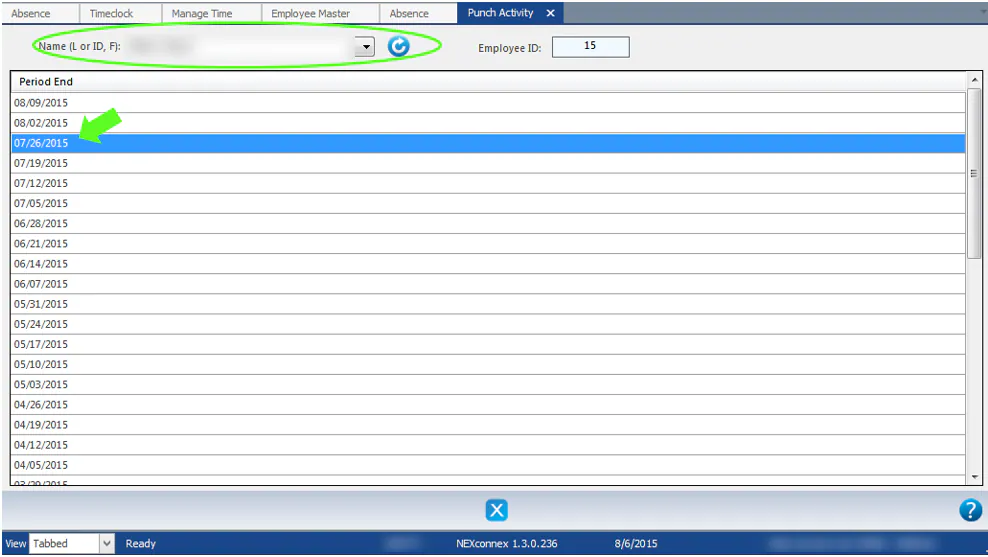
In Name (L or ID, F), select the employee.
-
Double-click the week in the Period End list.
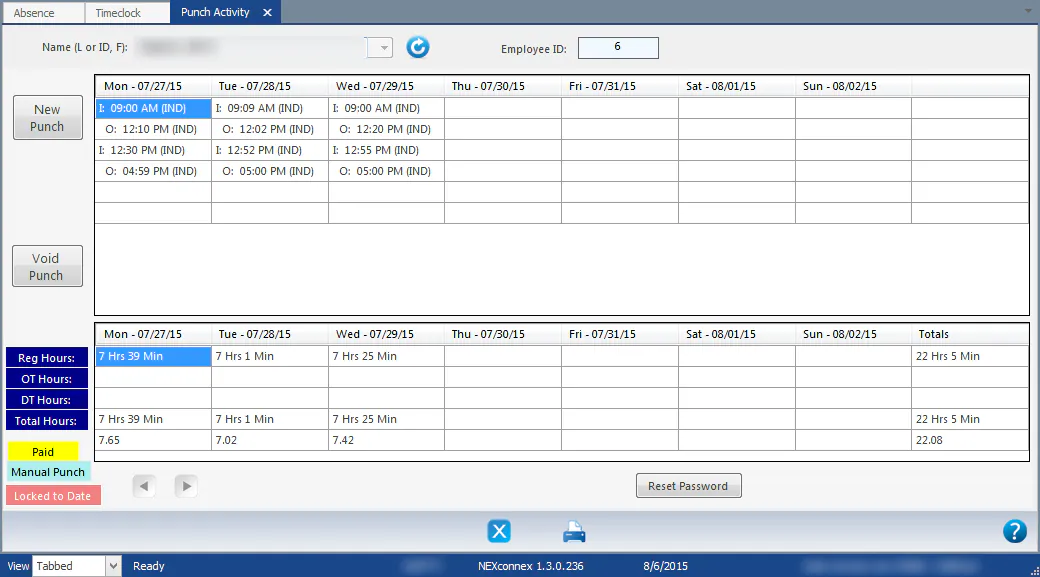
The employee’s punches for the week show by day, with Reg Hours, OT Hours, DT Hours and Total Hours below. The legend shows punches that are Paid, Manual Punch and Locked to Date.
Add a missing punch
Section titled “Add a missing punch”- Select New Punch.
- Enter the clock-in time as 00:00 followed by a for AM or p for PM, for example 05:00p. If your system uses 24-hour time, enter just 00:00.
- Select Add Punch.
- Repeat for the clock-out time.