
Use your repair list
After you log in to the Nexsyis mobile app, the repair list shows the jobs you’re working on. From the list you can open a folder, find a folder, and clock in.
What the repair list shows
Section titled “What the repair list shows”The list is based on your user permissions in Nexsyis. Technicians see only the jobs assigned to them.
Each repair shows its folder number, the customer’s name, the vehicle and a date. Select Repairs at the bottom of the screen to return to the list.
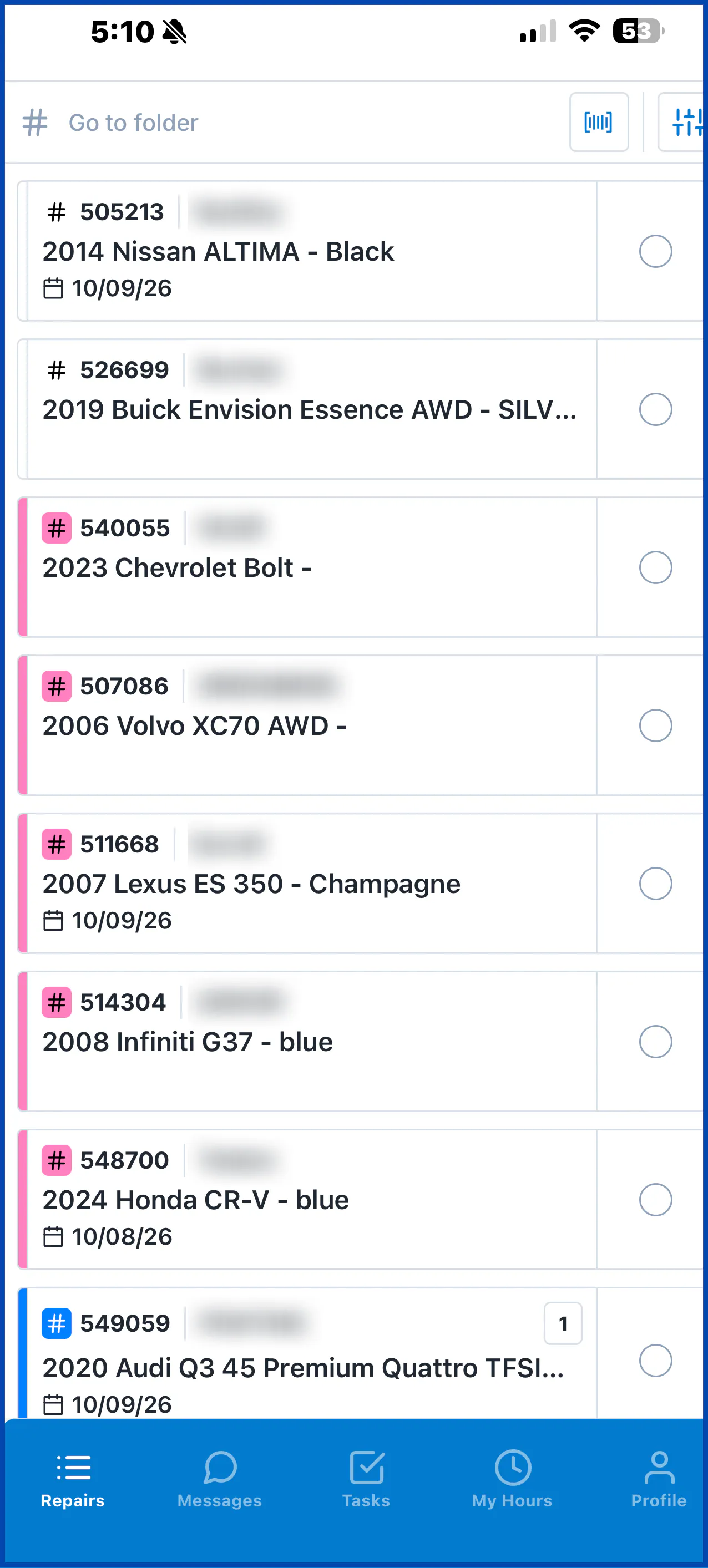
From the repair list you can:
- Open a folder: tap it. See Folder overview.
- Find a folder: scan the window tag or type the folder number in Go to folder. See Find a folder.
- Clock in: select the circle on each repair, and then select Clock In. See Clock in and out of repairs.
Sort and filter the list
Section titled “Sort and filter the list”-
Select the filter button at the top right of the repair list.
-
Under Sort By, choose Repair Stage, Internal Date or Priority Number. Select Ascending to change the sort direction.
-
Under Filter By Repair Stage, select the stages you want to see, for example Body or Paint.
-
Select Apply.
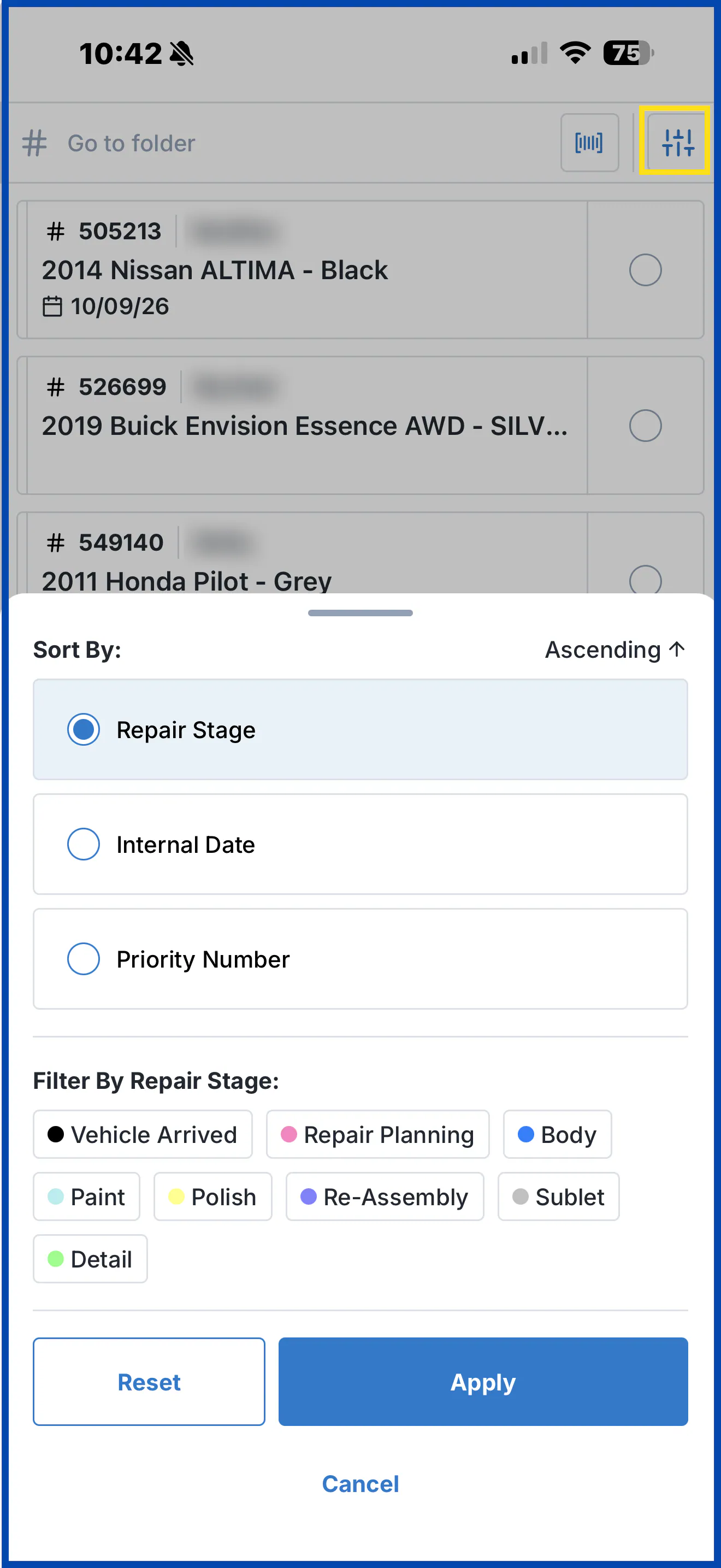
To clear your choices, select Reset. To close without changing the list, select Cancel.
Other tabs in the app
Section titled “Other tabs in the app”The tabs at the bottom of the screen open the app’s other features:
- Messages: see Message your team.
- Tasks: see Assign and complete tasks.
- My Hours: see Clock in and out of repairs.
- Profile: change your password or log out. See Activate and log in to the mobile app.