
Record a vehicle return
When a delivered vehicle comes back for more work, create a vehicle return (VR) on the folder of the original repair. You can track it in the Vehicle Center, order parts and allocate labor for it, and then complete and deliver it.
Before you begin
Section titled “Before you begin”To add or change vehicle return lines that have a dollar amount or labor hours, you need the transaction permission Vehicle Return lines - Add/Edit. These lines can create parts purchases and labor flags.
Without the permission, you can still add or change lines with $0 and 0.0 labor hours, for example to document the work.
Create a vehicle return
Section titled “Create a vehicle return”-
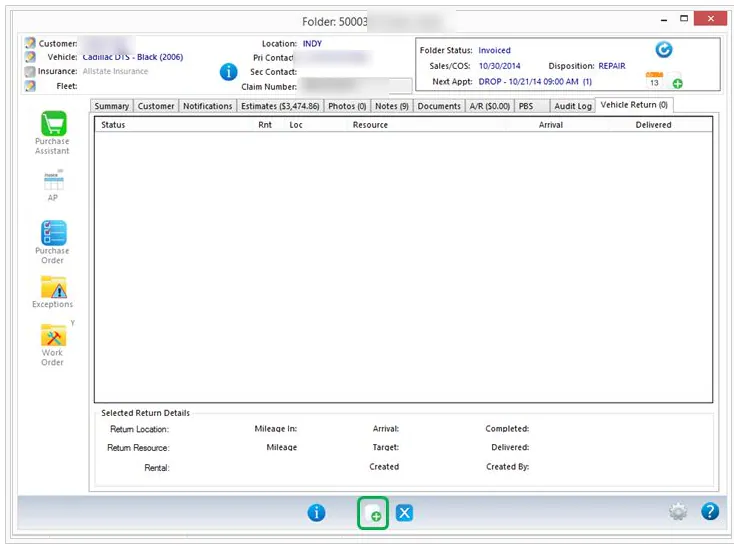
Open the folder of the original repair and select the Vehicle Return tab.
-
Select the new button on the button bar.
-
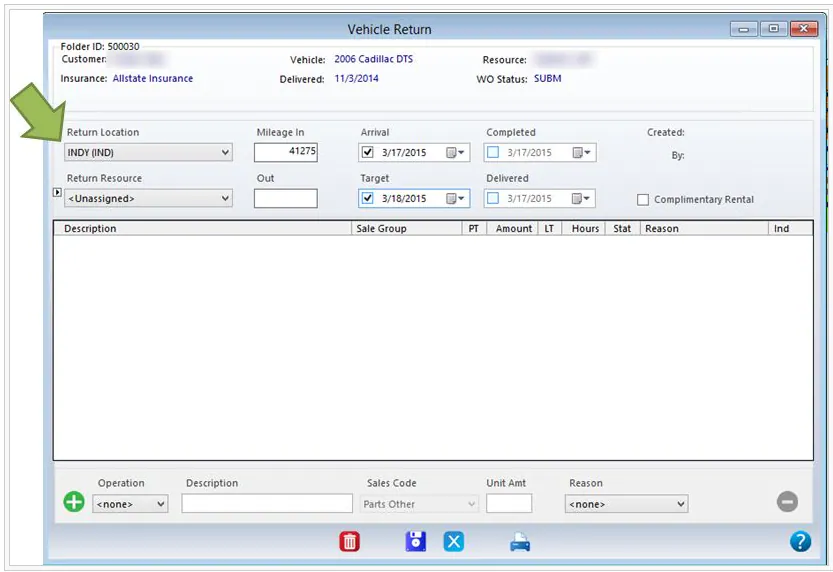
At the top of the Vehicle Return window, choose the Return Location and Return Resource, and set the Arrival and Target dates.
-
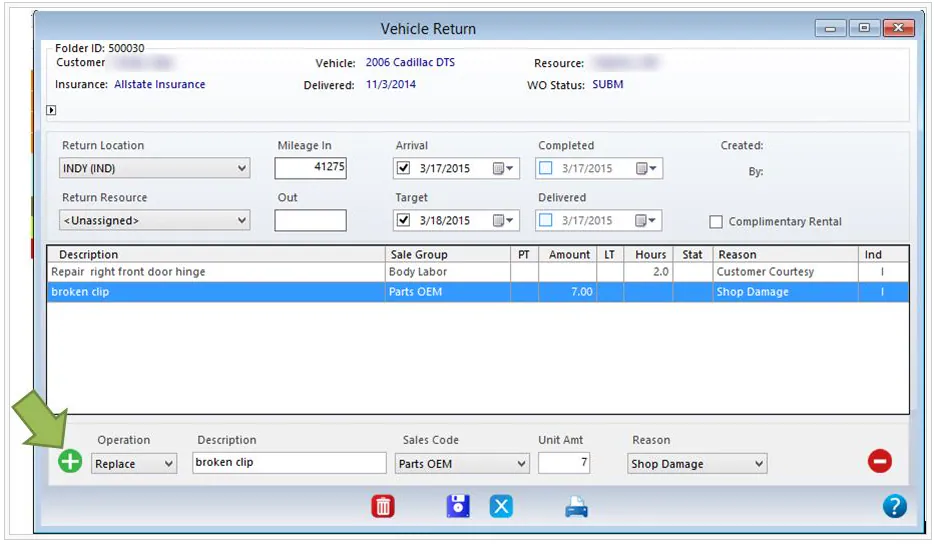
At the bottom, select the green plus button to add a line. Fill in the work you’ll do: Operation, Description, Sales Code, Unit Amt and Reason. This works like adding manual lines to a work order.
-
Select the save button.
Find pending vehicle returns
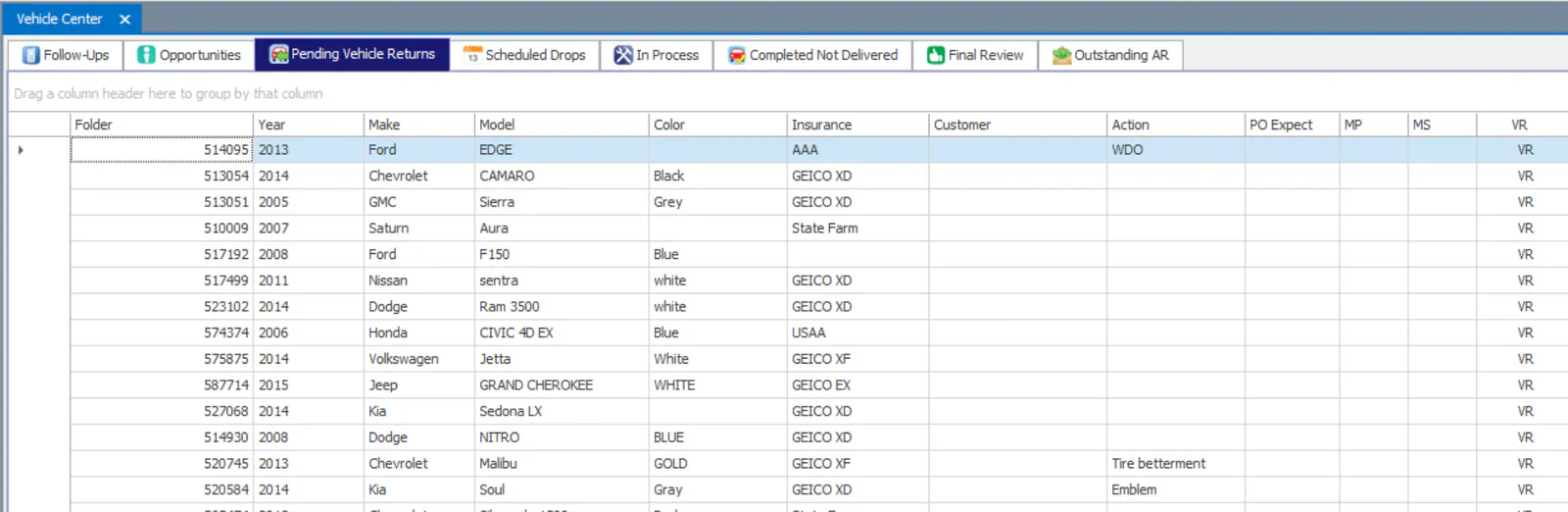
Section titled “Find pending vehicle returns”The Pending Vehicle Returns tab of the Vehicle Center lists folders with a vehicle return that isn’t marked as arrived yet. A folder stays there until a drop appointment is scheduled or the vehicle return is marked as arrived.
Mark a vehicle return as arrived
Section titled “Mark a vehicle return as arrived”When the vehicle comes back to the shop:
- Open the folder and select the Vehicle Return tab.
- Double-click the vehicle return’s line to open it.
- Select Arrived.
- Select the save button.
Track a vehicle return
Section titled “Track a vehicle return”Once the vehicle return is marked as arrived, the vehicle shows as arrived on the In Process tab of the Vehicle Center. The folder number is highlighted in red, and VR shows in the VR column.

Parts and labor lines you added to the vehicle return are available:
-
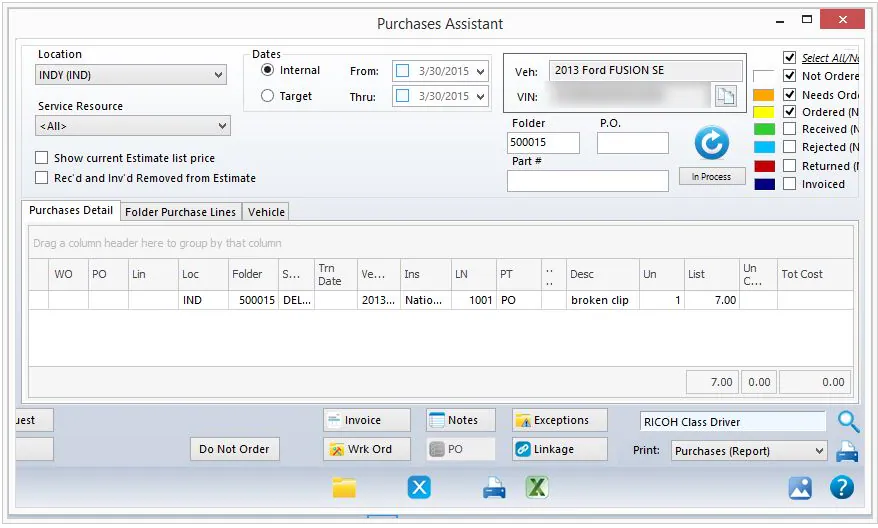
In the Purchase Assistant, to order the parts.
-
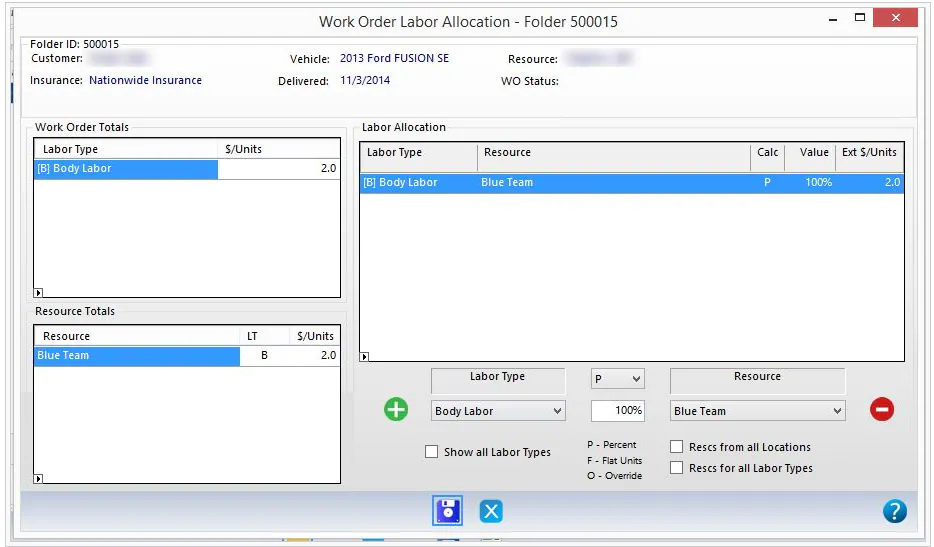
In Work Order Labor Allocation, to allocate the labor to technicians.
Complete and deliver a vehicle return
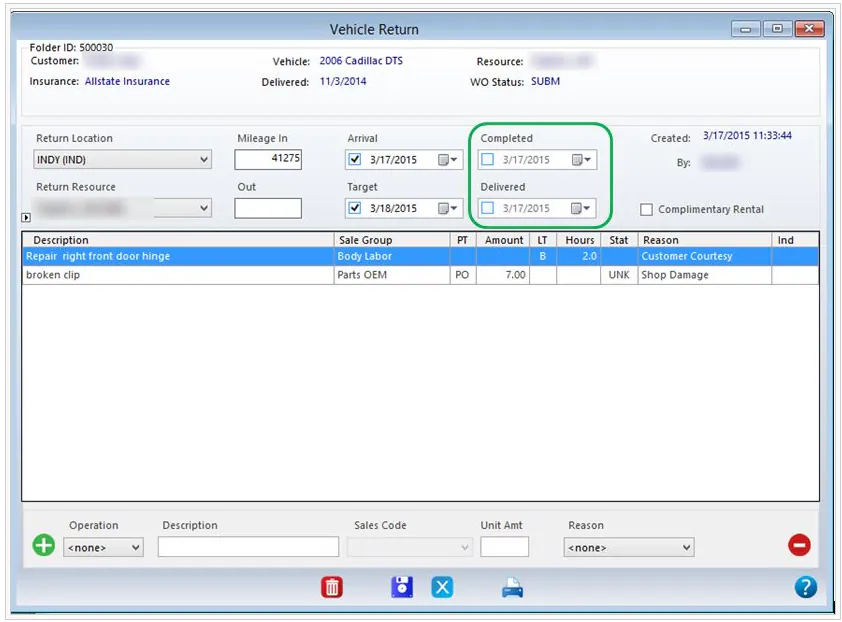
Section titled “Complete and deliver a vehicle return”- Open the vehicle return: double-click its line on the folder’s Vehicle Return tab, or double-click the VR column on the In Process tab.
- When the work is complete, select Completed and then select the save button.
- When the customer picks up the vehicle, select Delivered and then select the save button.
Report on vehicle returns
Section titled “Report on vehicle returns”On the Reporting tab, open Reports and run the Vehicle Returns Tracking report.