
Pay AP invoices by credit card
Record AP invoices you pay with a company credit card, then reconcile them against the card statement.
Set up a credit card account
Section titled “Set up a credit card account”-
Ask Nexsyis Support to create the credit card account. It’s set up under Setup › Accounting › Banking/Cash › Bank Accounts, with Account Type set to Credit Card, and Allow AP Payments checked on the Check Printing tab.
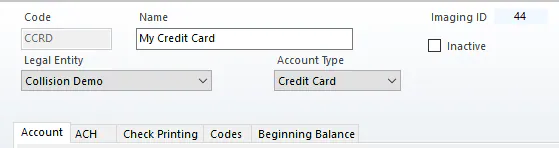
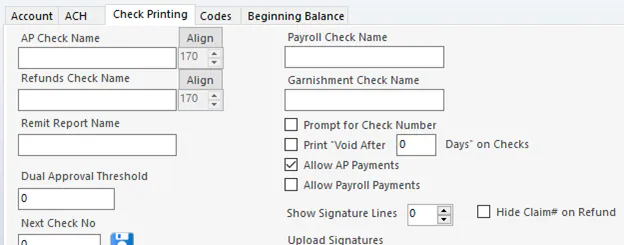
-
Create an AP vendor for the card: select Vendors › AP Vendors, then New. Give it the same name as the credit card account. Set Terms and Vendor Class to Credit Card, and select the card under Card Account.
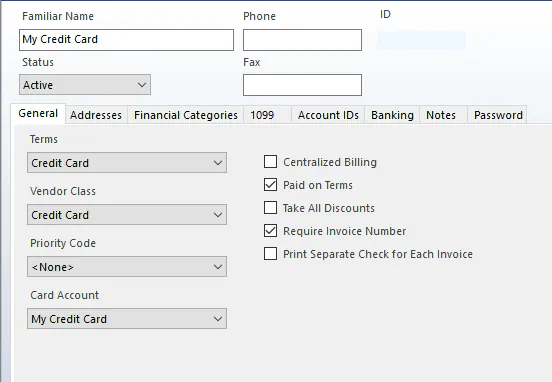
-
If you’ll pay invoices by card in a batch, give operators permission to the card account on the Banks tab of their operator setup.
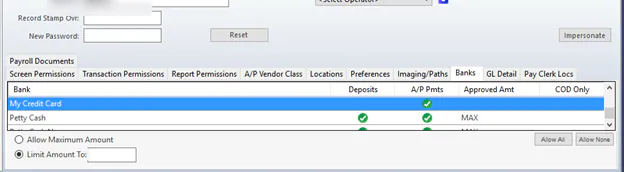
-
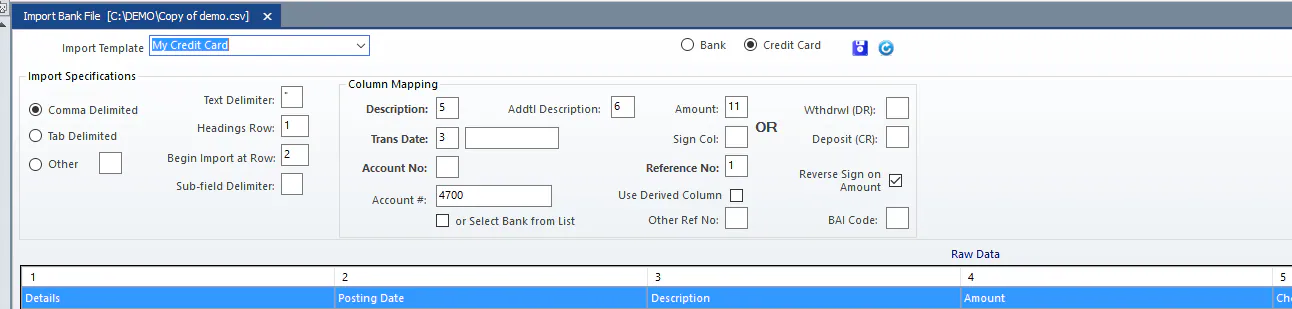
Create an import template for the card statement file and map its columns. Use a delimited file (tab or CSV). For help, send a sample file to Nexsyis Support. See Map a bank file.
Pay one invoice by credit card
Section titled “Pay one invoice by credit card”-
Create the AP invoice for the vendor.
-
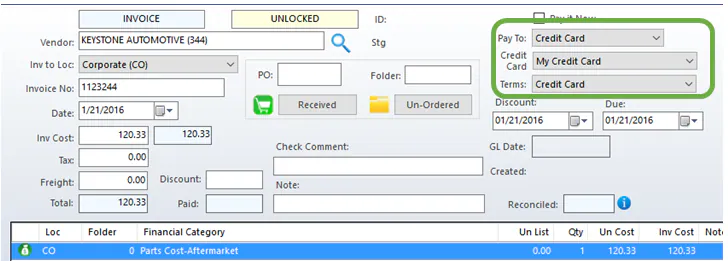
On the right, set Pay To to Credit Card and select your card under Credit Card.
-
Save the invoice. Nexsyis adds an entry to the card’s check register and marks the invoice paid.
To change the invoice before it’s reconciled on the statement, select the card again under Credit Card: after saving it shows (Paid to a Credit Card). If the invoice is already reconciled, un-reconcile it first on the Check Register tab of the bank reconciliation screen.

Pay several invoices by credit card
Section titled “Pay several invoices by credit card”Use this when invoices were entered with Pay To set to the vendor but you paid them by card. Leave each invoice as it is.
-
On the Accounting tab, select A/P Payments, then Create A/P Check Batch.
-
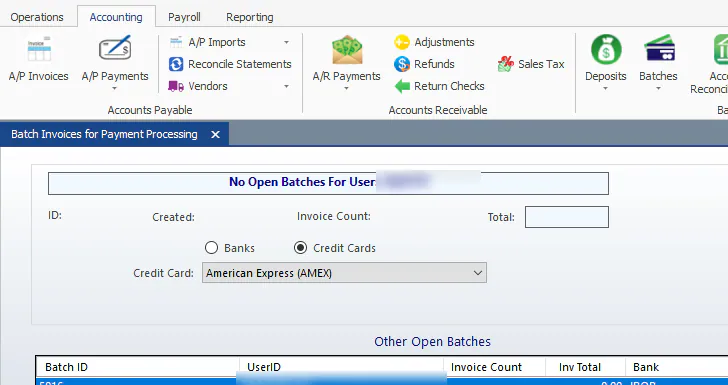
Select Credit Cards, select the card under Credit Card, and select New.
-
Select the invoices and continue through the check batch. See Print a check batch.
On the AP Check Batch screen, Pay shows CC. Nexsyis groups the invoices by vendor and adds one entry per vendor to the card’s check register.

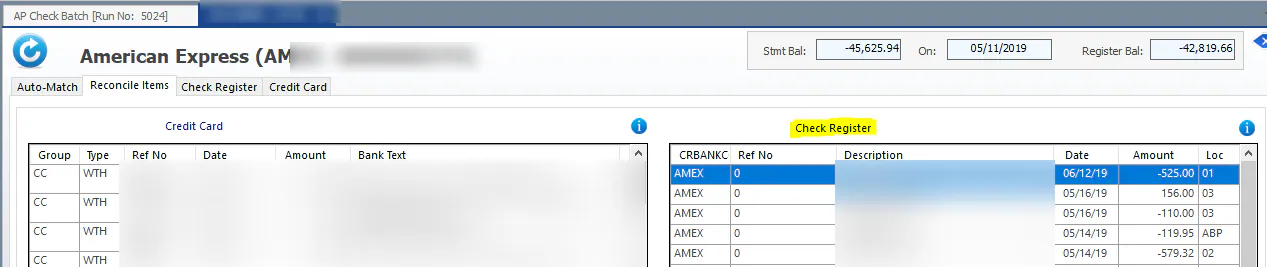
The payment is now on the card’s check register, ready to reconcile with the statement.
Reconcile the credit card account
Section titled “Reconcile the credit card account”- Download the statement file from the card company’s website.
- On the Accounting tab, select Reconcile Bank Accounts, then Import Bank File, and import the file into the card account. See Import bank and credit card transactions.
- Select Reconcile Bank Accounts › Reconcile Bank Accounts and select the card account at the top.
- Check the Auto-Match tab for items that match automatically.
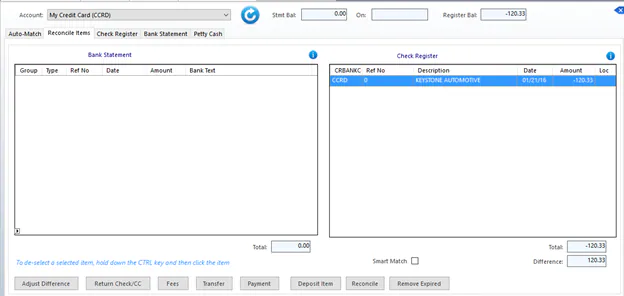
- On the Reconcile Items tab, match the statement items on the left to the check register items on the right.
Card payments made from a bank account
Section titled “Card payments made from a bank account”When you pay the card from a bank account, for example online, the payment shows on the card statement and comes out of the bank account. Reconcile it as a transfer between accounts:
- In each account, double-click the left-most column of the payment line and select Transfer Between Cash Accounts.
- In the second account, select the line. The other side of the transfer shows below.
- Select each item and select Transfer.
Record card rewards or interest credits
Section titled “Record card rewards or interest credits”When you get a rewards or interest credit on the card, do one of the following:
- Enter an AP credit invoice and, at the top right, set Pay To to Credit Card and select the card.
- Enter a non-AR payment, then deposit it to the card account on the Make a Deposit screen. See Record a non-AR payment.
- Enter a journal entry. See Enter a journal entry.