Request and approve an absence
Employees request time off in Nexsyis. The request creates a task for their supervisor, who approves or denies it, and the employee is notified of the decision.
Before you begin
Section titled “Before you begin”- To request an absence, you must be logged in with an operator record tied to your employee ID.
- To open and approve another employee’s request, you need supervisor, payroll clerk or absence permission. See Set time and absence approval permissions.
Request an absence
Section titled “Request an absence”-
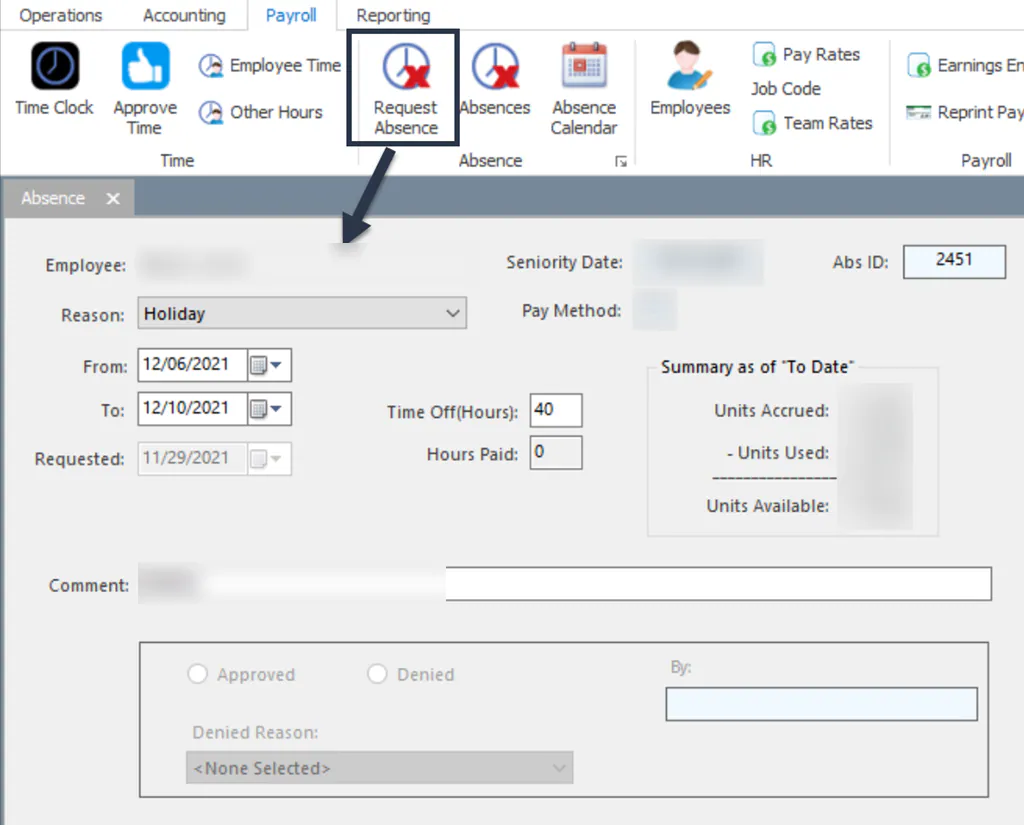
On the Payroll tab, select Request Absence. The Absence screen opens with your name filled in.
-
Select the Reason.
-
Enter the From and To dates.
-
Enter the total hours in Time Off(Hours).
-
Select Save.
You can also request an absence from the absence calendar, where you can first check for holidays and blockout dates. See Use the absence calendar.
Your request shows on the absence calendar in yellow until it’s approved, and a task is created for your supervisor.
Approve or deny an absence request
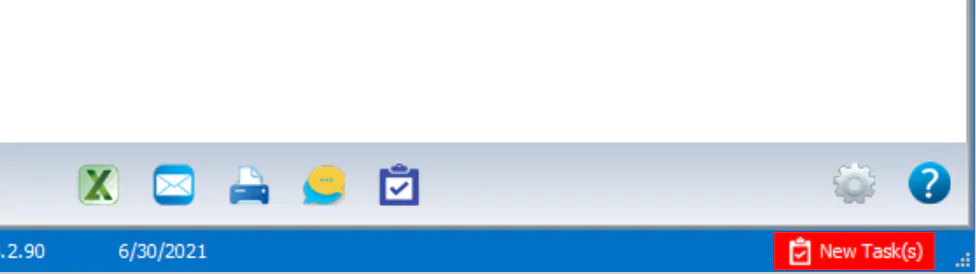
Section titled “Approve or deny an absence request”When an employee submits a request, their supervisor gets an Absence Needs Approved task, and the New Task(s) indicator shows at the bottom of the Nexsyis window.
-
Open the request in one of these ways:
-
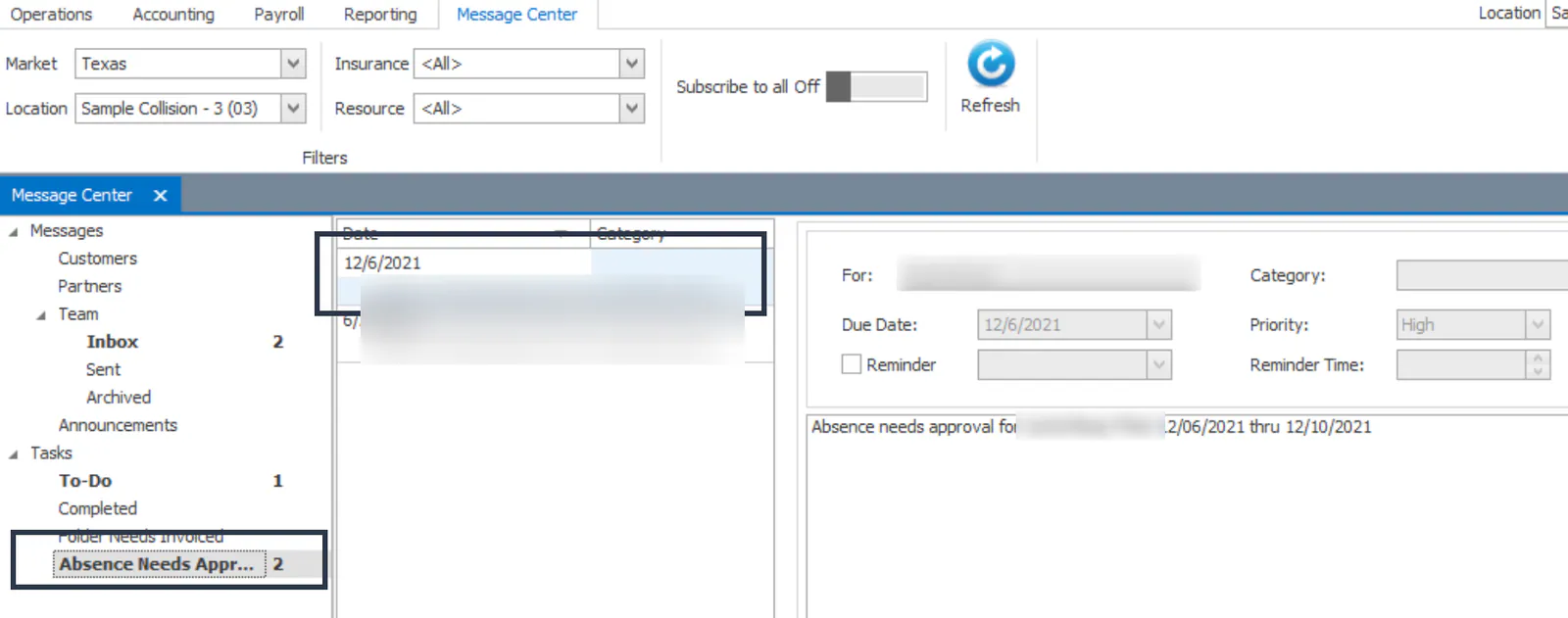
In the Message Center, select the Absence Needs Approved task group, then double-click the task.
-
On the Payroll tab, select Absences, select Needs Approved Only, then double-click the request.

-
On the absence calendar, double-click the request.
-
-
Select Approved or Denied. If you deny the request, select a Denied Reason.
-
Select Save.
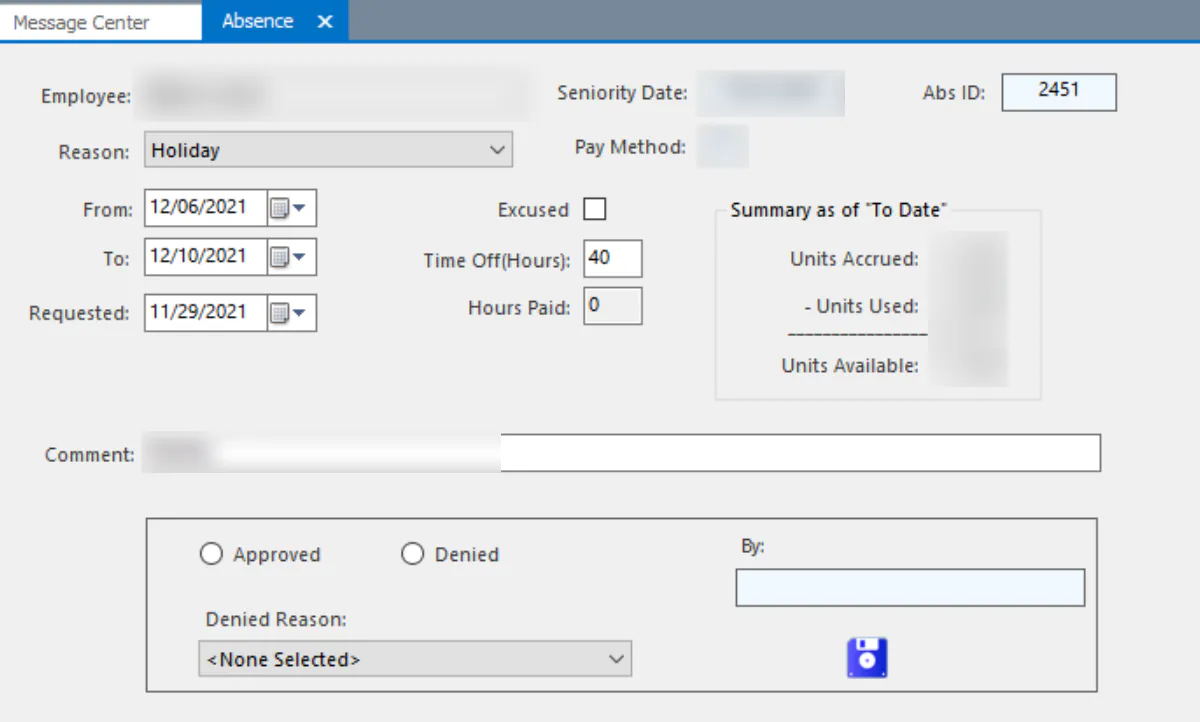
The task is cleared automatically once the absence is approved. On the absence calendar, the approved absence shows in white.
What the employee sees
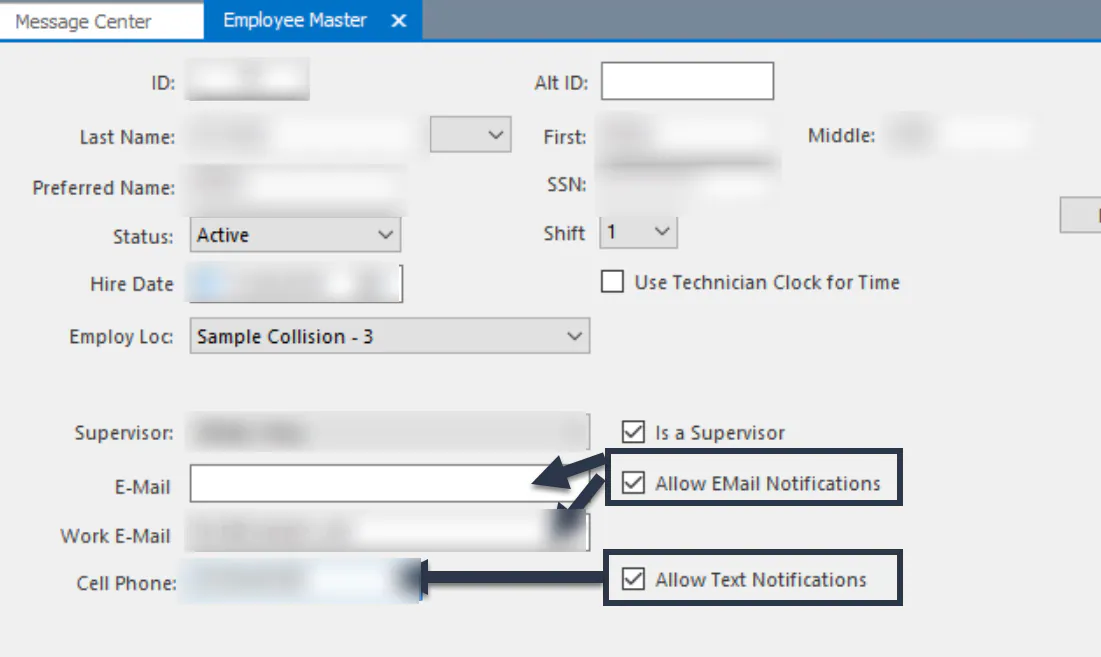
Section titled “What the employee sees”The employee gets a text, an email or both saying the absence was approved or denied. Which ones they get depends on the Allow EMail Notifications and Allow Text Notifications checkboxes on their employee record.
See every request waiting for approval
Section titled “See every request waiting for approval”Payroll clerks can see every unapproved absence request:
-
On the Payroll tab, select Absences, then select Needs Approved Only.
-
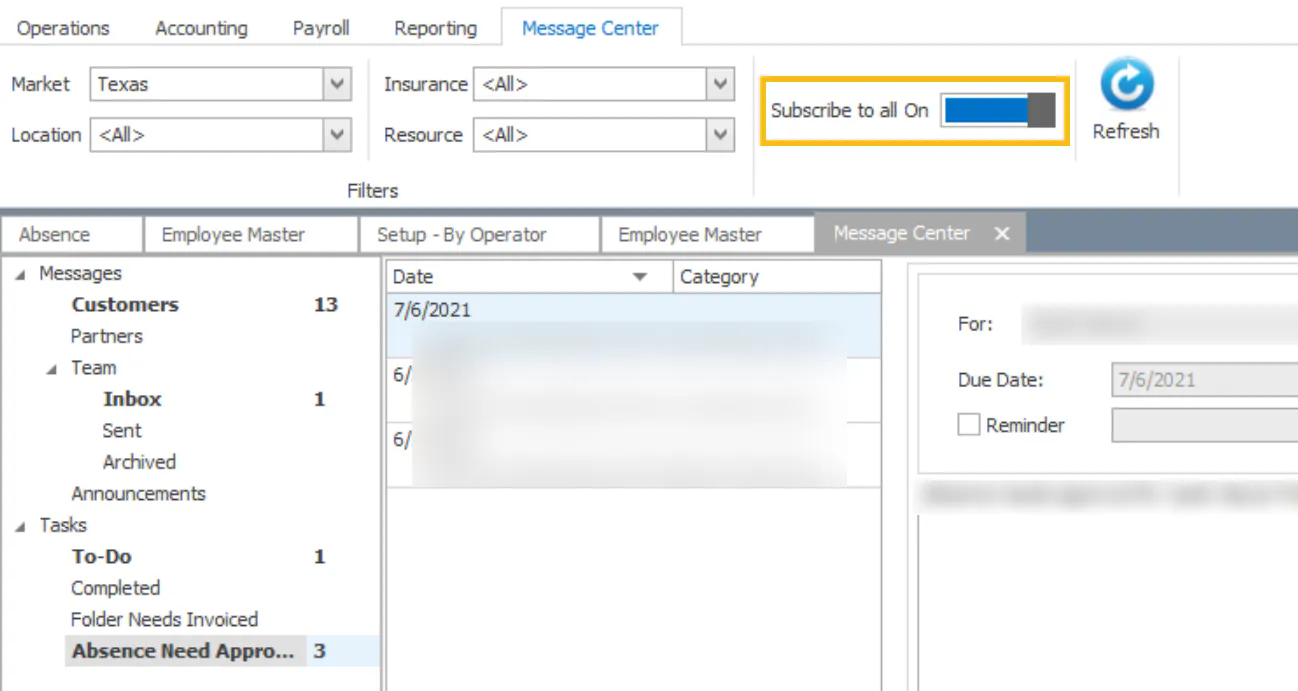
In the Message Center, turn on Subscribe to all to see the New Task(s) indicator for every employee request waiting for approval.