View a folder's AR
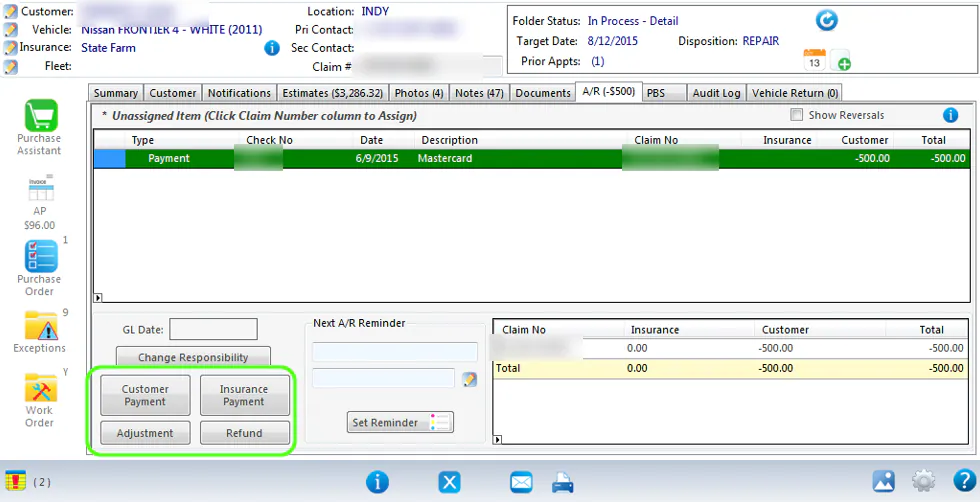
The folder’s A/R tab shows the invoice for each estimate and every payment, adjustment and refund against it. From here you can enter AR transactions, correct who a payment belongs to, and set a follow-up reminder.
How folder AR works
Section titled “How folder AR works”AR is kept by folder, invoice and payer: insurance, customer and fleet. Each payment is entered against the party that paid it, so you can age and report AR by payer type.
Enter a payment, adjustment or refund
Section titled “Enter a payment, adjustment or refund”Use the buttons at the bottom left of the A/R tab:
- Customer Payment or Insurance Payment: see Enter an AR payment.
- Adjustment: see Make an AR adjustment.
- Refund: see Refund a customer.
Move a payment to the other party
Section titled “Move a payment to the other party”If you entered a payment against the insurance company when it should have been a customer payment, or the other way round, you don’t need to reverse it. Change its responsibility instead.
-
On the A/R tab, right-click the payment line.
-
Select Change Responsibility.

The payment now shows under the other party.

Set an AR follow-up
Section titled “Set an AR follow-up”Use Set Reminder under Next A/R Reminder to remind someone to follow up on the balance. See Set AR follow-up reminders.
Find folders that need to be invoiced again
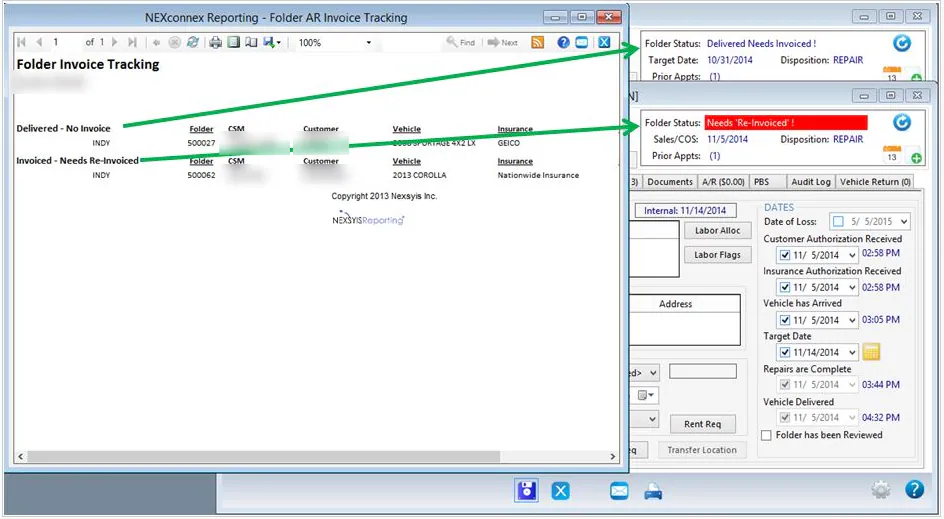
Section titled “Find folders that need to be invoiced again”The Folder AR Invoice Tracking report lists folders that were delivered but not invoiced, and folders that were invoiced but need to be invoiced again.
-
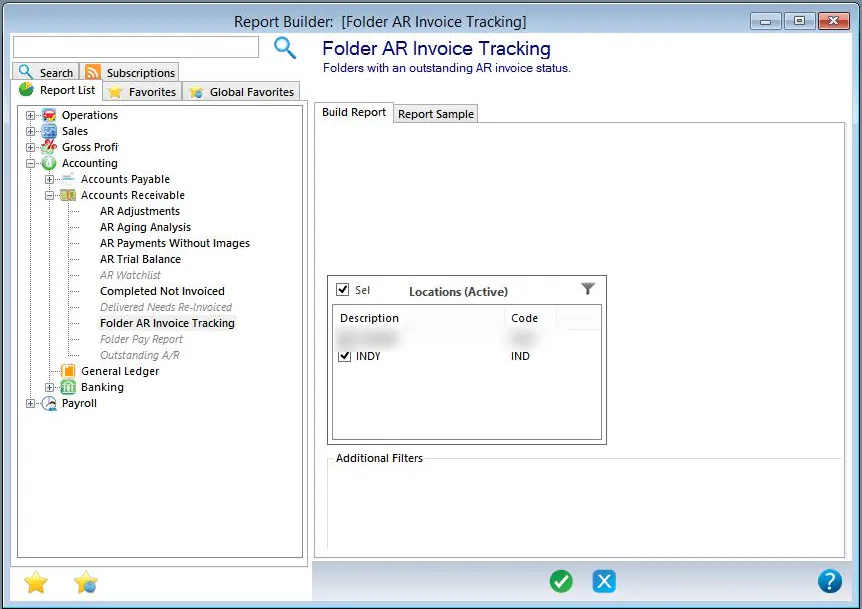
Go to Reporting › Reports › Accounting › Accounts Receivable and select Folder AR Invoice Tracking. You can also type the report name in the search box above the report list.
-
Select the locations.
-
Select the green check button to run the report.
The report lists folders under Delivered - No Invoice and Invoiced - Needs Re-Invoiced. On the folder, these show as Delivered Needs Invoiced and Needs ‘Re-Invoiced’.