
Print a check batch
A check batch pays a group of AP invoices at once. You choose the invoices, set the check date and amounts, and Nexsyis creates the check records for you to print.
Create the batch
Section titled “Create the batch”-
On the Accounting tab, select Pay Invoices, then Create A/P Check Batch.
-
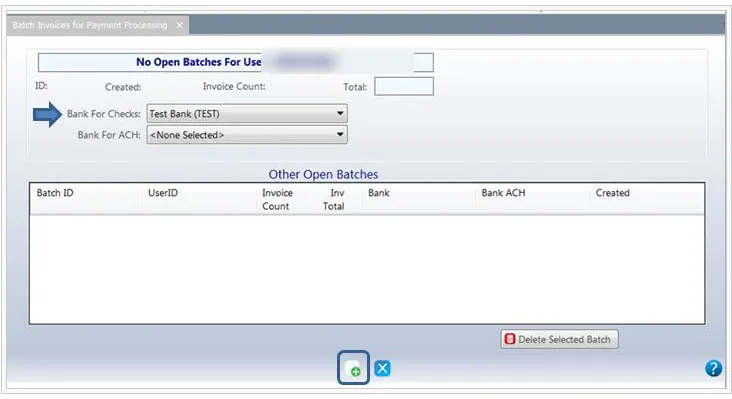
Select the Bank For Checks, then select New on the button bar.
-
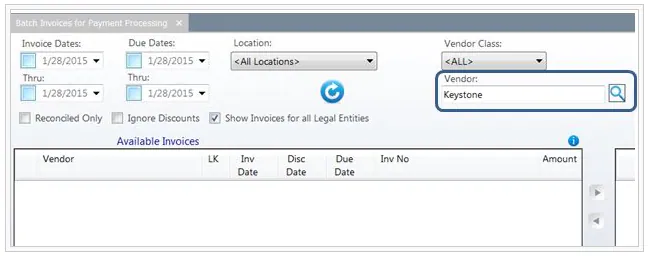
In Vendor at the top right, search for the vendor and select it.
-
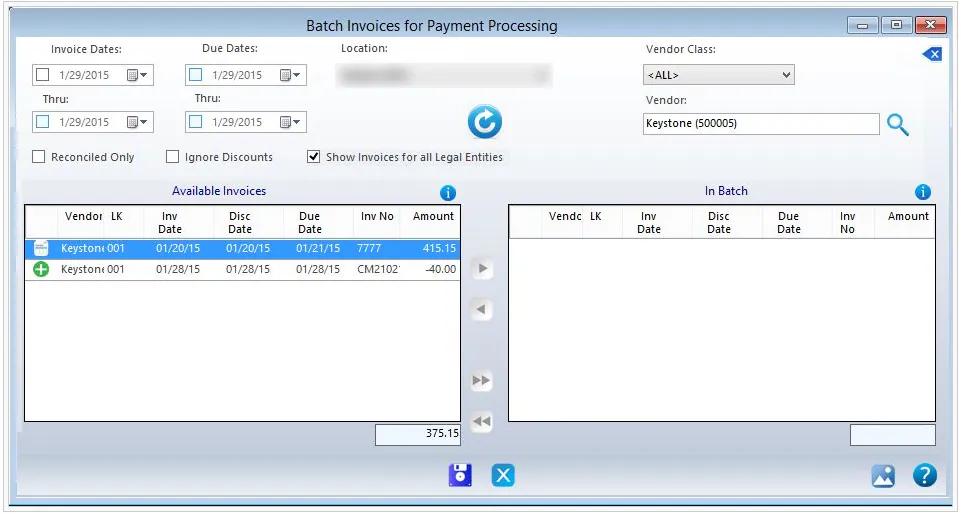
Select Refresh to fill the Available Invoices list.
-
Select the invoices to pay and select > to move them to In Batch. To move every invoice, select >>.
Credit memos show with a green + icon. Move them into the batch to apply them to the invoices; the check is for the net amount.
-
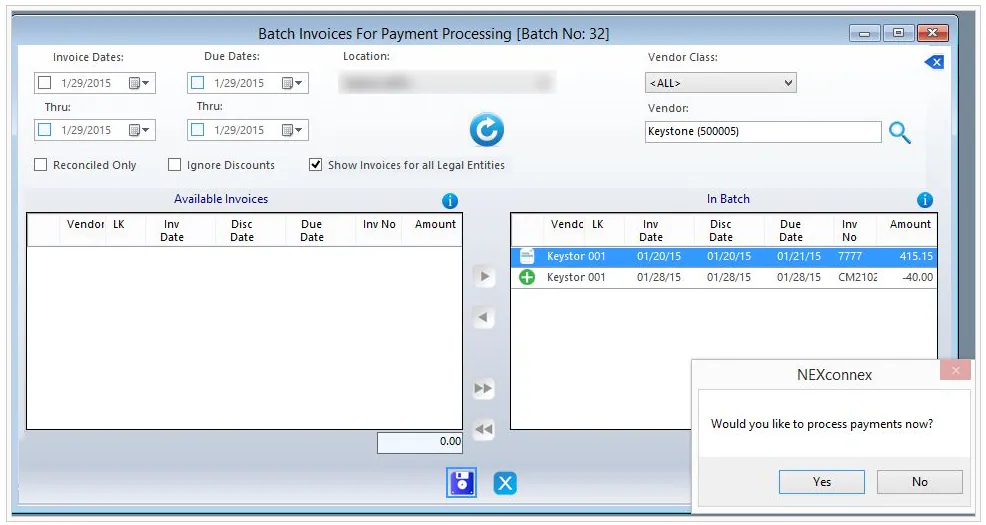
Select Save. When asked whether to process payments now, select Yes.
Process the payments
Section titled “Process the payments”-
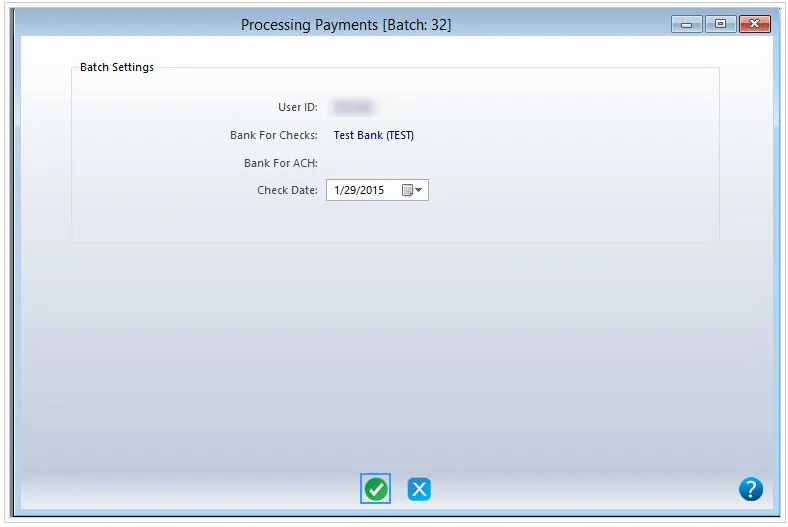
Select the date to print on the checks and select Continue.
-
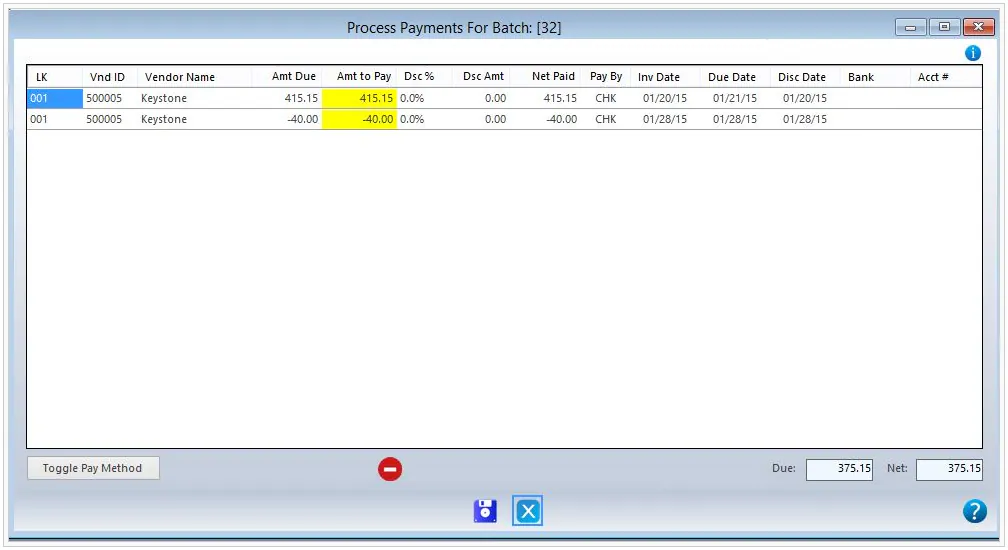
To pay less than the full amount of an invoice, double-click the amount under Amt to Pay and type the new amount. See Partially pay an AP invoice.
-
To switch a payment between ACH and check, select Toggle Pay Method.
-
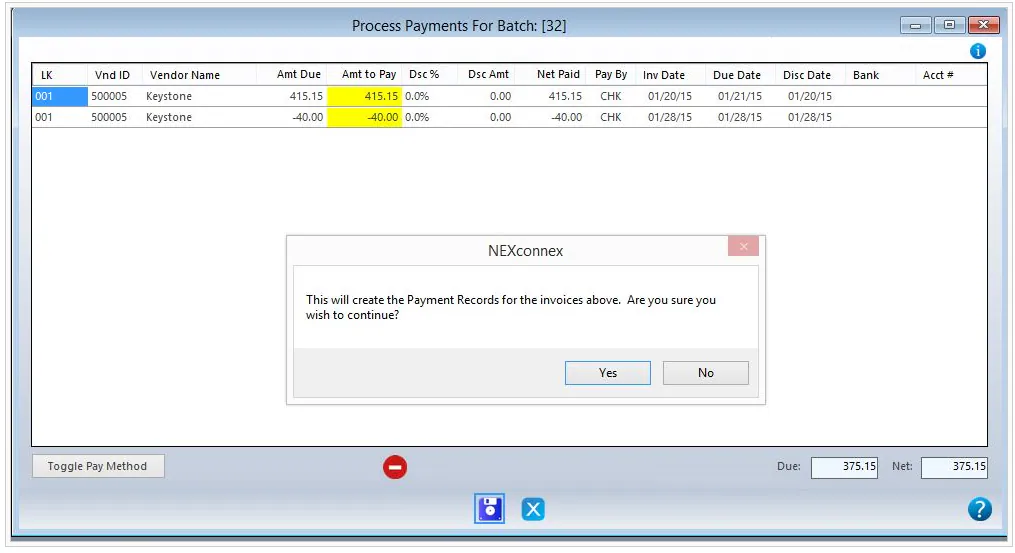
Select Save, then Yes.
Print the checks
Section titled “Print the checks”The check records are created. The lower grid lists the invoices paid by the selected check; in this example, the invoice and credit memo are combined into one check for the net amount.
- Enter your password in the box at the bottom.
- In the drop-down next to it, choose what to print, for example Print All Checks, Print Selected Check, or a remittance option to print or email the remittance.
- Select the Print icon.
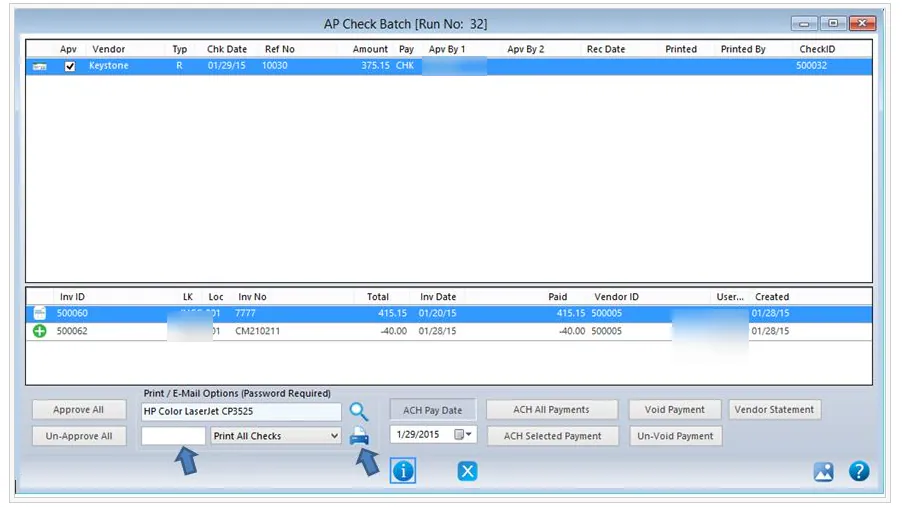
If a check’s Apv box isn’t checked, the check is more than the amount that’s approved automatically. A manager with approval permission must enter their password and select Approve All before the check can print. See Approve AP checks.