Charge credit card fees
You can add a fee to card payments, for example 2% of the amount. Nexsyis calculates the fee when the customer pays, prints it on the receipt, and posts it to the income account you choose.
Before you begin
Section titled “Before you begin”Post clear signs near the card terminal. The charge must be disclosed before the customer pays, both where the customer enters your business and at the point of sale. The signs must:
- Show the exact amount or percentage of the surcharge.
- Say that the surcharge is charged by your business and applies only to credit transactions.
Set up card fees for a location
Section titled “Set up card fees for a location”Do this for each location.
-
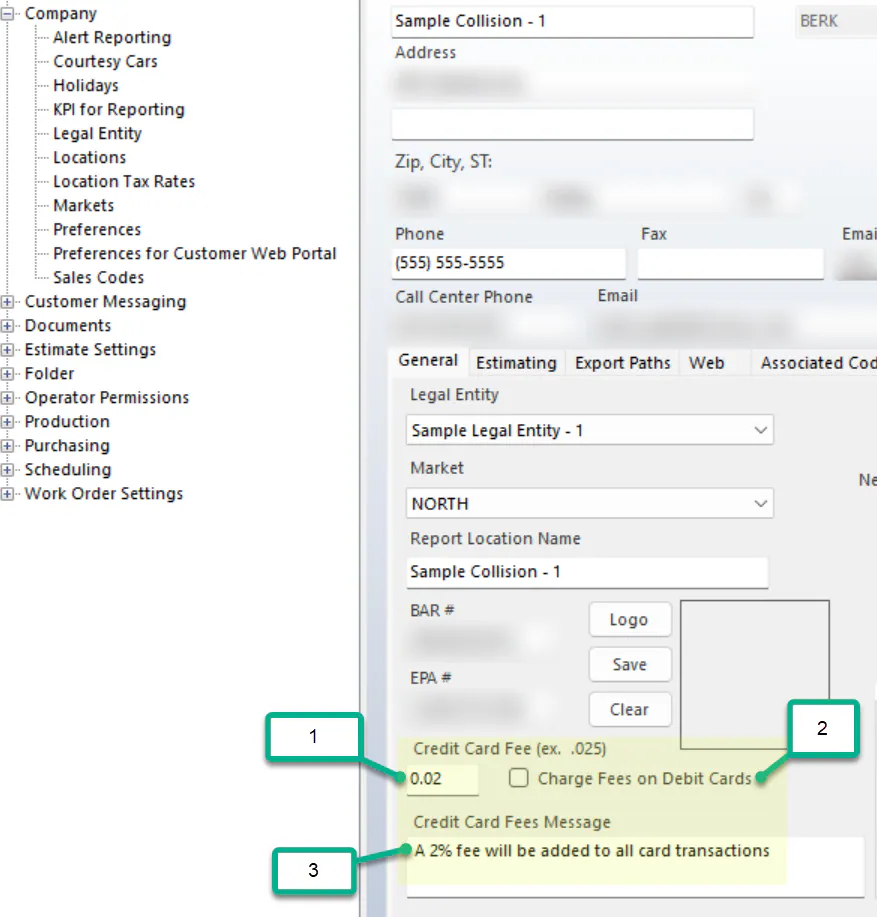
Go to Setup › Company › Locations and open the location.
-
In Credit Card Fee, enter the fee as a decimal. For a 2% fee, enter 0.02.
-
To charge the fee on debit cards as well as credit cards, select Charge Fees on Debit Cards. Debit cards aren’t charged a fee unless you select this.
-
In Credit Card Fees Message, enter the message customers see on the online payment portal.
-
To let a user waive the fee, give them the Waive Credit Card Fees transaction permission. The Waive Card Fee checkbox is hidden for users without it.
-
Tell Nexsyis support which GL financial account the fee income should post to.
Take a card payment with a fee
Section titled “Take a card payment with a fee”-
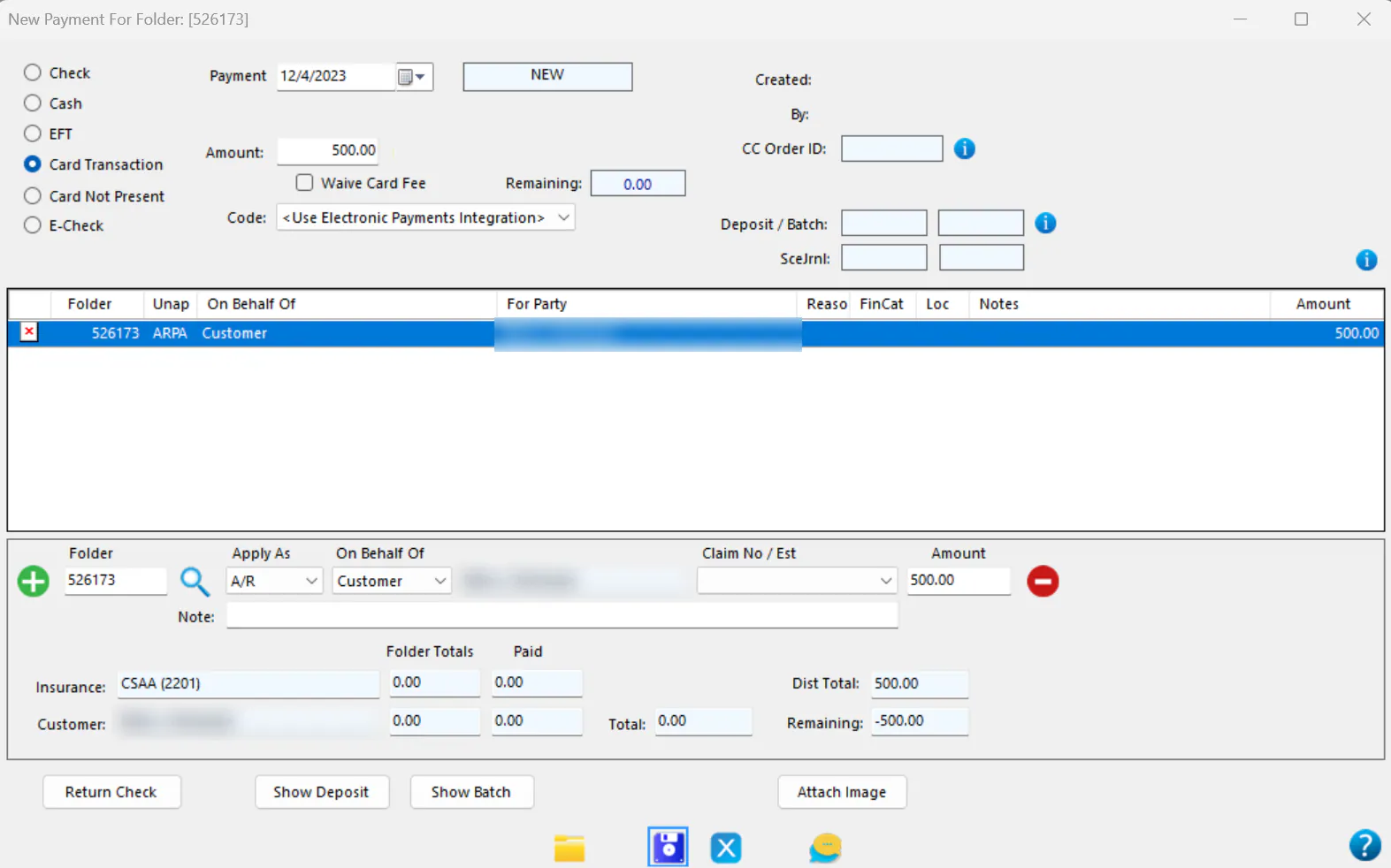
On the AR payment screen, select Card Transaction.
-
Choose the Payment date.
-
Enter the Amount due.
-
Select Save.
-
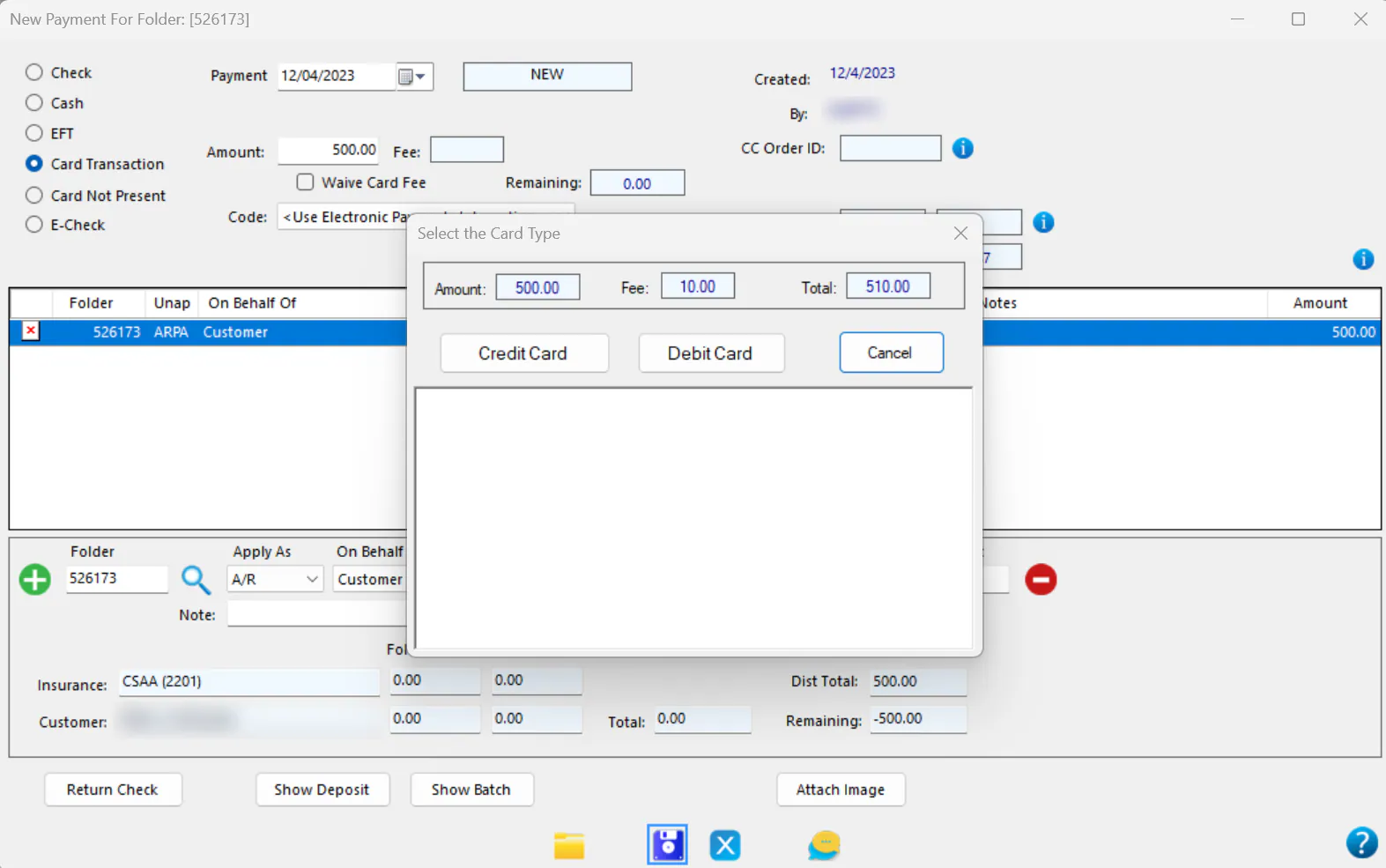
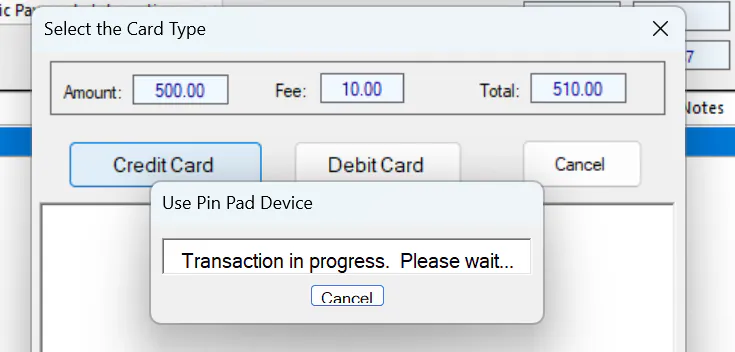
Ask the customer whether they’re paying by credit or debit card, and select Credit Card or Debit Card. The window shows the fee charged for a credit card.
-
The customer runs their card on the terminal. Nexsyis shows Transaction in progress. Please wait…
-
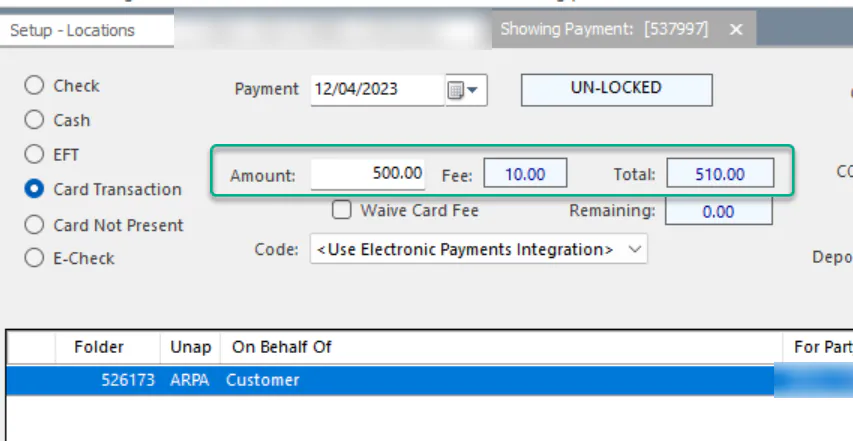
When the payment is approved, it posts to the folder’s A/R tab. Only the amount applied to AR shows there, not the fee.

When you open the payment, you see the AR Amount, the Fee and the Total.
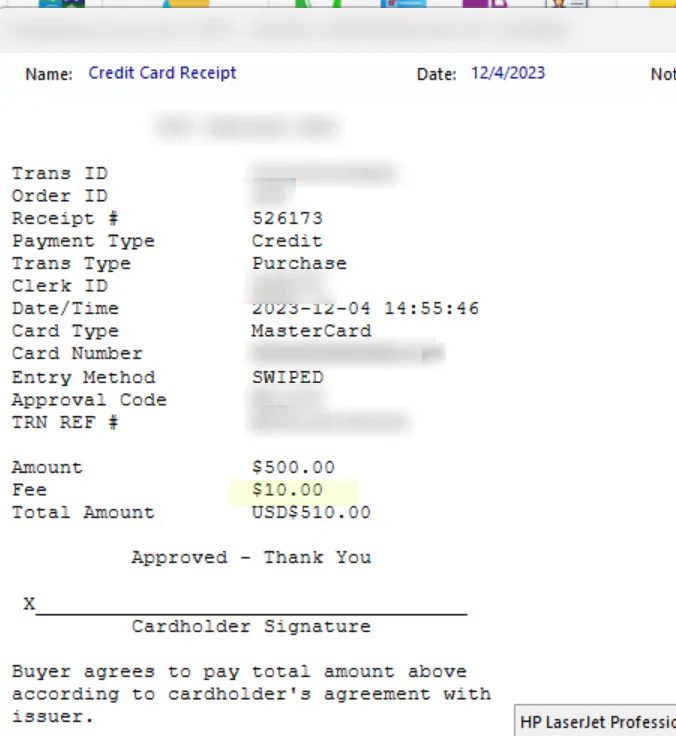
The receipt also shows the fee.
For more about taking card payments, see Take a card payment.
Card-not-present payments
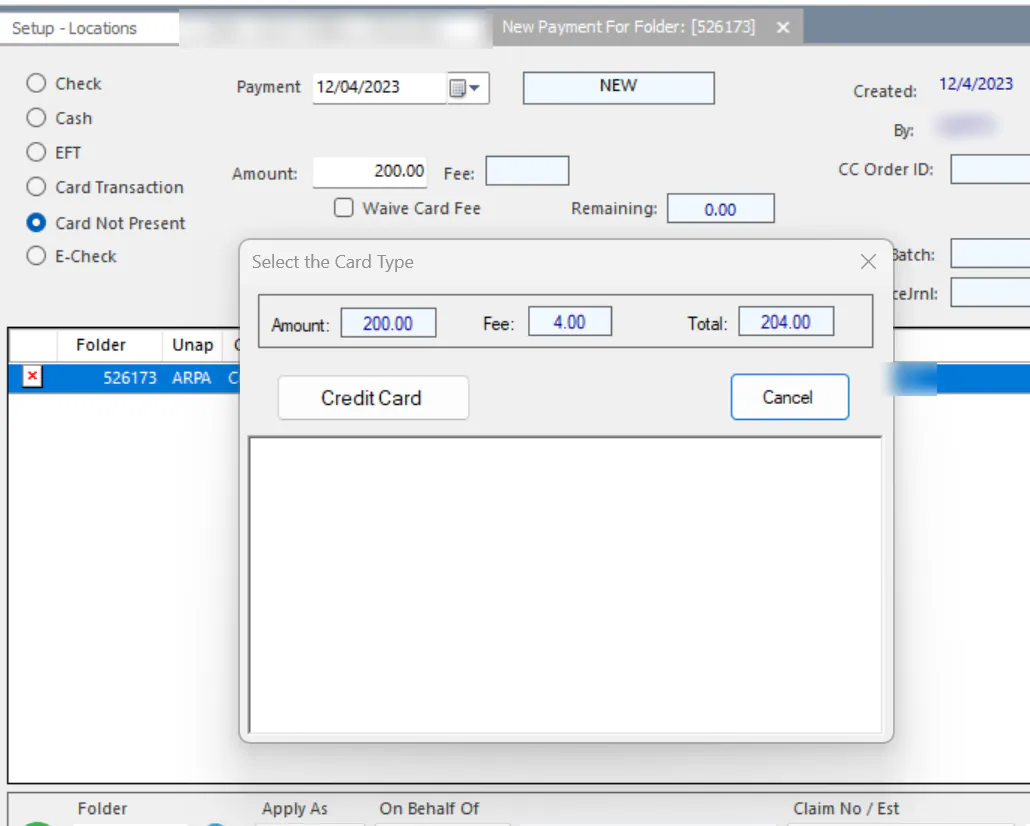
Section titled “Card-not-present payments”Debit card payments can’t be taken over the phone, so when you select Card Not Present, only Credit Card is offered. The fee is always added unless you waive it.
Refunds
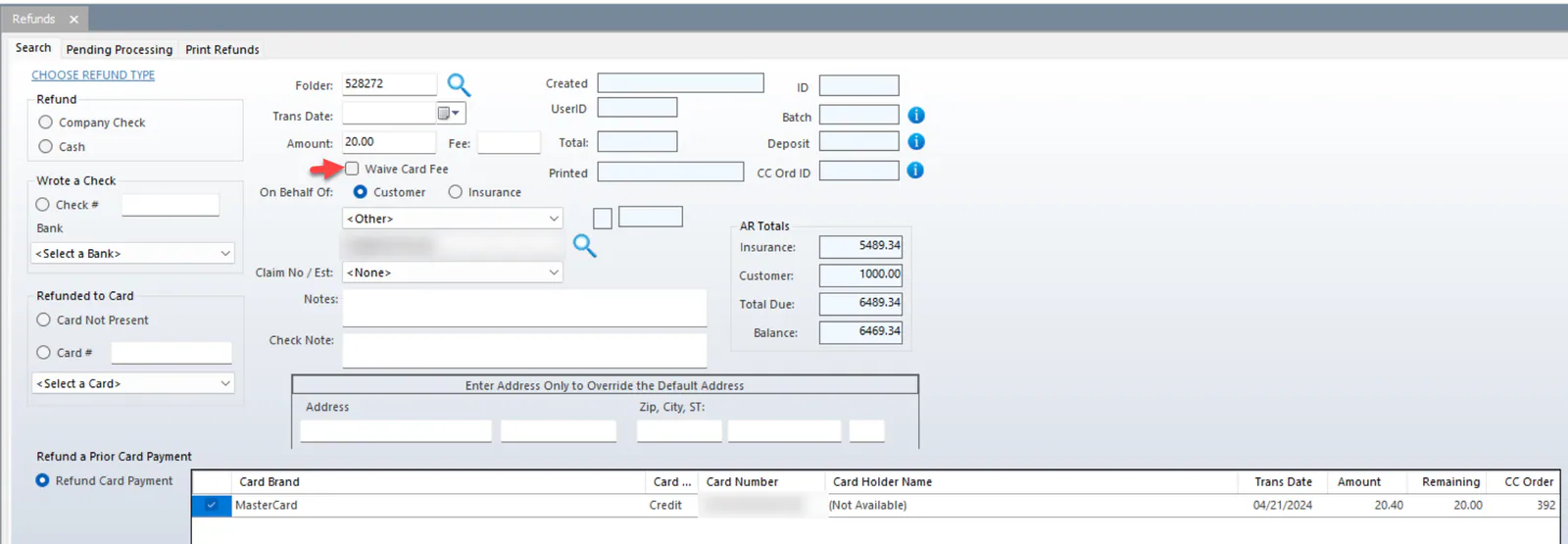
Section titled “Refunds”When you refund a card payment, the fee is included automatically. If no fee was charged, for example for a debit card payment, select Waive Card Fee.