Review and resolve exceptions
Exceptions list differences between the estimate (the sale) and the final AP invoices (the cost). They flag issues to resolve on a folder before it’s considered closed. They don’t stop the vehicle from being delivered.
To remove an exception, fix the issue that caused it. If the difference is known and acceptable, a user with permission can allow the exception instead.
Exception types
Section titled “Exception types”| Exception | What it means | How to resolve it |
|---|---|---|
| Purchase Price Difference | The list price on the AP invoice doesn’t match the list price on the estimate. | Check that the AP invoice was entered correctly. Correct the estimate list price if you’re billing the customer. Allow the exception if you’re not billing the difference. |
| Purchase Quantity Difference | The quantity on the invoice doesn’t match the estimate. | If you’re not keeping the extra units, reject and return them. If you’re keeping them, update the quantity on the estimate. |
| Cost, No Sale | A purchase isn’t on the estimate. | If you’re billing the customer, add it to the estimate and link the lines on the Linkage screen. If not, return it, or allow it as shop pay. |
| Sale, No Cost | A purchase line hasn’t been invoiced. | If the purchase is needed, order it and attach the invoice to the line. If it isn’t needed, remove it from the estimate. If it’s in stock, mark it as stock on the work order. |
| Sales Tax Conflict | A line on the estimate is taxed when it shouldn’t be, or not taxed when it should be. | Add or remove the tax in the estimating system. |
| Rejected, Not Returned | A rejected item hasn’t been returned to the vendor. | Return the part to the vendor. |
| Returned, No Credit Memo | A credit hasn’t been entered for a returned item. | Invoice the credit memo to the returned line. |
| Sale With No Cost - Received | A received item hasn’t been invoiced. | Invoice the received line. |
| Manual Work Order Line | A line was added manually on the work order. | If you’re not billing the customer, allow the exception. If you are, add the line to the estimate and link the lines on the Linkage screen. |
| Parts Other Line | The sales code for a work order line needs correcting. | Convert the line on the work order to the correct part or labor type. |
View exceptions
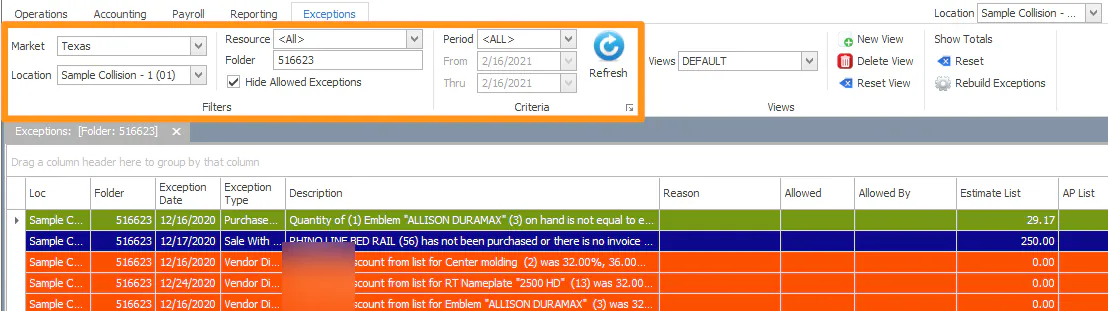
Section titled “View exceptions”- On the Operations tab, select Exceptions.
- Choose the Location, Resource, dates and Folder. The From date defaults to the current month.
- Select Refresh.
All exceptions that match load in the grid.
Filter by exception type
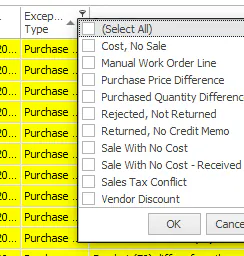
Section titled “Filter by exception type”Select the filter on the Exception Type column heading and choose the types you want to see. The heading may be shortened, for example Excep… Type.
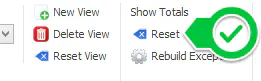
To clear filters, select Reset in the top-right corner of the screen.
Add columns
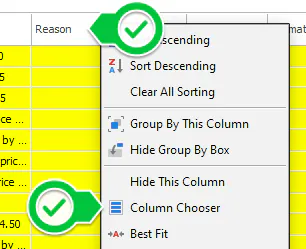
Section titled “Add columns”- Right-click the grid header and select Column Chooser.
- Double-click a column to add it to the grid.
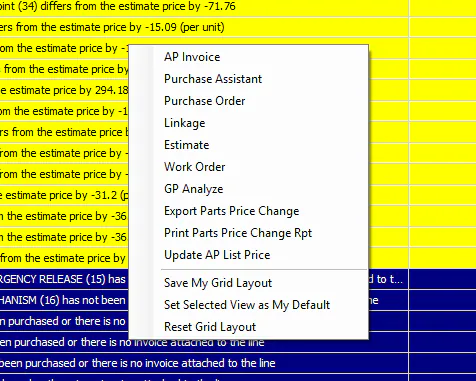
To keep your columns, right-click the grid and select Save My Grid Layout.
Correct an exception
Section titled “Correct an exception”To clear an exception, correct the issue behind it. Use the table above for suggested fixes.
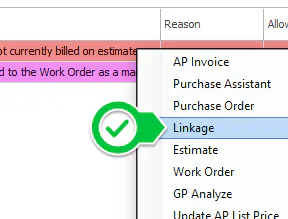
Right-click an exception to open related screens, such as AP Invoice, Purchase Assistant, Purchase Order, Linkage, Estimate, Work Order or GP Analyze. The options change with the type of exception.
Update the AP list price on a price difference
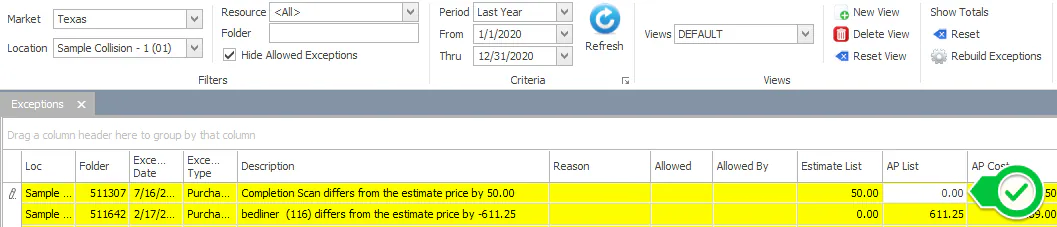
Section titled “Update the AP list price on a price difference”If the Estimate List price is correct and the AP List price is wrong, you can fix it on the Exceptions screen.
-
Make sure the Estimate List and AP List columns are showing.
-
Click in the AP List column and type the Estimate List value.
-
Press Enter. The exception clears.
For more about price differences, see Monitor purchase price differences.
Allow an exception
Section titled “Allow an exception”Allow an exception when the condition is known and acceptable.
-
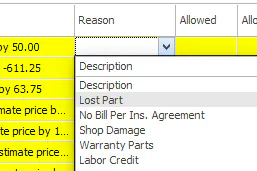
In the exception’s row, select a Reason. A reason is required.
-
Double-click in the Allowed column.
If Hide Allowed Exceptions is selected at the top of the screen, the exception disappears from the list. Clear Hide Allowed Exceptions to see allowed exceptions, with the reason and who allowed them.
Link AP lines to work order lines
Section titled “Link AP lines to work order lines”If an AP invoice was entered before its line existed on the work order, link the invoice line to the work order line once it’s added.
Open the Linkage screen
Section titled “Open the Linkage screen”Do one of the following:
-
On the Exceptions screen, right-click the exception and select Linkage.
-
In the Purchase Assistant, select the purchase line, then select Linkage at the bottom of the screen.
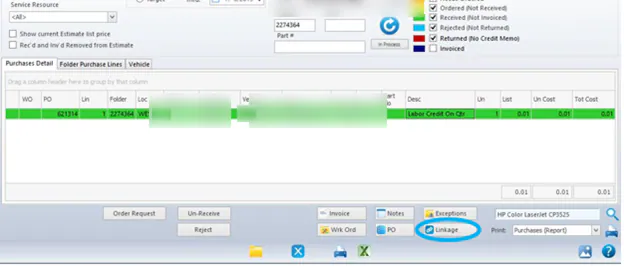
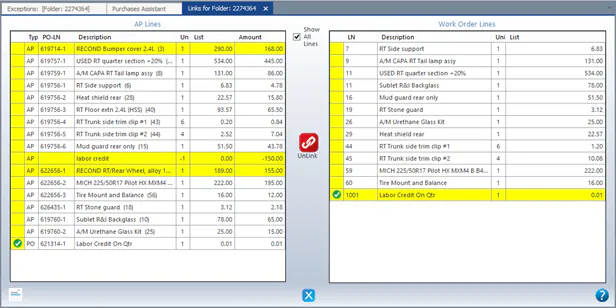
The left grid shows AP Lines that aren’t linked to the Work Order Lines on the right. Unlinked lines are yellow, and linked lines are white. To see all lines, select Show All Lines.
Link lines
Section titled “Link lines”- Select a yellow line on the left. A green check mark shows next to it.
- Select the matching line on the right.
- Select Link.
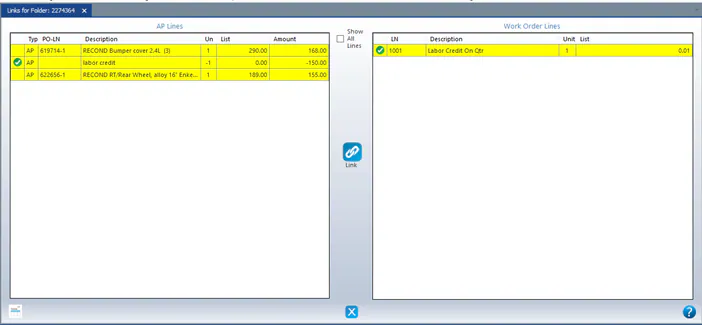
The linked lines turn white and disappear from the screen, unless Show All Lines is selected.
Unlink lines
Section titled “Unlink lines”If lines were linked by mistake, select the white lines on each side, then select UnLink.