
New Exception Type and Courtesy Cars Update
Released October 26, 2026
Paint Materials exception
Section titled “Paint Materials exception”A new exception type flags estimates that may be missing paint materials. It triggers when an imported estimate shows $0 in paint materials but more than 0.0 refinish labor hours.

Courtesy cars
Section titled “Courtesy cars”What’s new
Section titled “What’s new”The Courtesy Cars screen just got an upgrade.
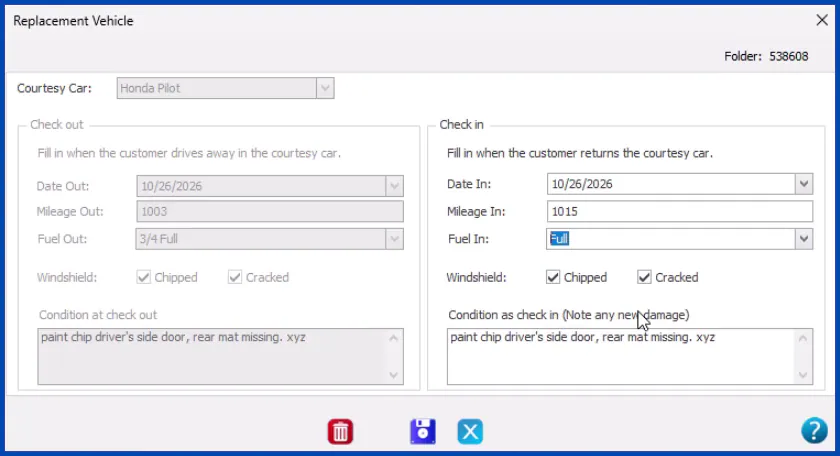
You can now update a loaner’s condition, mileage, fuel and availability right from the main list. Check-outs fill in the car’s details for you, and check-ins capture any new damage when the car comes back. It’s one more way Nexsyis keeps your whole repair operation in one place, loaners included.
What’s changed
Section titled “What’s changed”| Area | Before | Now |
|---|---|---|
| Courtesy Cars list | Showed which folder each car was on | Also shows Customer, Date Out, Mileage, Fuel, Snow Tires, Condition, Windshield, Prod Action, Internal Date and Unavailable |
| Updating a car | Open activity to mark unavailable or has snow tires | Edit Condition, Windshield, Mileage, Fuel, Snow Tires and Unavailable directly in the list and click Save |
| Checking out | Enter Date Out, Mileage Out and Fuel Out by hand | Pick the car, and Mileage, Fuel, Windshield and Condition fill in from its record |
| Checking in | Enter a Date In | A Check in section records Date In, Mileage In, Windshield and New Damage, and updates the car’s record |
How to use it
Section titled “How to use it”- Update a car: Go to Operations › Courtesy Cars, click into the field you want to change, and click Save.
- Check a car out: In the customer’s folder, open the Courtesy Car tab, click the green +, choose the car, confirm the details with the customer, and click Save.
- Check a car in: In the same folder tab, double-click the car, complete the Check in section (noting any new damage), and click Save. The car is immediately available for the next customer.
For full step-by-step instructions with screenshots, see Manage courtesy cars.