
Printing setup and troubleshooting
Set how Nexsyis prints reports, set up a Dymo label printer, and fix common printing problems. If none of these solutions fixes the problem, contact Nexsyis Support at nexsupport@nexsyis.com.
Print directly or preview first
Section titled “Print directly or preview first”When you print from Nexsyis, the report can go straight to the printer, or open on screen so you can review it before printing.
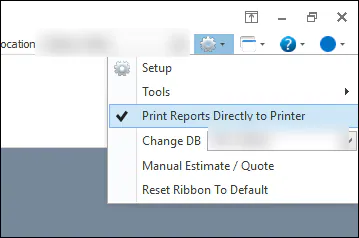
To change the setting, select the gear menu, then check or uncheck Print Reports Directly to Printer.
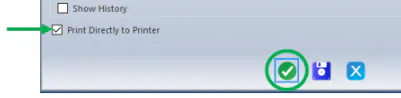
If you unchecked Print Reports Directly to Printer because you usually want a preview, you can still print directly from a folder: check Print Directly to Printer on the folder print screen. It’s checked automatically when you choose a print package. See Print from a folder.
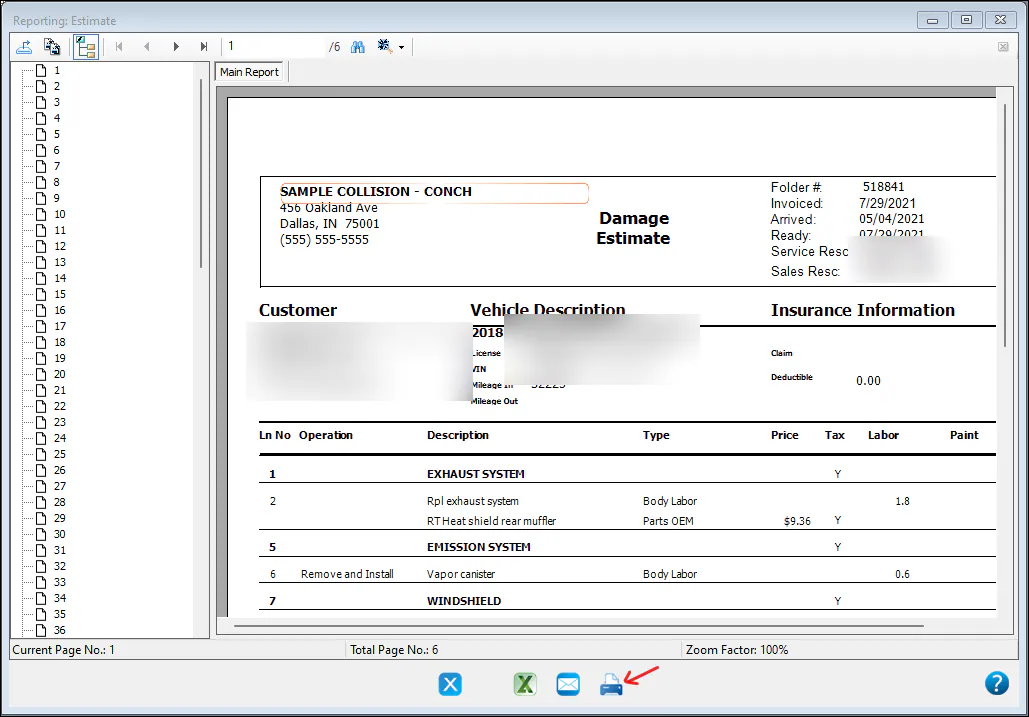
When the box is unchecked, the report opens on screen. To print it, select the print button at the bottom of the preview window.
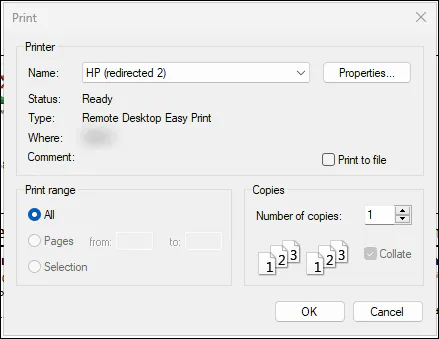
The Windows Print window opens, where you choose the printer.
Set up a Dymo LabelWriter
Section titled “Set up a Dymo LabelWriter”Nexsyis supports the Dymo LabelWriter 450 and 450 XL label printers.
Labels must be at least 4” × 2”. We recommend Dymo shipping labels, part number 30256.
Change these LabelWriter settings so it works with Nexsyis:
-
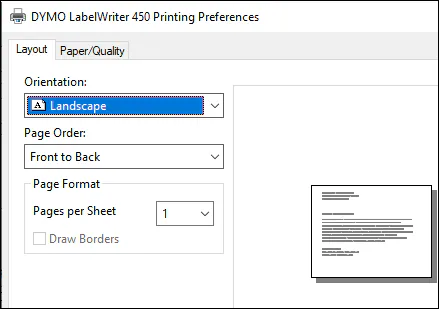
In the Dymo printing preferences, on the Layout tab, set Orientation to Landscape.
-
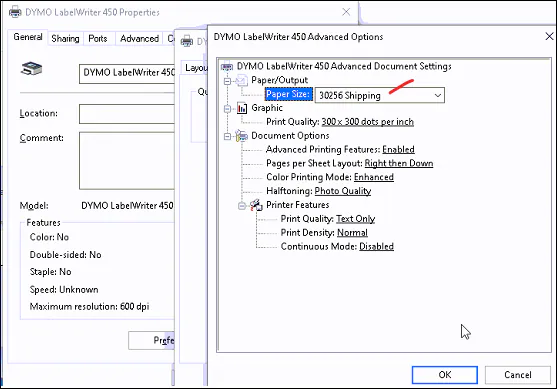
In the LabelWriter Advanced Options, set Paper Size to 30256 Shipping.
Troubleshoot printing
Section titled “Troubleshoot printing”Nothing comes out of the printer
Section titled “Nothing comes out of the printer”- Check that you can print to the same printer from another application. If the printer works outside Nexsyis, close and reopen Nexsyis and try again.
- Use a different printer driver. Nexsyis uses Crystal Reports to create most reports. Crystal Reports may not work well with some printer drivers. Updating the driver, or going back to an older one, sometimes fixes the problem. Where you can, use the driver for your printer model instead of a “Universal” driver.
- Use a TCP/IP port instead of WSD. Windows 10 added a printer port type called WSD. In rare cases, Nexsyis can’t print to a WSD port. Create a TCP/IP port using the printer’s IPv4 address, point the printer to the new port, and try again.
Printer settings are not valid, or the RPC server is unavailable
Section titled “Printer settings are not valid, or the RPC server is unavailable”You see one or both of these errors:
- Settings to access printer ‘\server\printer’ are not valid.
- The RPC Server is Unavailable
The printer probably isn’t working outside Nexsyis either. Check that the printer is online, and check the printer share or the print spooler service on the server.
Invalid Printer Specified
Section titled “Invalid Printer Specified”Make sure Windows has a valid default printer, not a label printer. After you change the default printer, close and reopen Nexsyis and try again.
Unable to cast COM object
Section titled “Unable to cast COM object”The error starts Unable to cast COM object of type ‘CrystalDecisions.ReportAppServer.Controllers.ReportSourceClass’ and ends No such interface supported (Exception from HRESULT: 0x80004002 (E_NOINTERFACE)).
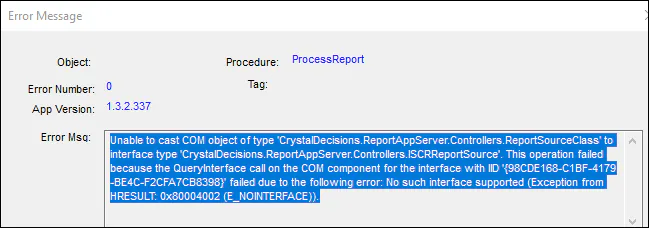
This error usually means the version of Crystal Reports that Nexsyis needs to create reports isn’t installed.
- Go to install.nexsyis.com. The Crystal Reports installer is at the top right.
- Install Crystal Reports.
- Close and reopen Nexsyis, then try printing again.