
Import AP invoices
Some vendors and services send invoices electronically. You can import a vendor’s invoice file, or download asTech scan invoices straight from the folder.
Import an AP invoice file
Section titled “Import an AP invoice file”-
Save the vendor’s AP invoice .csv file to your computer.
-
Select Accounting › A/P Imports › Import AP Invoices. Select Browse and find the file you saved.

-
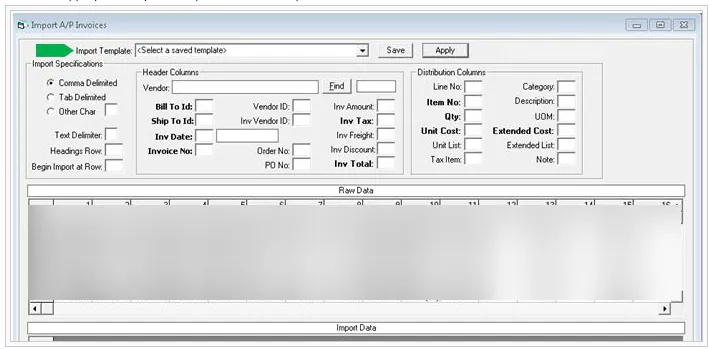
Choose the vendor’s template from the Import Template drop-down.
-
You may see this message: “At least one line (marked Yellow) has no cost and, therefore, may be a notes line! Would you like to ignore $0 lines on import?”
- Select Yes to continue processing the file with the $0 line.
- Select No to review the yellow line (you may have to scroll down). If you still want to import the file, select Apply next to the template drop-down, then select Yes.
You can’t change the file or import it without that line. If you don’t want the line imported, ask the vendor for a different file.
-
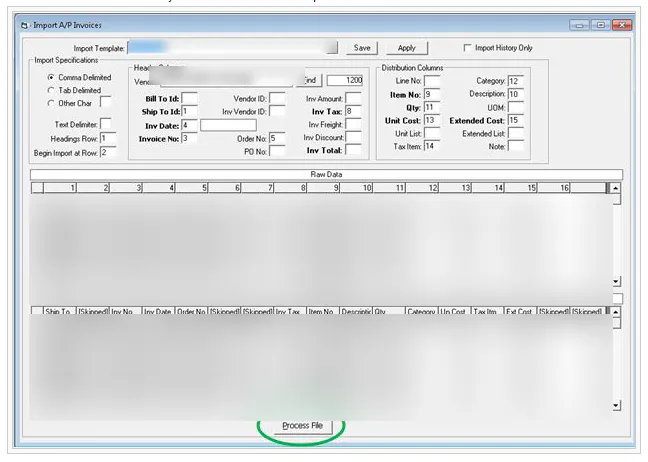
Select Process File. Processing can take several minutes.
-
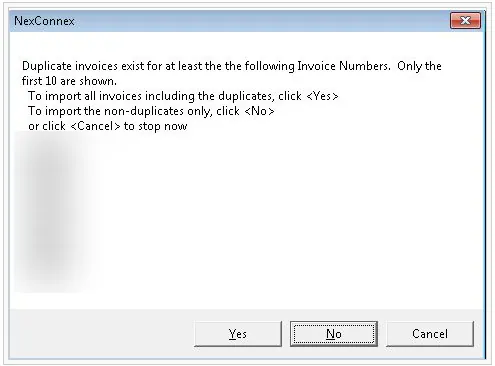
If the file contains invoices that were already imported, you see “Duplicate invoices exist for at least the following Invoice Numbers.” Usually, select No to leave out the duplicates.
- Yes imports all invoices, including the duplicates.
- Cancel stops the import.
-
Select Process Import.
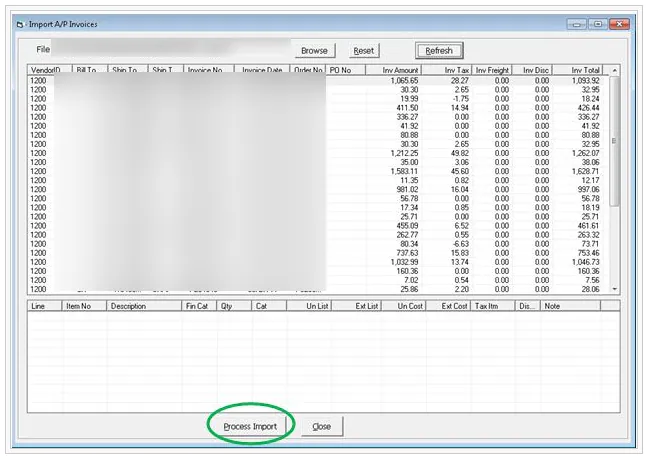
When the import is complete, Nexsyis offers to delete the original file from your computer.
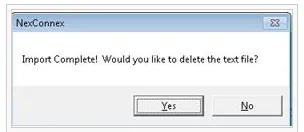
If the import shows an error, see Fix AP invoice import errors.
Download asTech invoices
Section titled “Download asTech invoices”-
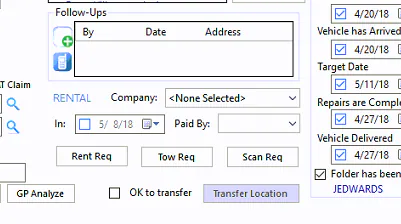
On the folder’s Summary tab, select Scan Req.
-
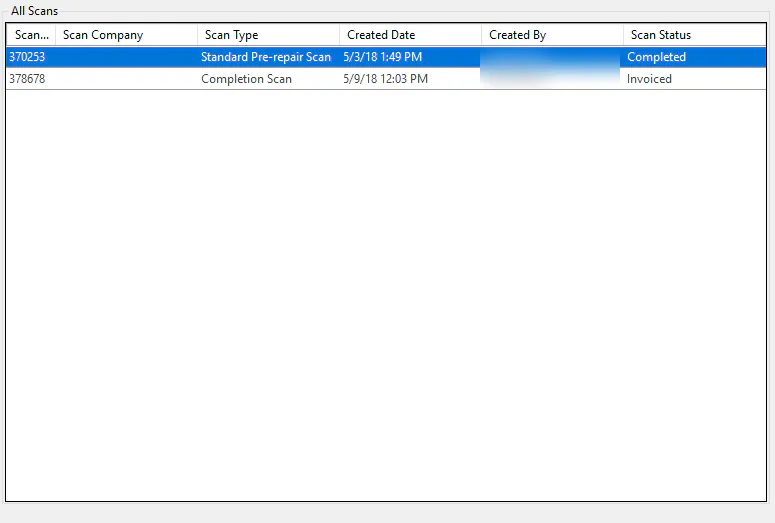
Select the Pre-Repair or Completion scan. Download each one separately. A Scan Status of Invoiced means the invoice for that scan has already been received.
-
Select Download Invoice. When you see “Invoice saved.”, select OK.
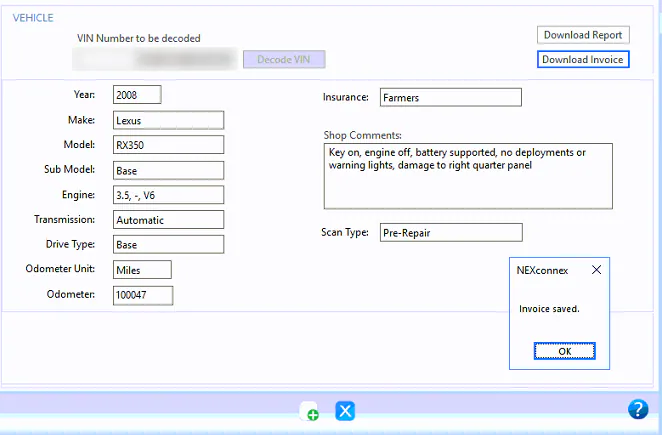
If the invoice was already downloaded, you see a message that a duplicate invoice exists.
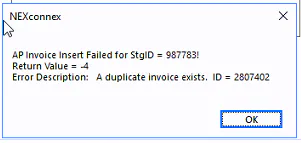
The invoice now shows on the A/P Invoices screen.
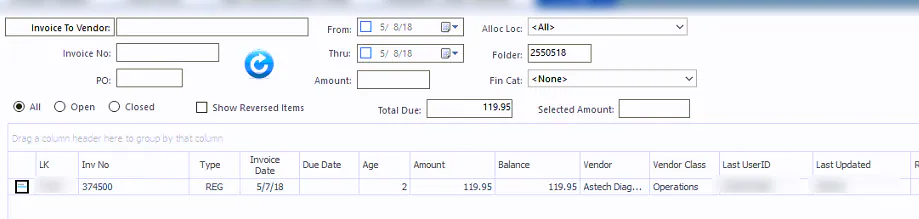
-
Link the downloaded invoice to the work order lines to clear the pre-repair and post-repair scan exceptions. On the Exceptions screen, select Linkage.
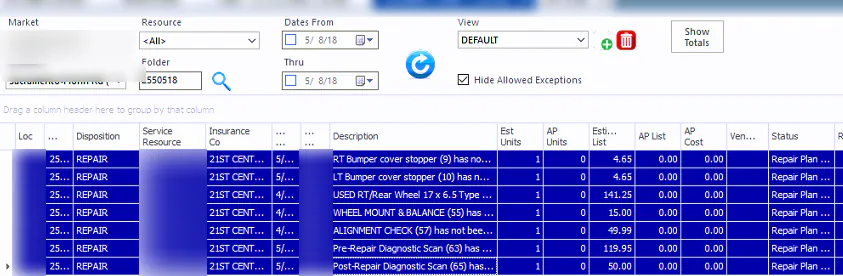
-
Select the invoice under AP Lines on the left and the matching line under Work Order Lines on the right, then select Link.
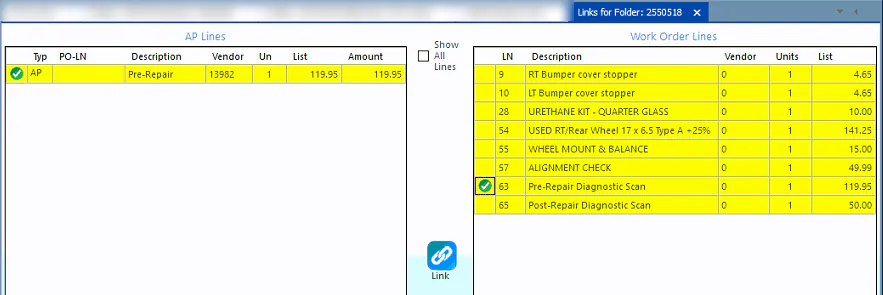
The exceptions are cleared.