Print a work order
Print a work order to give the technicians a paper copy of the repair lines. How the printed work order is laid out depends on your company’s work order print format.
Print the work order
Section titled “Print the work order”-
Nexsyis: open the folder’s work order and select the print button (printer icon) at the bottom of the screen.
-
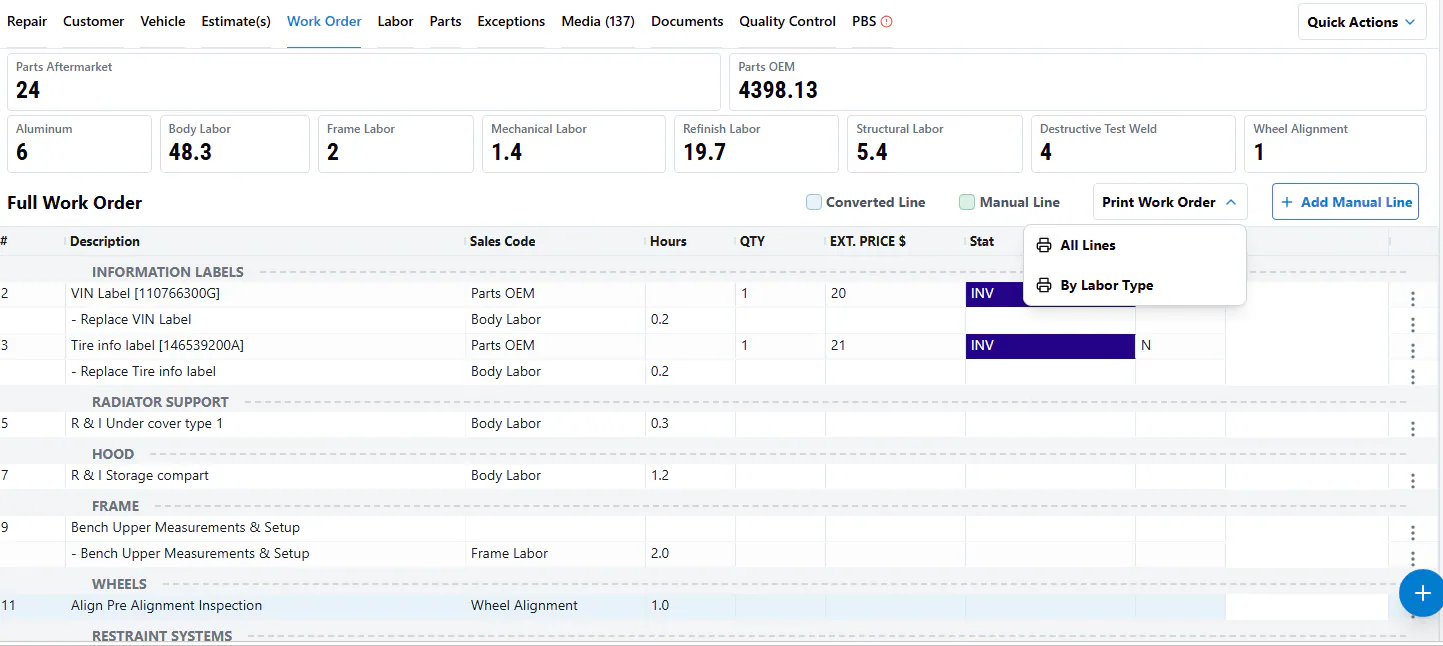
NexsyisNow: on the folder’s Work Order tab, select Print Work Order, then choose All Lines or By Labor Type.
-
Nexsyis mobile app: open the work order, select View PDF, then use the share button to send it to a printer. See View a work order.
Work order print formats
Section titled “Work order print formats”Nexsyis prints work orders in one of two formats: WO By Labor Type or WO All Lines. The format is set for all folders under work order print preferences.
WO By Labor Type
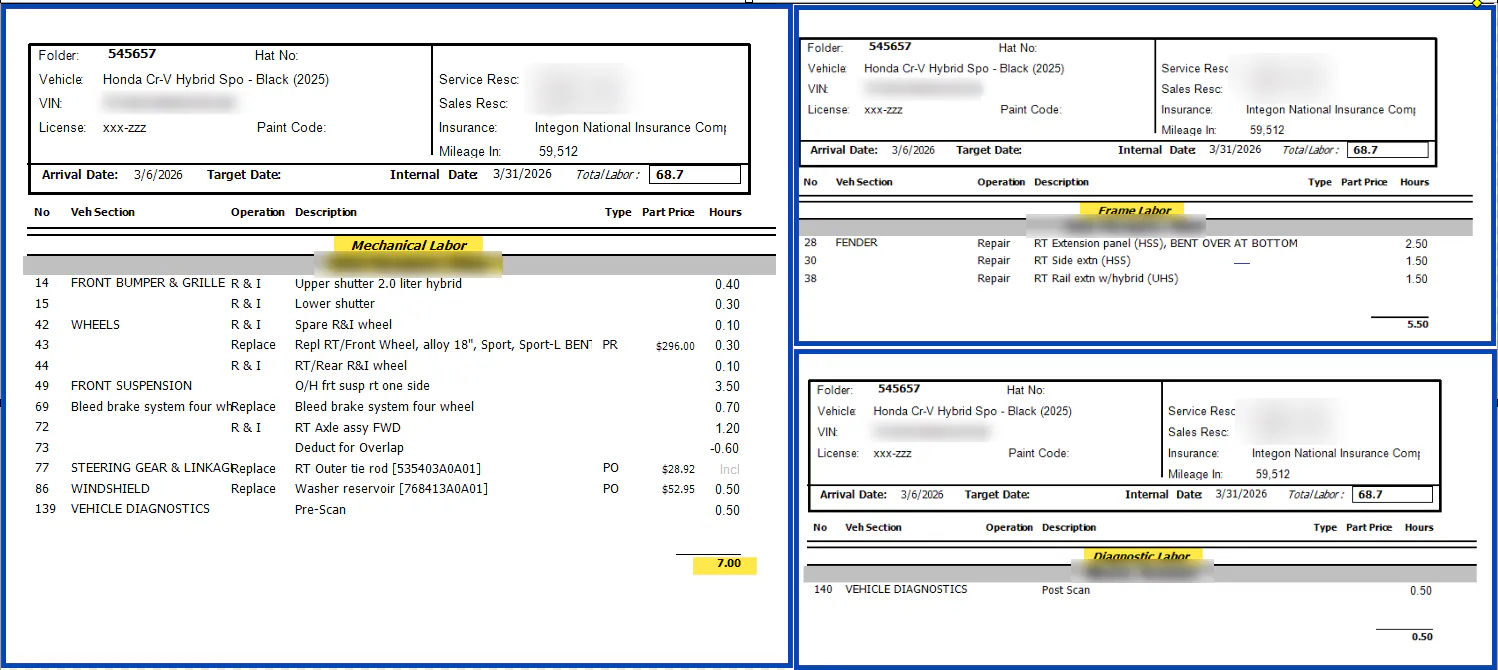
Section titled “WO By Labor Type”Lines are grouped by labor type, and each labor type prints on its own page with the assigned technician’s name. Each page includes the part lines for that labor type, with the total labor hours at the bottom.
WO All Lines
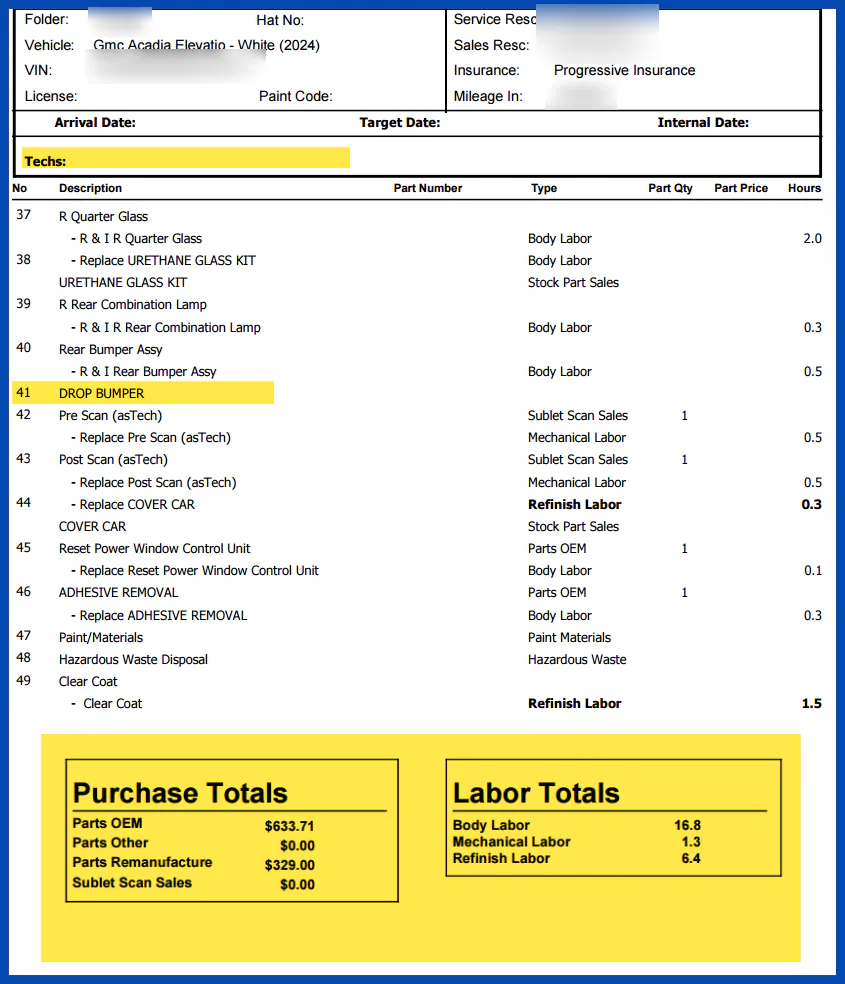
Section titled “WO All Lines”The work order prints like an estimate, listing every line in order by its estimate line number. Every technician allocated labor is listed at the top of each page, and the purchase and labor totals print at the bottom.
Line notes imported from the estimating system print on their own line, like line 41 below.