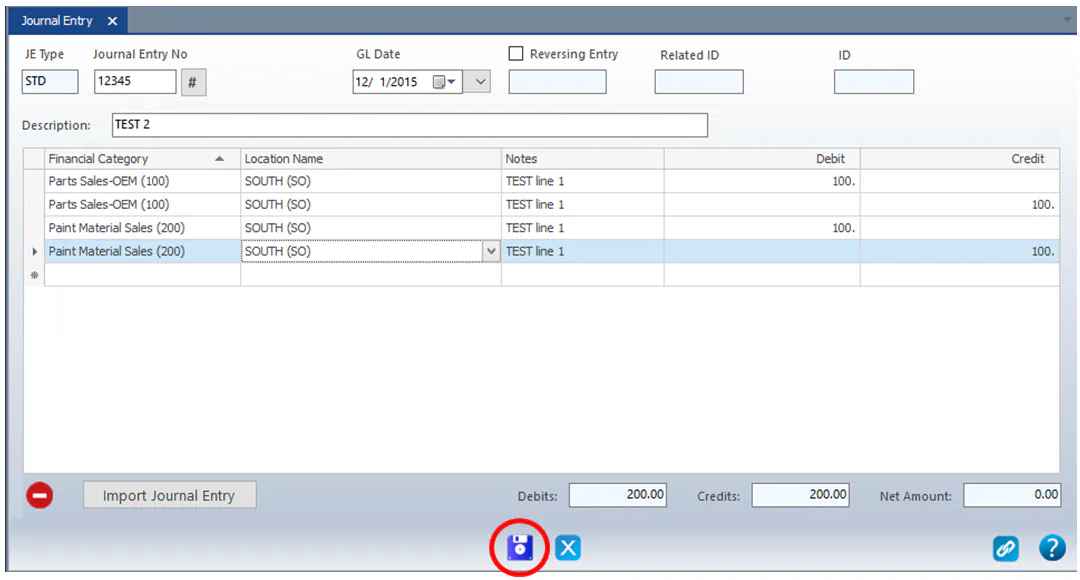
Import journal entries
Instead of typing each line, you can enter journal entry lines in a spreadsheet and import them into a journal entry. This is useful for entries with many lines.
Fill in the template
Section titled “Fill in the template”-
Get the journal entry template spreadsheet.
-
Open the template. Its columns are JENo, GLDate, TransDes, Reversing, FinCatID, LocCode, Notes and Amount. Follow the format of the two sample lines.

-
Type your journal entry lines in the same format, then delete the two sample lines.
-
Save the file somewhere you can find it for the import.
Import the file
Section titled “Import the file”-
Go to Accounting › General Ledger › Journal Entries.
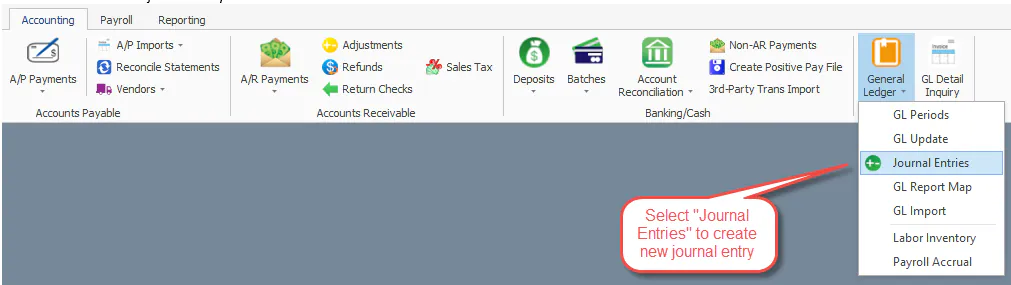
-
Select the new button to start a new journal entry.
-
Type the Journal Entry No, or select # to assign the next number. Use numbers only.
-
Select the GL Date.
-
Type a short Description.
-
Below the grid, select Import Journal Entry.
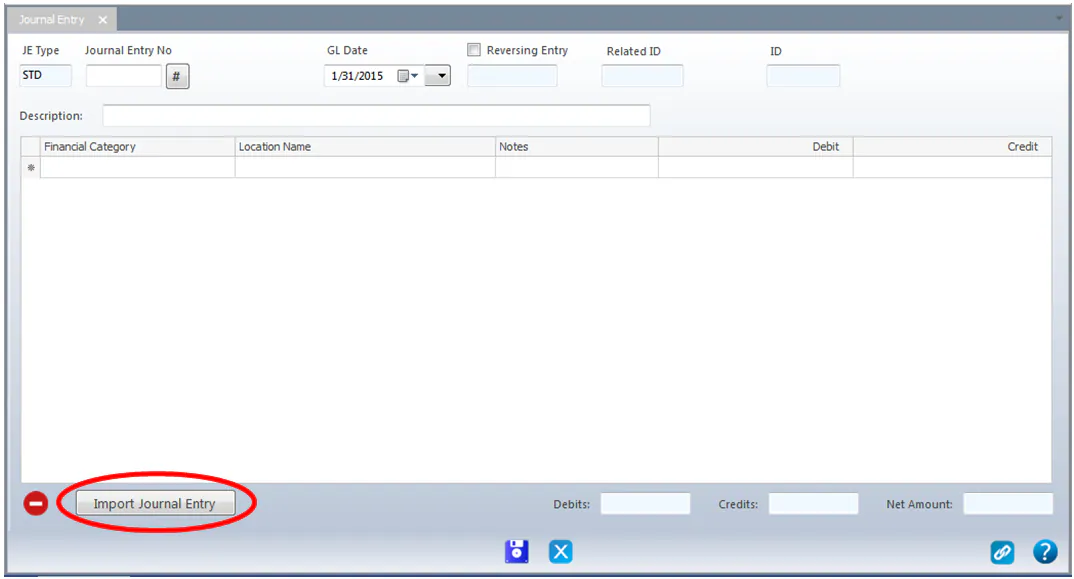
-
Browse to your template file and select Open.
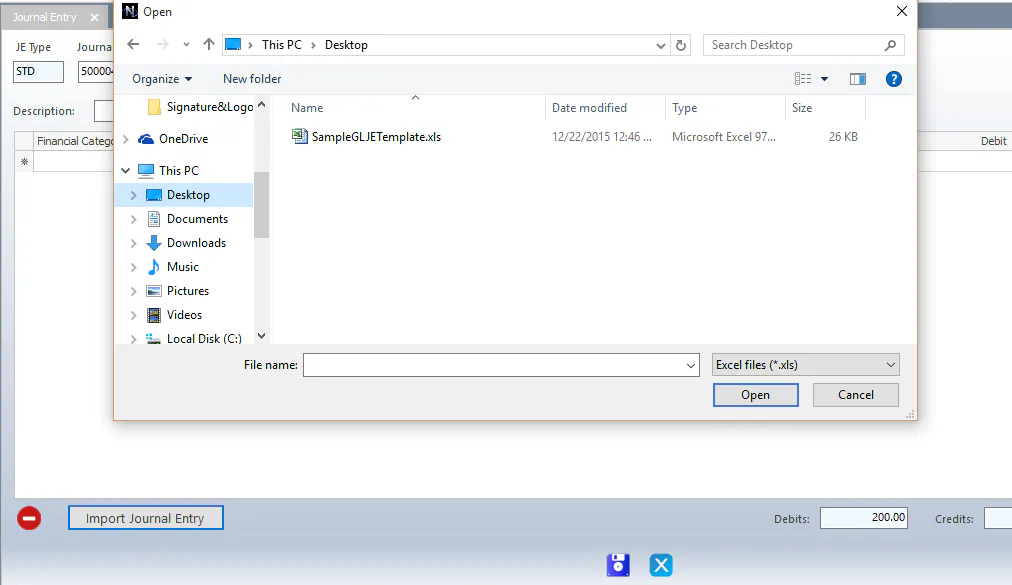
The lines are imported into the grid.
-
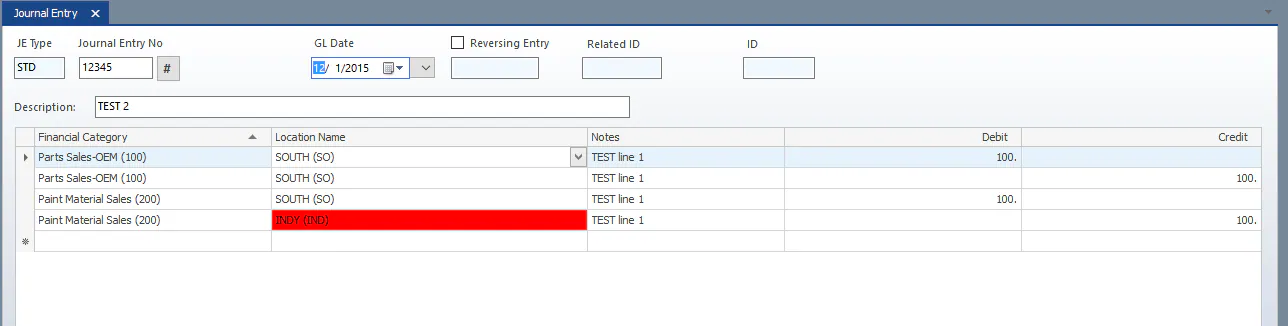
Fix any fields shown in red. You can correct them on the screen, or fix the spreadsheet and import it again.
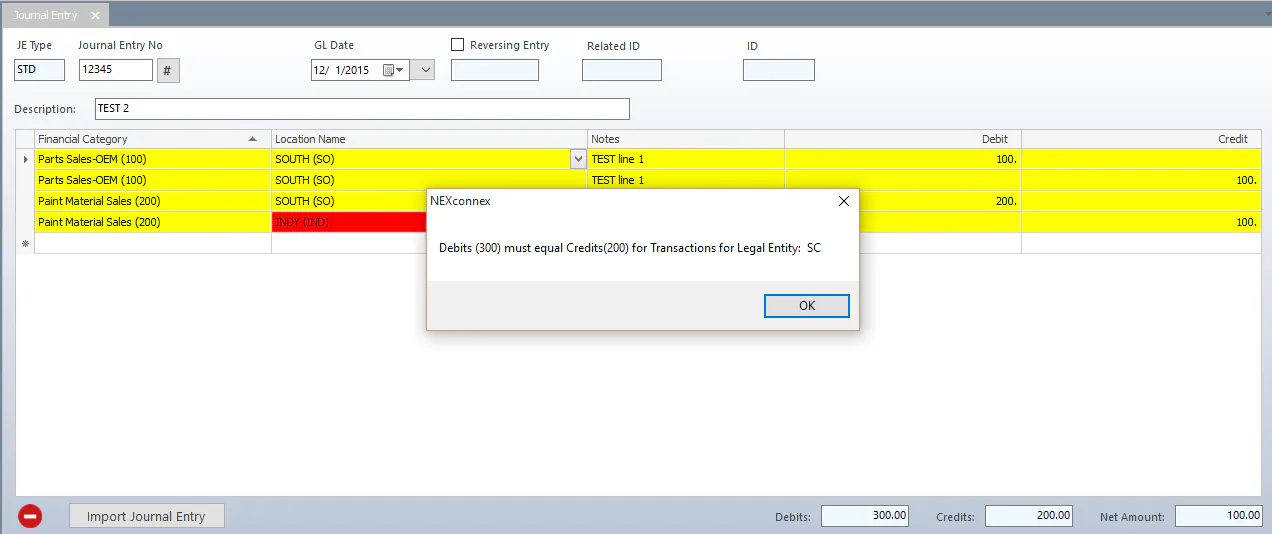
If the debits and credits don’t balance, you see a message such as “Debits (300) must equal Credits(200) for Transactions for Legal Entity”, and the lines are highlighted in yellow.
-
When all the errors are corrected and every line is white, select the save button.