
Track a folder's progress
Folder Tracking lists folders by a date type during a period, for example folders created last month. Add columns from the Column Chooser and filter them to narrow the list to exactly what you need.
Open Folder Tracking
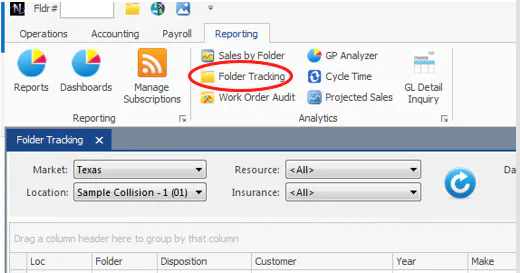
Section titled “Open Folder Tracking”On the Reporting tab, select Folder Tracking.
Build a list
Section titled “Build a list”- Choose a Date Type, for example Folder Created Date or Delivery Date.
- Choose a Period, for example Last Month or This Year, or set the From and Thru dates.
- Add the columns you need and filter them. See Search, filter and save grid views.
To print the list or export it to Excel, use the buttons below the grid.
Examples
Section titled “Examples”Folders created last month with an Enterprise rental
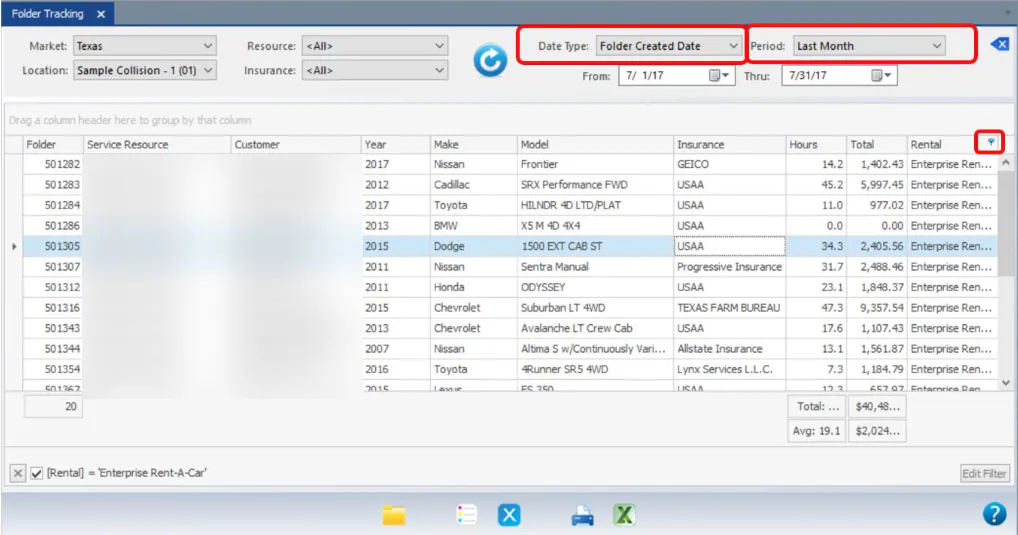
Section titled “Folders created last month with an Enterprise rental”Choose Date Type Folder Created Date and Period Last Month. Show the Rental column and filter it by Enterprise.
Total loss vehicles delivered this year
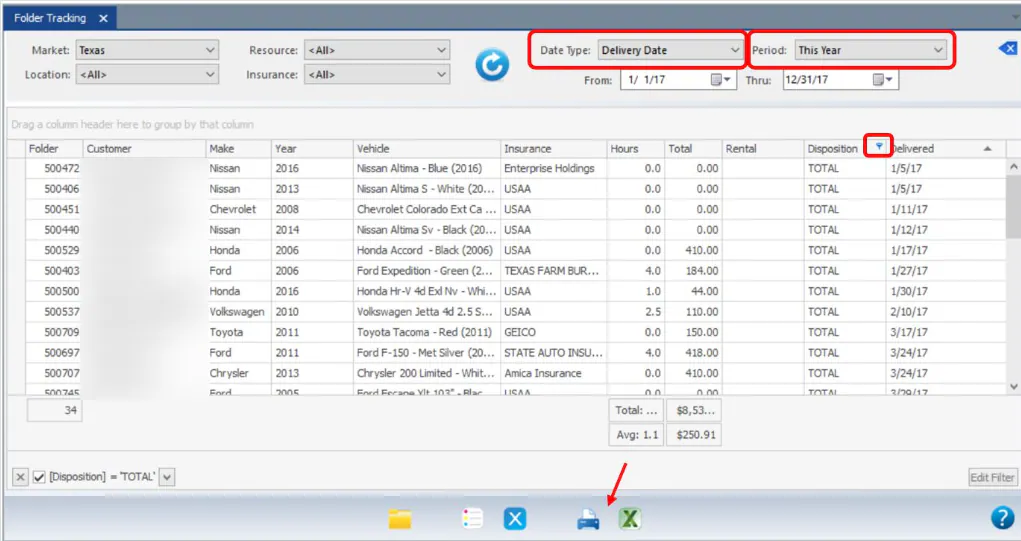
Section titled “Total loss vehicles delivered this year”Choose Date Type Delivery Date and Period This Year. Show the Disposition column and filter it by TOTAL.
Vehicles in process for certain insurers with more than 12 refinish hours
Section titled “Vehicles in process for certain insurers with more than 12 refinish hours”- Choose Date Type Arrival Date, and a period long enough to include every vehicle in process.
- Filter the Insurance column by the insurance companies you want.
- Right-click the Delivered column header and select Filter Editor….
- Select the + next to And and set Delivered to Is null.
- Select the + next to And again and set RHrs to Is greater than or equal to 12.
- Select OK.