Manage rentals
Create a rental request from the folder to send to the rental company. Nexsyis supports rental requests with Enterprise and Hertz. If you don’t need to send a request, you can still record that the customer is in a rental.
Create a rental request
Section titled “Create a rental request”-
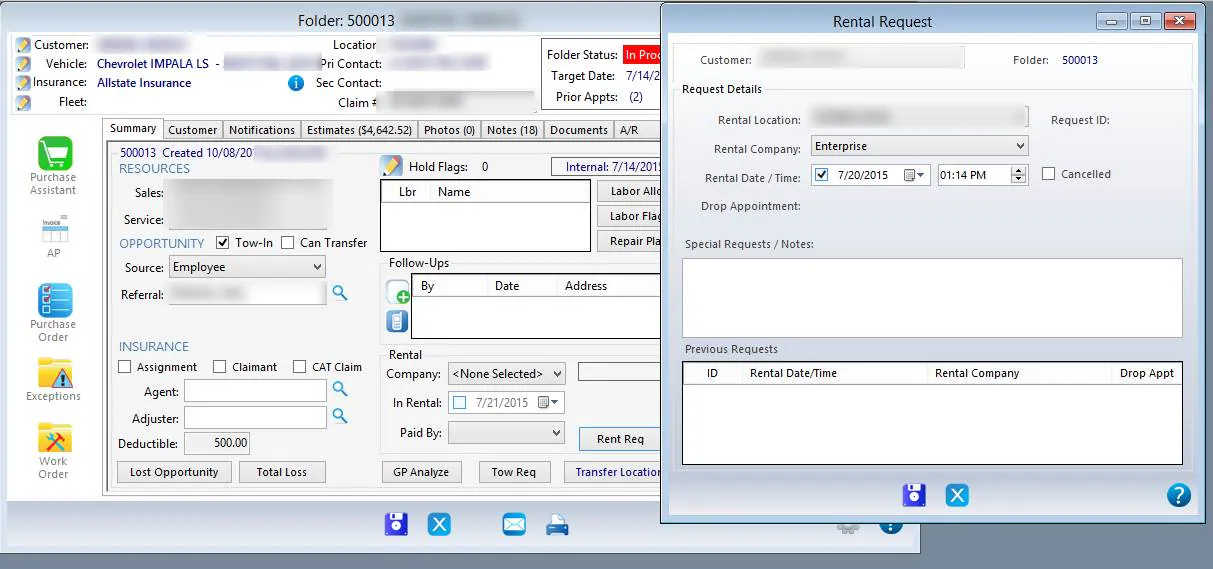
On the folder’s Summary tab, select Rent Req.
-
Fill in the rental details on the Rental Request screen, such as Rental Location, Rental Company and Rental Date / Time.
-
Select Save.
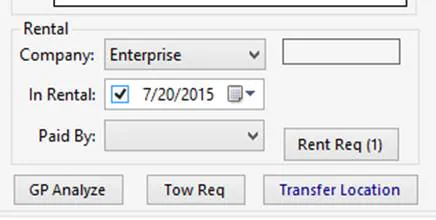
The rental company fills in on the folder’s Summary tab, and the button changes to Rent Req (1).
Send the rental request
Section titled “Send the rental request”If your company uses the Nexsyis integration with Enterprise ARMS or with Hertz, there’s nothing more to do. Nexsyis sends the rental reservation request to Enterprise or Hertz automatically and, for Enterprise, updates the ARMS website. For Hertz, see Request a Hertz rental and send repair updates.
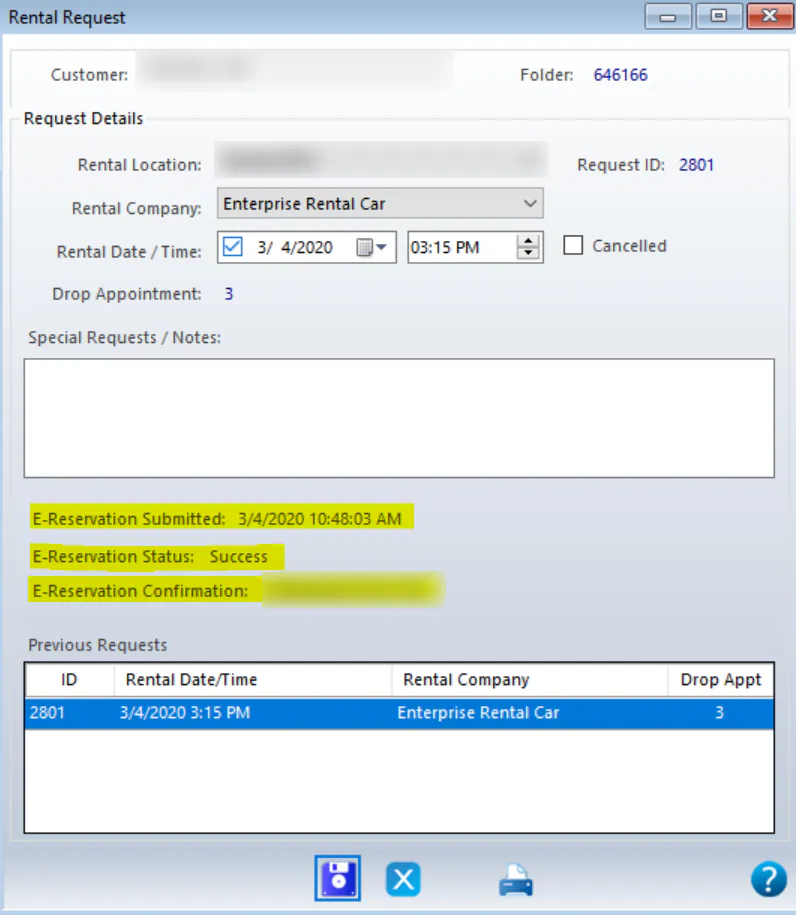
When the rental company accepts the request, the request shows E-Reservation Submitted, E-Reservation Status and E-Reservation Confirmation.
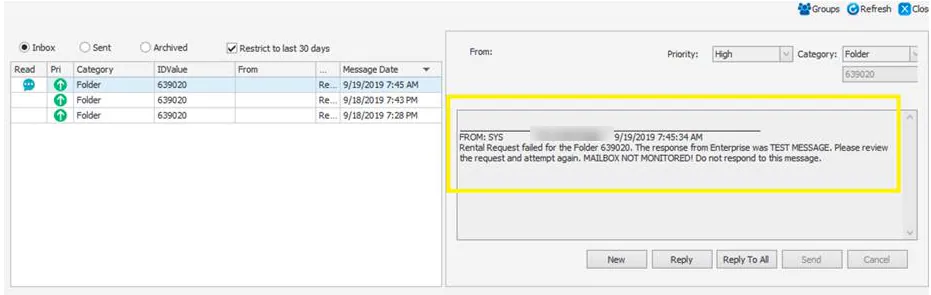
If the request isn’t accepted, Nexsyis sends you a message in the Message Center. To send it again, select Rent Req on the folder’s Summary tab, correct the request, and select Save.
Print or email the rental request
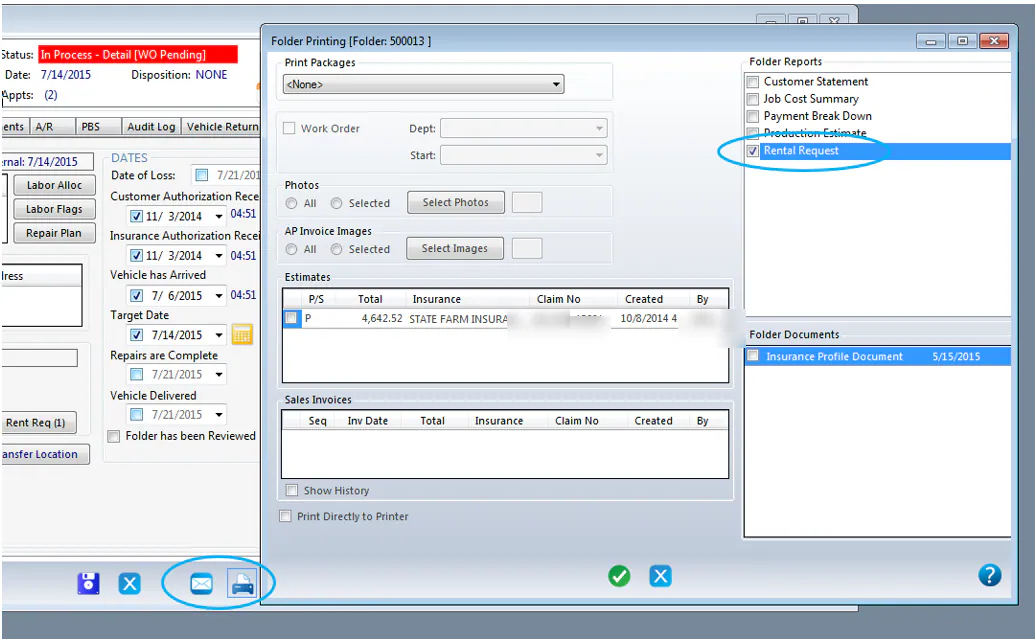
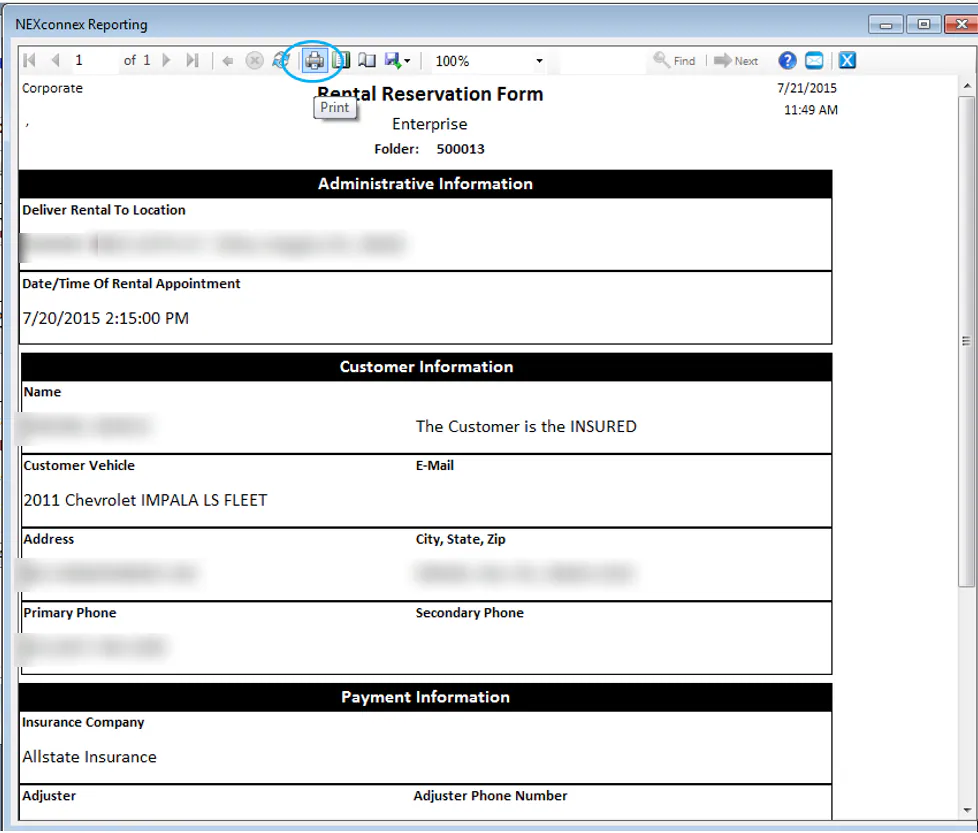
Section titled “Print or email the rental request”To send the request to the rental company yourself, open the folder’s print or email screen and select Rental Request under Folder Reports. See Print from a folder.
Record a rental without a request
Section titled “Record a rental without a request”Recording a rental only shows in Nexsyis that the customer is in a rental. It doesn’t send anything to the rental company.
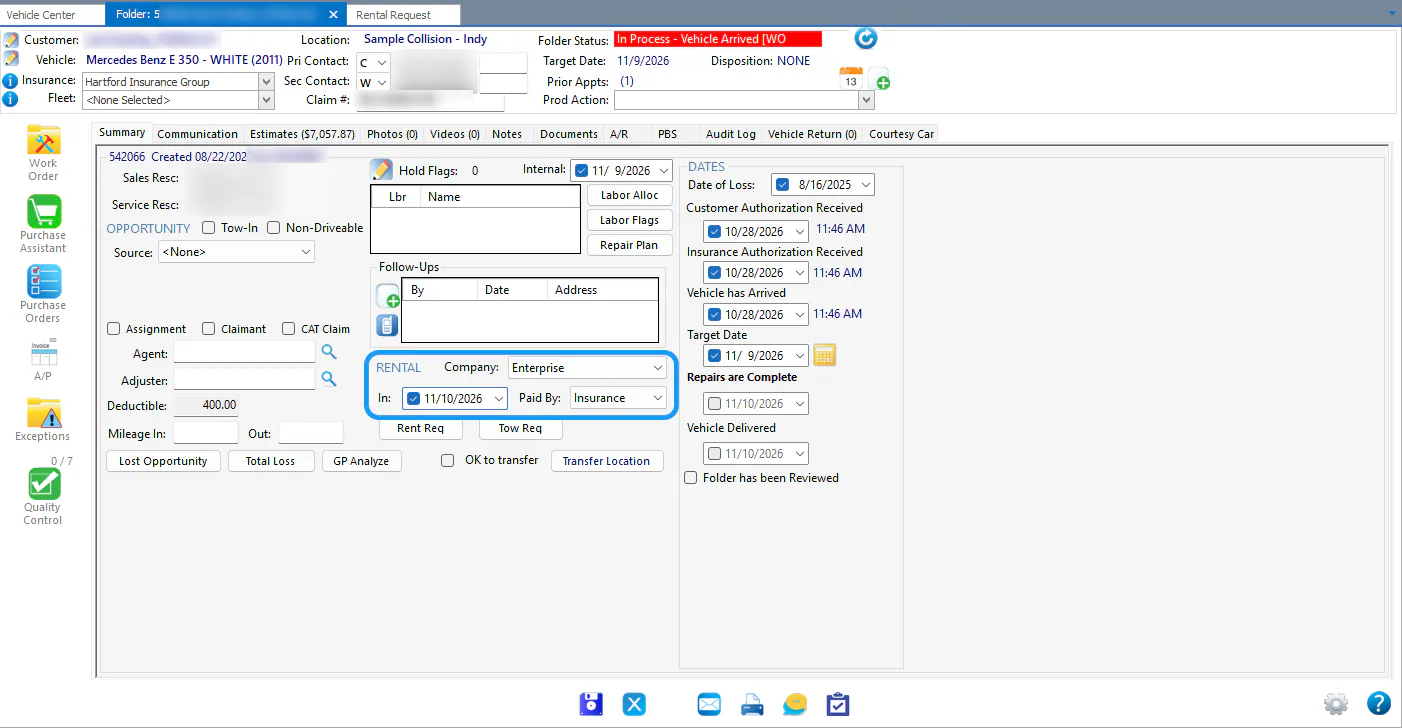
On the folder’s Summary tab, under Rental:
- Choose the rental company in Company.
- Select In and enter the date the rental starts.
- In Paid By, choose who is paying for the rental: the insurance company, your company or the customer.
See rentals in the In Process grid
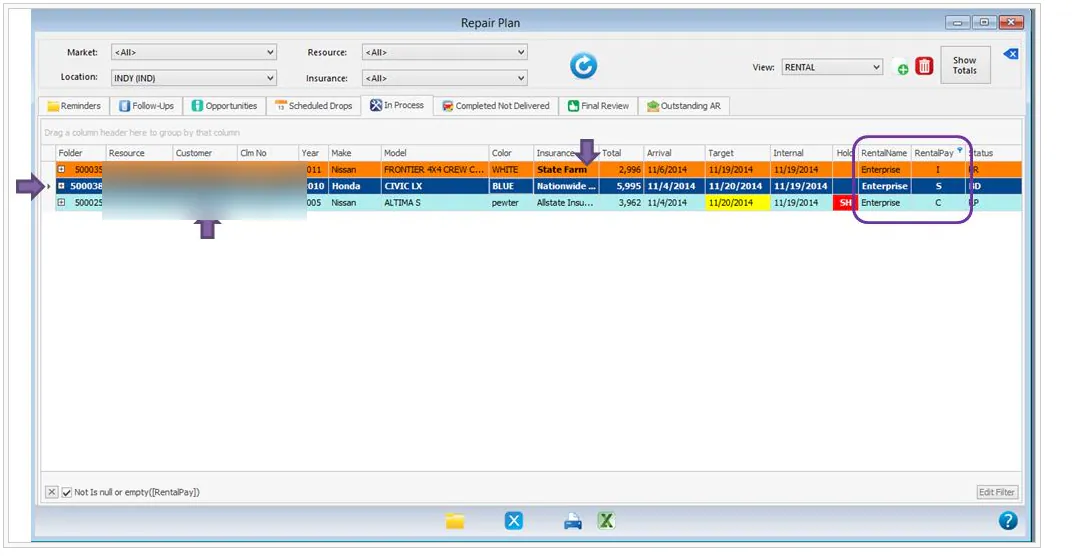
Section titled “See rentals in the In Process grid”You can add columns to the In Process grid to show the rental company and who is paying. Depending on who pays, part of the line is bold:
- Insurance pays (I): the insurance company name is bold.
- Shop pays (S): the whole line is bold.
- Customer pays (C): the customer name is bold.