
Mark a vehicle as complete
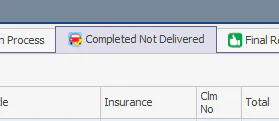
When repairs are finished, mark the vehicle as complete. It then shows on the Completed Not Delivered tab of the Vehicle Center, ready for delivery.
Before you begin
Section titled “Before you begin”Every stage in the folder’s repair plan must have an actual start and end, or be removed. See Fix open repair plan stages.
Mark repairs complete
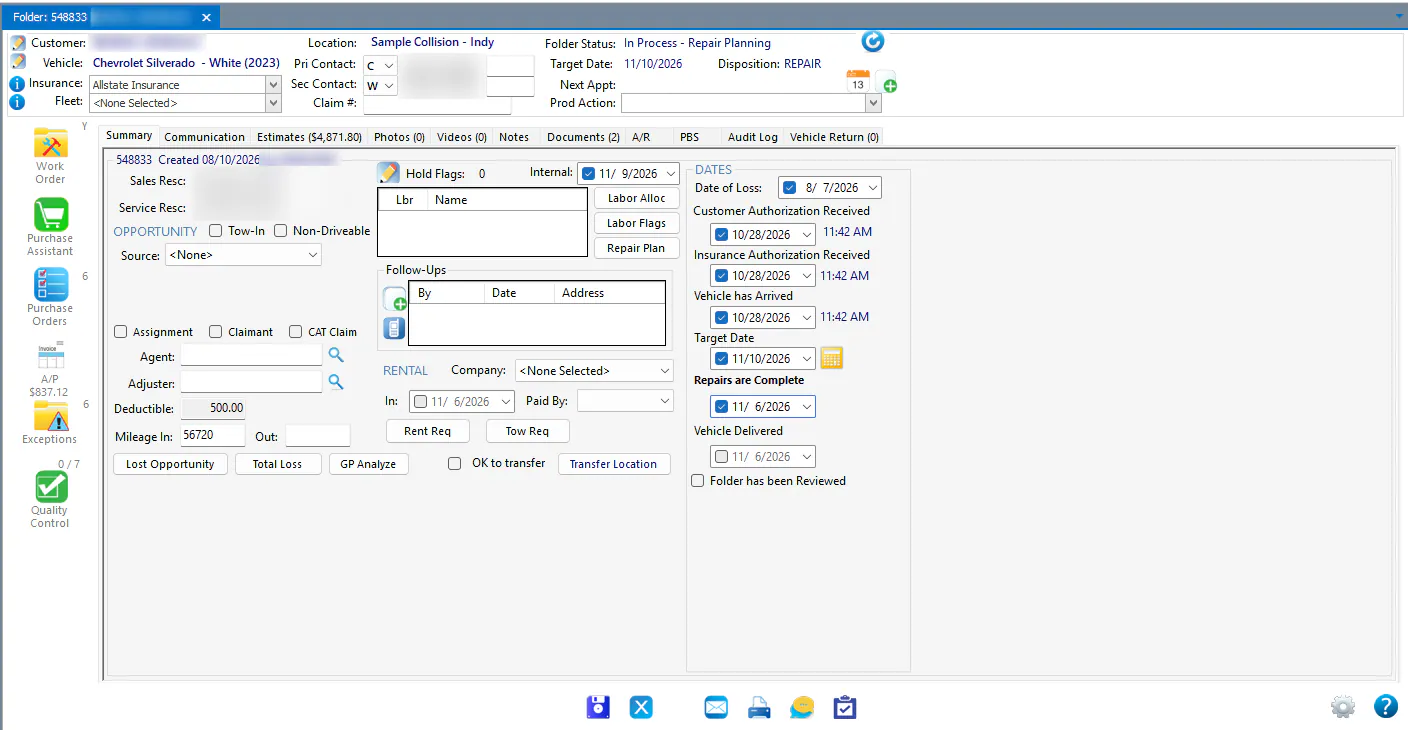
Section titled “Mark repairs complete”- On the folder, open the Summary tab.
- Select Repairs are Complete.
- Select Save.
The vehicle now shows on the Completed Not Delivered tab of the Vehicle Center.
Fix open repair plan stages
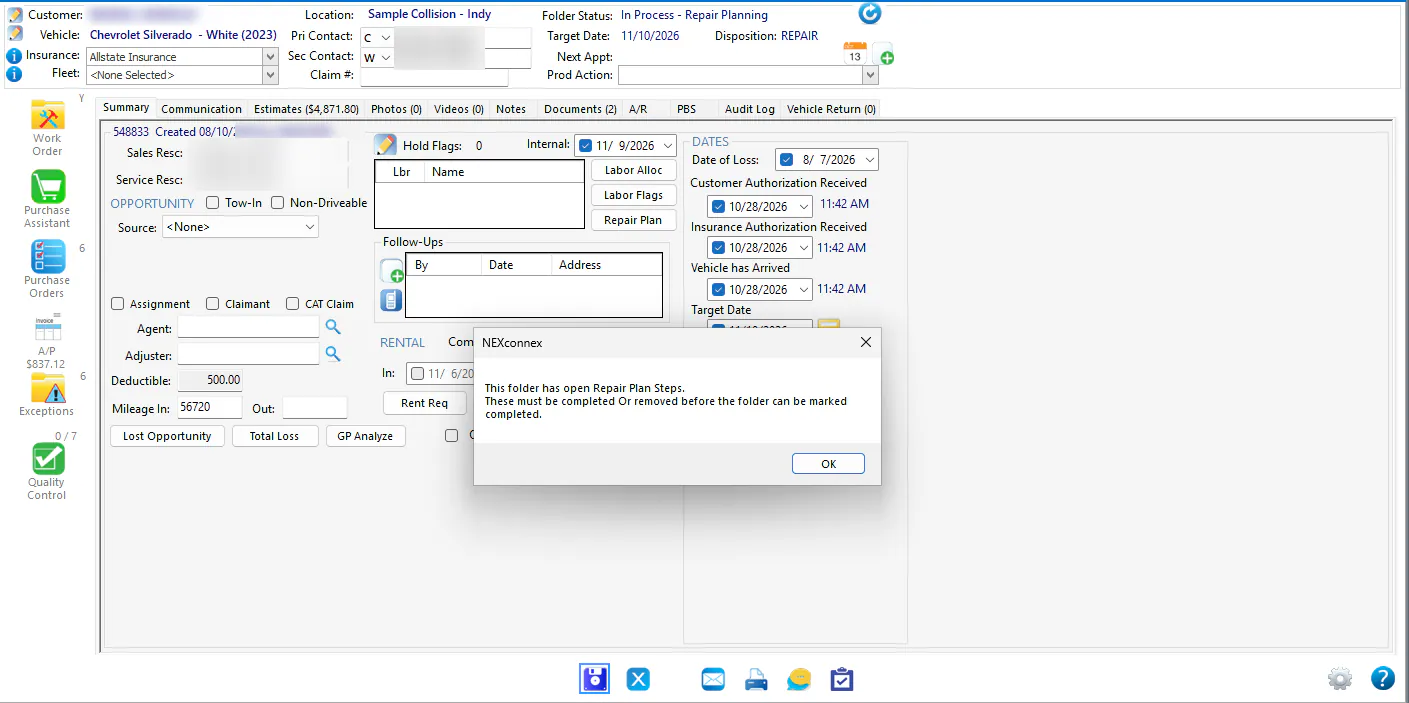
Section titled “Fix open repair plan stages”If the folder has repair plan stages that aren’t finished, you can’t mark repairs complete. When you select Repairs are Complete, Nexsyis shows this message instead: “This folder has open Repair Plan Steps. These must be completed Or removed before the folder can be marked completed.” Select OK.
-
On the Summary tab, select Repair Plan.
-
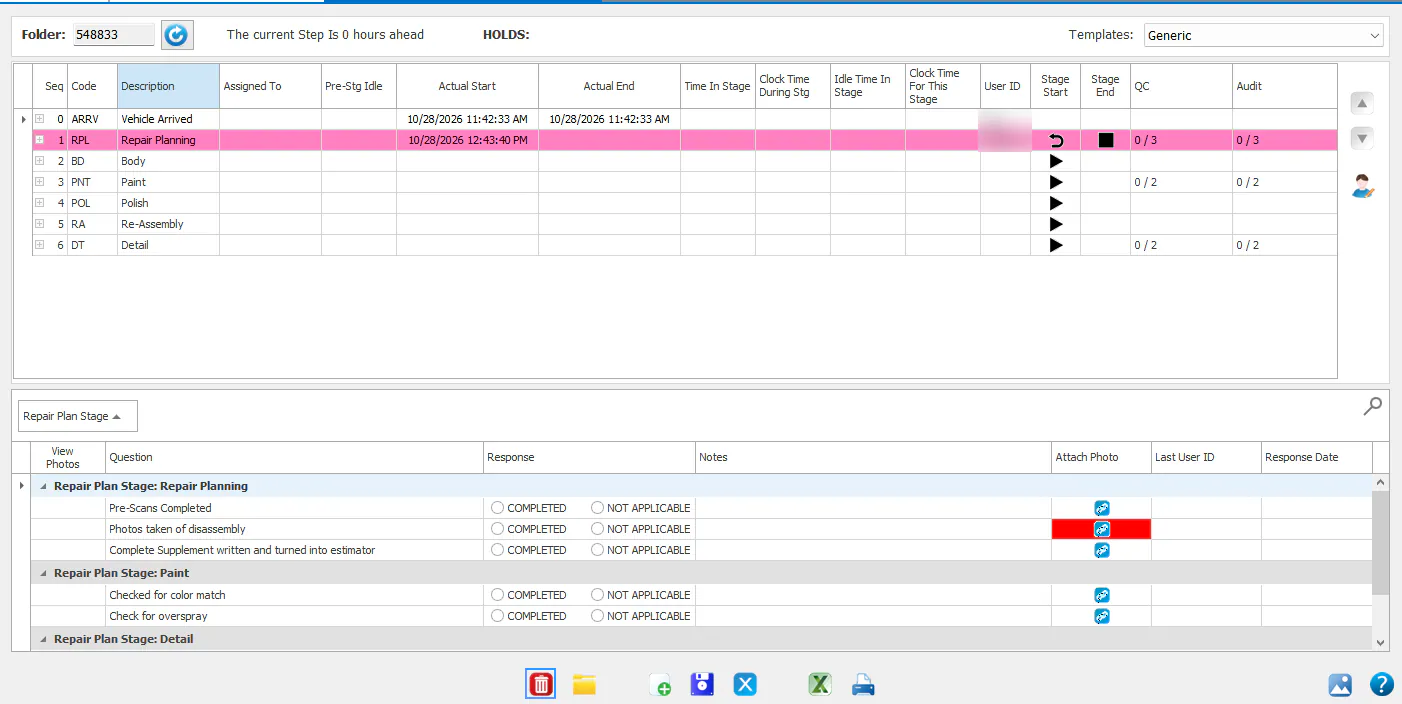
Find the stages that haven’t been completed. A stage without an Actual End is still open.
-
For each one, do one of these:
- Record the stage start and stage end.
- If the vehicle never went through that stage, select the stage, then select Delete at the bottom of the screen to remove it.
-
When every remaining stage shows an Actual Start and Actual End, go back to the Summary tab, select Repairs are Complete, and select Save.
For more on repair plans, see Edit a vehicle’s repair plan.