
Third-party accounting: accounts payable
If your books are kept in an accounting system outside Nexsyis, AP invoices are sent to that system. Use the TPA Status column to see where each invoice stands, and follow the corrections process to change an invoice that’s already been sent.
Show the TPA Status column
Section titled “Show the TPA Status column”-
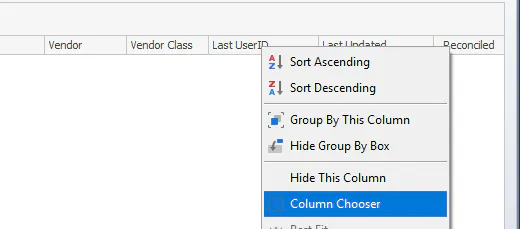
On the AP Invoice screen, right-click the grid header and select Column Chooser.
-
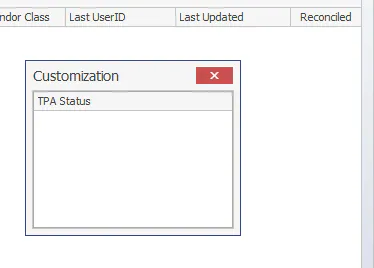
In the Customization window, double-click TPA Status to add it to the grid.
-
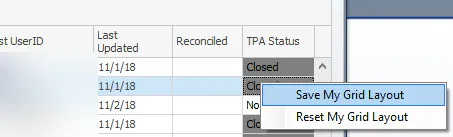
Right-click the body of the grid and select Save My Grid Layout.
What each TPA status means
Section titled “What each TPA status means”| TPA Status | Meaning |
|---|---|
| Not Sent | The invoice is open (unlocked). It hasn’t been sent to your accounting system and you can edit it. |
| Closed | The invoice is closed (locked). It’s been sent to your accounting system and you can’t edit it in Nexsyis. |
| Retransmit | Same as Closed, but a user has marked it to be sent again. |
A Not Sent invoice shows UNLOCKED when you open it.

A Closed invoice shows LOCKED when you open it.

Retransmit a closed invoice
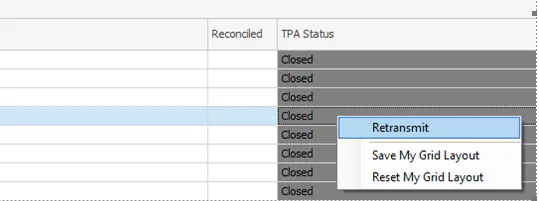
Section titled “Retransmit a closed invoice”Right-click the invoice in the grid and select Retransmit. The invoice is included in the next batch sent to your accounting system.
Correct an invoice that’s already been sent
Section titled “Correct an invoice that’s already been sent”Once an invoice is sent, you can’t change it. To correct it:
- Enter a credit with the original invoice number followed by -RV. It must match the original invoice exactly, in reverse.
- Enter a new, corrected invoice with the original invoice number followed by -ED.
The corrections are sent in the evening batch with your other invoices and credits.