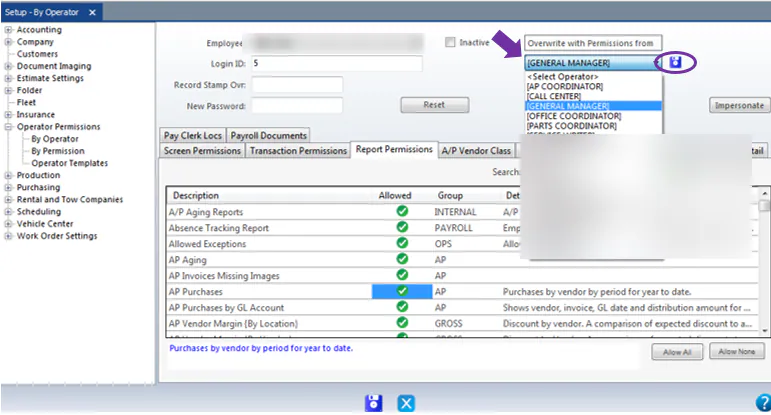
Set reporting permissions
Report permissions control which reports a user can run. Set them for one user, or for everyone in an operator position.
Set report permissions for a user
Section titled “Set report permissions for a user”-
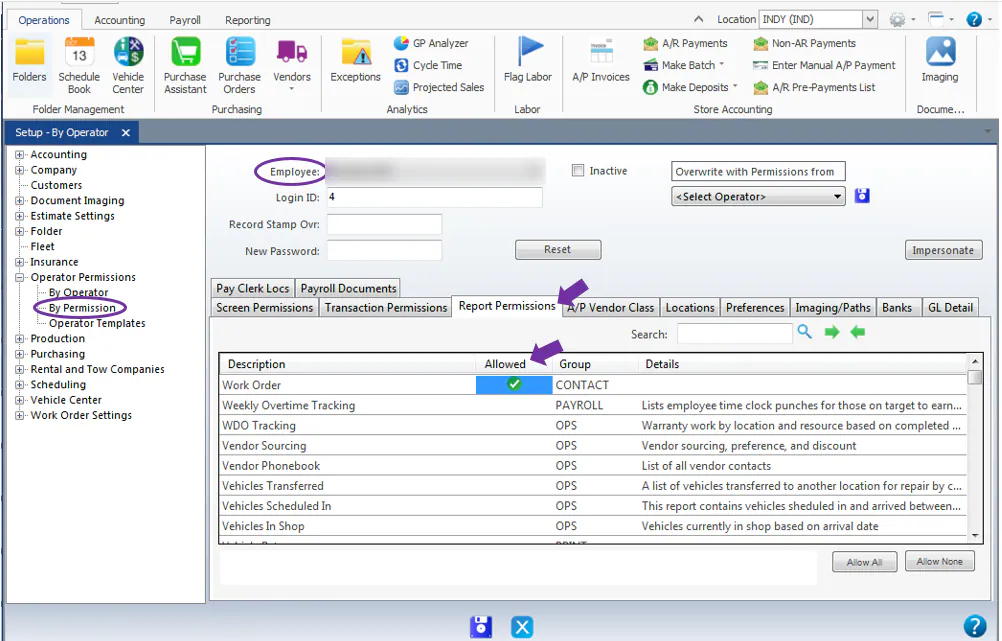
Go to Setup › Operator Permissions › By Operator, then search for the employee.
-
Select the Report Permissions tab.
-
To allow a report, double-click its line in the Allowed column. A check mark shows.
To remove a permission, double-click the check mark in the Allowed column.
-
Select Save.
Set report permissions by position
Section titled “Set report permissions by position”To set permissions for a job title, select an operator position in the drop-down at the top right of the screen, then set the permissions as above and select Save.