
Complete a credit card batch
A credit card batch groups the day’s card payments to match the batch ticket from your card processor. Once saved, the batch is matched to the processor’s deposit when you reconcile the bank account.
Create a batch
Section titled “Create a batch”-
On the Operations or Accounting tab, select Make Batch, then Make a Batch.
-
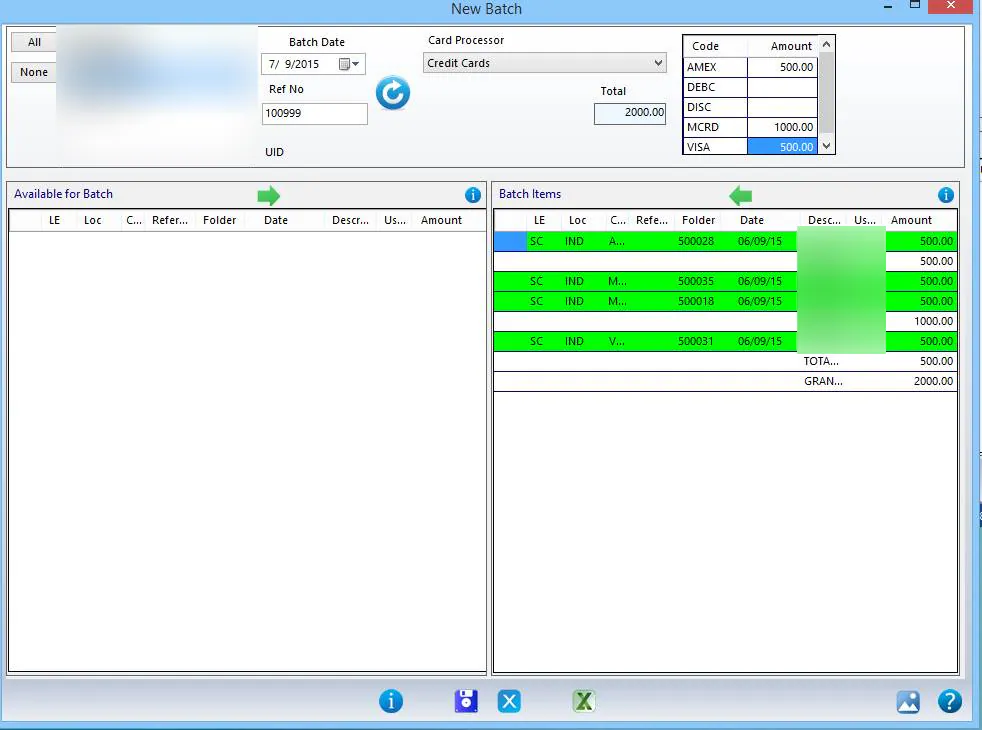
Select the Batch Date shown on the batch ticket.
-
Enter the Ref No from the batch ticket.
-
In the small grid on the right, enter the total for each card type from the batch ticket, for example AMEX, MCRD and VISA.

-
Select Refresh. When the GRAND total in the grid matches the Total in the light blue box at the top, Save becomes available.
-
Select Save.
If the totals don’t match
Section titled “If the totals don’t match”If the totals don’t match, Save stays grayed out. Check the following:
- Extra payments in the batch: select the green line under Batch Items and then the green back arrow above the grid to remove it. You can add it to the next batch.
- Missing payments: make sure every card payment for the day has been entered.
- Typing errors: check the totals you entered at the top.