Set up technician teams
A technician team is a resource made up of several employees. You allocate labor to the team, and each member gets an allocation percent of the team. Set up the team, add its members, choose its labor types, then set its pay rates.
Create the team
Section titled “Create the team”-
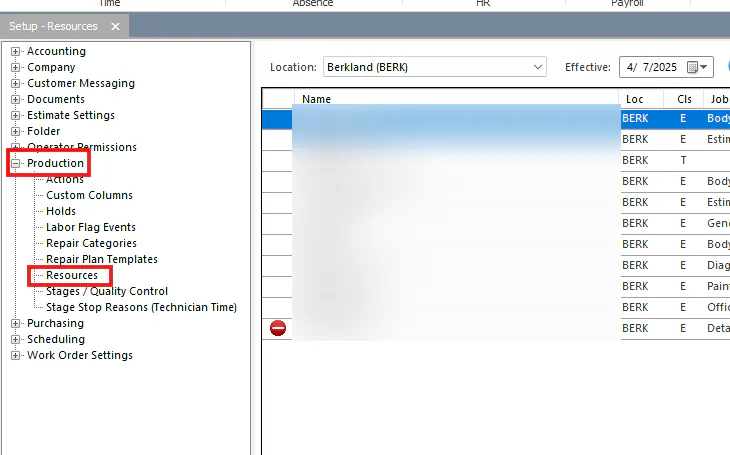
Open System › Setup › Production › Resources.
-
Select New at the bottom of the screen.
-
Enter the team Name, select the Location, then select Save.
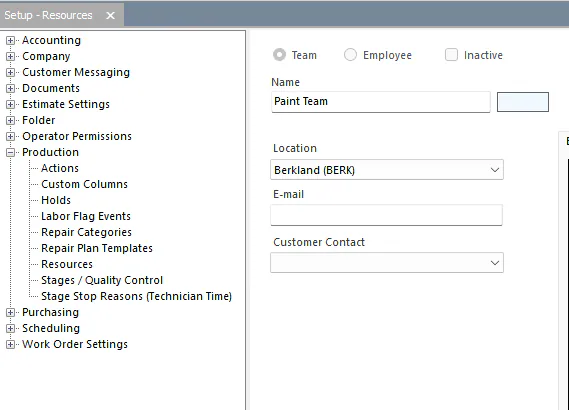
Leave the Resources screen open. You come back to it after you add the team members.
Add employees to the team
Section titled “Add employees to the team”-
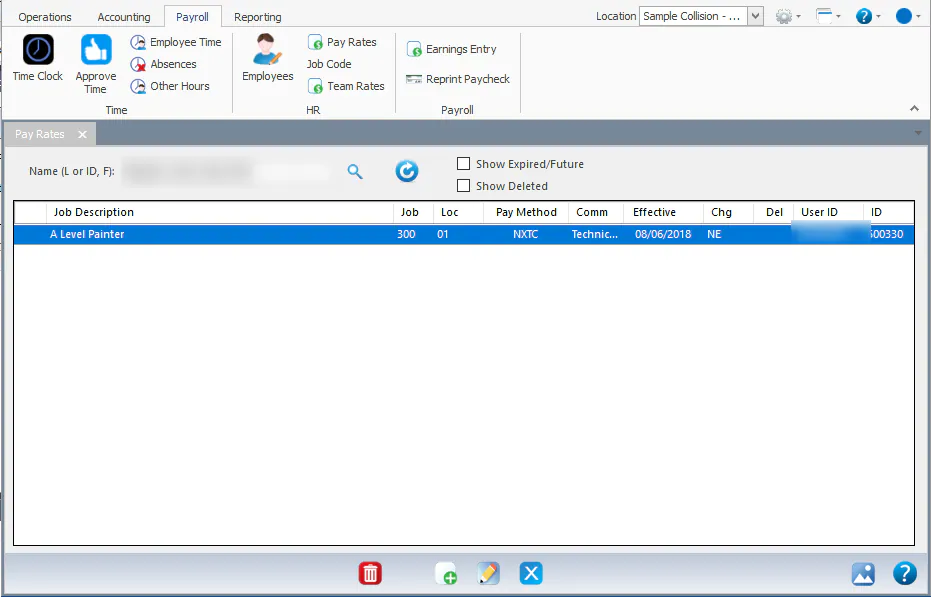
On the Payroll tab, select Pay Rates.
-
Search for the employee, then double-click their rate record.
-
In the Resource window at the bottom left, select the checkbox for the team.
-
Enter the Alloc %, then select Apply. The team’s members must add up to 100%.
-
Select a Reason, then select Save.
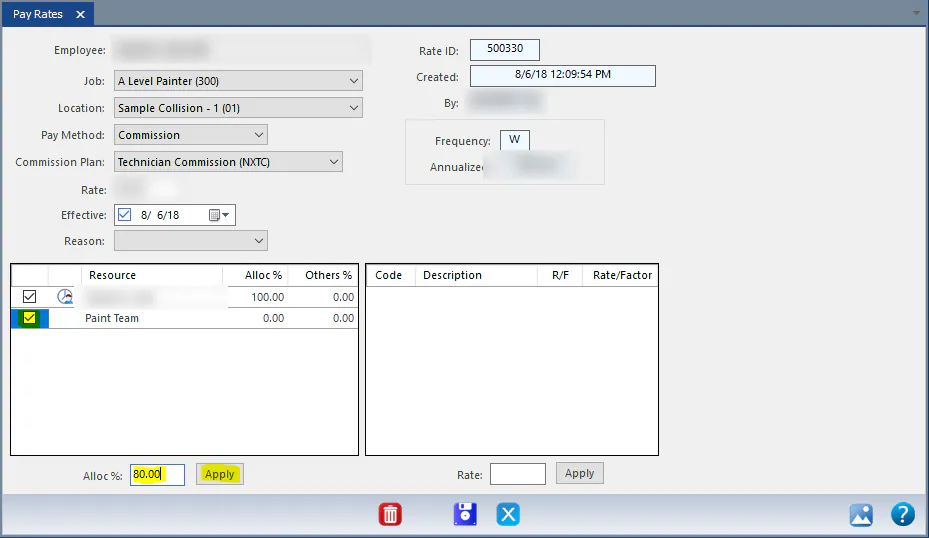
-
Repeat these steps for each team member.
Choose the team’s labor types
Section titled “Choose the team’s labor types”- Go back to the Resources screen and select the team. Its employees now show on the right.
- Under Default Sales Codes for Work Order Allocation, select the checkbox for each labor type the team can be allocated.
- Select Save.
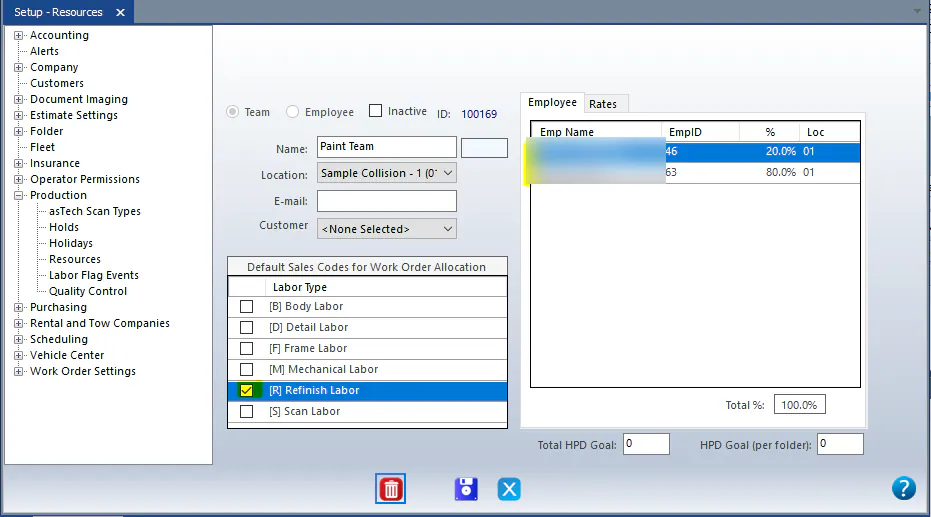
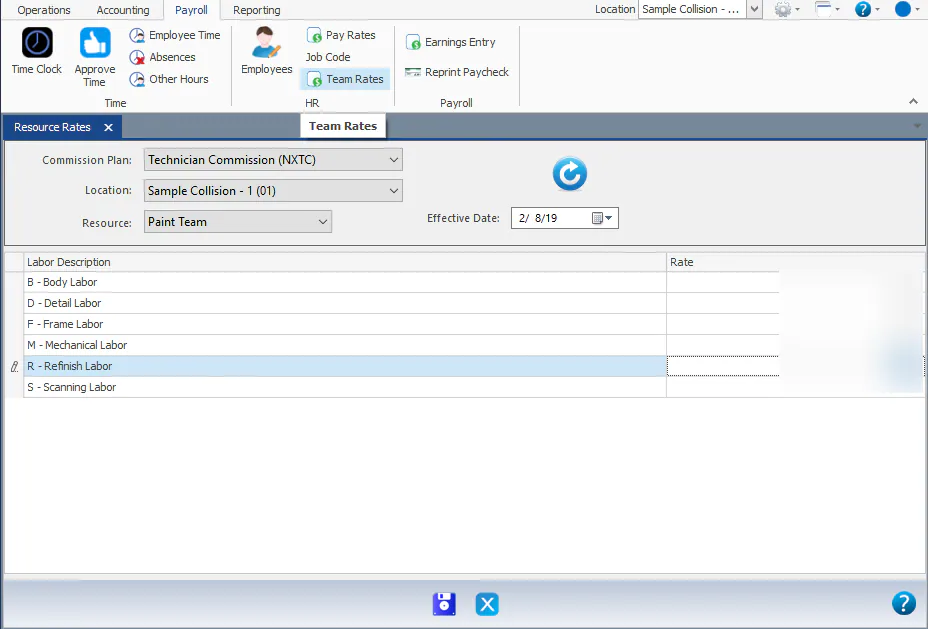
Set team pay rates
Section titled “Set team pay rates”A team’s commission is calculated from its team rates only. The rates of the team’s individual members aren’t used.
- On the Payroll tab, select Team Rates.
- At the top of the screen, select the Commission Plan, then the Location, then the team in Resource.
- The grid shows the current rate for each labor type. Select a rate and type the new amount.
- Select Save.