Clock in and out of repairs
Clock in to a repair when you start work on it, and clock out when you stop. Your time is recorded against the folder and repair stage. Use whichever of these your shop uses: the Technician Time screen in Nexsyis, the Technician Clock in NexsyisNow, or the Nexsyis mobile app.
For how stages show in your lists, see Technician time overview.
Log in to the Technician Time screen
Section titled “Log in to the Technician Time screen”- Open Settings › Tools › Technician Time.
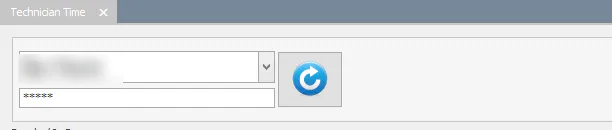
- Select your name from the drop-down list. If you work on a team, select your team instead.
- Type your password in the box below it, and then select the Refresh button.

Start work on a stage
Section titled “Start work on a stage”On the line for the stage, select Start.
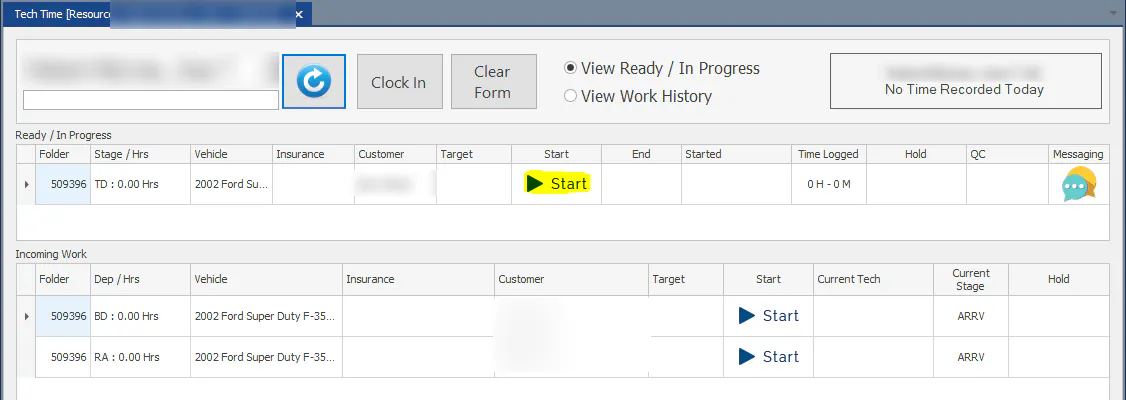
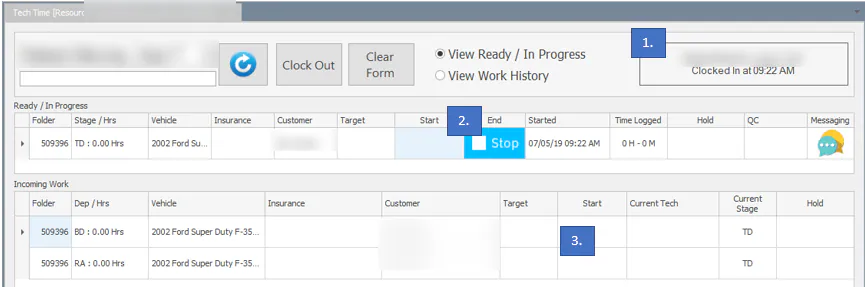
Three things happen:
- If you aren’t clocked in to the time clock, you’re clocked in.
- The Stop button shows on that line.
- Start disappears from your other lines, because you can be clocked in to only one stage at a time.
Stop work on a stage
Section titled “Stop work on a stage”- Select the blue Stop button.
- Select the reason you’re stopping, and then select the green check mark.
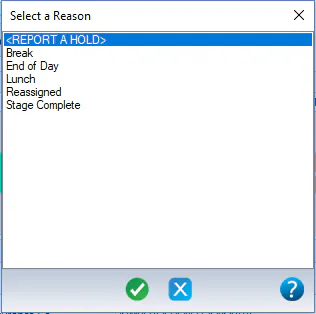
The list always includes these two reasons:
- <REPORT A HOLD> opens the holds screen so you can choose a hold reason. The line turns orange and a red hold flag is added. If the hold has Suspend Repair Plan turned on, no one can restart work on the folder until the hold is removed.
- Stage Complete completes the stage and records the Actual End date and time on the repair plan. You can see the stage under View Work History until the folder is marked Repairs are Complete.
Your company sets up the other reasons under Stage Stop Reasons. If you use the Nexsyis time clock, some reasons, such as Break and End of Day, also clock you out of the time clock.
Send a message about a stage
Section titled “Send a message about a stage”- Select the line, and then select the Messaging button.
- Select a coworker from the To list, and then select the green + button to add them. Repeat for each recipient.
- Type your message.
- Select Send.
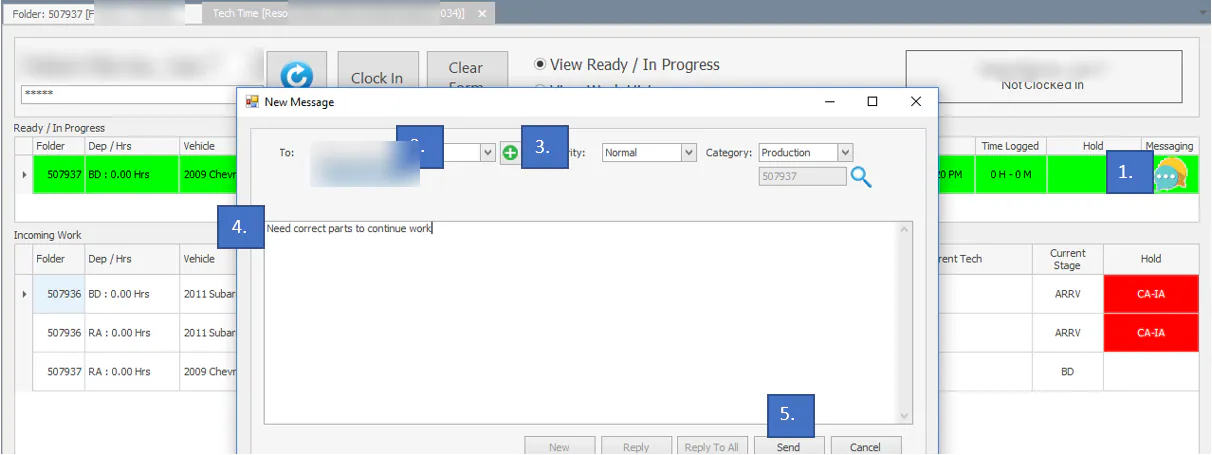
The message goes to your coworkers and is recorded in a folder note. For more on messages, see Message your team.
Resolve QC before completing a stage
Section titled “Resolve QC before completing a stage”If a stage has QC items, each one must be marked Completed or Not Applicable before you can complete the stage. The QC column shows how many items are done out of the total, for example 0 / 1.
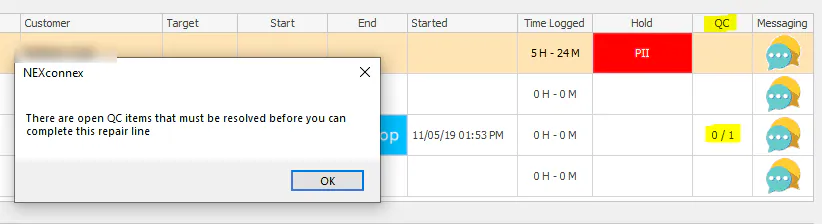
Double-click the line in the QC column to open the QC screen and complete the items. See Complete a quality control check.
Clock in as a team
Section titled “Clock in as a team”-
Select your team from the drop-down list, type the team password, and select Refresh.
-
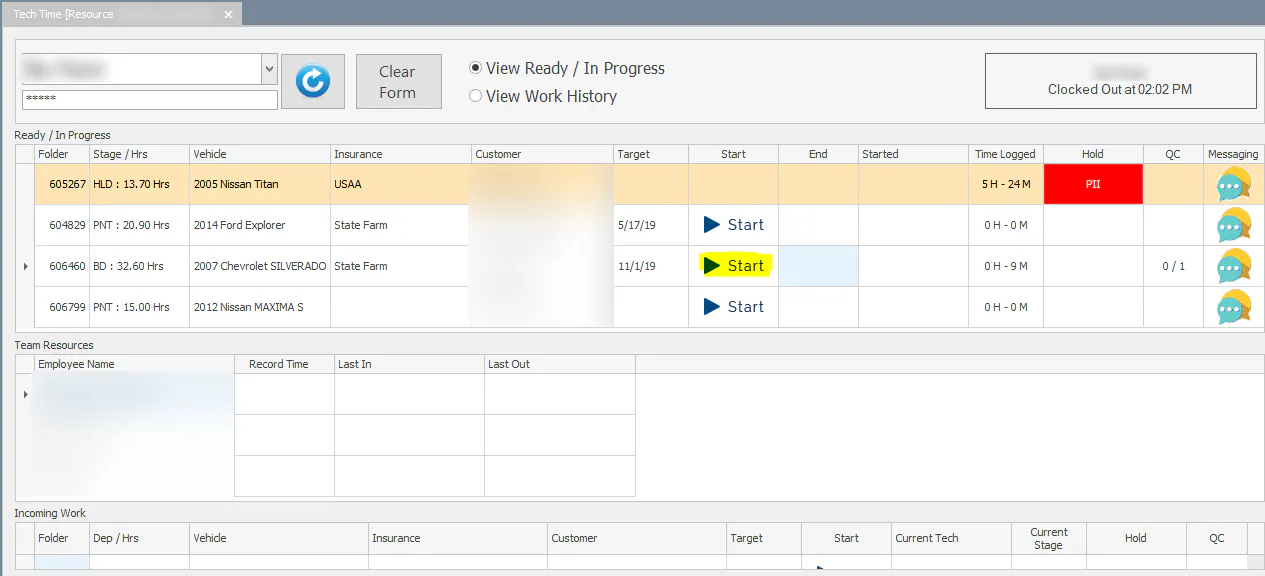
On the line for the stage, select Start. The Stop button shows on that line.
-
Each team member working on that line selects the button in the Record Time column next to their name.
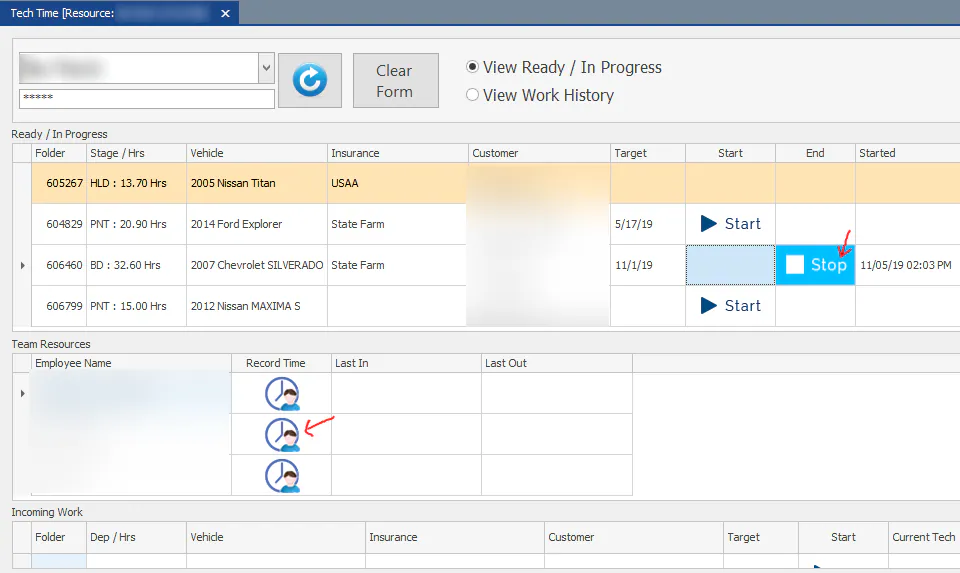
Each time a team member selects Record Time, Nexsyis records an in or out punch for them.
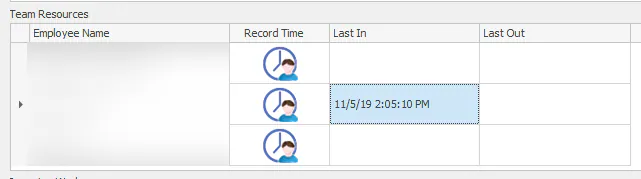
Teams stop work, send messages and resolve QC the same way as individual technicians. Starting and stopping a team’s stage doesn’t clock team members in or out of the time clock; they use the regular Nexsyis time clock for that.
Open the Technician Clock
Section titled “Open the Technician Clock”-
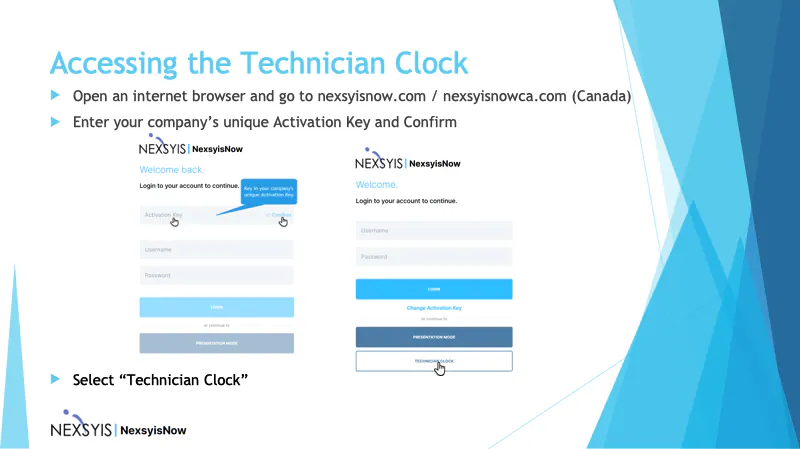
In a web browser, go to nexsyisnow.com (nexsyisnowca.com in Canada).
-
If asked, enter your company’s activation key and confirm.
-
Select Technician Clock.
-
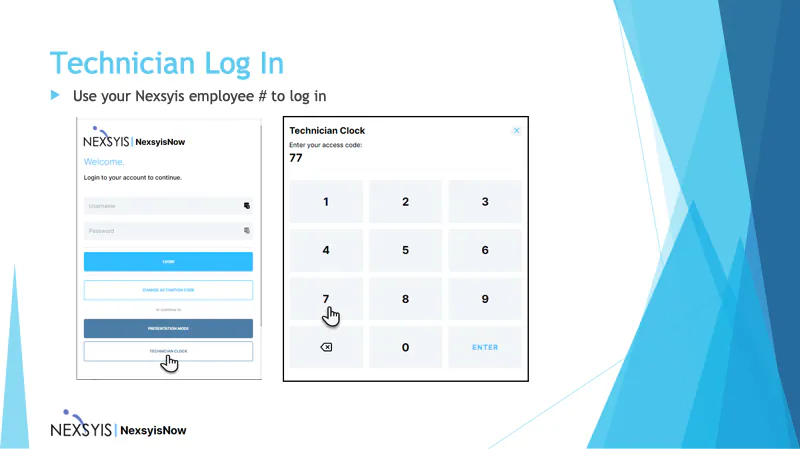
Enter your Nexsyis employee number as your access code, and then select Enter.
Clock in to repairs
Section titled “Clock in to repairs”-
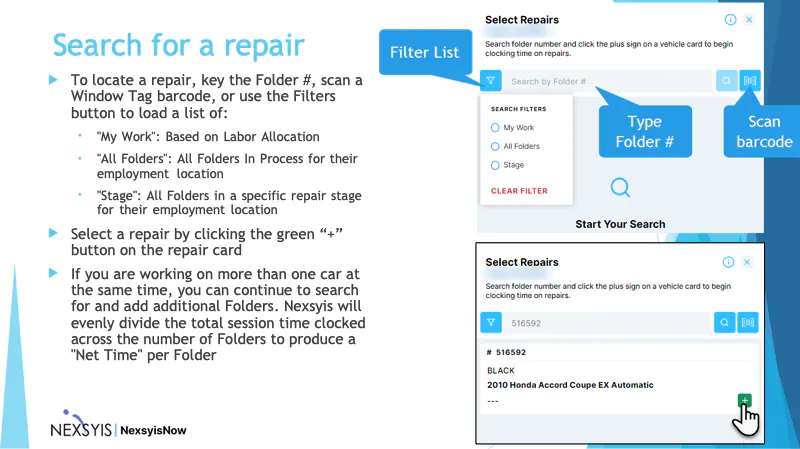
Find the repair:
- Type the folder number in Search by Folder #.
- Or scan the window tag barcode.
- Or select the filter button and choose My Work (folders from labor allocation), All Folders (all folders in process at your location) or Stage (all folders in one repair stage at your location).
-
Select the green + button on the repair card.
-
If you’re working on more than one vehicle, search for and add the other folders too. Nexsyis divides your session time evenly across the folders to give a net time for each.
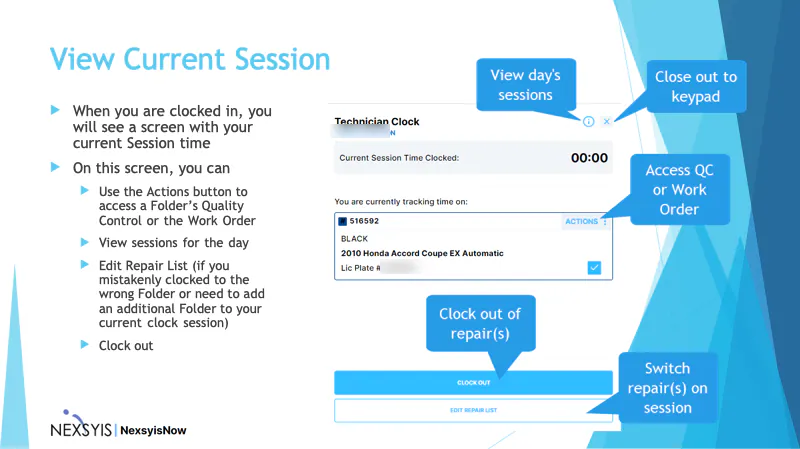
Once you’re clocked in, the screen shows your current session time and the repairs you’re tracking time on. From here you can open a folder’s QC or work order, see today’s sessions, change your repair list, or clock out.
Choose a repair stage
Section titled “Choose a repair stage”When you clock in, Nexsyis asks which repair stage to clock in to.
- If the repair is in an active stage, that stage is selected. If you choose a different (alternate) stage, the time is still recorded under the active stage, and the Worked In column shows the stage you chose.
- If the repair has no active stage, the next stage in sequence is selected, and it starts when you clock in.
- If you add several repairs that are all in the same active stage, that stage is selected.
- If you add repairs that are in different stages, no stage is selected. If you don’t choose one, the time is recorded under each folder’s active stage. If you choose one, the Worked In column shows it on each folder. Either way, the net time is split between the repairs.
Only stages set up for concurrent clocking can be chosen as an alternate stage. See Set up technician time and Technician Clock.
View the work order or QC
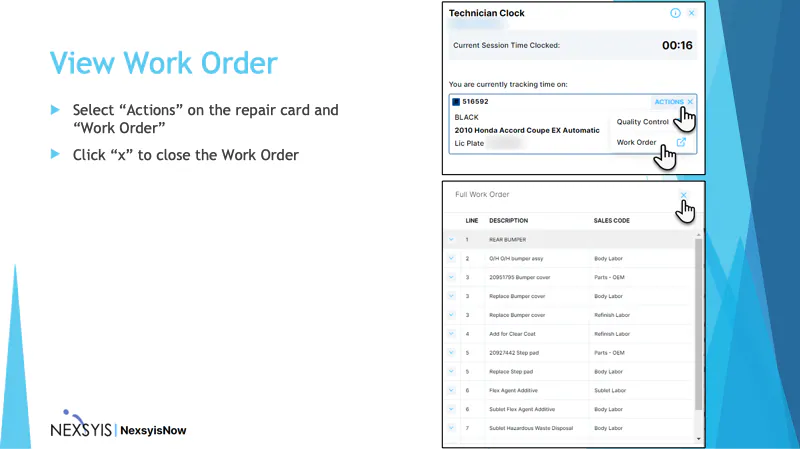
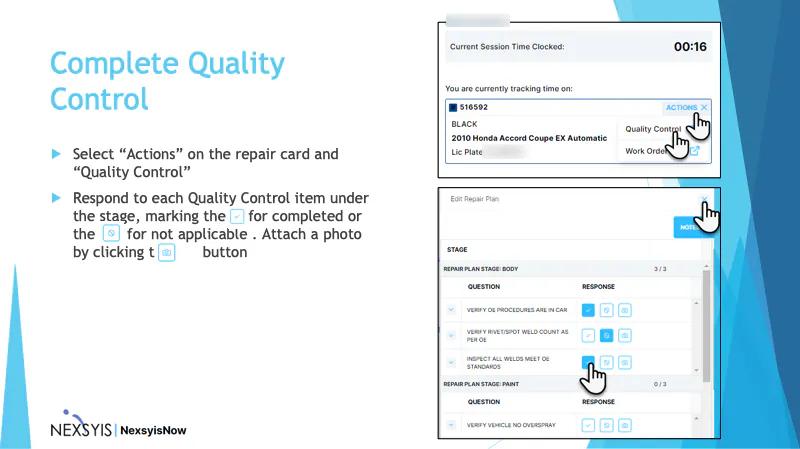
Section titled “View the work order or QC”On the repair card, select Actions, and then select Work Order or Quality Control.
- To close the work order, select x.
- On the QC screen, mark each item completed or not applicable. You can also attach a photo with the camera button.
View today’s sessions
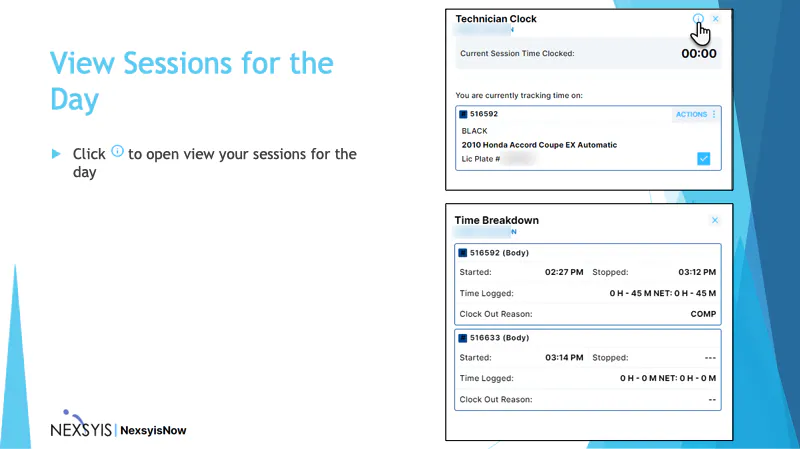
Section titled “View today’s sessions”Select the i button at the top to see your sessions for the day.
Change your repair list
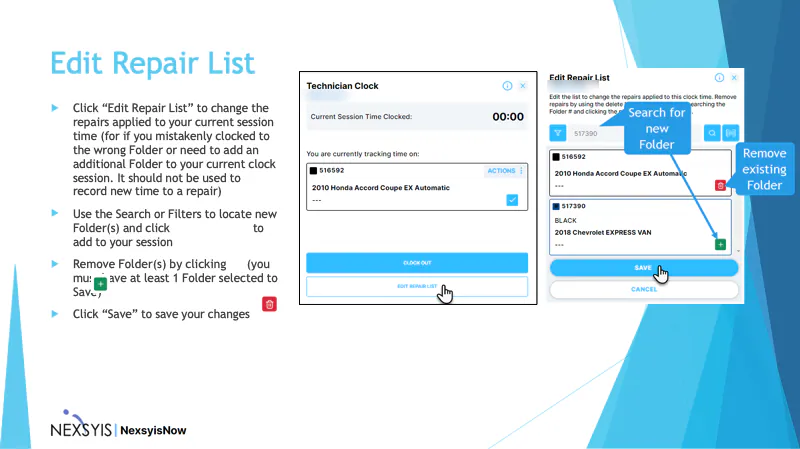
Section titled “Change your repair list”Use Edit Repair List if you clocked in to the wrong folder or need to add a folder to your current session. Don’t use it to record new time.
- Select Edit Repair List.
- Search for a folder and select + to add it, or select the trash button to remove one. At least one folder must stay selected.
- Select Save.
Clock out
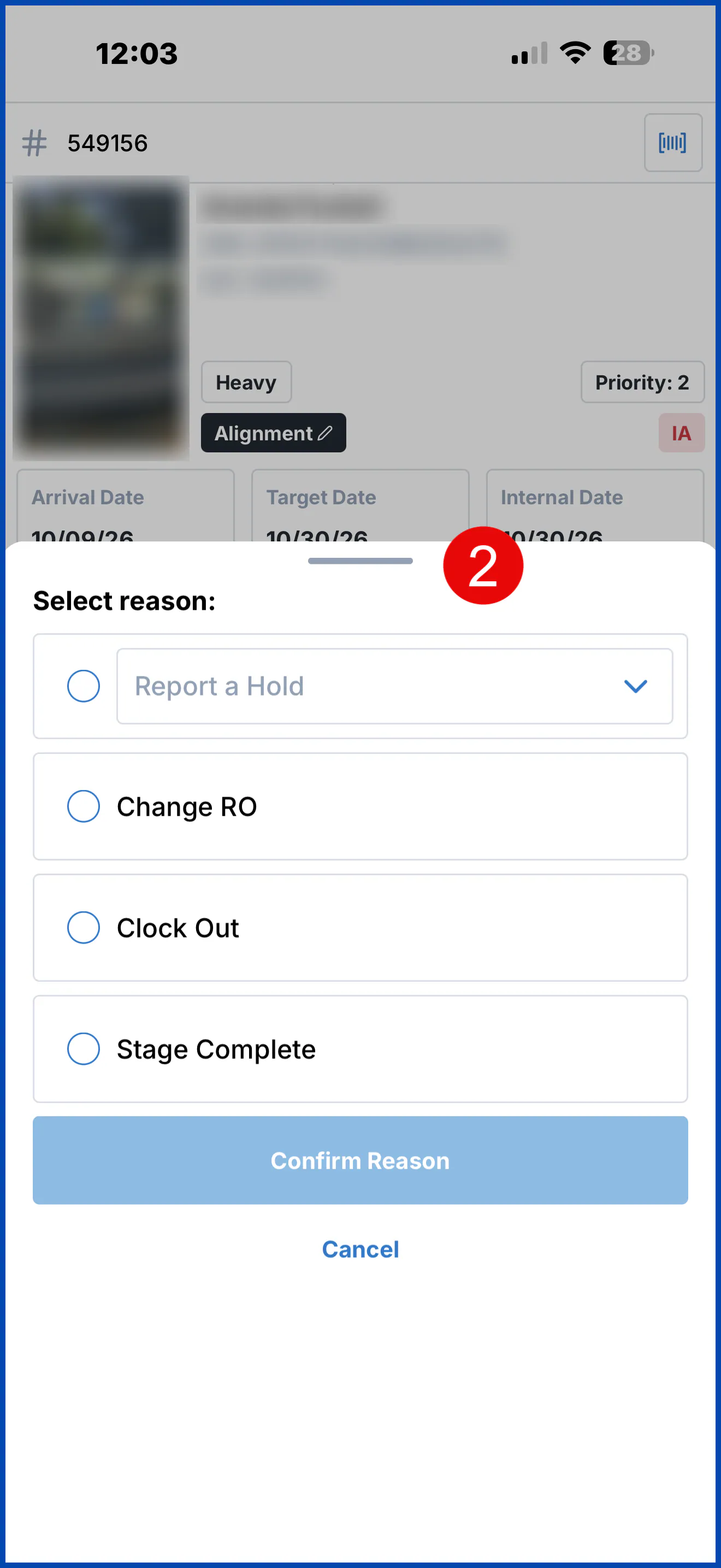
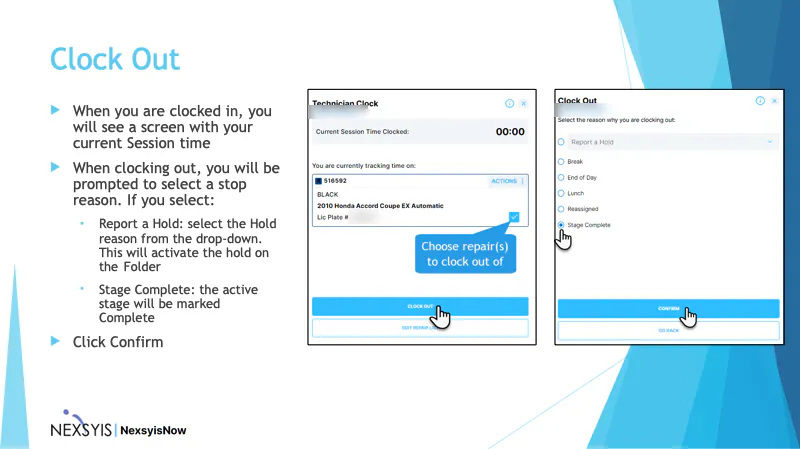
Section titled “Clock out”- Check the box on each repair you’re clocking out of, and then select Clock Out.
- Select a stop reason:
- Report a Hold: choose the hold reason from the drop-down. This puts the hold on the folder.
- Stage Complete: the active stage is marked complete.
- Select Confirm.
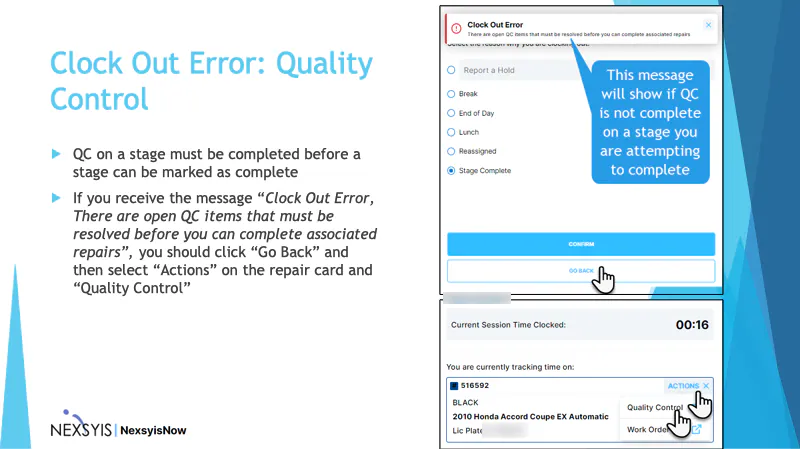
If you choose Stage Complete and the stage has open QC items, you see Clock Out Error. Select Go Back, select Actions › Quality Control on the repair card, and complete the QC items.
Record time for pay without a repair
Section titled “Record time for pay without a repair”You can also use the Technician Clock just to punch in and out for pay.
-
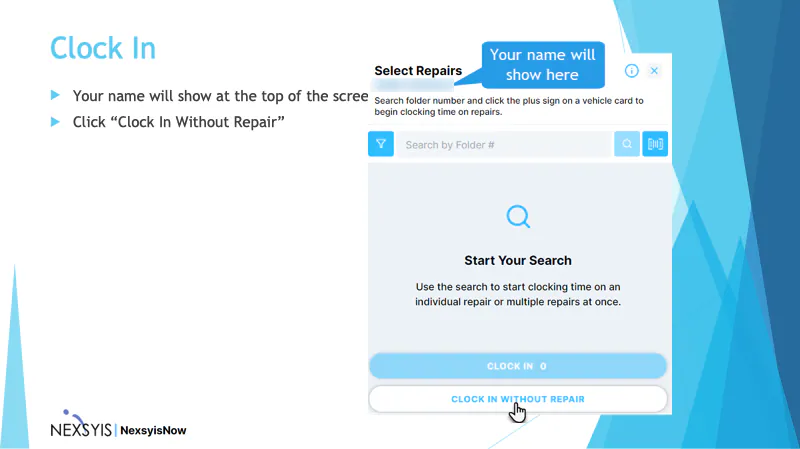
Log in to the Technician Clock. Your name shows at the top.
-
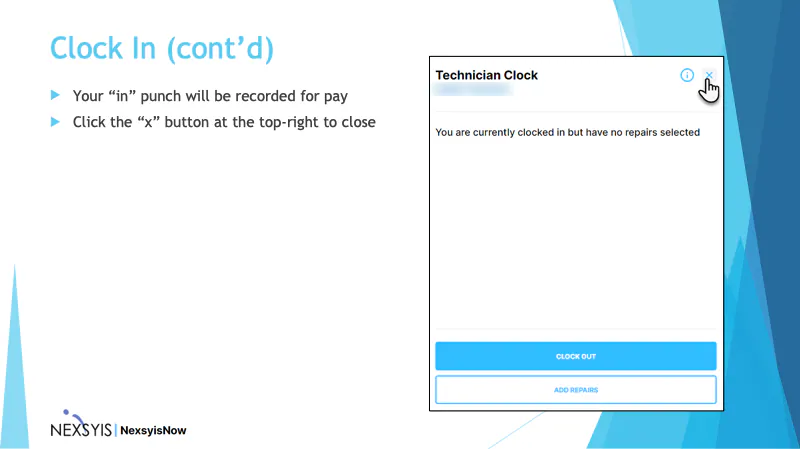
Select Clock In Without Repair. Your in punch is recorded.
-
Select x at the top right to close.
-
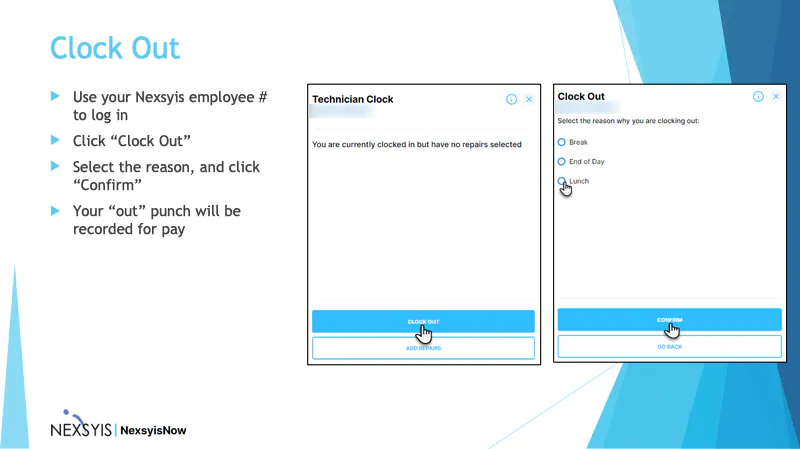
To clock out, log in again, select Clock Out, choose the reason, and select Confirm. Your out punch is recorded.
In the mobile app you can clock in to several folders at once. When you clock out, all the folders are selected and you’re clocked out of all of them. Your time is split between the repairs.
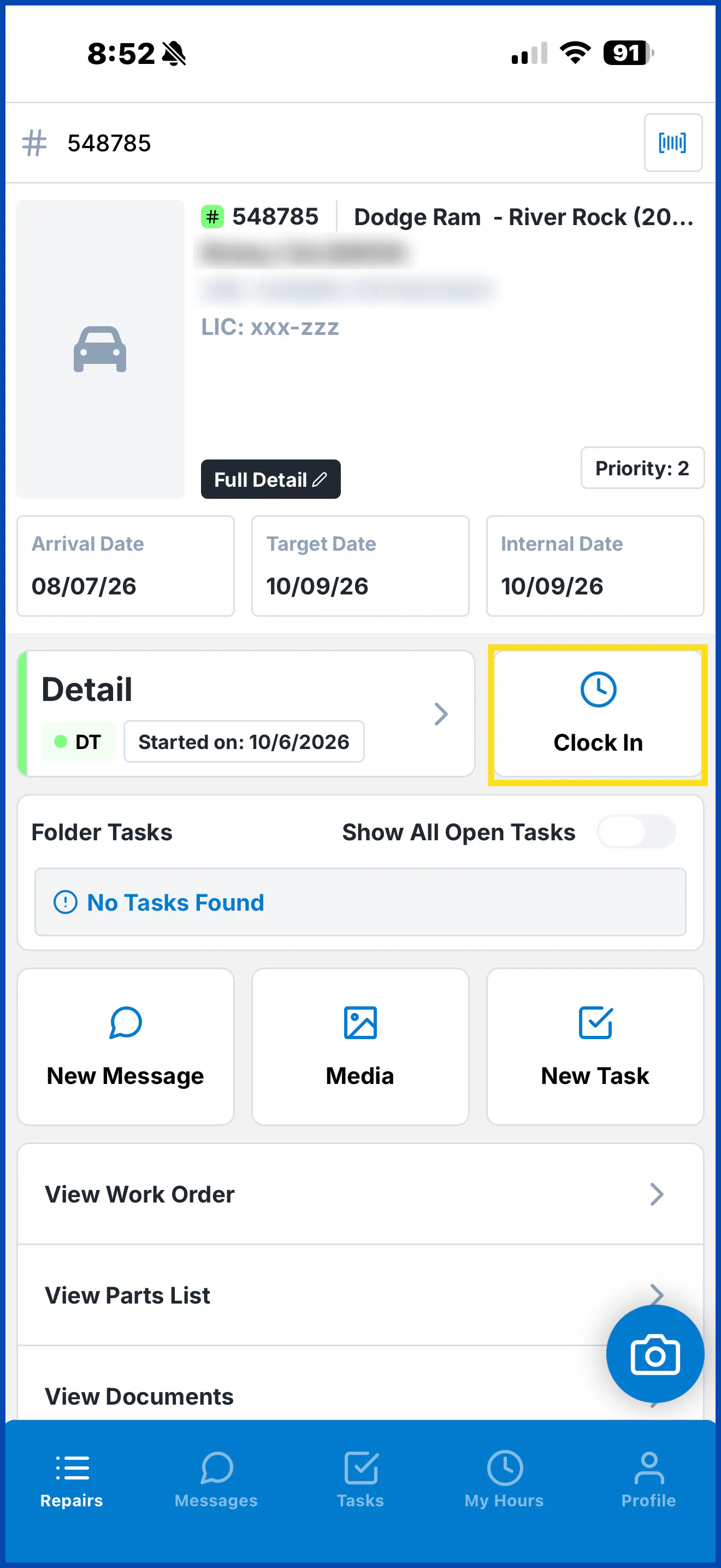
Clock in
Section titled “Clock in”Clock in from either place:
-
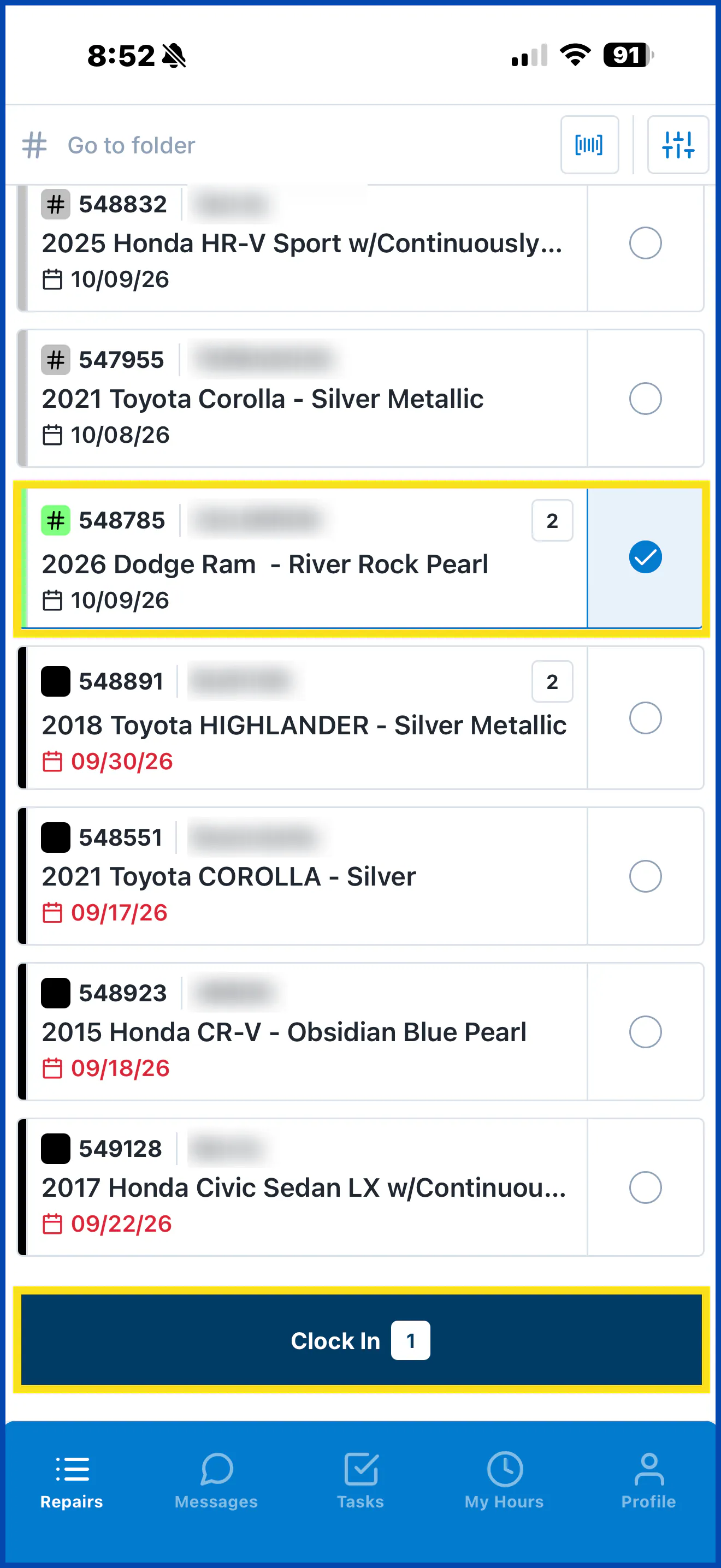
The repair list: select the circle on each repair, and then select Clock In.
-
Inside the folder: select Clock In.
See how long you’ve been clocked in
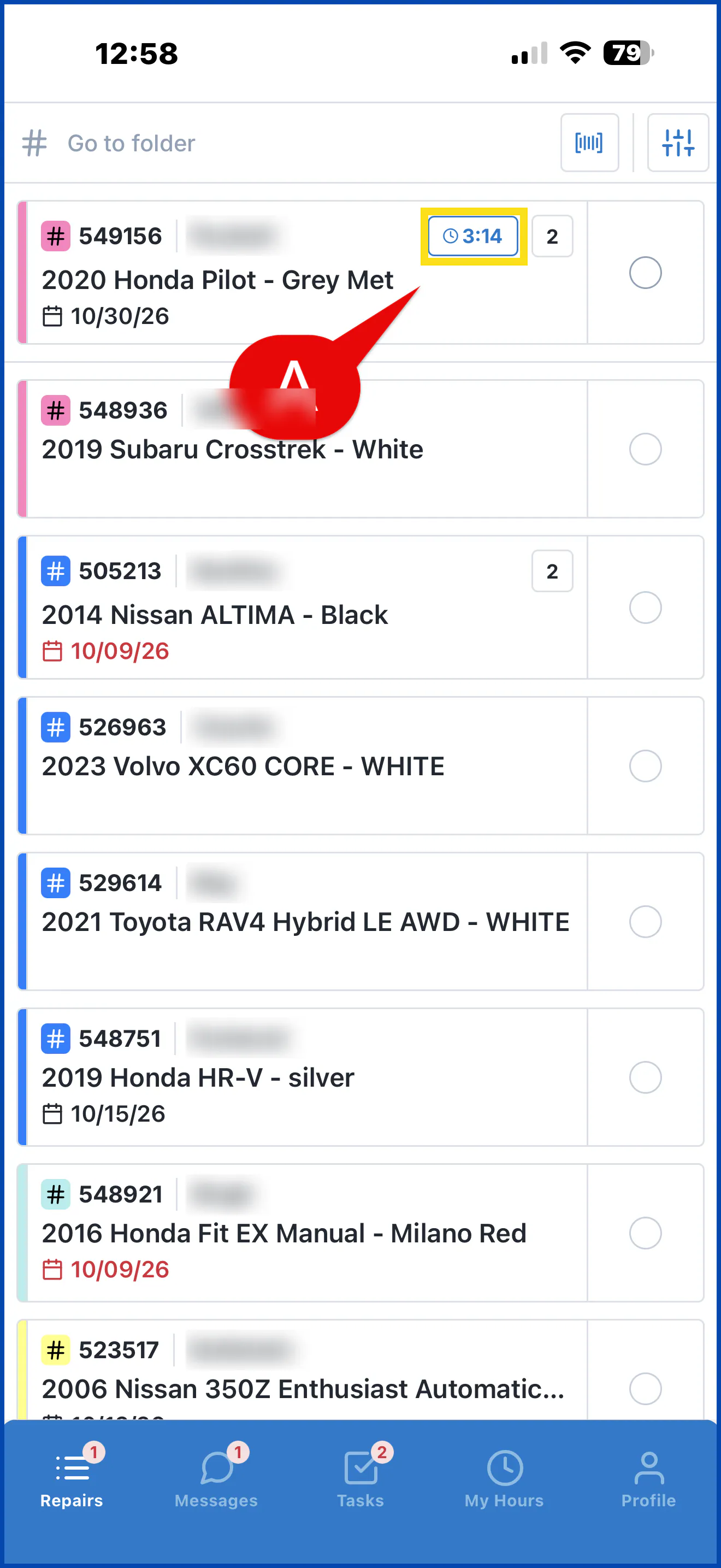
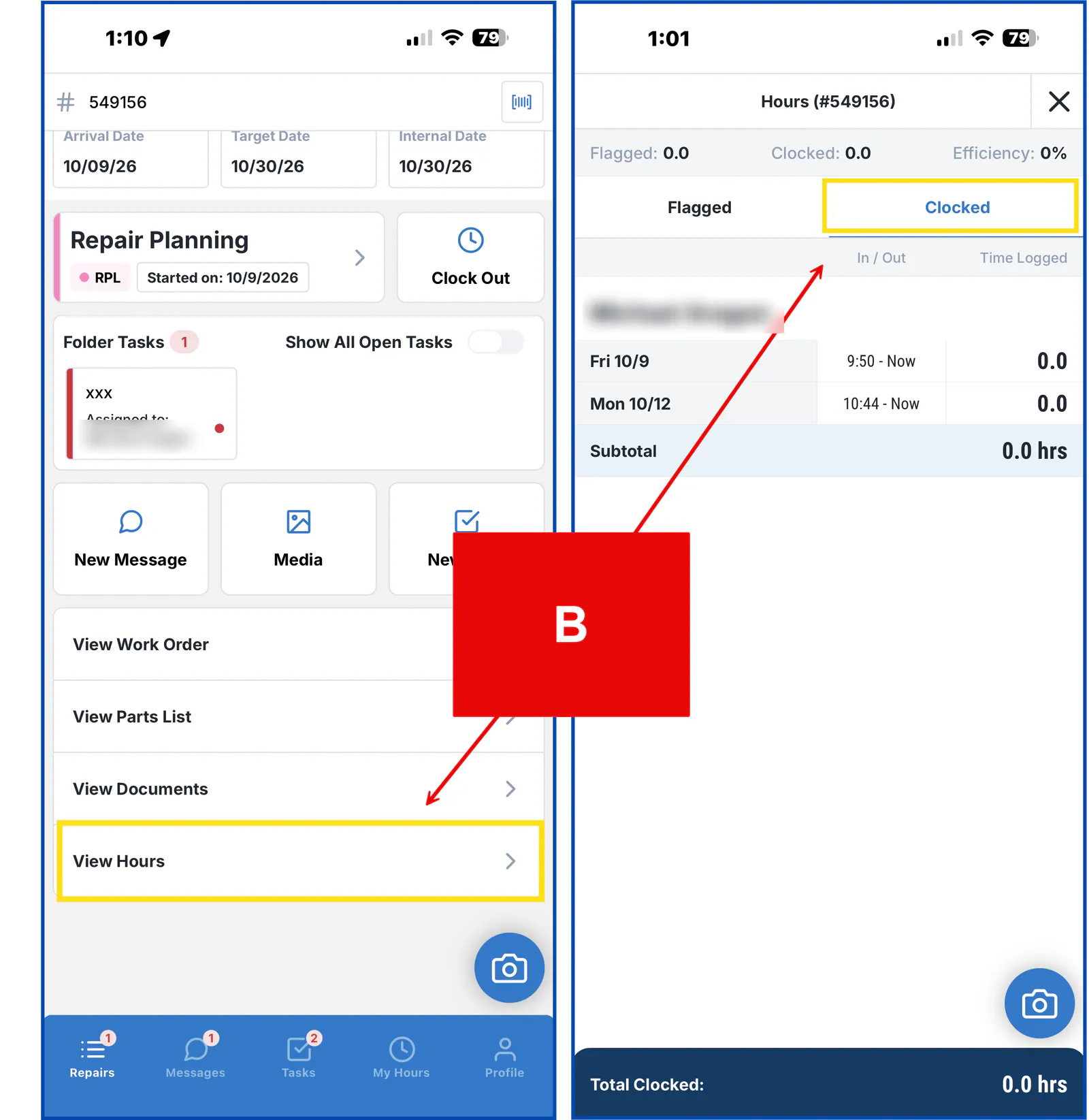
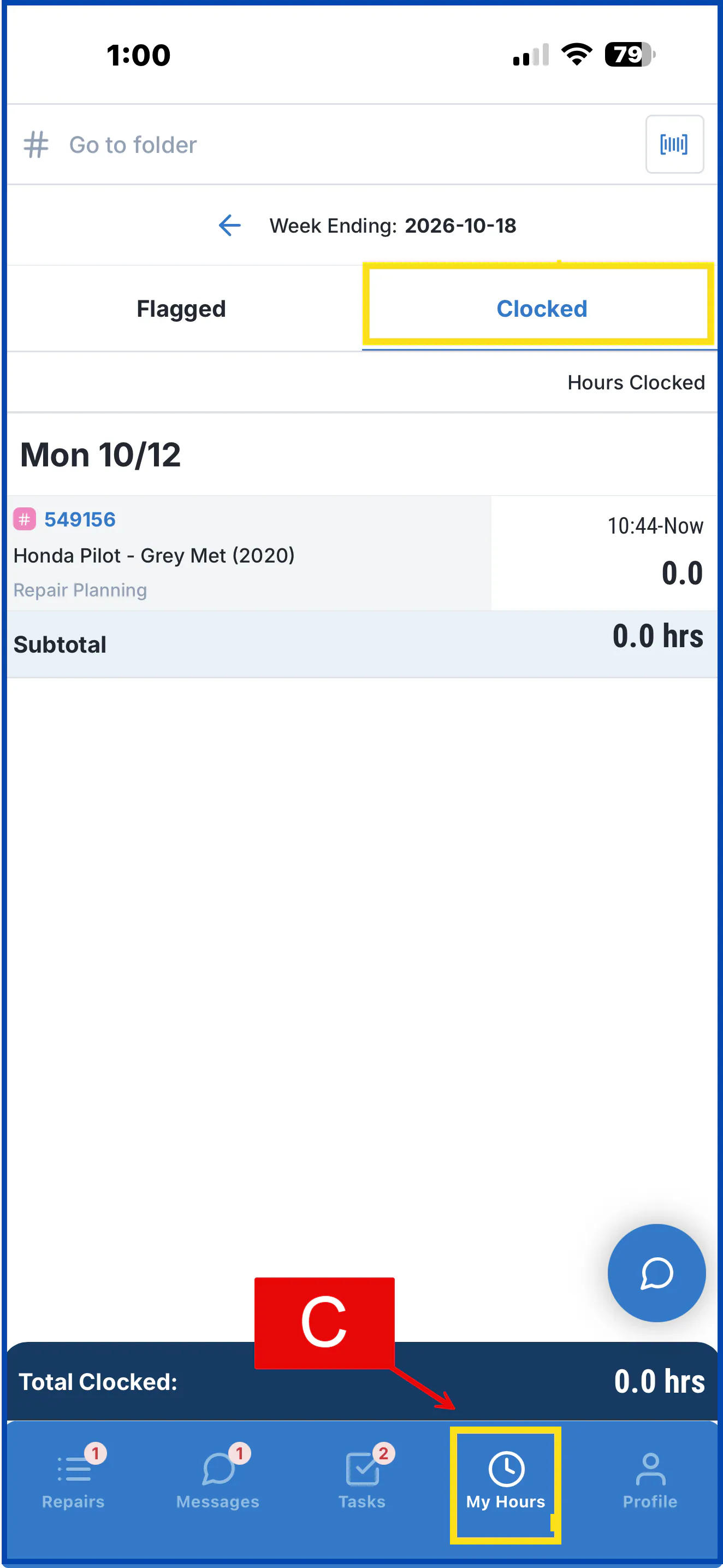
Section titled “See how long you’ve been clocked in”-
The repair list shows a timer on the repair.
-
In the folder, select View Hours, and then the Clocked tab.
-
My Hours at the bottom of the app, on the Clocked tab.
Clock out
Section titled “Clock out”-
Select Clock Out.
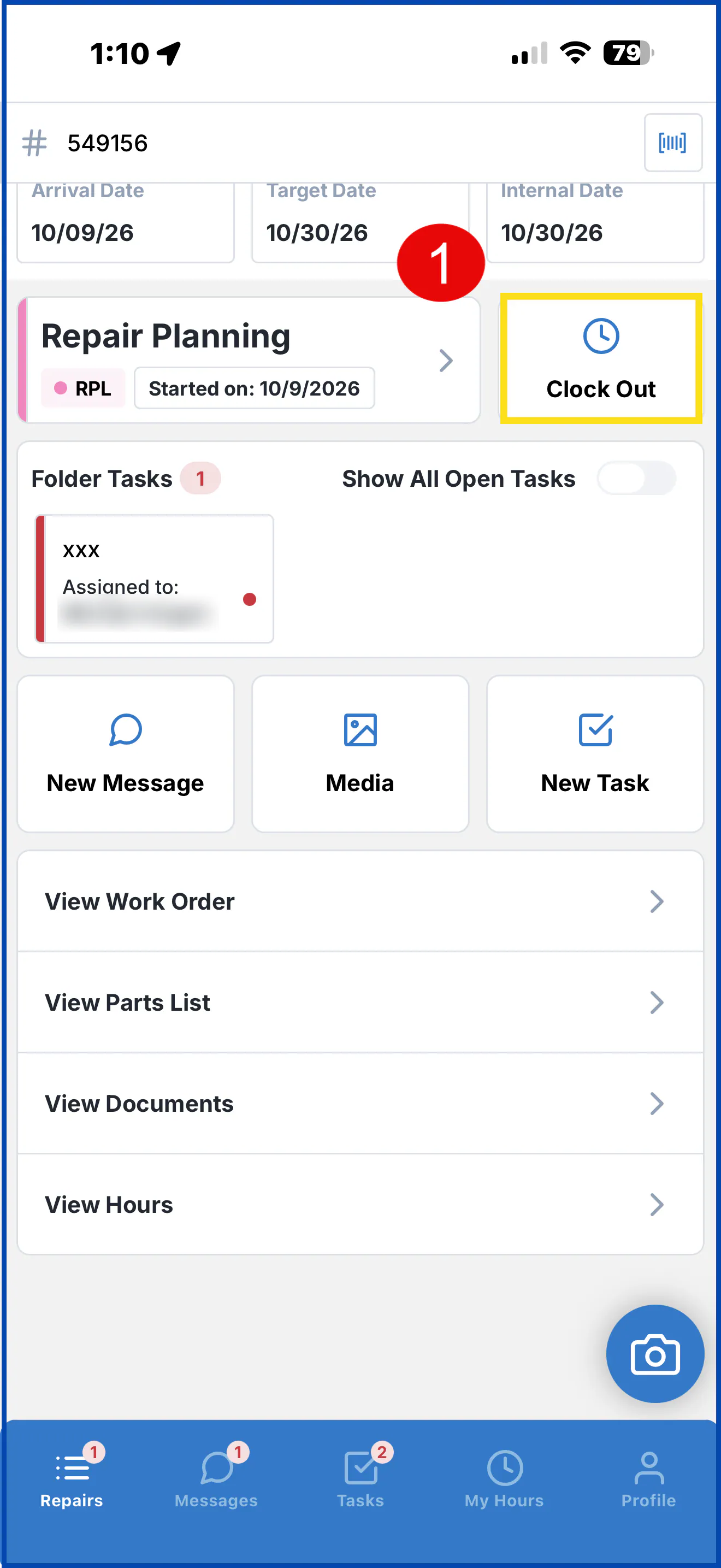
-
Select the reason, and then select Confirm Reason.