View attachments from customers
Customers can text photos to your shop. Open them from the Message Center or the folder, and save them to the folder.
-
Open the Message Center, or the folder’s Communication tab. A message with photos shows a camera icon and the text Attachments, with the number of photos.

-
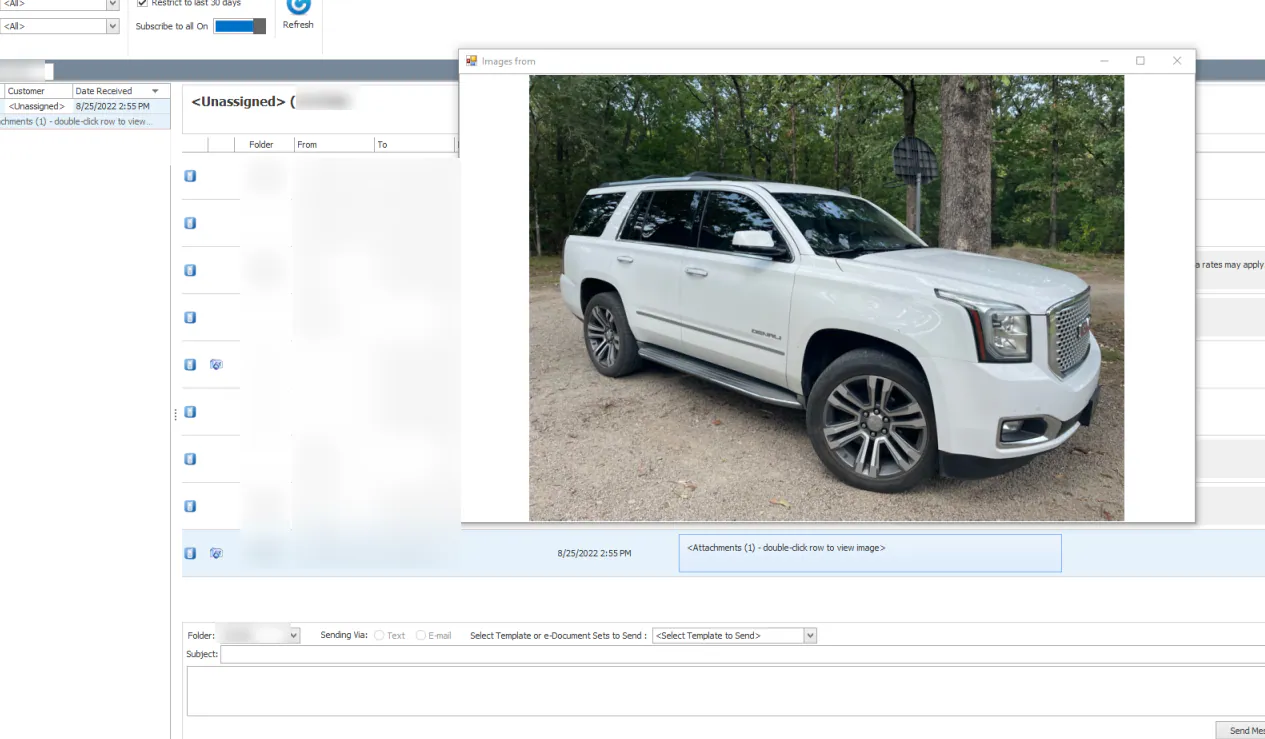
Double-click the message. The photos open in a separate window, one window per photo.
-
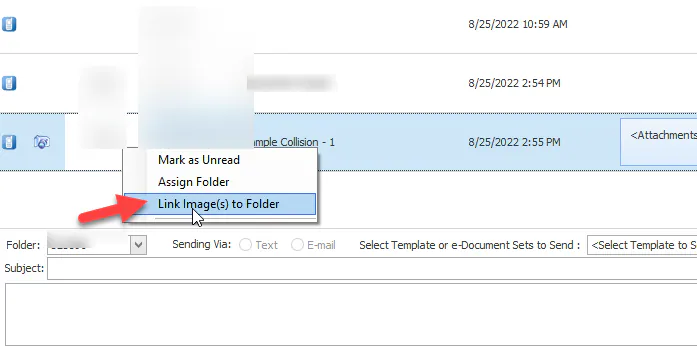
To save the photos to the folder, right-click the message and select Link Image(s) to Folder.
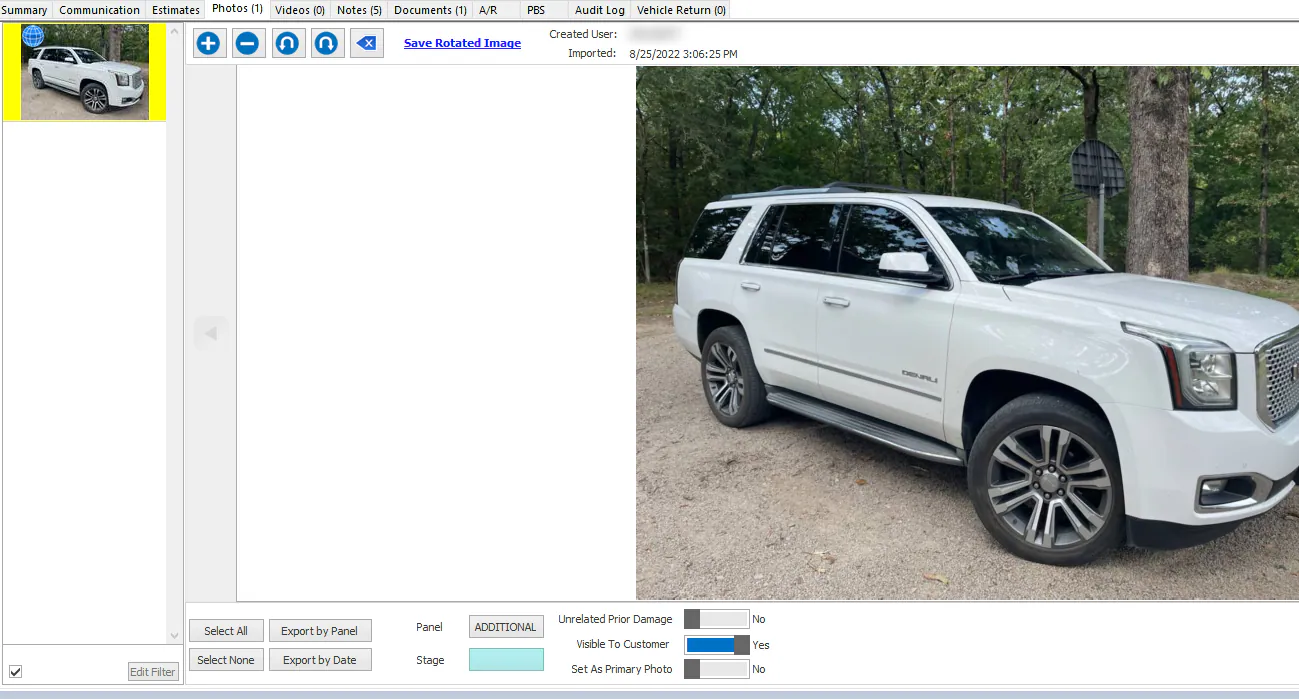
The photos are saved on the folder’s Photos tab.