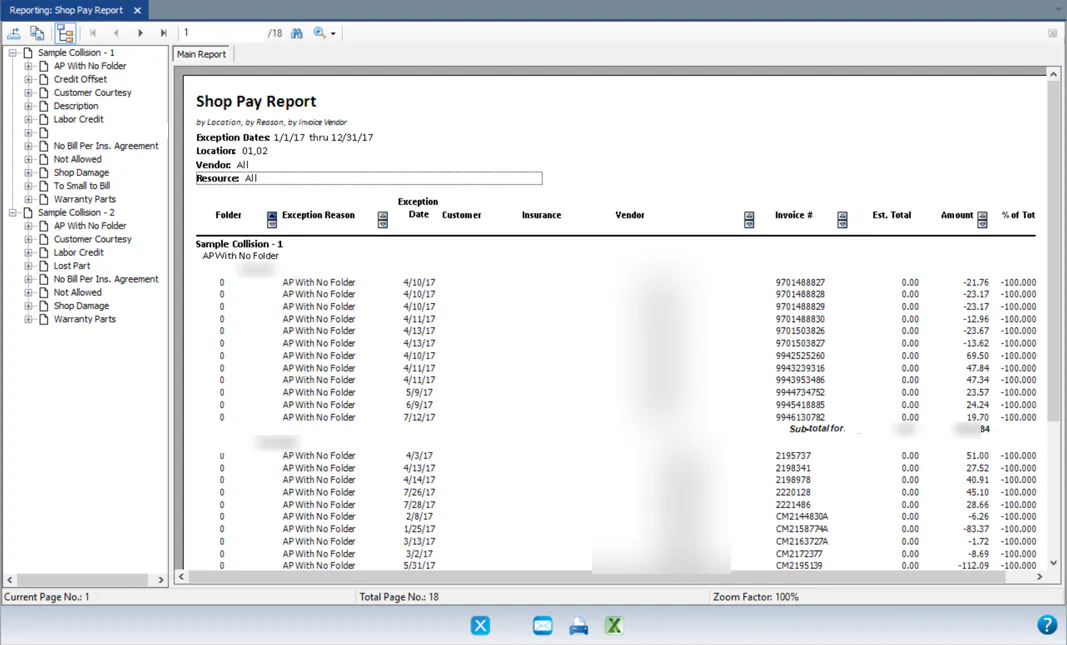
Run the shop pay report
The Shop Pay Report helps you make sure your shop isn’t paying costs it isn’t reimbursed for. It shows:
- AP costs on folders that aren’t tied to estimate lines (Cost, No Sale exceptions).
- AP costs that weren’t entered against a folder, but were posted to a financial category usually tied to a folder.
Before you begin
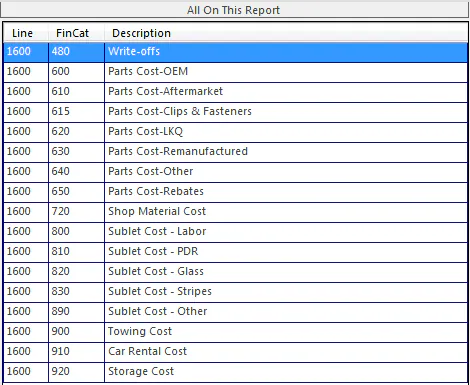
Section titled “Before you begin”For AP costs with no folder to show on the report, map your shop pay financial categories on the GL Report Mapping screen. See Use the GL report map.
These categories are unique to your company. For example, you’d usually expect costs in categories like these to be posted against a folder:
Run the report
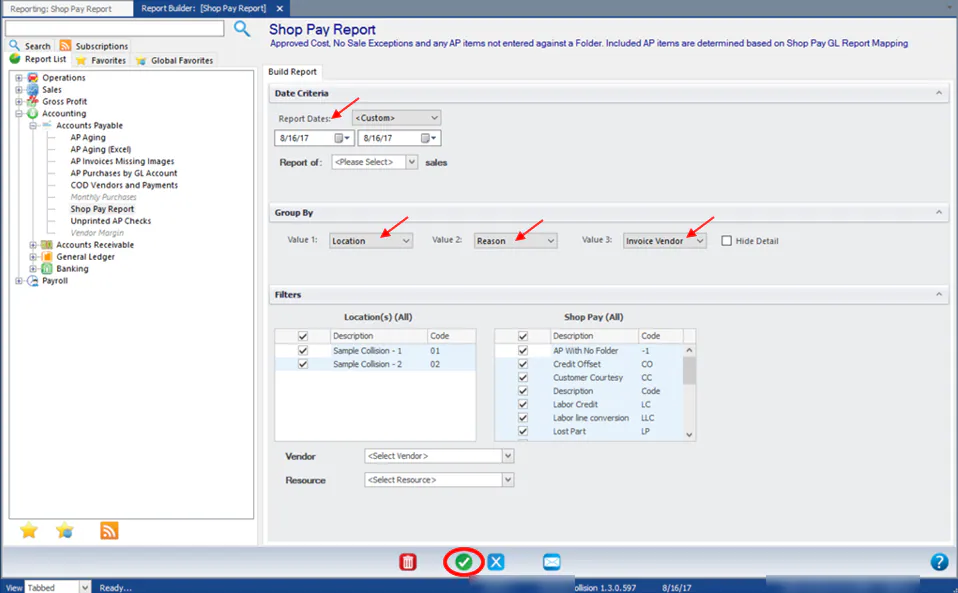
Section titled “Run the report”- Go to Reporting › Reports › Accounting › Accounts Payable › Shop Pay Report.
- Select your parameters. We recommend grouping by Location, Reason and Invoice Vendor.
- Select the green check mark button.
Read the report
Section titled “Read the report”The report shows AP costs for:
- Cost, No Sale exceptions that are allowed (with the allowed reason) and not allowed.
- AP costs not entered on a folder, in the financial categories you mapped on the GL Report Mapping screen. These are listed as AP With No Folder.