Find a folder
Search for a folder by its number or by the customer and vehicle details. Always search before you create a folder, so you don’t create a duplicate.
Search for a folder
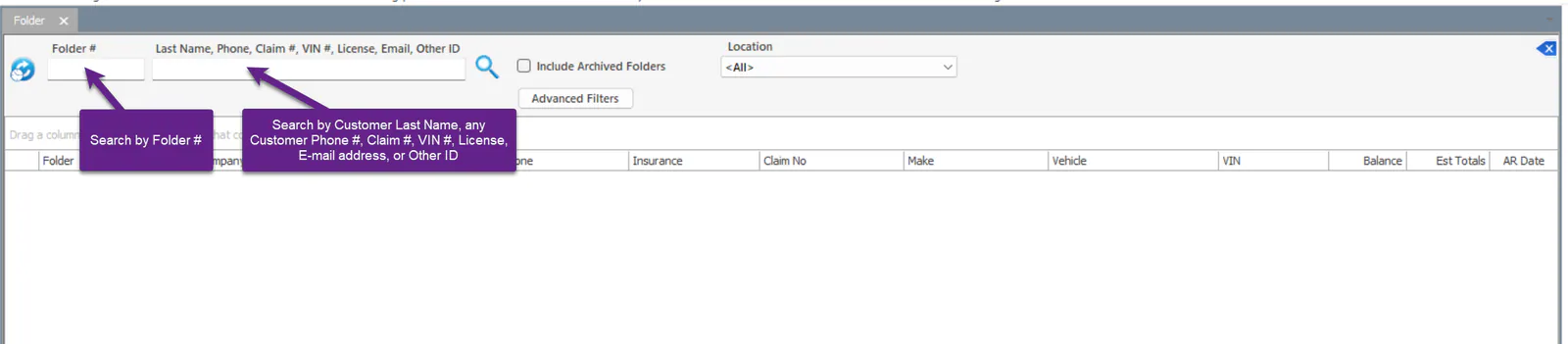
Section titled “Search for a folder”Open Folders, then use the boxes at the top of the screen:
- Folder #: type the folder number. If an exact match is found, Nexsyis opens the folder.
- Last Name, Phone, Claim #, VIN #, License, Email, Other ID: type the customer’s last name, any customer phone number, the claim number, VIN, license plate, email address or other ID.
Use advanced filters
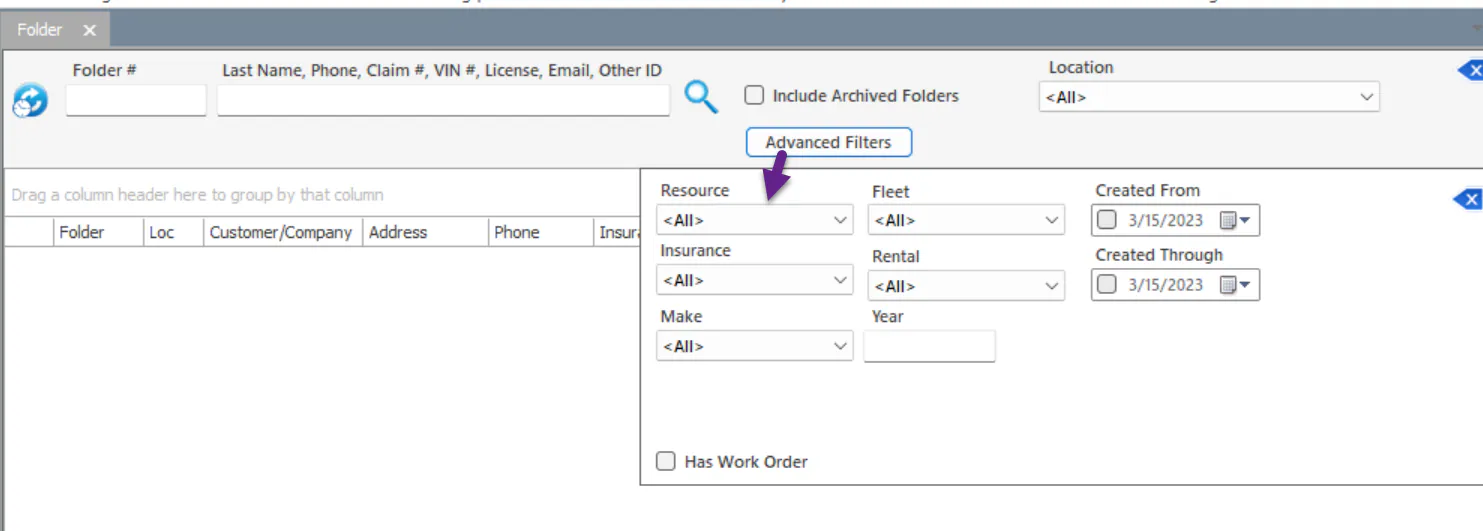
Section titled “Use advanced filters”To search by other details, select Advanced Filters. You can filter by Resource, Fleet, Insurance, Rental, Make, Year, a Created From and Created Through date range, and Has Work Order.
Include archived folders
Section titled “Include archived folders”Archived folders are left out of search results by default. To include them, select Include Archived Folders. See View archived folders.

Folder search icons
Section titled “Folder search icons”The icon next to each folder in the results shows its status.
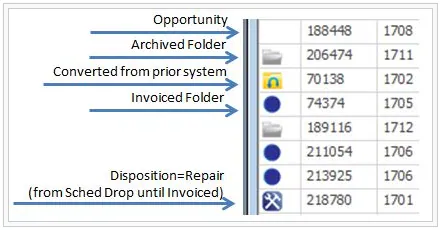
- No icon: an opportunity.
- Gray folder: an archived folder.
- Folder with a reverse arrow: a folder converted from your prior system.
- Blue circle: an invoiced folder.
- Wrench and hammer: disposition is Repair, from the scheduled drop until the folder is invoiced.
Search all folders
Section titled “Search all folders”The production list shows only the folders you’re working on. To find any folder in Nexsyis, including folders that aren’t in process, use the search bar at the top of the screen.
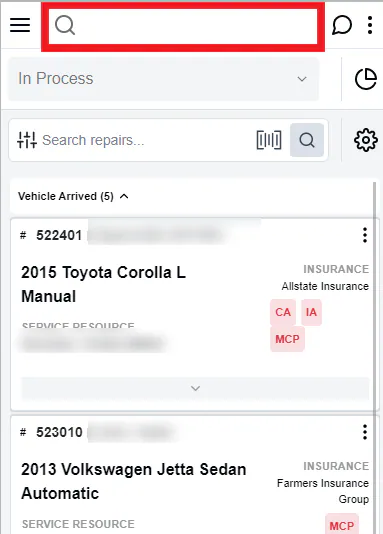
- Select the search bar. A menu opens with your recently opened folders.
- Find the folder:
- Search by VIN, last name, claim number or phone number.
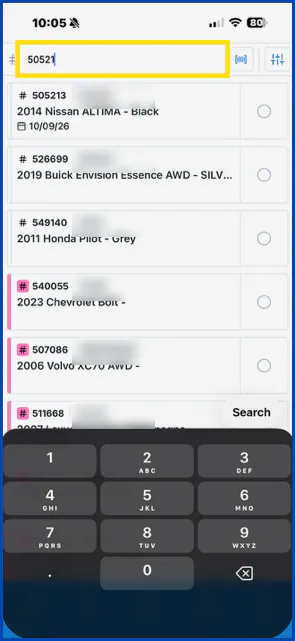
- If you have the folder number, select # (or Go To Folder on a larger screen) and type it.
- Select the barcode icon to scan a VIN or window tag with your camera.
- Select the folder to open it.
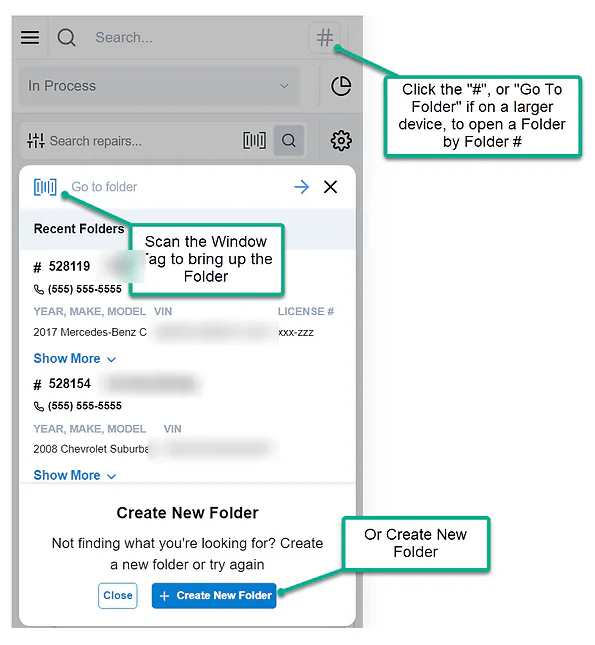
If the folder doesn’t exist yet, you can create it from the same menu. See Create a folder.
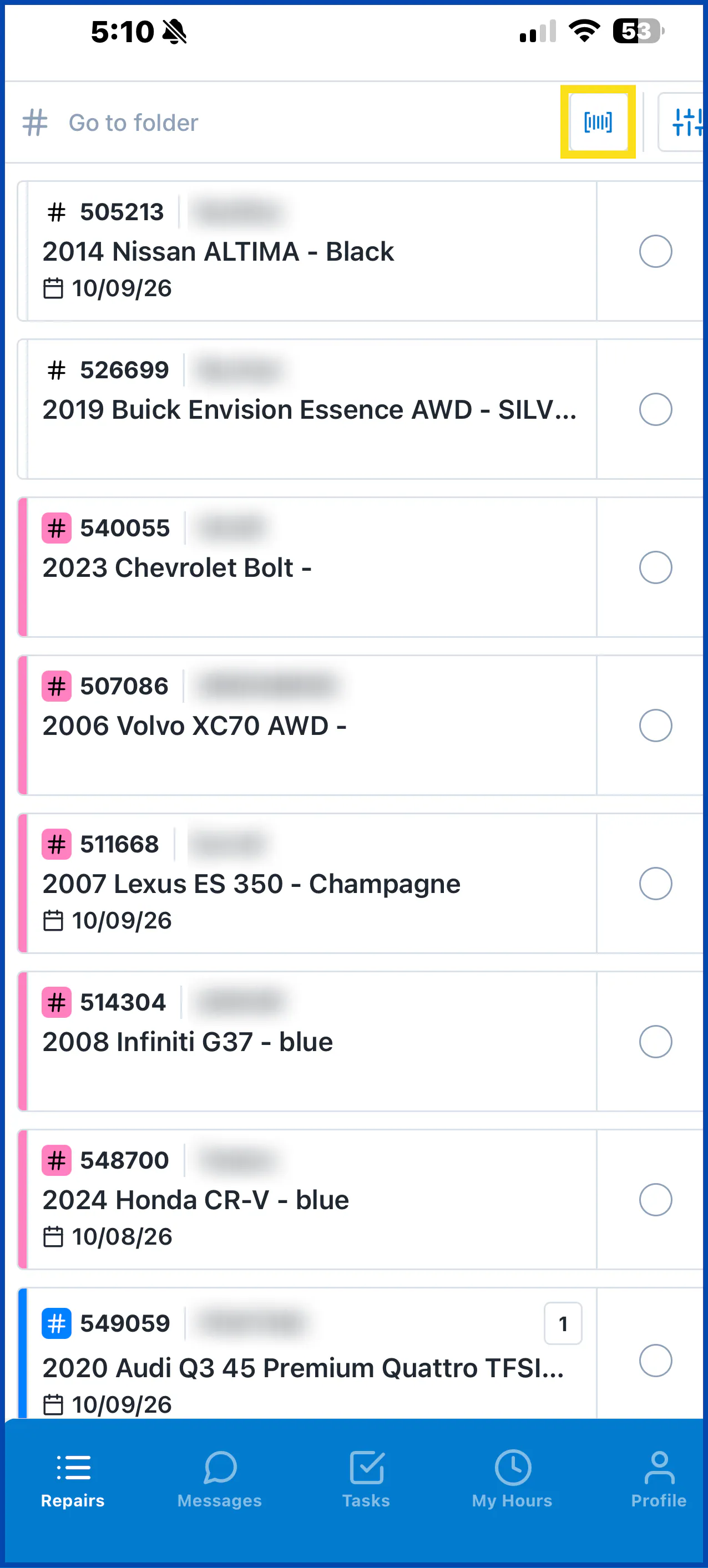
After you sign in, the repair list shows the jobs you’re working on. It’s based on your user permissions in Nexsyis; technicians see only the jobs assigned to them. Tap a folder in the list to open it.
Scan the window tag
Section titled “Scan the window tag”If your shop uses barcoded window tags, tap the barcode scanner at the top of the screen and scan the tag. The app opens the matching folder.
Search by folder number
Section titled “Search by folder number”Type the folder number in Go to folder at the top of the screen.