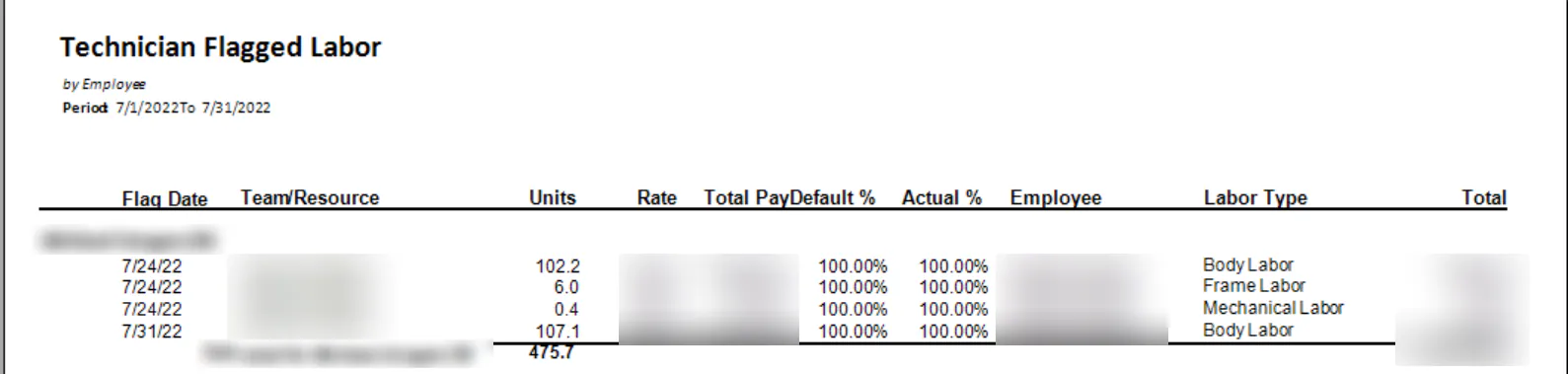
Review weekly flag labor
A flag batch holds the labor hours flagged to each technician or team for one pay period. Review the batch each week, make any changes, then approve it.
Open a flag batch
Section titled “Open a flag batch”-
Select Operations › Flag Labor.

-
At the top of the screen, select a Period Ending Date. To see past flag batches, choose a date from an earlier period.
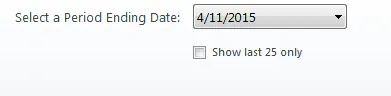
Each batch shows one of these statuses:
- < >: a new batch.
- Open/Pending: the batch has been started but not finalized.
- Approved: the batch has been finalized.
-
Double-click the location’s line to open its batch. You need permission for that location.
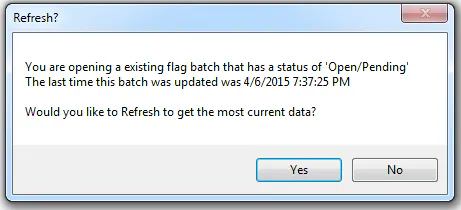
If the period ending date is in the past, opening a pending batch asks whether you want to refresh it.
- Select Yes to update the batch with the latest flag hours from the work orders.
- Select No only if all the work is complete and you’re happy with the results, but haven’t finalized the batch yet.
View flagged labor
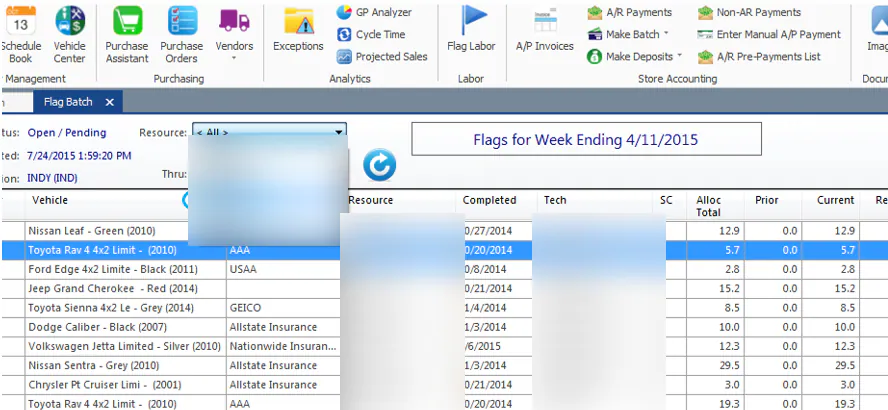
Section titled “View flagged labor”The batch lists every folder completed or delivered by the period ending date. To also see jobs still in progress, select In Process under the Resource drop-down at the top of the screen.
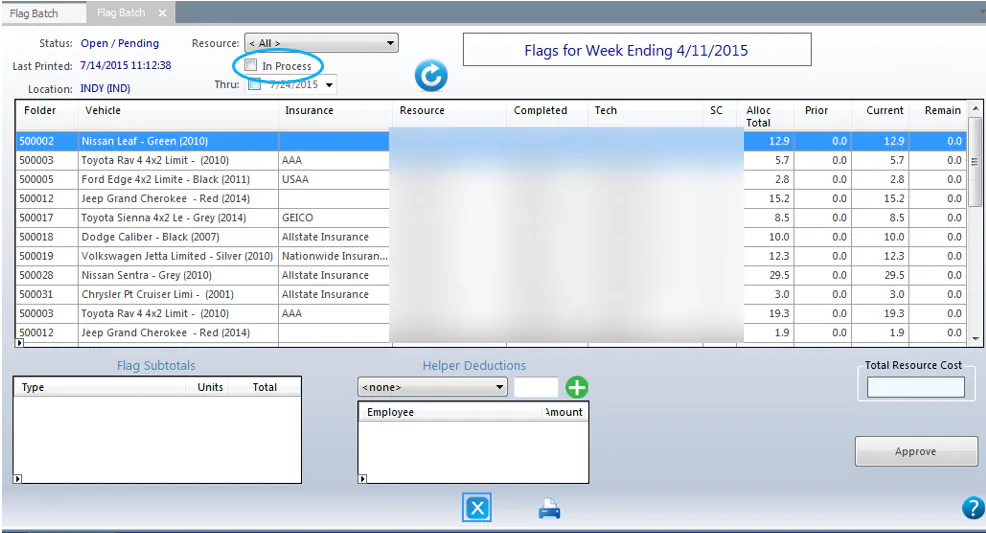
The grid has these columns:
| Column | What it shows |
|---|---|
| SC | Sales code. |
| Alloc Total | Total hours allocated on the work order. |
| Prior | Hours already flagged in earlier weeks. |
| Current | Hours flagged for this week, based on the completed or delivered date, according to your company’s settings. |
| Remain | For jobs in progress, the hours not yet flagged. |
Flag ahead for advance pay
Section titled “Flag ahead for advance pay”To pay a technician in advance, flag hours on jobs that aren’t finished yet.
-
Select the technician in the Resource drop-down.
-
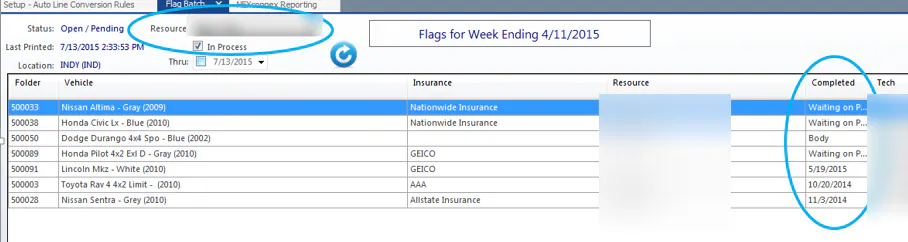
Select In Process.
-
Select Refresh. Jobs still in progress show their current stage in the Completed column.
-
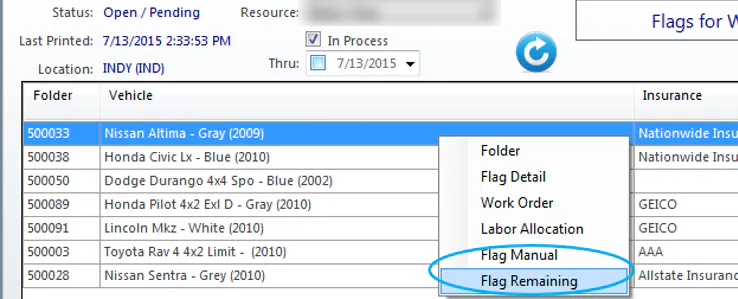
Right-click the job and select one of these:
- Flag Manual: enter the number of hours to flag.
- Flag Remaining: flag all the remaining hours.
Hours you flag ahead are taken off the next period’s allocation.
Deduct helper pay from a team
Section titled “Deduct helper pay from a team”Some teams have helpers who are paid hourly instead of by commission. You can deduct their clocked hours from the team’s total.
After the time clock is finalized for the week:
- Under Helper Deductions, select a helper from the drop-down. Each name shows the total amount you can deduct in parentheses.
- Enter the amount to deduct, up to the full amount shown.
- Select the green plus button.
- Repeat for each other helper.
To show up as a helper, an employee must:
- Have a job code marked Hourly.
- Have Direct Labor selected.
- Have clocked hours on the time clock during the period.
Print flag worksheets
Section titled “Print flag worksheets”Select Print at the bottom of the screen. A separate page prints for each technician or team.
To print one technician’s or team’s page, select them in the Resource drop-down at the top of the screen first.
Approve the flag batch
Section titled “Approve the flag batch”When you’re happy with the batch, select Approve at the bottom right. Print the worksheets first if you need them.
Report on flagged labor
Section titled “Report on flagged labor”The Technician Flagged Labor report, under Reports › Payroll, shows labor flagged to technicians across several flag batches. To see totals for each technician for the period, group the report by Location and then by Employee.