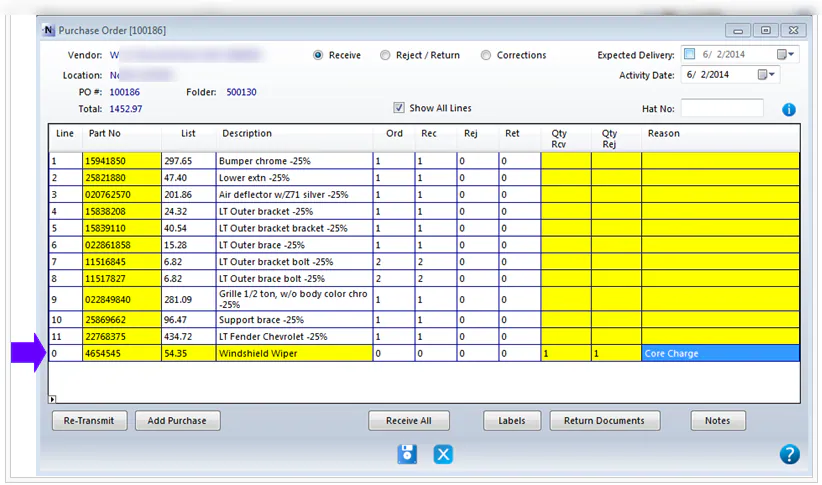
Add a purchase line
Add a line to a purchase order when the vendor’s invoice includes a charge that isn’t on the PO, such as a core charge.
- In the Purchase Assistant, select a line from the PO.
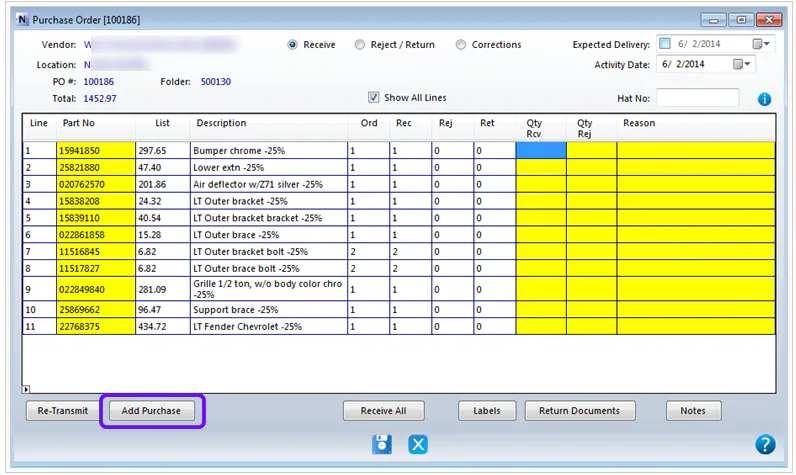
- Select PO at the bottom of the screen.
- Select Add Purchase. A new line is added to the PO.
- On the new line, enter:
- the Part Number
- a Description
- the charge amount as the List Price
- 1 for the quantity received
For a core charge, also enter 1 as the quantity rejected and choose Core Charge as the reason. See Add a core charge.