
Set up recurring journal entries
A recurring journal entry posts the same amounts every period between a beginning and an ending GL date. Use it for entries that repeat, such as monthly depreciation or a fixed accrual.
Create a recurring journal entry
Section titled “Create a recurring journal entry”-
Go to Accounting › General Ledger › Journal Entries.
-
At the top left, select Recurring.
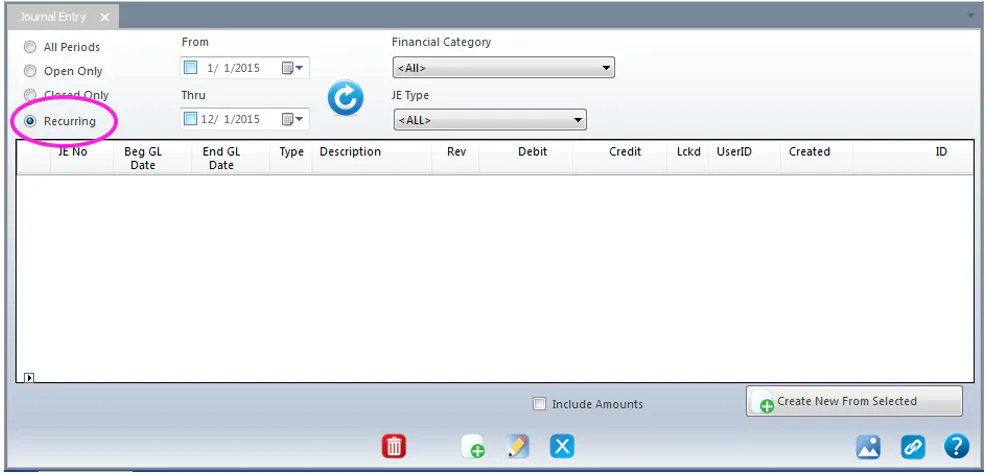
-
Select the new button.
-
Type the Journal Entry No, or select # to assign the next number.
-
Select the Beginning GL Date and the Ending GL Date.
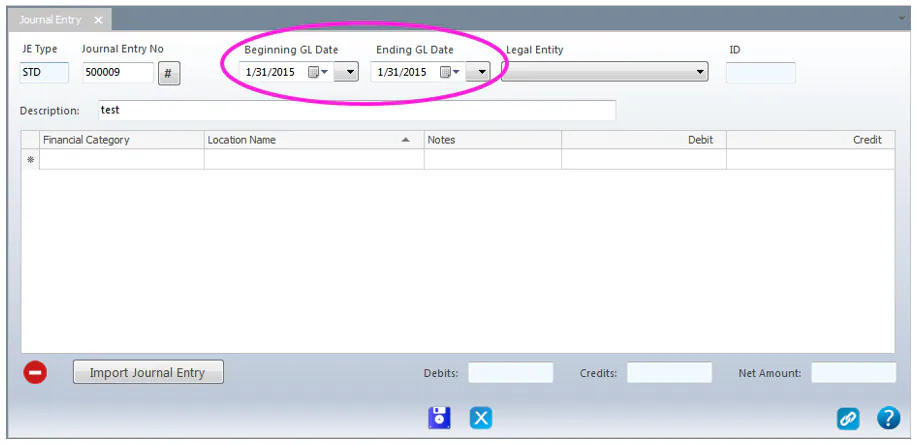
-
Select the Legal Entity.
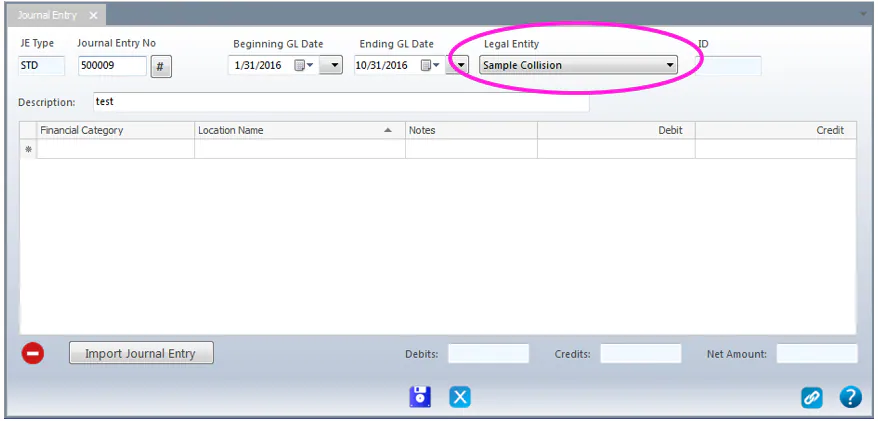
-
Type a Description.
-
In the grid, select the Financial Category. Fields you must fill in before saving are highlighted in red.
-
Select the Location Name. Only locations that are valid for the financial category are listed.
If you choose a combination that isn’t valid, a red circle x icon shows on the line.
-
Type any line Notes, then the Debit or Credit amount.
-
Press Enter, or select the row below, to add another line. To remove a line you added by mistake, select the red – button below the grid.
-
When Debits and Credits are equal, select the save button.
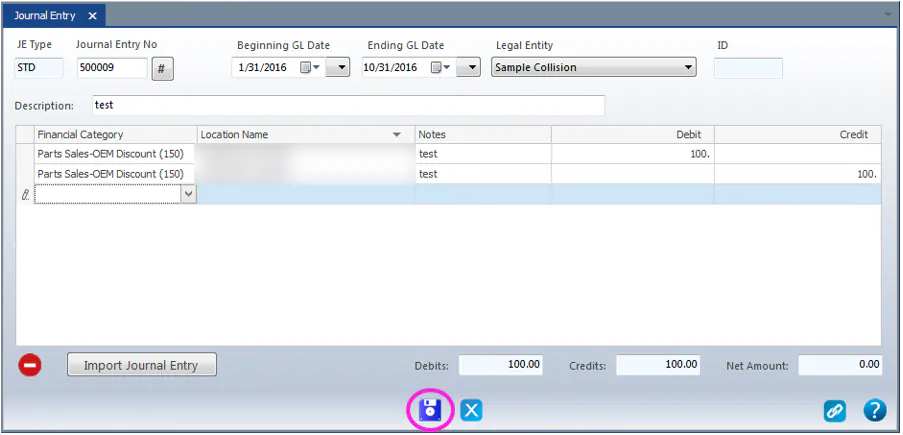
To see your recurring entries later, select Recurring on the Journal Entries screen. The list shows the Beg GL Date and End GL Date of each one.