
Handle a total loss
When a vehicle is deemed a total loss, mark it on the folder. You choose which estimates to keep active, so you can still bill for work such as towing, storage and teardown.
Mark the vehicle as a total loss
Section titled “Mark the vehicle as a total loss”-
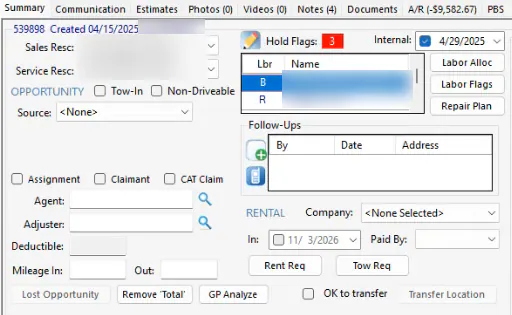
On the folder’s Summary tab, select Total Loss.
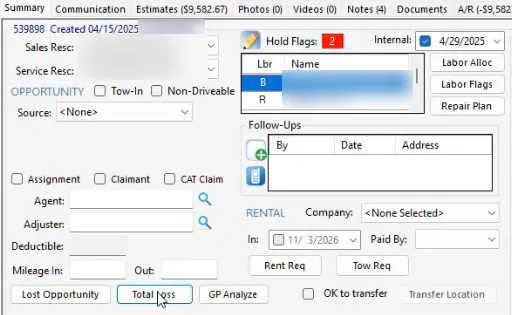
-
Select Yes.
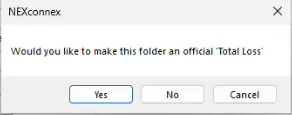
-
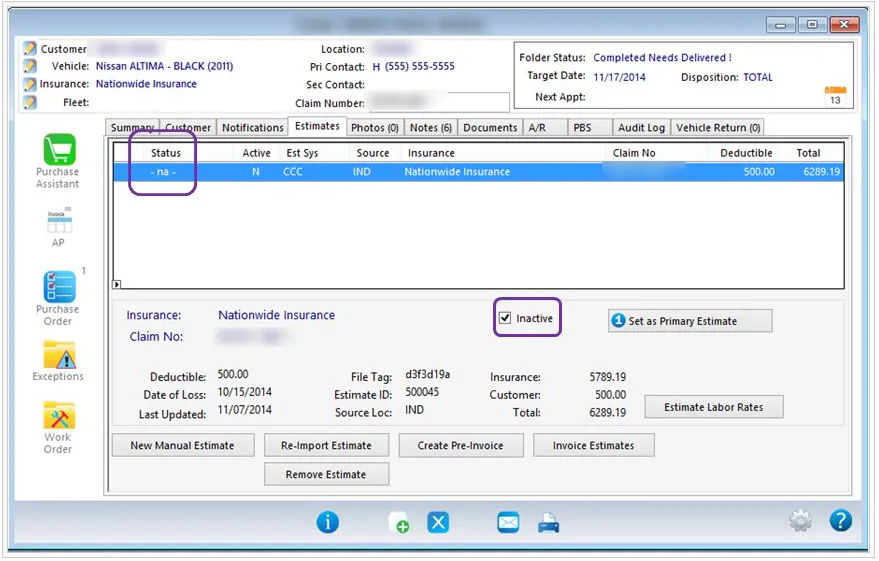
Choose which estimates to keep active and which to make inactive. Double-click an estimate to make it inactive; it turns gray.

- Inactive: keeps a copy of the estimate, deletes the work order, and removes the estimate amount from sales.
- Active: leaves the estimate as it is. The estimate and work order stay on the folder, and the estimate lines stay in the folder’s sales totals.
-
Select Save, then Yes.
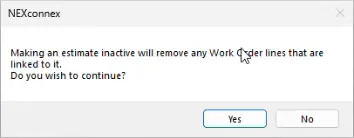
The folder’s disposition now reads TOTAL, a hold flag shows that the repair has been deemed a total loss, and a completed date is recorded. When the vehicle leaves your lot, mark it delivered. See Mark a vehicle as delivered.
Why keep an estimate active?
Section titled “Why keep an estimate active?”Many shops create a separate estimate for towing, storage and teardown, either in their estimating system or as a manual estimate in Nexsyis. Keep those estimates active, because you’re billing for them.
Make an estimate inactive later
Section titled “Make an estimate inactive later”If you kept an estimate active and later want to make it inactive:
- Open the folder’s Estimates tab.
- Select the estimate to highlight it.
- Select Inactive.
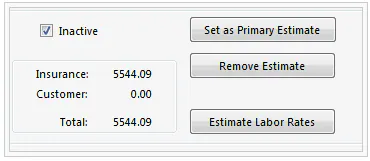
Remove a total loss
Section titled “Remove a total loss”If the vehicle becomes repairable:
-
On the Summary tab, select Remove ‘Total’.
-
On the Estimates tab, clear Inactive for the estimate.
-
Create the work order again. See Create a work order.