Receive a part that wasn't ordered
If a vendor sends a part you didn’t order, add a manual line to the purchase order. This doesn’t link the line to the work order, but it sets the part up to be returned so you can enter a credit memo for it.
-
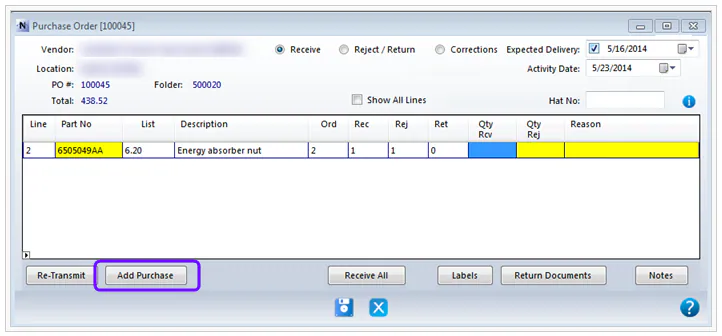
Open the purchase order screen and select Add Purchase at the bottom of the screen.
-
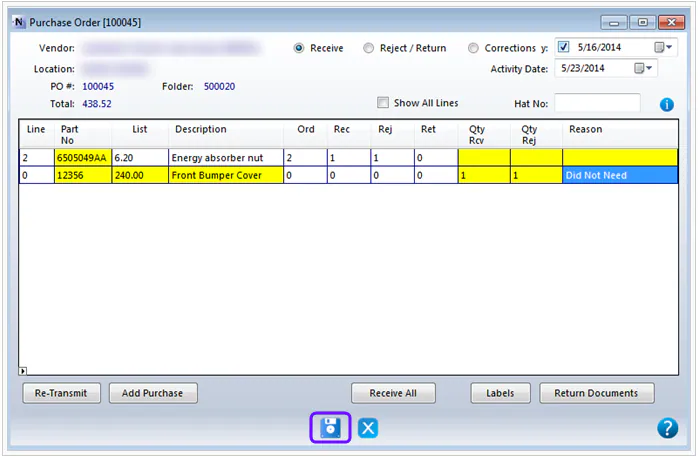
Fill in the highlighted fields on the new line, including the quantity received and the quantity rejected. Since you didn’t order the part, you’ll want to reject it.
-
Choose a reason, ideally Did Not Order. If that reason isn’t available, choose the closest one.
-
Select Save.
-
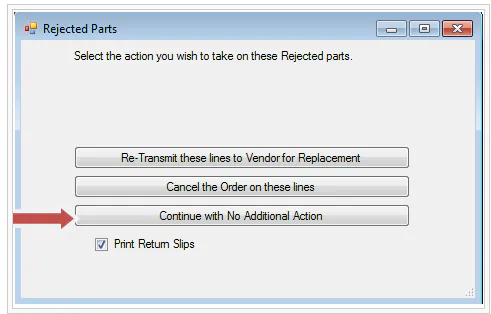
On the Rejected Parts screen, select Continue with No Additional Action, since there’s no work order line to replace.
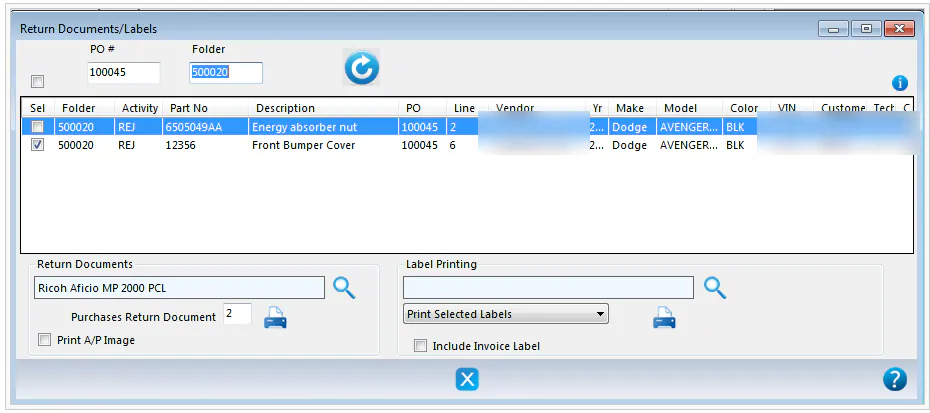
To print return slips to attach to the part, select Print Return Slips.