
Find your way around Nexsyis
Desktop Nexsyis opens screens either in their own windows or as tabs. This page shows how to switch between the two views, arrange screens side by side, and put the Quick Access Toolbar back the way it started.
The main window
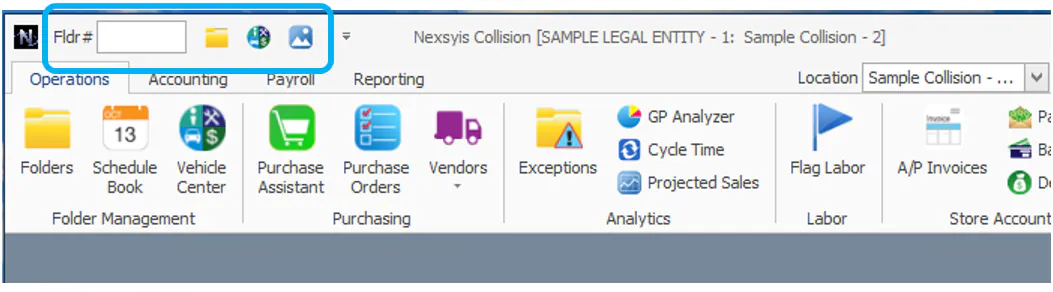
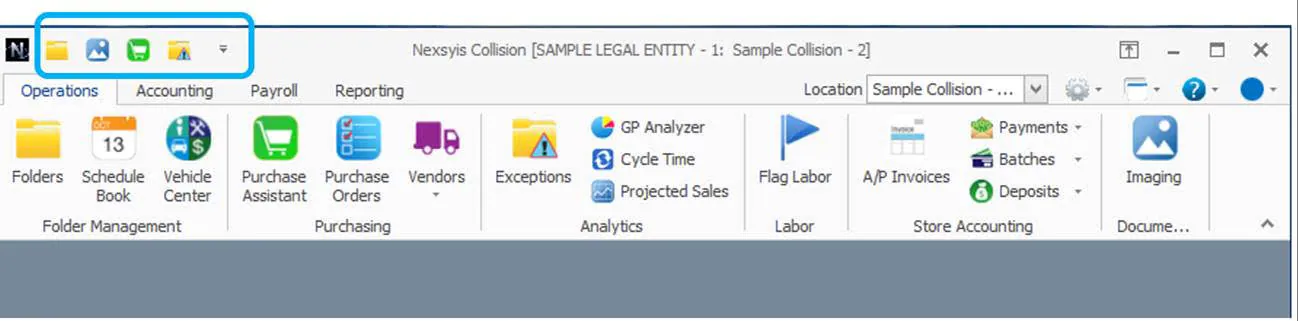
Section titled “The main window”The ribbon at the top of Nexsyis has tabs such as Operations, Accounting, Payroll and Reporting. Each tab groups the screens you open, for example Folders, Scheduling and Vehicle Center under Folder Management on the Operations tab.
The Quick Access Toolbar sits above the ribbon. By default it has a Fldr # box, where you type a folder number, and shortcuts to the folder, the Vehicle Center and Imaging.
Switch between Windows and Tabbed view
Section titled “Switch between Windows and Tabbed view”- Select the View drop-down at the bottom left of Nexsyis.
- Select Tabbed or Windows.
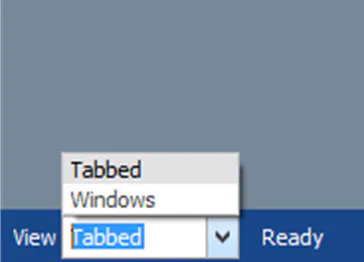
- Windows view is the default. Each screen opens in its own window, so you can see several screens at once.
- Tabbed view opens every screen maximized, as a tab across the top. Screens can’t be minimized in this view.
Nexsyis opens in the view you last selected.
Move and dock screens in Tabbed view
Section titled “Move and dock screens in Tabbed view”In Tabbed view you can pull a screen out into its own window, or dock it next to another screen.
-
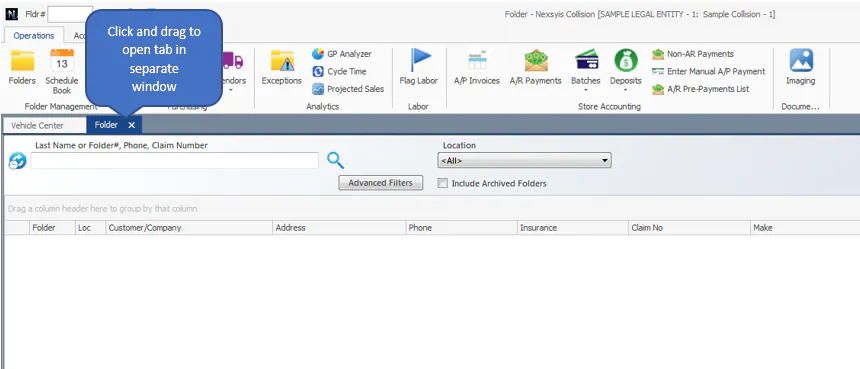
Hold the mouse button down on a screen’s tab and drag it away from the tab row.
-
As you drag, a panel of direction arrows appears. Drop the screen on one of them:
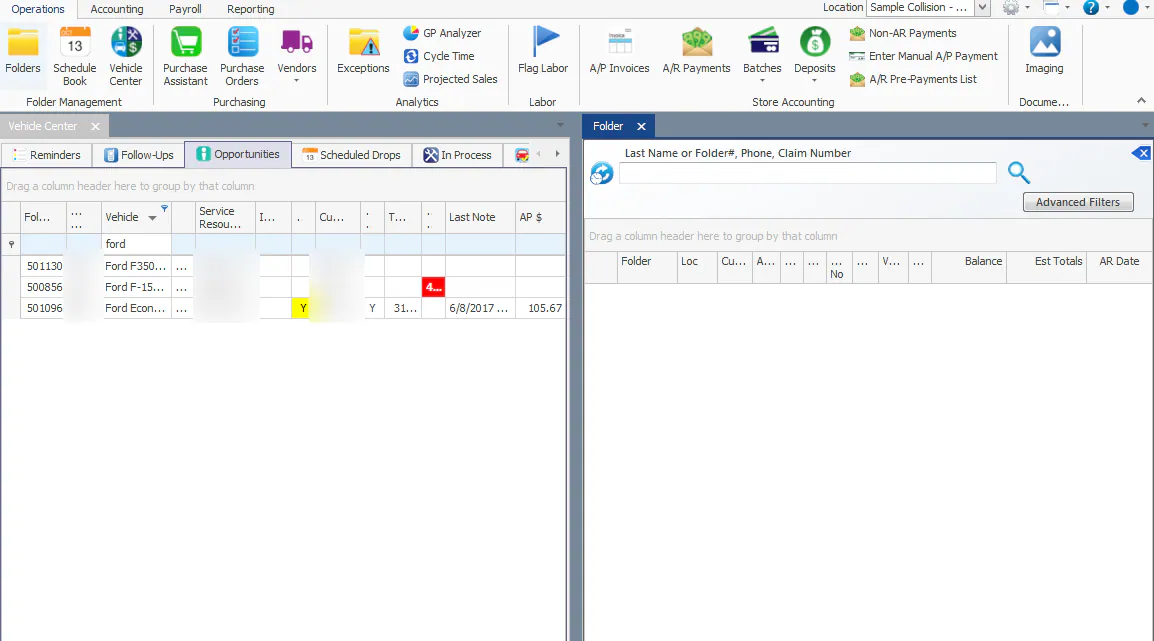
- Left, Right, Top or Bottom docks the screen in that position.
- The middle opens the screen in its own window, outside the main Nexsyis window.
Reset the Quick Access Toolbar
Section titled “Reset the Quick Access Toolbar”If you’ve customized the Quick Access Toolbar and want the default shortcuts back, reset the ribbon.
-
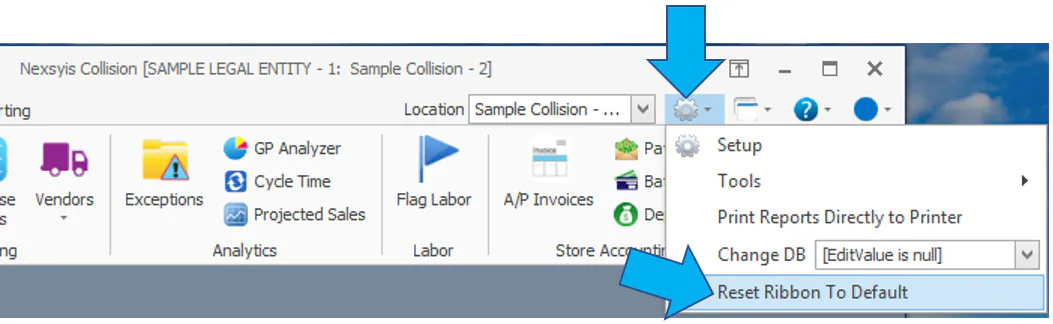
Find the settings (gear) icon on the right side of the toolbar, next to Location.
-
Open its menu and select Reset Ribbon To Default.
The Quick Access Toolbar goes back to the Fldr # box and the folder, Vehicle Center and Imaging shortcuts.