
Print from a folder
Use the folder’s Print button to print or save folder documents, such as invoices, estimates, folder reports and scanned documents.
Print or save documents
Section titled “Print or save documents”-
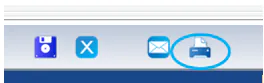
At the bottom of the folder, select the print button (printer icon).
-
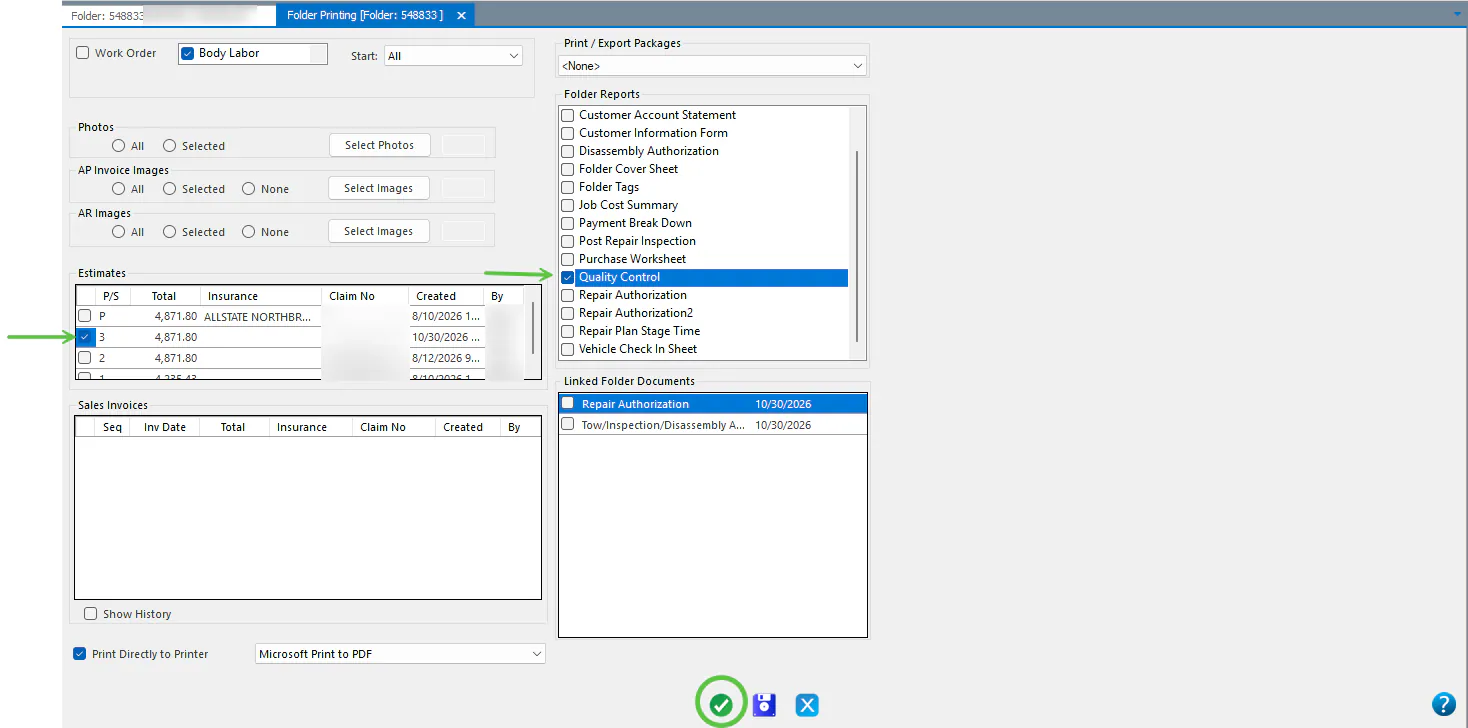
Check the box next to each document you want.
The Folder Printing screen lists:
- Folder Reports: reports and documents Nexsyis creates.
- Linked Folder Documents: documents scanned and attached on the folder’s Documents tab.
- Estimates, sales invoices, photos and AP invoice images.
-
Choose what to do:
-
To print, select the green check mark.
-
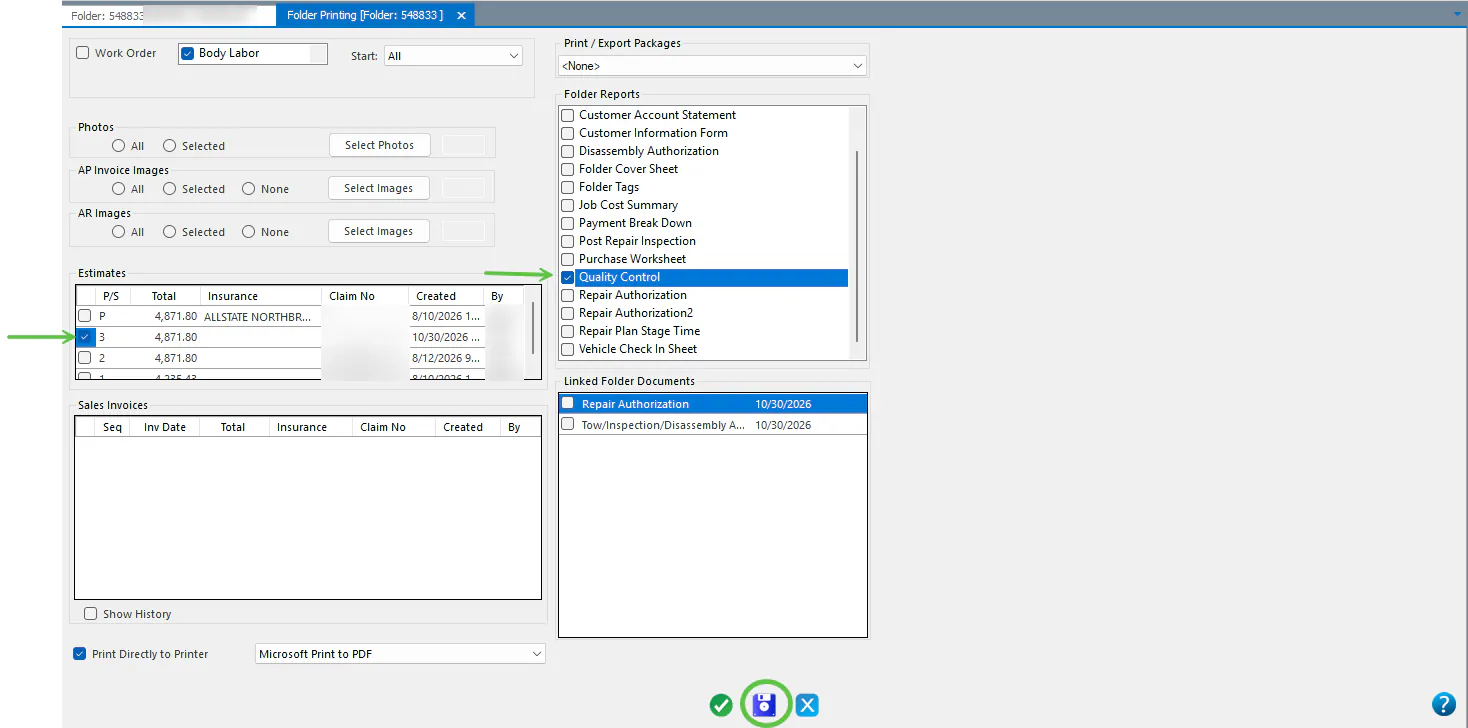
To save the documents to your computer, select Save, browse to a folder on your computer, then select OK.
-
Print straight to your printer
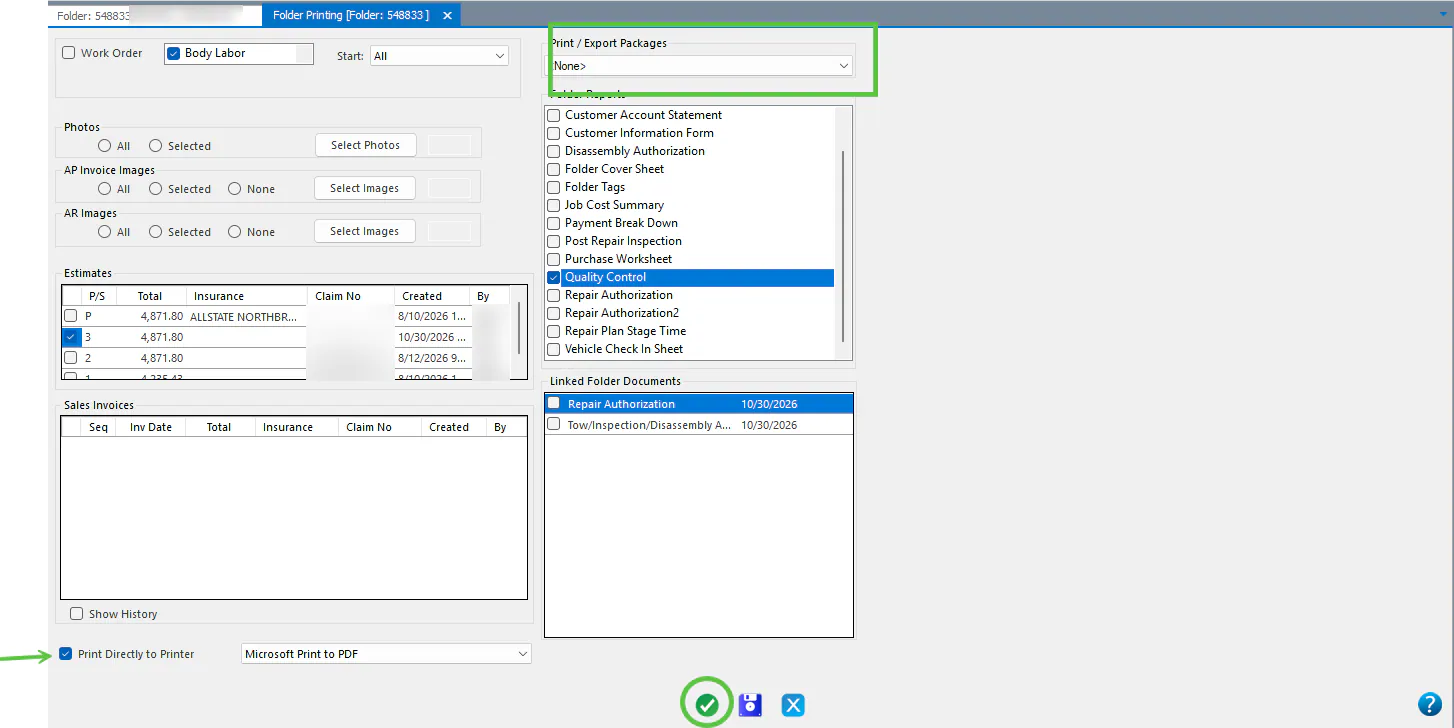
Section titled “Print straight to your printer”Check Print Directly to Printer to send documents straight to your default printer.

If it isn’t checked, documents open in a preview window. Select the print button at the bottom of the preview to print.
Use a print package
Section titled “Use a print package”A print package selects a set of folder reports for you. Choose the package under Print / Export Packages at the top left. Its reports are selected and Print Directly to Printer is checked automatically.
Use an export package
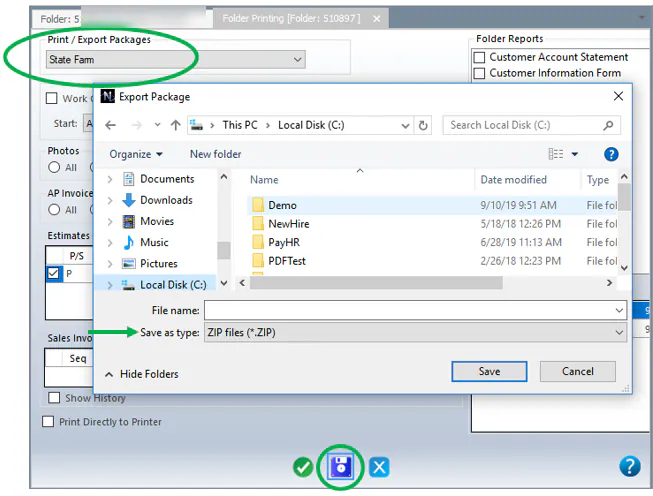
Section titled “Use an export package”An export package saves a set of documents in one .ZIP file.
- Choose the export package under Print / Export Packages. Its documents are selected for you.
- Select Save at the bottom of the screen.
- Choose where to save the .ZIP file, then select Save.
To create print and export packages, see Set up folder print packages.