
Message your team
Use Team Messaging to send messages to coworkers. A message can stand on its own or be linked to a folder.
Send a team message
Section titled “Send a team message”-
Open the Message Center: select Message Center on the Operations tab, or the team messages indicator at the bottom right of Nexsyis.

-
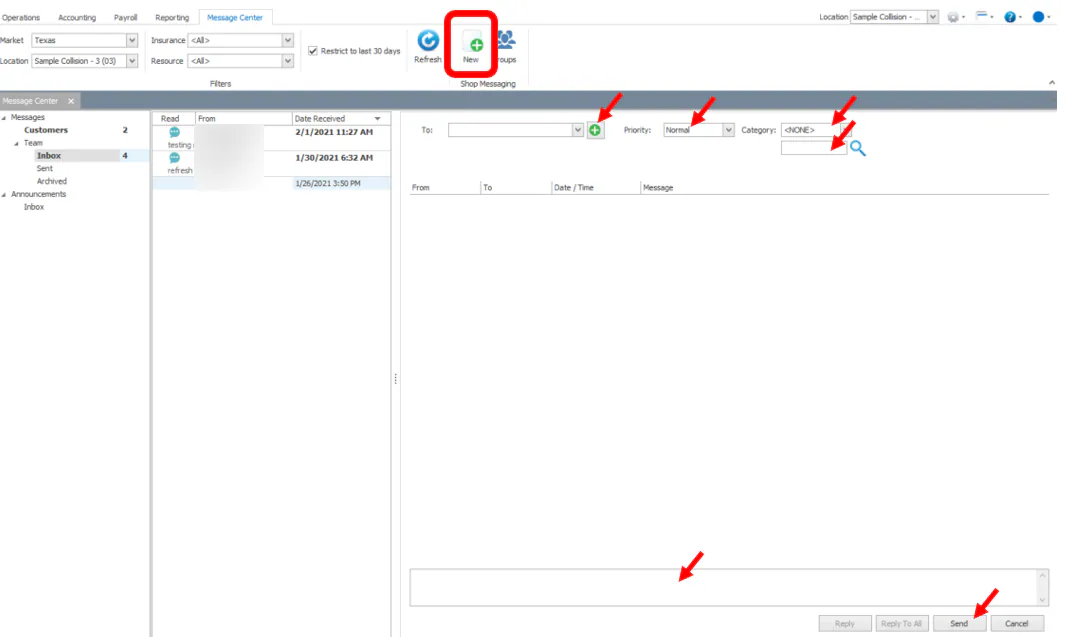
Select New at the top of the Message Center.
-
In the To: field, start typing a name. Press the down arrow to highlight the name, then press Enter twice to add it. Repeat for each recipient.
The list includes Nexsyis users and team messaging groups. When you choose a group, everyone in it gets the message.
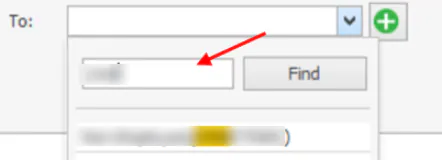
Recipients you add show in blue. To remove one, select its X.
-
If you need to, set a Priority and Category, and link the message to a folder.
-
Type your message, then select Send.

The message shows under Sent.
Read and answer team messages
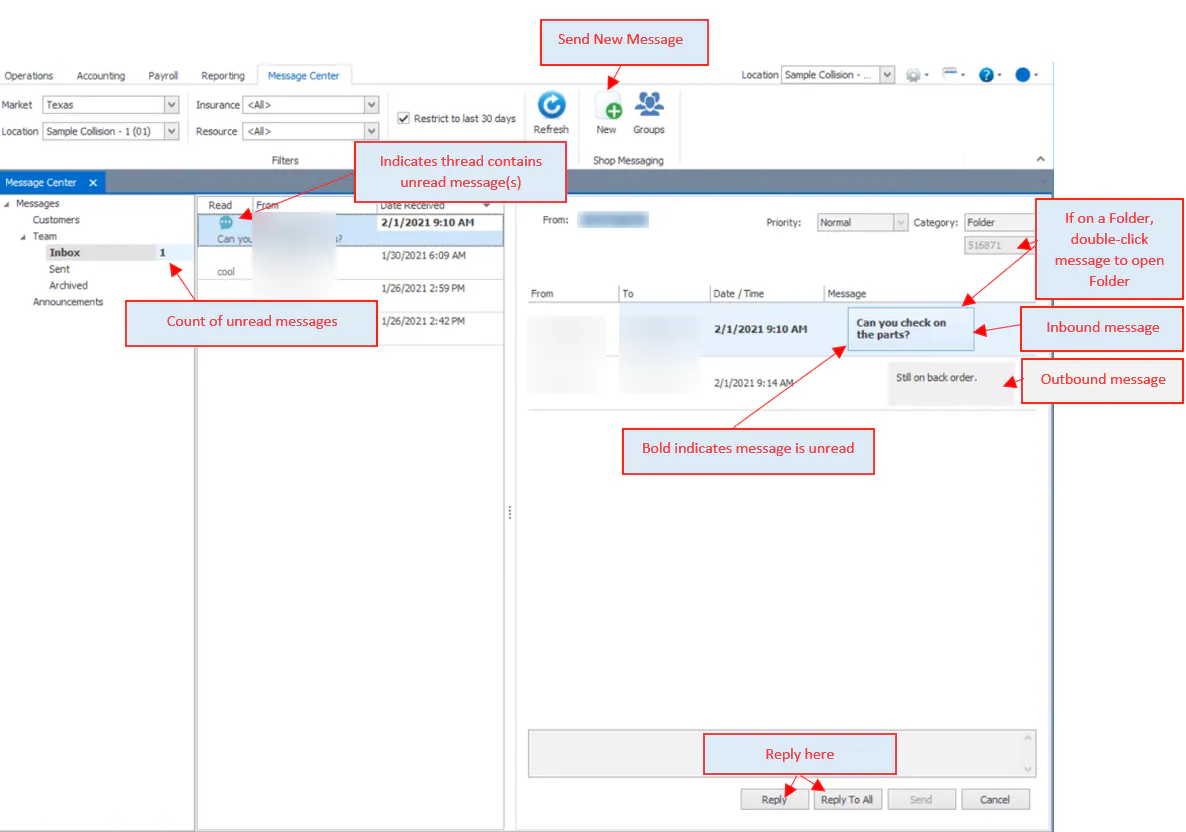
Section titled “Read and answer team messages”New team messages show under Team › Inbox, and the indicator at the bottom right shows how many you have.
-
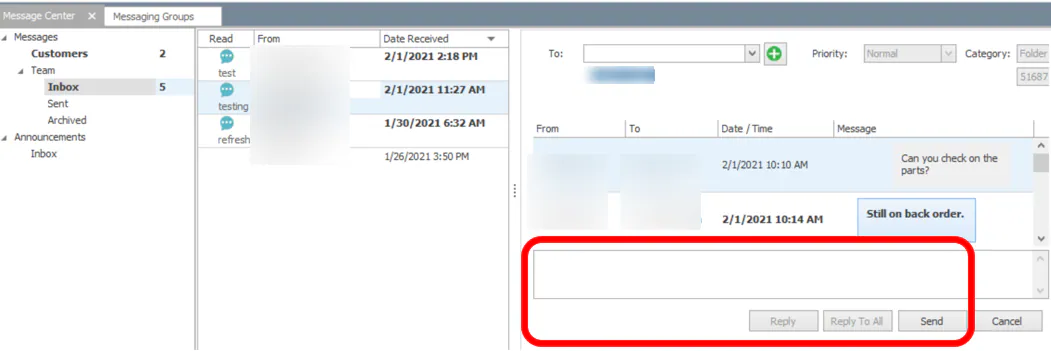
Reply: at the bottom of the thread, select Reply or Reply All, type your message and select Send. Your reply shows in gray.
-
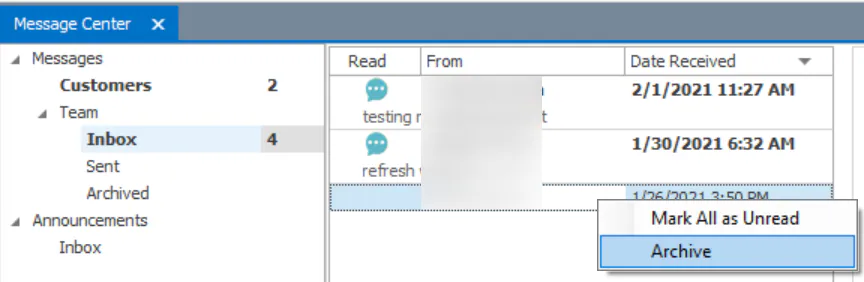
Read and unread: an unread thread shows a blue message icon and bold text. It stays unread until someone replies or right-clicks it and marks it as read.
-
Archive: right-click a thread and archive it. It moves from Inbox to Archived.
Send a message from another screen
Section titled “Send a message from another screen”Several Nexsyis screens have a message button on the bottom button bar. A message sent from one of these screens fills in the category and folder for you.

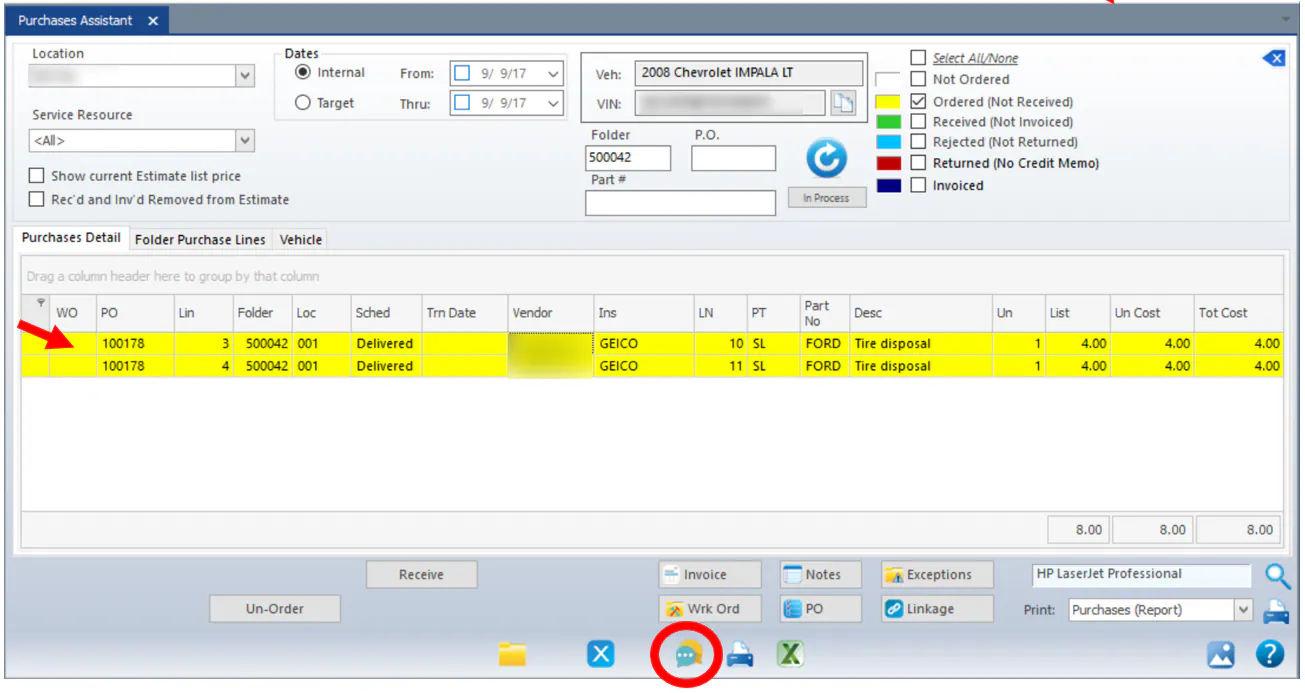
For example, from the Purchase Assistant:
-
Select a line, then select the message button.
-
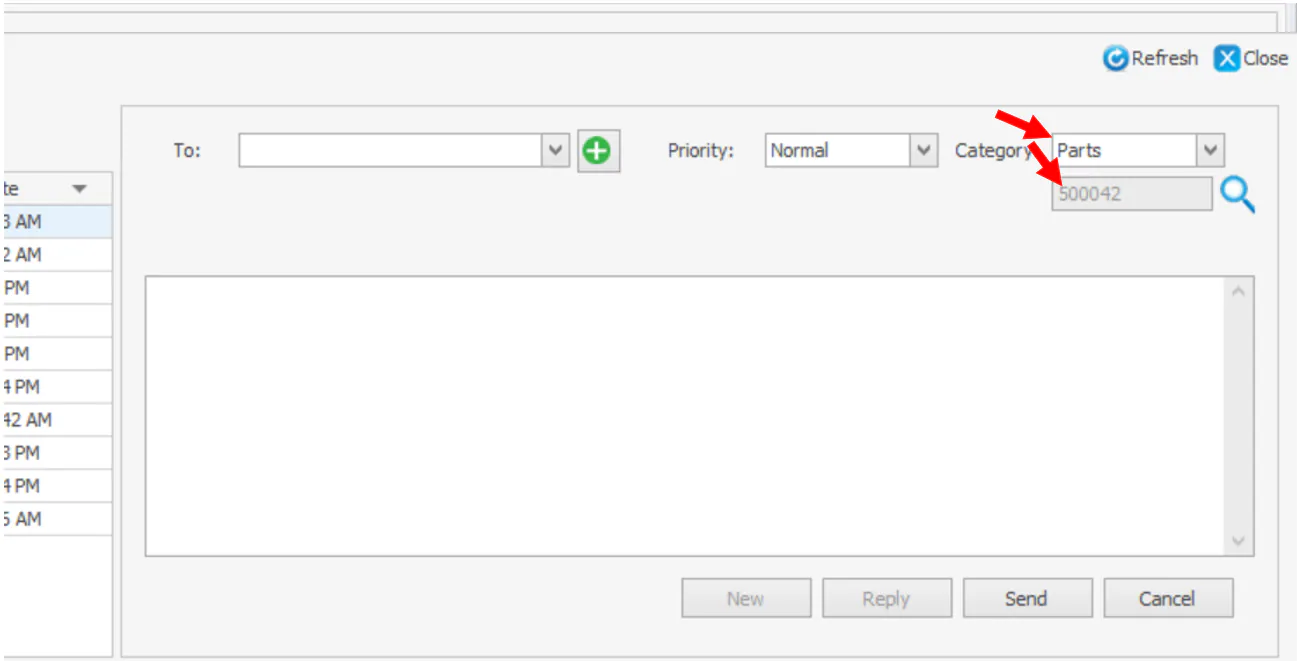
A new message opens with the category Parts and the folder number filled in. Choose the recipients, type your message and send it.
When the recipient double-clicks the message, the Purchase Assistant opens to that folder, and the message opens in its own window so they can reply.
The Team Messaging inbox
Section titled “The Team Messaging inbox”Select the chat bubble icon to open the Team Messaging inbox. The phone icon opens customer messages, and you can switch between the two at the top of the page.
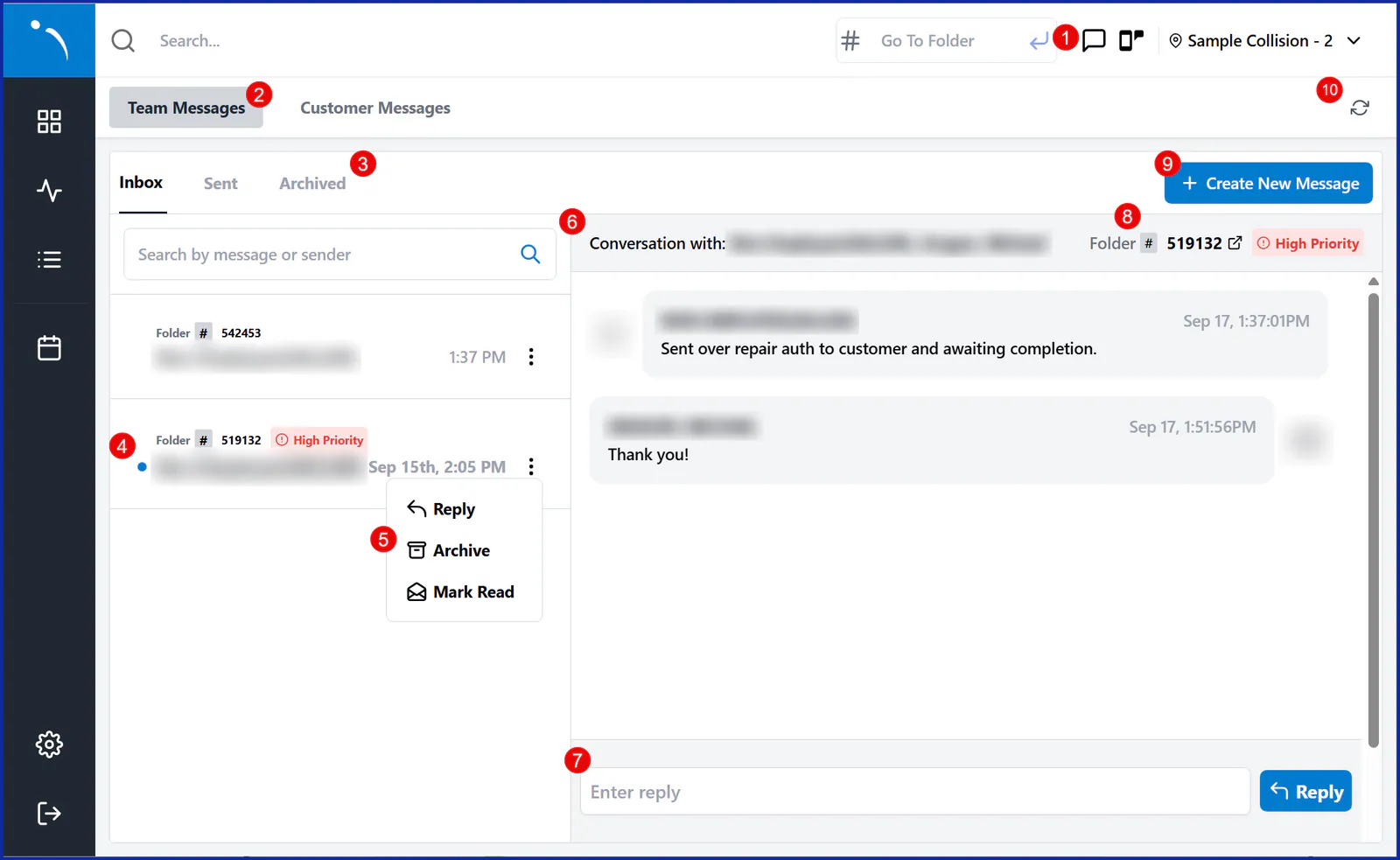
- Switch between Inbox, Sent and Archived.
- A blue dot means a message hasn’t been read.
- Select the three dots on a message to Reply, Archive the thread or mark it Read.
- The top of a thread shows its recipients, folder number and priority. Select the folder number to open the folder in a new tab.
- Reply at the bottom of the thread.
- Select the refresh icon to check for new messages.
Send a team message
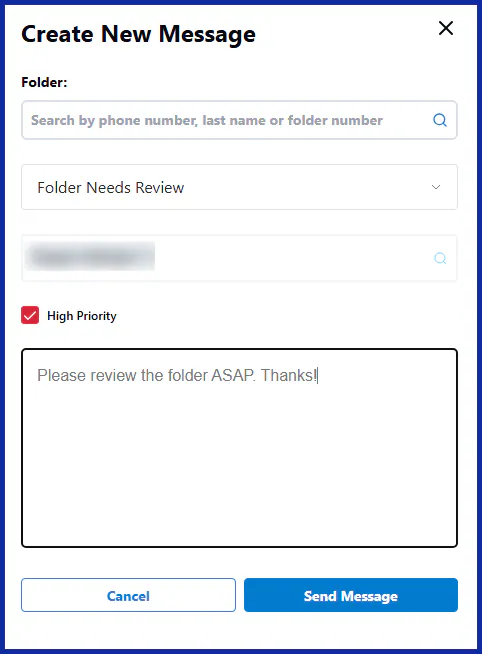
Section titled “Send a team message”- In the inbox, select Create New Message.
- To link the message to a folder, search by folder number, last name or phone number.
- Choose the message category.
- Choose the recipients.
- If the message is urgent, select High Priority.
- Type your message, then select Send Message.
Send a message from a folder
Section titled “Send a message from a folder”-
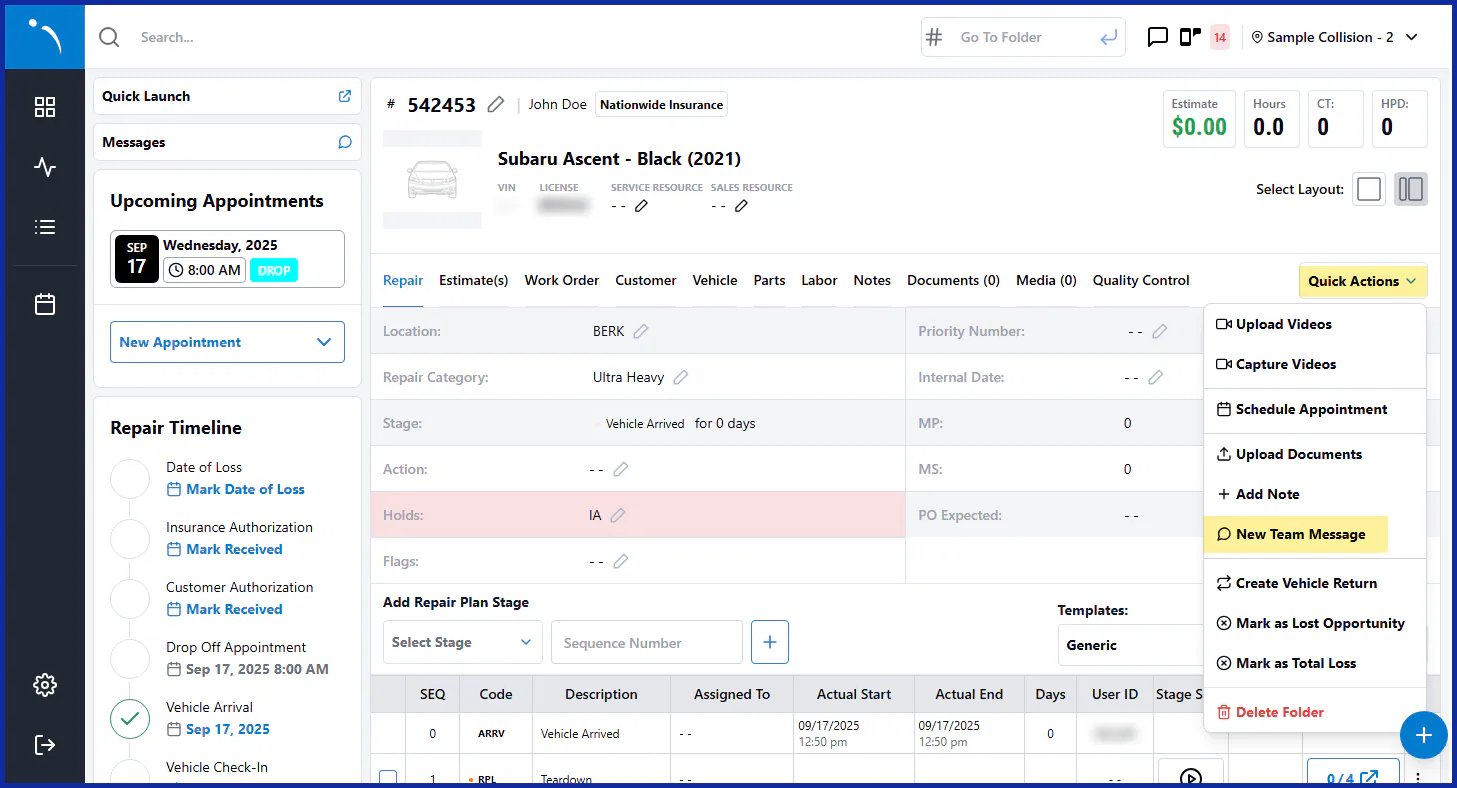
In the folder, select Quick Actions › New Team Message.
-
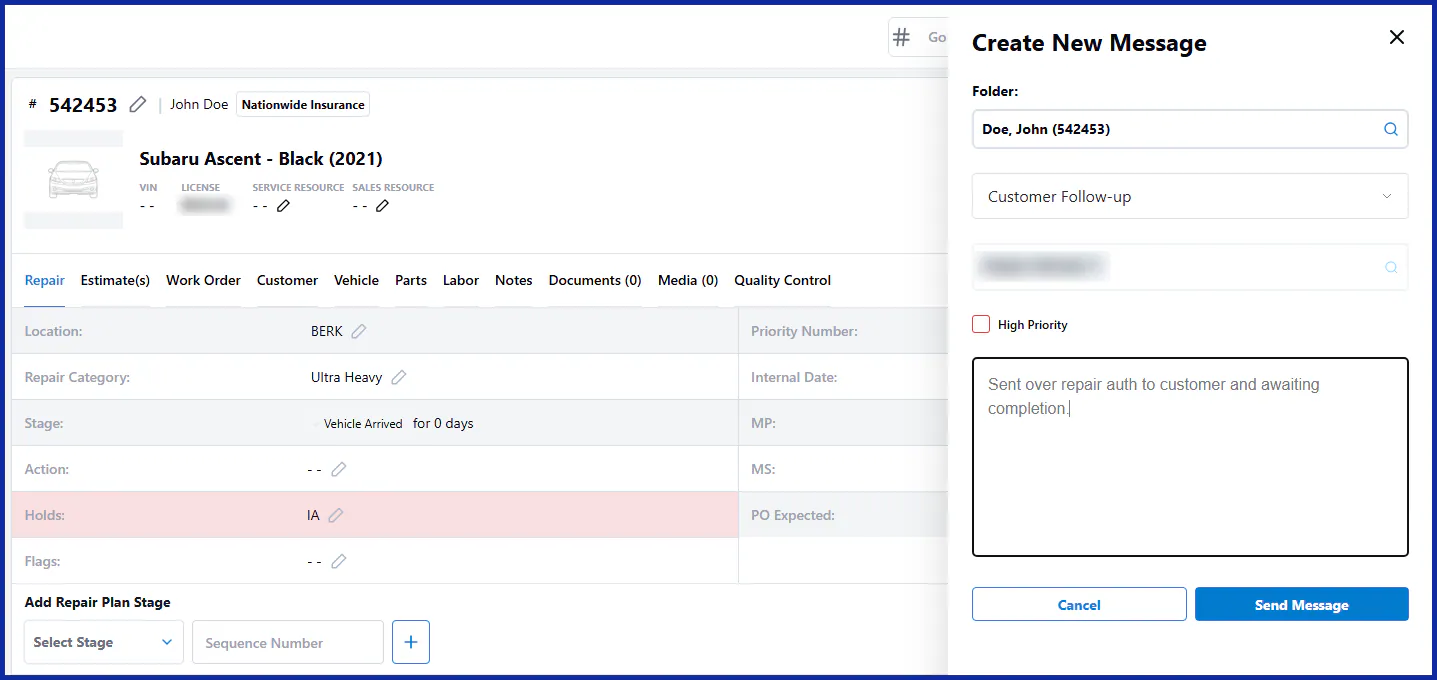
The folder is filled in. Choose the category, recipients and priority, type your message and send it.
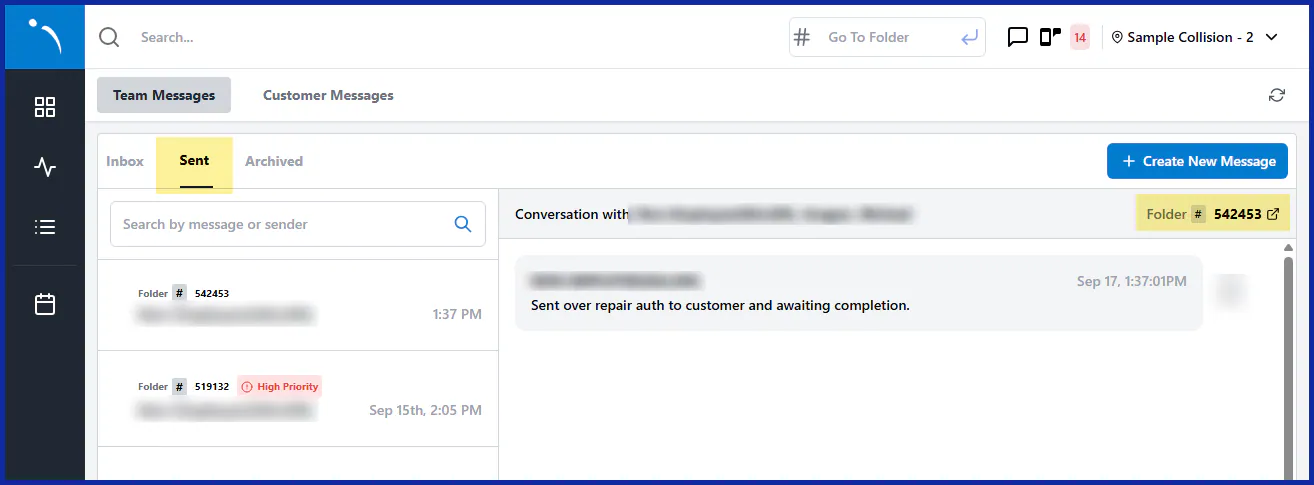
The message shows as a conversation under Sent, with a link to the folder.
Messages work like text threads, and each one is linked to a repair. You can message one person or a group.
Your messages
Section titled “Your messages”Select Messages at the bottom of the app. Your messages are on the Inbox, Sent and Archived tabs. Each message shows its folder number, the date and time, the message and who sent it. Use Search to find a message.
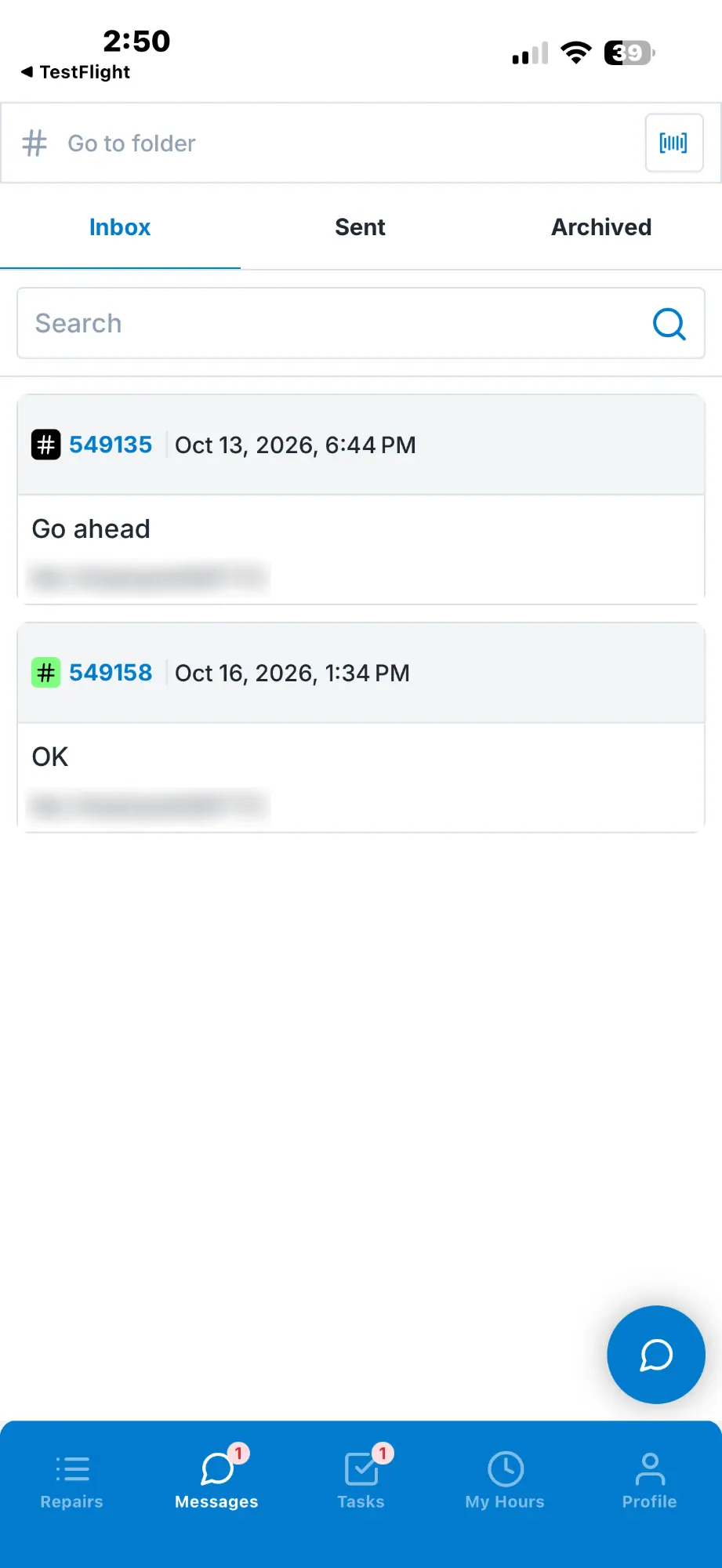
Read and reply to a message
Section titled “Read and reply to a message”- Select the message. The conversation opens, with the folder number at the top.
- Type your reply in the Reply to box at the bottom, then select the send button.
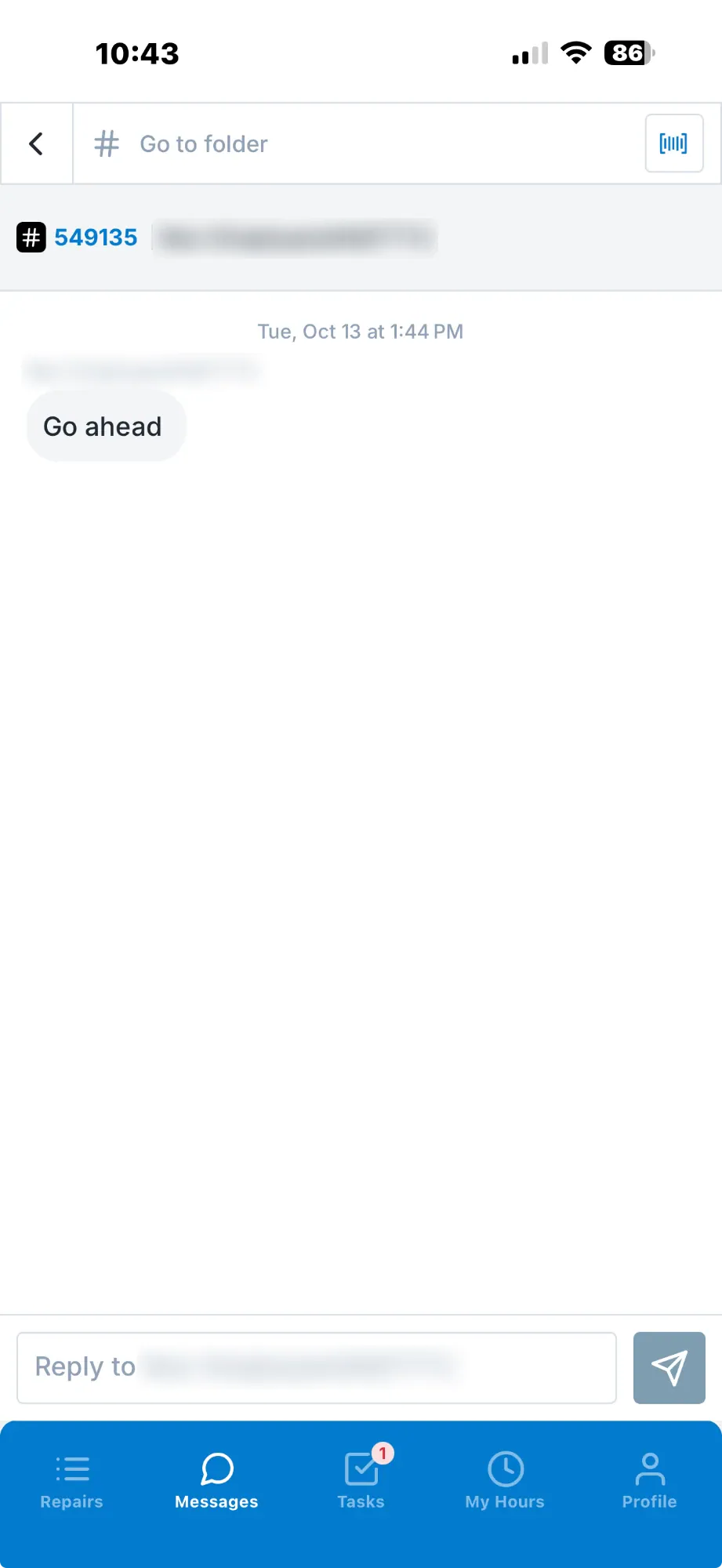
To go to the repair, select the folder number at the top of the conversation.
Send a new message
Section titled “Send a new message”-
On the Messages screen, select the new message button (blue speech bubble) at the bottom right.
-
Under Select repair, choose the folder the message is about. My Work lists your repairs, and All Folders lists every folder. You can also search by folder or customer, or select the barcode button to scan the window tag.
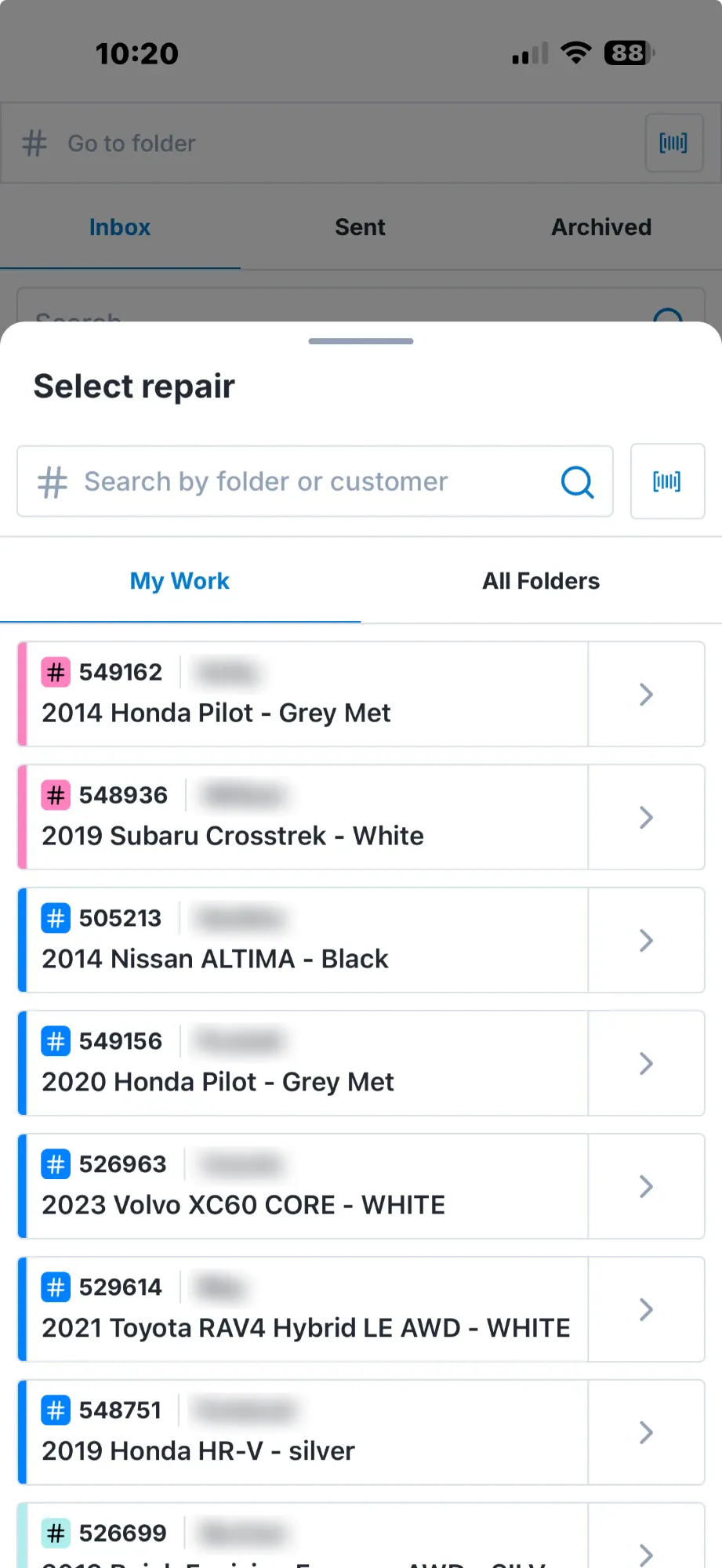
-
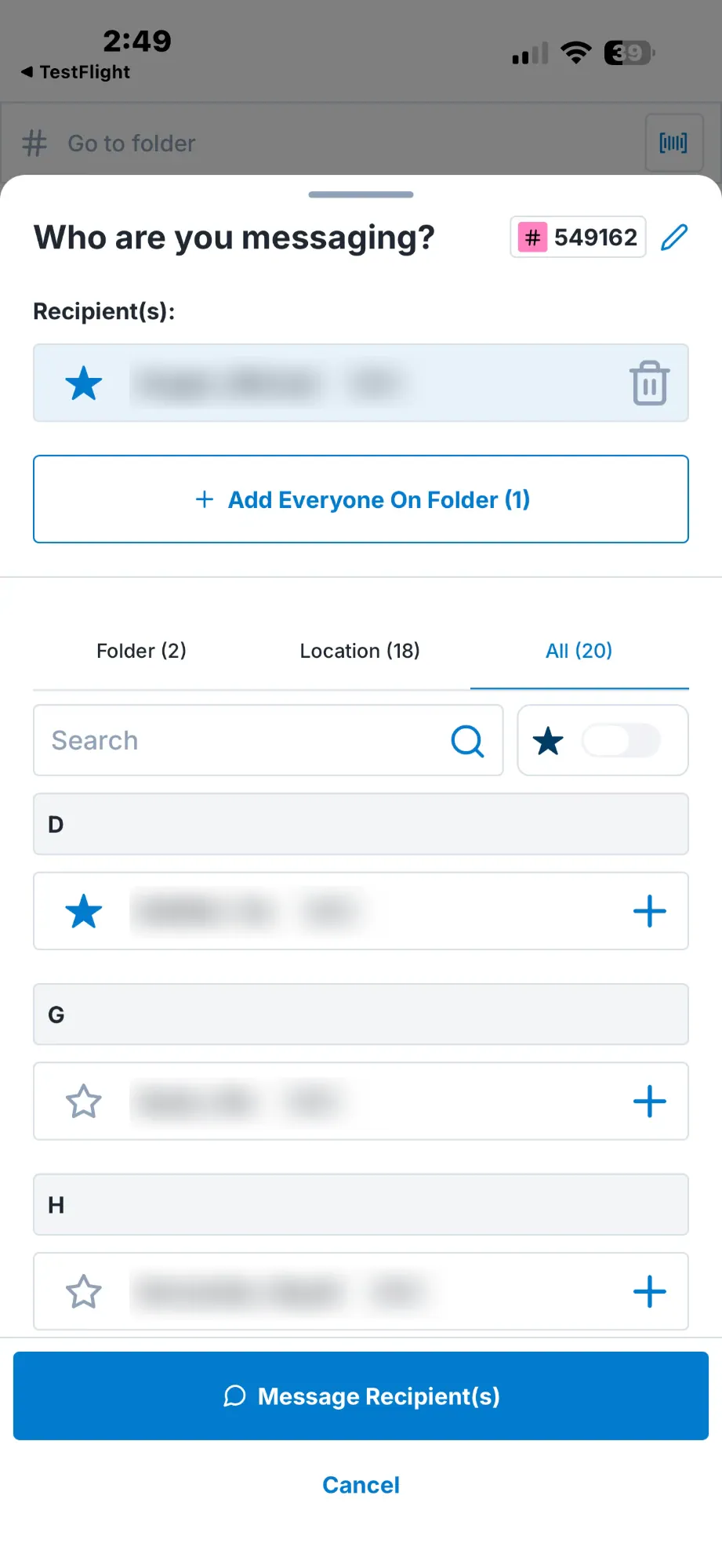
Under Who are you messaging?, select the + next to each person to add them to Recipient(s):
- Folder lists the people on the folder. To add all of them, select Add Everyone On Folder.
- Location lists everyone at your location.
- All lists everyone, including people at your other locations.
Search for a person if needed. To remove a recipient, select the trash can next to their name. To change the folder, select the pencil next to the folder number.
-
Select Message Recipient(s).
-
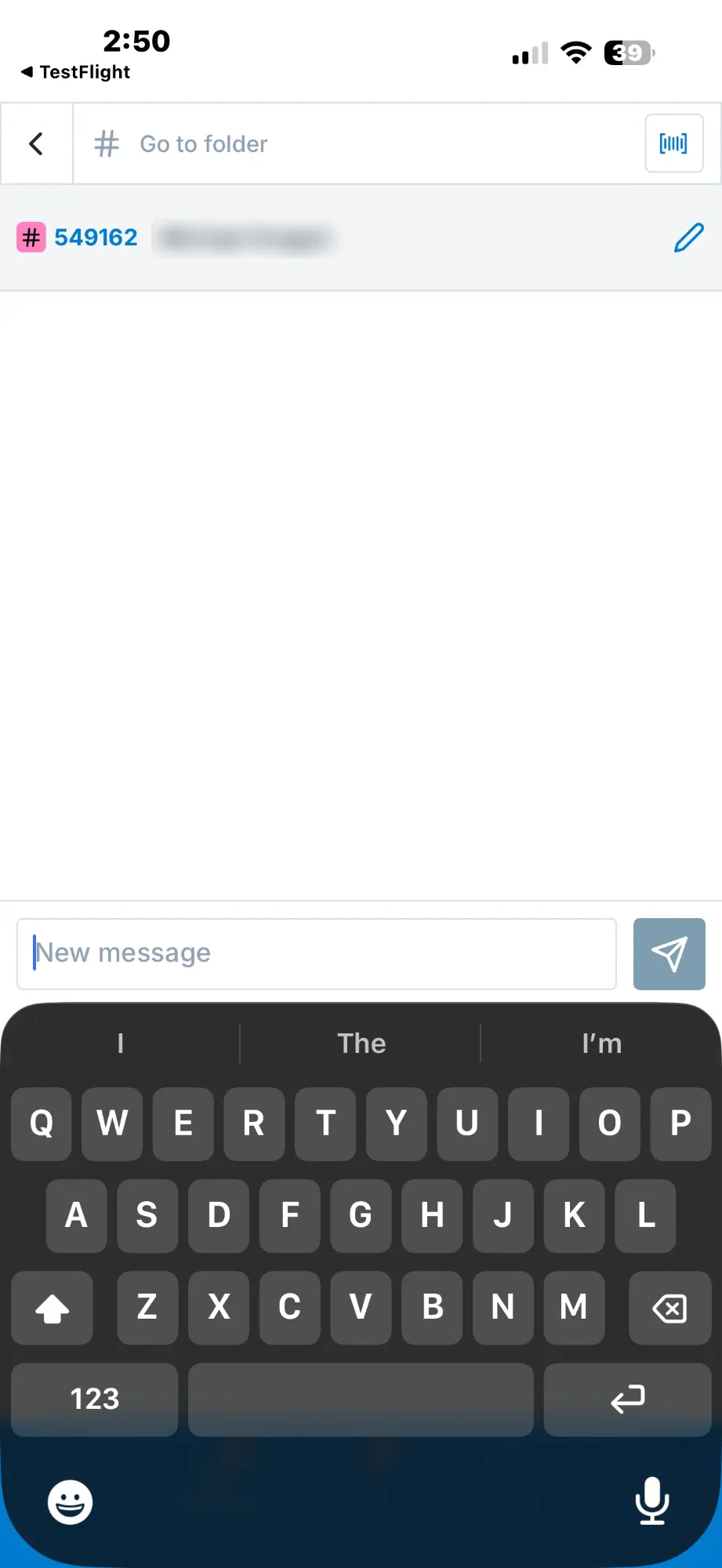
Type your message in the New message box, then select the send button.
Favorites
Section titled “Favorites”To make someone a favorite, select the star next to their name. Star the people you message most often; favorites show at the top of the list.
You can also start a message from inside a folder. See Folder overview.